
OneLogin Integration
The following are the steps to configure AppViewX SAML attributes in OneLogin.
- Create a new application.
-
Click Add application and search for SAML Test Connector.
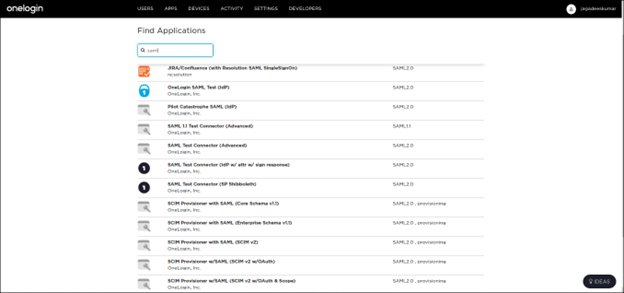
-
Provide the application name and application details of AppViewX on the
information page.
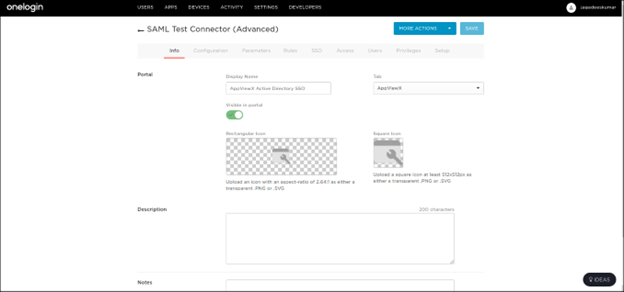
-
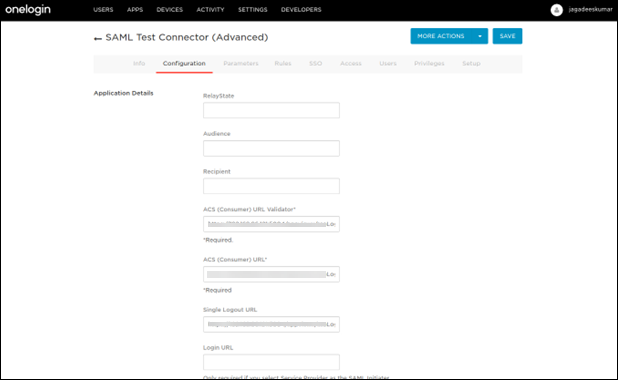
AppViewX SAML attributes:On the Configuration tab, provide the ACS
consumer URL, single login URL, and single logout URL. This can be fetched by
navigating to AppViewX > Settings > General > Authentication > SAML >
Enable SSO > Service URL from the configuration found at the end
of the page and specify the remaining settings to default.
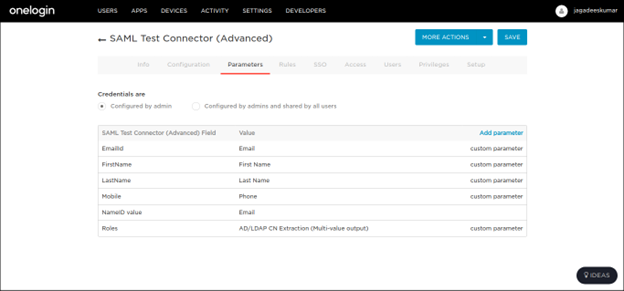
- Parameters to be sent to AppViewX: The following parameters are samples that have been sent to AppViewX.
-
Create a parameter called FirstName which sends the user’s first name to
AppViewX in the SAML Assertion.
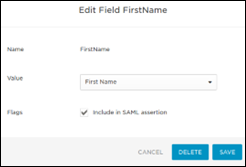 Include the flag in SAML Assertion for all the added parameters.
 -
Sending User Groups to AppViewX: To send User Groups to AppViewX from
OneLogin via SAML Assertion, perform the following configuration:
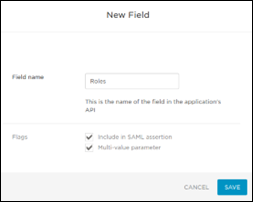
- Integrate OneLogin with Active Directory.
- Set the field name as Roles.
- Enable the Flags for SAML assertion along with the multi-value parameter.
-
To utilize the user's MemberOf attribute as a role,
enter the field name as MemberOf and select the
AD/LDAP CN Extraction.
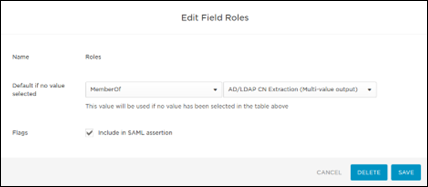 OneLogin without
AD integration: Pass the roles field with user roles as value.
OneLogin without
AD integration: Pass the roles field with user roles as value.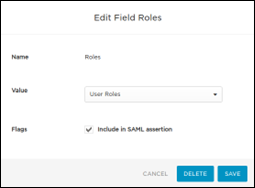
-
The following parameters have to be passed to AppViewX through the SAML
assertion.
-
Assign application to User and Role.
- Download the federation metadata and click Save.
- Create the UserGroup within the roles in the administration section.
- Assign the created application to the user group.
- Sync users will subsequently be added to this user group.
