
Okta Integration
Complete the following steps to begin the IDP configuration:
- As an admin user or a user with the privilege to create an application, log in to the IDP and start creating the application.
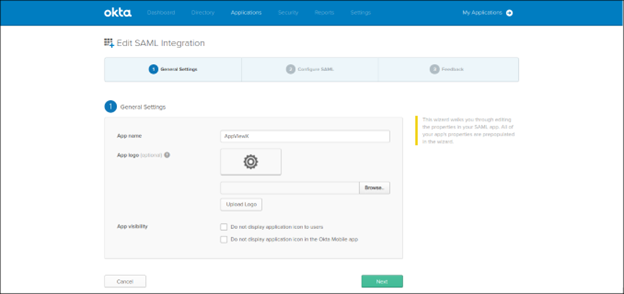
- Enter the basic details, name of the application, and logo update, if required.
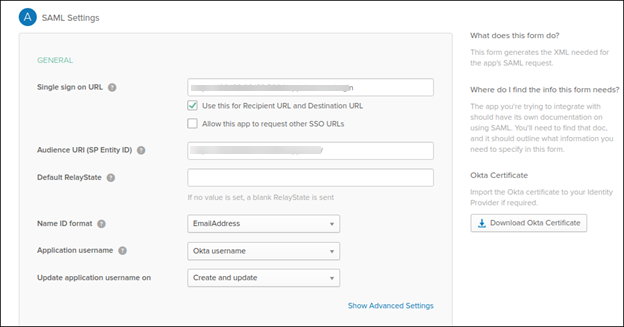
- Enter the configuration information of the service provider retrieved in the previous steps.
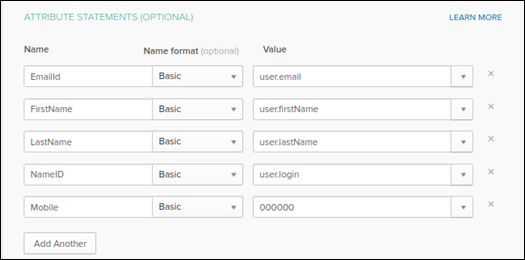
- Enter the user attributes to be passed to AppViewX during the SAML assertion.
- Download or copy the IDP metadata.
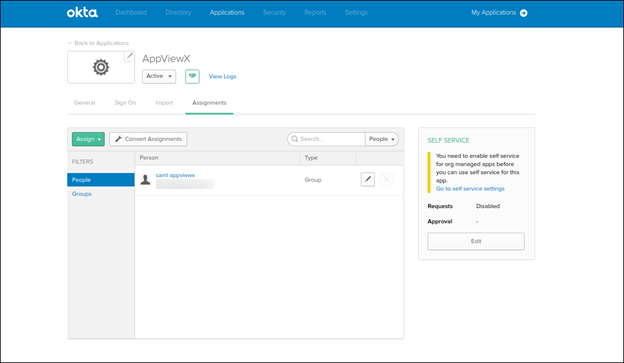
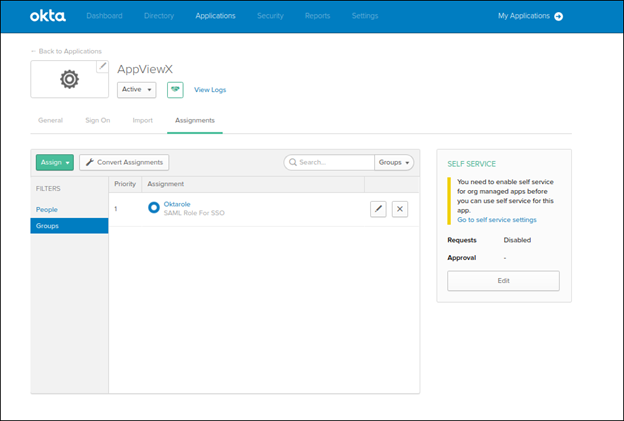
- Map the Application to a user group or the user to the application.
Steps to add an application in OKTA:
-
Create an application.
-
Configure service provider details.
-
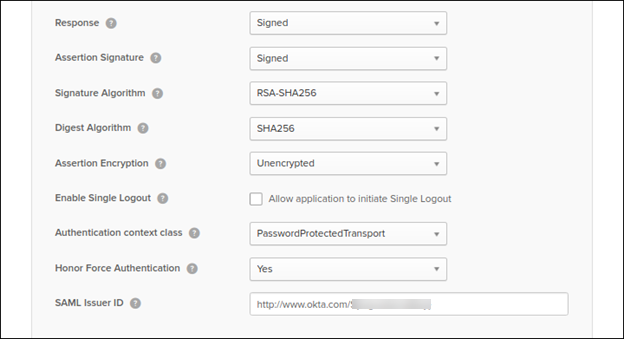
Show Advanced Settings screen.
-
Configure the User Attributes to be passed during the SAML assertion.
- Create a user group within AppViewX using the identical group name as in OKTA. To access the instructions for creating a user group, click here.
-
Configure the User Group Attributes to be passed during the SAML assertion.
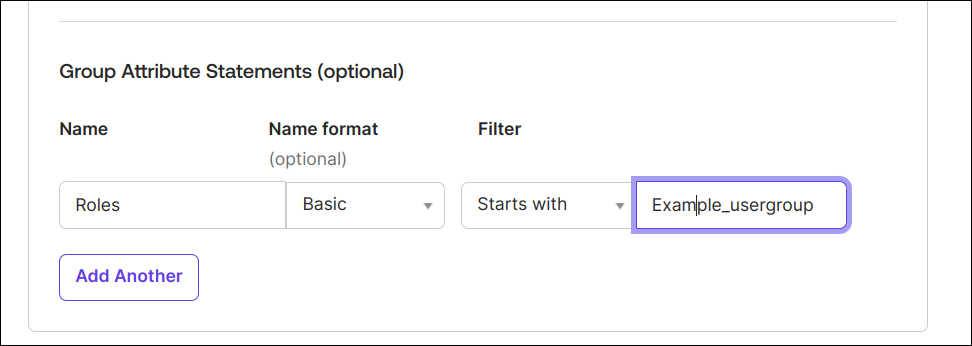
Choose Filter based on the requirement.
-
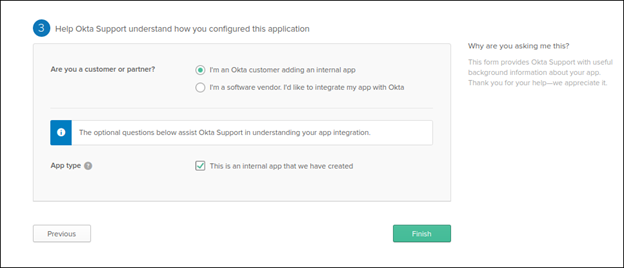
Finish the IDP configuration.
-
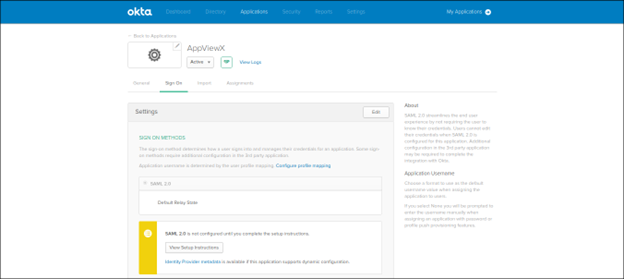
Click the View Setup Instructions in the Sign On tab.
-
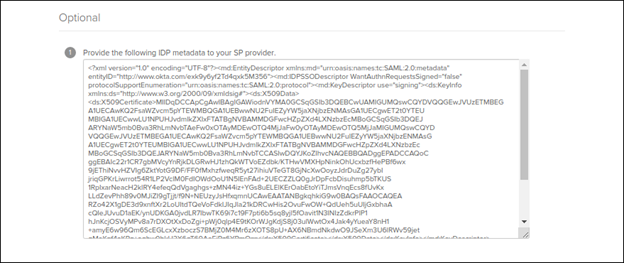
Copy and paste the content from the Optional section and save it as an XML
file.
-
Map the application to a User or User Group.
-
Browse and upload the IDP metadata to AppViewX.
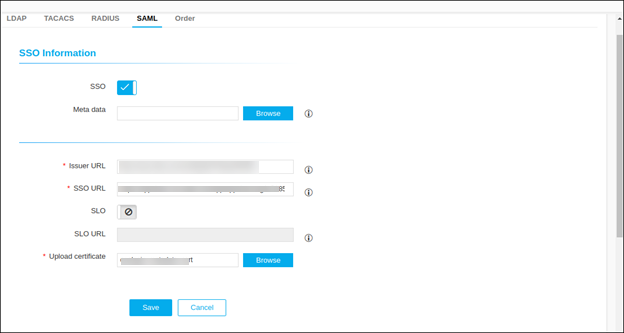
- Click Save.
