
SCIM Configuration
SCIM, or System for Cross-domain Identity Management, is a standardized protocol designed for efficient management of user identities across different systems and platforms. It simplifies user provisioning and deprovisioning processes by offering a consistent approach for user lifecycle management. SCIM operates over HTTP and uses JSON for data exchange, allowing seamless integration with various applications and services. Its core functions include user provisioning, updating user attributes, and deprovisioning users when they leave the organization. SCIM streamlines identity management, enhances security, and reduces administrative complexity through automated processes.
Accessing SCIM Configuration Settings
- Ensure that the SSL certificate for the AppViewX website is sourced from a trusted public Certificate Authority (CA).
- Verify that the IDP server supports SCIM 2.0.
| New Menu | Old Menu |
|---|---|
| In the Platform module, from the navigation pane on
the left, under ACCESS MANAGEMENT, select
SCIM. The Settings :: SCIM page is displayed with the SCIM tab open by default. |
|
| For more information on how to switch between menus, click here. | |
Configuring SCIM Settings with AppViewX
-
On the Settings :: SCIM page, Click Generate Token.

-
Once the bearer token is generated, the token validity and email expiry
notification fields are visible.
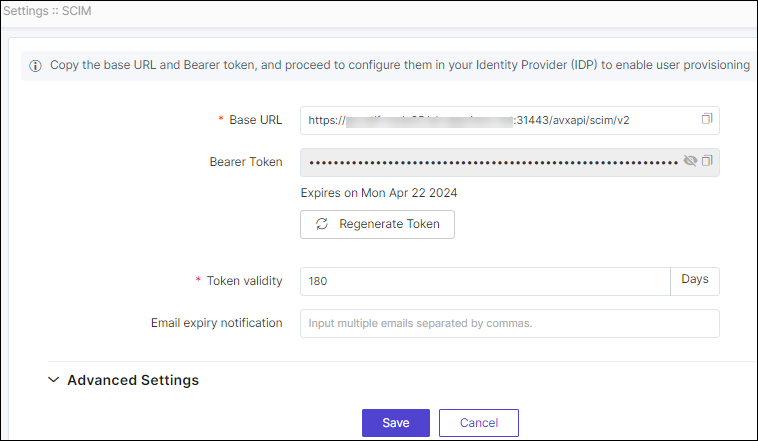
Table 1. Field descriptions for SCIM Fields Description *Base URL The Base URL is visible in this field. Bearer Token The generated bearer token is visible in this field. The token's expiration date and day are shown below the field, along with the option to Regenerate the token.
*Token Validity Enter the validity period of the token in terms of the number of days. By default, token validity is 180 days. It is customizable.
Email expiry notification To send the email notification for token expiry, enter the email address where the notification should be sent. Separate multiple email addresses with a comma.
* : Mandatory fields - Enter the required field information.
-
Under the Advanced Settings section, enable the toggle to retain
deleted objects in a disabled state.
When a user or group is removed from the Identity Provider, instead of immediate deletion, the user or group will transition to a disabled state within AppViewX.
-
In the Attribute Mapping section, make the necessary changes to map
the claim keys to the AppViewX User Label with the Attribute
Name.
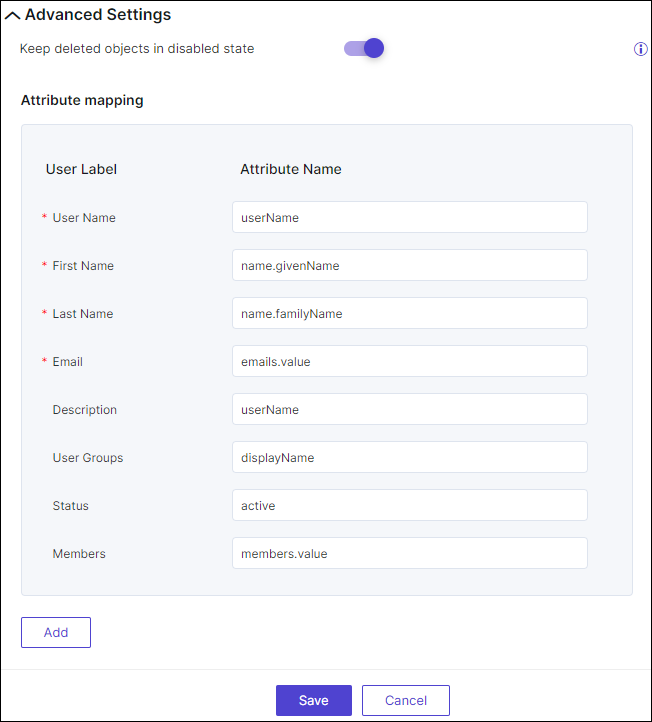 For example:
- An identity provider can send the user login name with the key called userName in the request and another identity provider can send the user login name with the key called upn.
- The administrator can configure or modify the claim setting against the User Name either as userName or upn based on the ID claim response sent by the SCIM vendor.
- Similarly, custom attributes can be configured and additional attributes for the user profile if required. Currently, these custom attributes stored in the user profile will not be shown along with the user profile on the AppViewX web application.
-
Click Save.
Copy the base URL and bearer token, to configure them in your (IDP) to enable user provisioning.
- Configure your (IDP) for SCIM provisioning using Microsoft Azure, CyberArk or OKTA.
