
Account Ownership
These permissions
include:
- MFA: Enabling/Disabling Multi-Factor Authentication for all users
- Enabling master key encryption
- Access to analytics and tracking
- Plan and account information.
Transfer of Account Ownership 
To initiate the transfer of ownership to another user, follow the steps below:
- Login to AppViewX.
-
From the top right corner of your screen, click
 (Profile) icon.
The drop down displays a list of menus.
(Profile) icon.
The drop down displays a list of menus.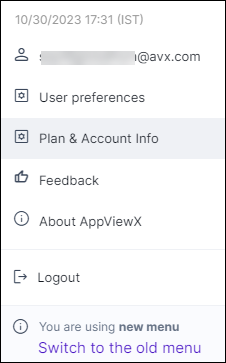
-
Click Plan & Account Info.
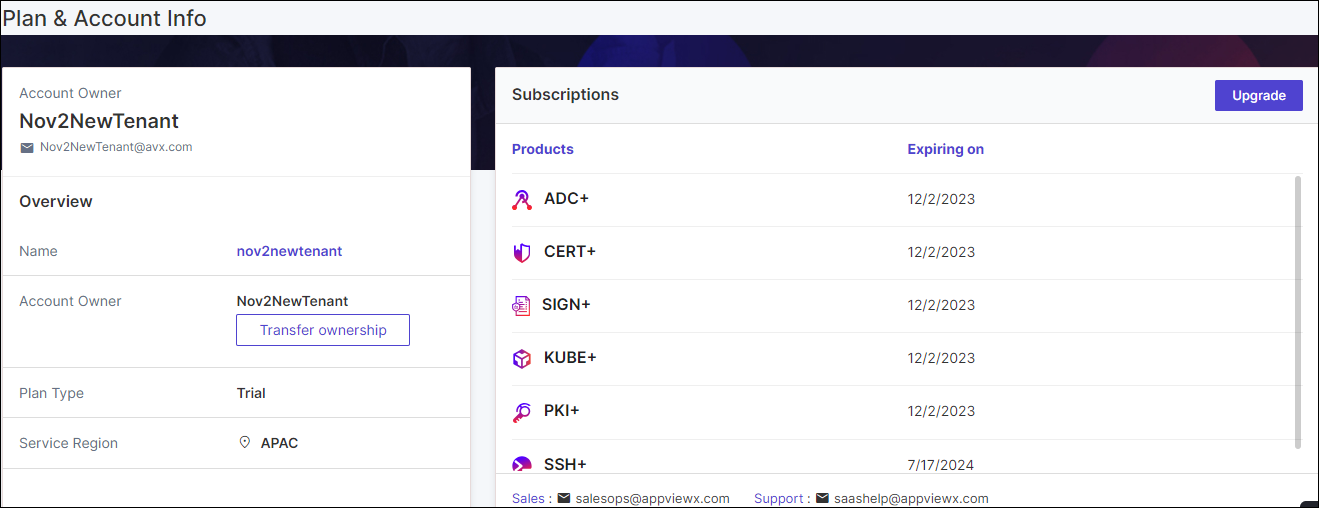
The Plan & Account Info page is displayed, featuring account details and a list of subscribed products.
-
In the Account Owner section, click Transfer ownership.
The Transfer ownership dialog box appears.
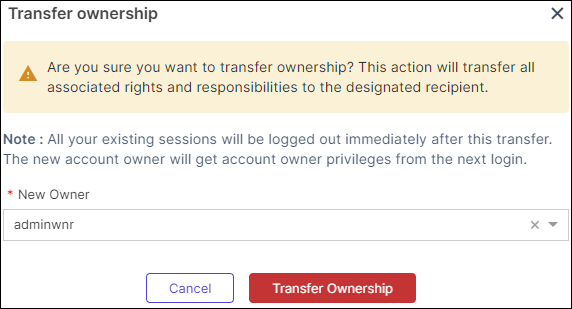 CAUTION: Are you sure you want to transfer ownership? This action will transfer all associated rights and responsibilities to the designated recipient.Note: All your existing sessions will be logged out immediately after this transfer. The new account owner will get account owner privileges from the next login.
 -
Select the New Owner from the dropdown list, then proceed to click
Transfer Ownership to confirm the change of ownership.
AppViewX assigns the owner role to the selected new owner.Note:
- The account owner will be logged out of all sessions of the previous account owner immediately, ensuring the prompt application of permission changes.
- AppViewX will send email notifications to both the previous and new account owners to confirm the successful transfer of account ownership.
