
User Profile Settings
User Preferences
- Login to AppViewX with valid credentials.
-
From the top right corner of your screen, click
 (Profile) icon.
-
Click User Preferences.
The User Preferences page is displayed.
-
To set the UI preferences for the user, refer to the table below for the
fields.
Fields Description Language Select the language for the text to be displayed across the UI from the dropdown options. Font display Select the font size for the text to be displayed across the UI from the size options provided. Font type Select the font type for the text to be displayed across the UI from the options provided. - OpenSans
- Ubuntu
- Inter
Date display format Select the date display format to be displayed across the UI from the options provided. - MM/DD/YYYY
- DD/MM/YYYY
- YYYY/MM/DD
Note: The date format selected here will be used in all the inventory pages, audit logs, and the form (date) fields across the application.Landing page Select the preference for the landing page to be displayed upon login from the Preference dropdown. - Click Save.
Switching between Menus
-
From the top right corner of your screen, click
(Profile) icon.
The dropdown displays which menu is in use.
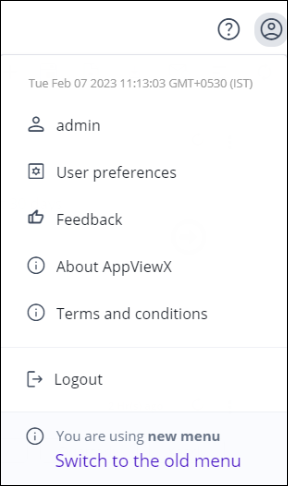
- Click Switch to the old menu to change the menu.
Platform Agents & Download Service
- From the top right corner of your screen, click
 (Profile) icon. The dropdown displays Documentation and Agents & Downloads.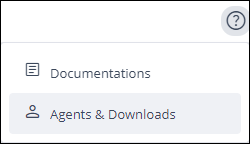
- Click Documentation to view the helpcenter of AppViewX.
- Click Agents & Downloads for the service to
download agents.
The Agents & Downloads page is displayed.
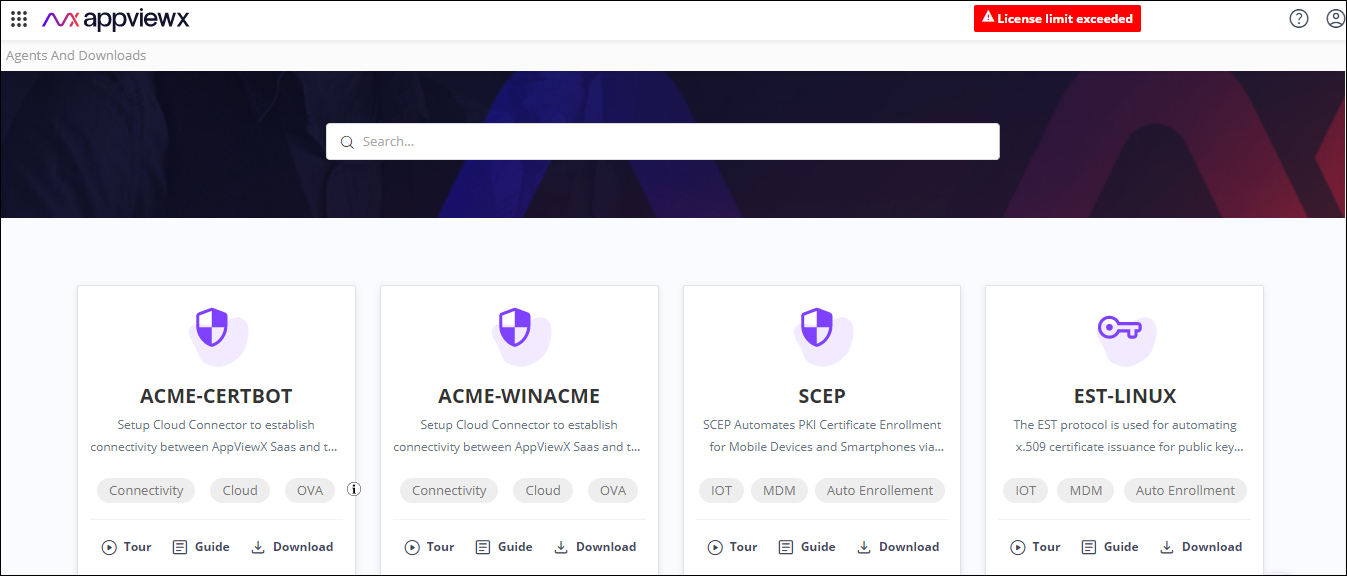
- Click
 (Download) icon on the corresponding agents to
download.
(Download) icon on the corresponding agents to
download.
API Reference
- From the top right corner of your screen, click
 (API Reference) icon.Note: The API Reference icon is displayed for the Admin user and users with ACF permission enabled for API Reference.You will be redirected to AppViewX API Reference page.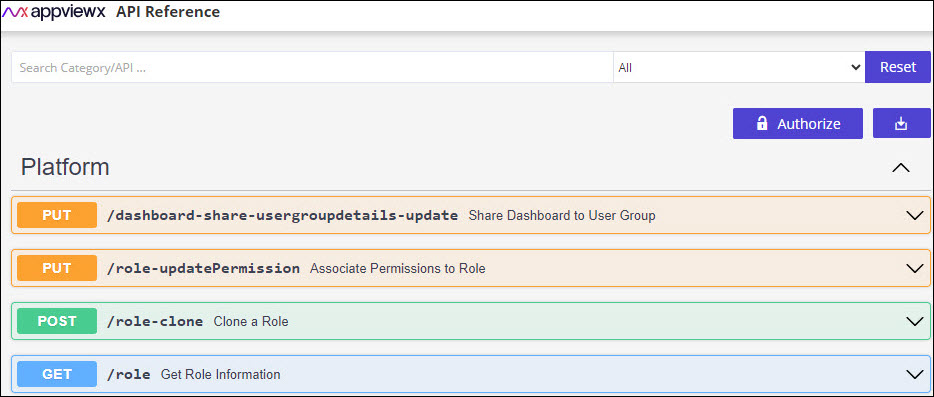
- Click any API to Try it out.
