
Configuration of SAML Parameters in AppViewX (Service Provider)
- On the Settings :: Authentication page, under the SSO tab, turn on the Enable SSO toggle.
- In the Authentication Protocol field, select the SAML option.
- Enable the Enable SSO toggle. This action will populate the service provider contents for the integration.
-
Under the IDP Configuration section, enter the required
field information.
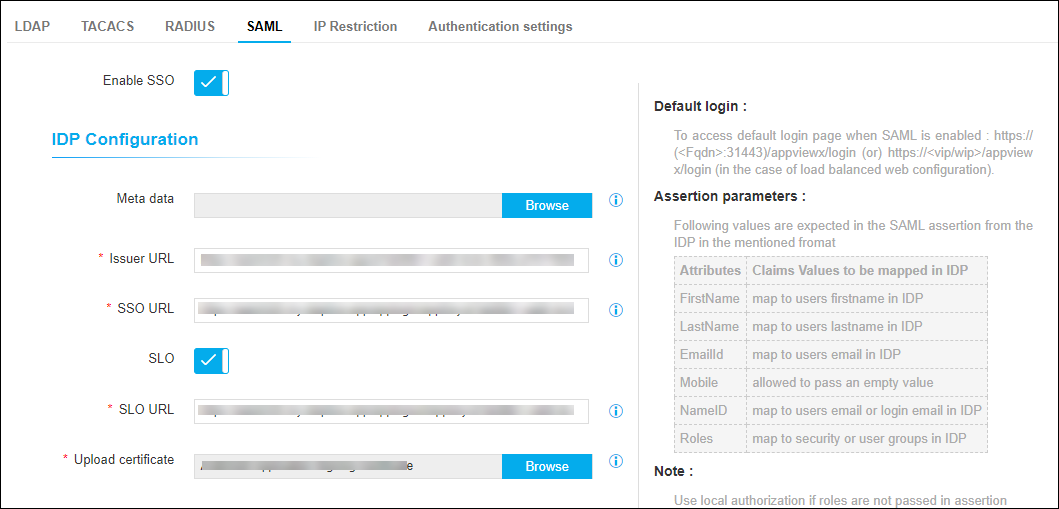
Table 1. Field descriptions for IDP Configuration Field Description Meta data Upload the Metadata which is downloaded from your Identity Provider. Note: Upload of metadata automatically parses the fields SSO, SLO, and so on.*Issuer URL This field is auto-populated upon uploading of the Meta data. In case the Meta data is unavailable, enter the ID of the Identity Provider.
*SSO URL This field is auto-populated upon uploading of the Meta data. In case the Meta data is unavailable, enter the SSO URL which is a single sign-on URL for the service provider to authenticate the users.
SLO Enable/Disable SLO as per requirement. *SLO URL This field is auto-populated upon uploading of the Meta data. In case the Meta data is unavailable, enter the SLO URL which is the SAML logout URL to send logout responses.
*Upload certificate Upload the IdP certificate in .pem format if it is not available as a part of your IdP metadata. * : Mandatory fields -
Under the Service Provider Information section, enter the required field
information.
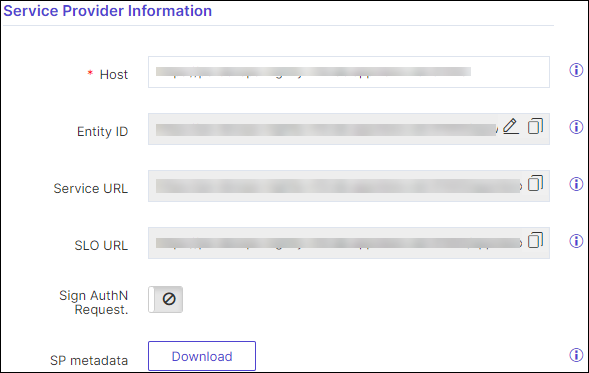
Table 2. Field descriptions for Service Provider Information Field Description *Host Enter the host information for AppViewX in the Host field. The host information can be the Hostname/URL used to access the application. Note: The Entity ID, SSO URL and the SLO URL fields will be auto-populated based on the Host information provided.Entity ID This field is auto-populated based on the Host information provided. Its a Unique identifier of the Service Provider AppViewX. Click
 (Edit) icon to modify the Entity ID.
Service URL This field is auto-populated based on the Host information provided. SLO URL This field is auto-populated based on the Host information provided. Sign AuthN Request Enable/Disable the Sign AuthN Request toggle to send signed AuthN requests from AppViewX to your Identity Provider. Note: This is to be enabled only when your IdP requires a sign authN request from service provider.Once the Sign AuthN Request is enabled, Upload a Service Provider certificate and private key in a p12 format and provide the p12 Password. Choose the Signing Algorithm (Recommended Algorithm: SHA-256) from the drop-down list. The Service provider certificate should be shared with the IDP to validate the Service Provider SAML assertion signature.
SP metadata Download the Service Provider information (Entity Id, SSO/Service URL, SLO URL)to be consumed at IdP. -
Under the Advanced section, enter the required field
information.
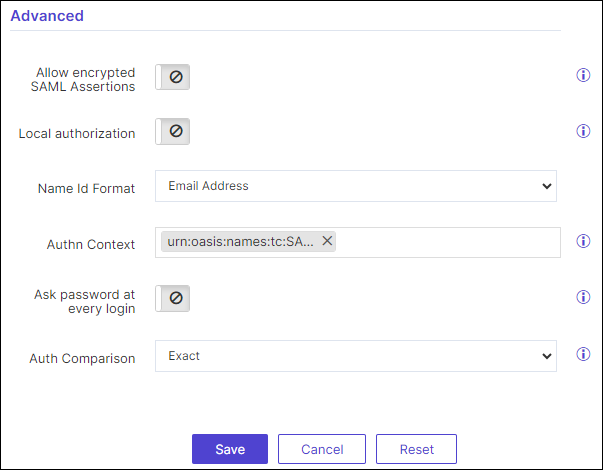
Table 3. Field descriptions for Advanced Field Description Allow encrypted SAML Assertions Enable/Disable the Allow encrypted SAML Assertions to encrypt SAML assertion using decryption certificate and decryption certificate password. If SAML Assertions are encrypted in the IDP, enable this field to decrypt the SAML assertions before using them in AppViewX. Once Allow Encrypted SAML Assertions is enabled, upload the Assertions decryption certificate and private key in a p12 format, and the password of the Assertions decryption certificate provide the p12 password to decrypt the private key in the certificate. The service provider certificate should be shared with the IDP to validate the service provider SAML assertion.
Upload Assertions decryption certificate Upload the Assertions decryption certificate. Private key in this certificate will be used to decrypt the SAML assertions. This field is visible only when 'Allow encrypted SAML Assertions' is enabled.
Password of Assertions decryption certificate Enter the password to decrypt the private key in the certificate. This field is visible only when 'Allow encrypted SAML Assertions' is enabled.
Local authorization Enable/Disable the Local authorization to authenticate in IdP and authorize in AppViewX. If the IDP is unable to pass the roles/usergroup as a part of the SAML assertion and requires AppViewX to perform the Authorization then the above feature can be used. Note: This feature is available from 20.1 version of AppViewX.Name Id Format Choose the Name id Format from the drop-down list. Authn Context Enter the Authn Context in the text field. Use any one of the below values for a customized type of auth request needed by your IDP. Other RFC SAML2.0 standard auth request can also be used. (Copy and paste the below values or add values in the same format from RFC to the AuthNcontext field). - urn:oasis:names:tc:SAML:2.0:ac:classes:X509.
- urn:oasis:names:tc:SAML:2.0:ac:classes:TLSClient.
- urn:oasis:names:tc:SAML:2.0:ac:classes:PasswordProtectedTransport
- urn:oasis:names:tc:SAML:2.0:ac:classes:Password
- urn:oasis:names:tc:SAML:2.0:ac:classes:Kerberos
- urn:oasis:names:tc:SAML:2.0:ac:classes:InternetProtocol
Ask password at every login If this option is enabled, the user will be required to enter their password during each login, even if a single sign-on (SSO) session is currently active. Auth Comparison Choose the Auth Comparison from the drop-down field. This indicates how the authentication context URI in the AuthnRequest message compares to the context defined at the asserting party. It is preferred to be exact. - Click Save.
- If the configuration provided needs to be removed, click Reset.
