
Forgerock Integration
-
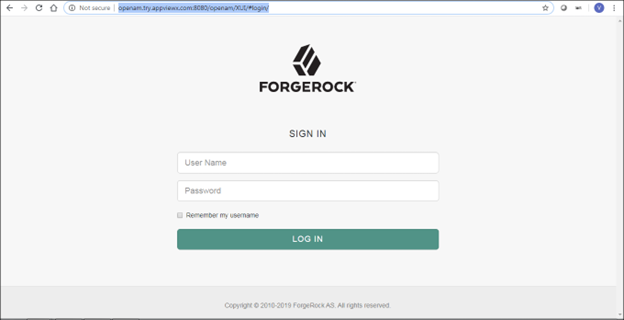
Login to the Forgerock IDP Intense or Console.
-
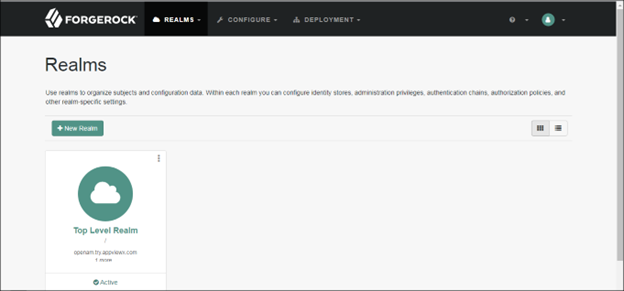
Select the respective Realm.
-
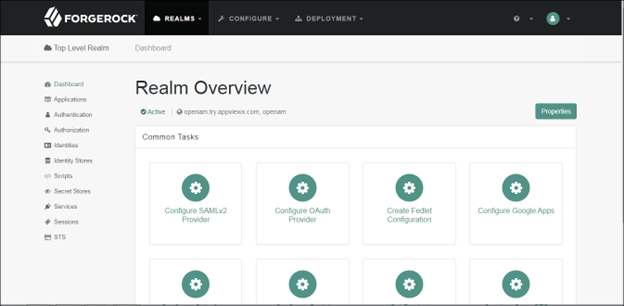
Under Common Tasks, select Configure SAML v2
provider.
-
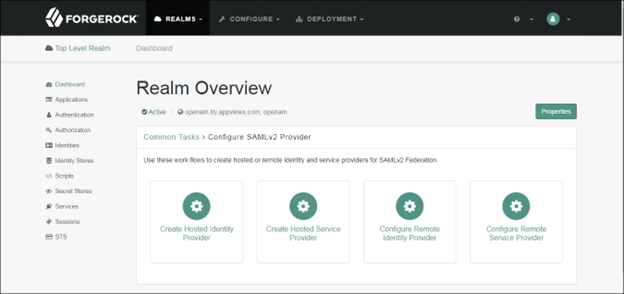
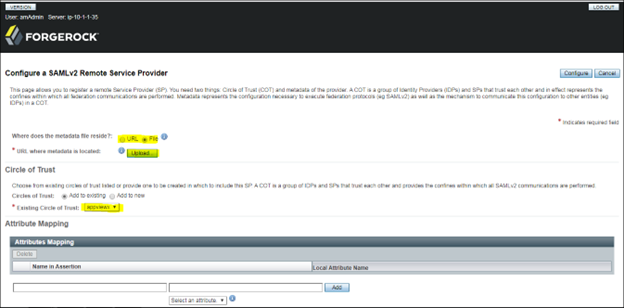
For Configuring AppViewX configuration, select Configure Remote
Service Provider.
- For metadata upload, select the File option.
-
Select or Create the circle of trust for mapping AppViewX to the IDP and then
click Upload.
-
Upload the AppViewX metadata, which was downloaded earlier and click
Configure to save the settings.
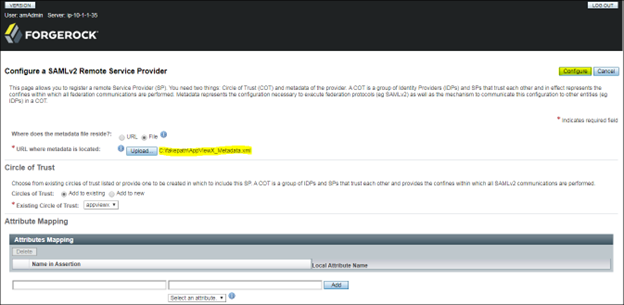 The page will redirect to the common tasks under the specific realm.
 -
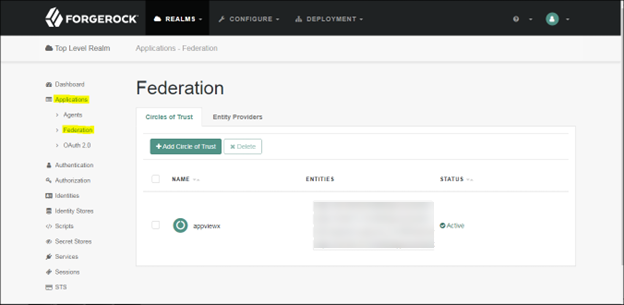
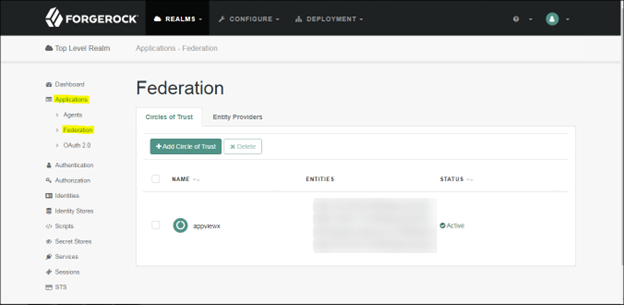
Access Applications > Federation from the left navigation pane.
-
Select the entity providers tab.
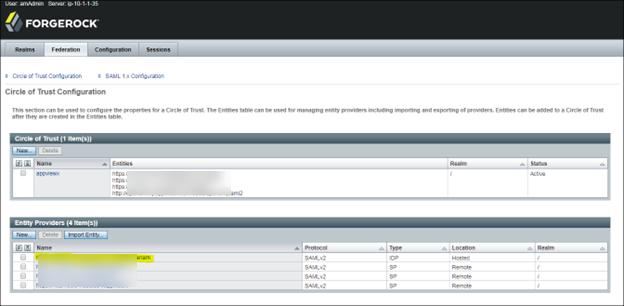
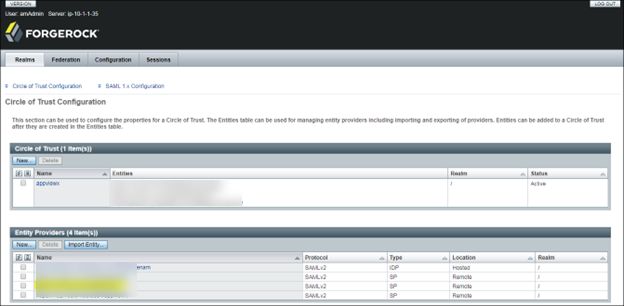 This action redirects to the Federation tab, displaying the service providers list and IDP configuration.
 - Select the respective Entity ID to navigate to the settings of the respective entity configuration.
-
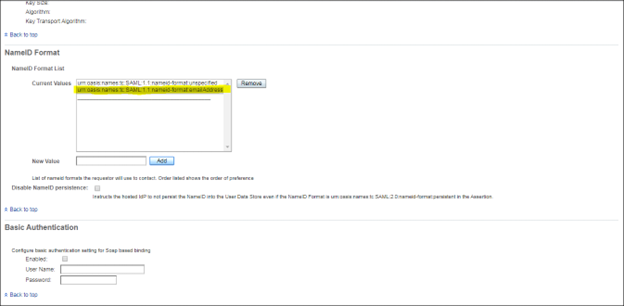
On the Assertion Content tab, add the following in the NameID
Format and then click Save.
urn:oasis:names:tc:SAML:1.1:nameid-format:emailAddress
-
On the Assertion Processing tab, add the below assertion parameter that
has to be passed as part of the SAML assertion and then click Save.
EmailId=mail ; FirstName=cn ; LastName=sn ; NameID=mail ; Roles=isMemberOfAuthentication.
- Modify IDP configuration to accept a password-based Authentication Context.
-
Navigate to Applications > Federation, and then select
Entity Providers tab.
-
Under the Federation tab, select the IDP config under
Entity Providers.
-
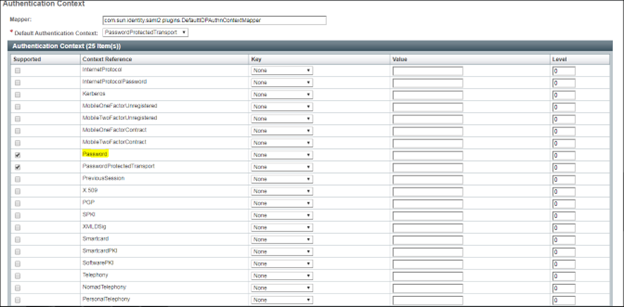
Under the Authentication Context section, check the
password based context.
-
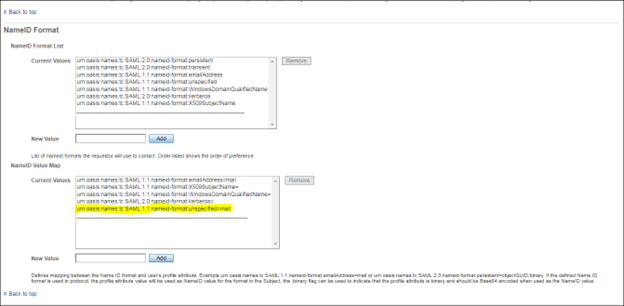
Above the Context, add the NameID Value Map and
Save the settings.
urn:oasis:names:tc:SAML:1.1:nameid-format:unspecified=mail.
- Access AppViewX with the SSO authentication and forgerock.
- Export IDP metadata and upload it in AppViewX SSO settings.
- To export metadata using the IDP URL and save it as an XML file. Sample URL:http://openam.try.appviewx.com:8080/openam/saml2/jsp/exportmetadata.jsp?entityid=http://openam.try.appviewx.com:8080/openam
-
Role name passed in as a part of the SAML assertion should be configured in
appviewx on the Accounts > UserGroup and assign a role for accessing the
application.
Note: For an IDP initiated SSO the following structure like URL should be used. Sample IDP initiated URL: http://openam.try.appviewx.com:8080/openam/idpssoinit?metaAlias=/idp&spEntityID=https://192.168.x.x:31443/appviewx/
