
Search Widget
The Search widget is a tool that enables users to search and filter specific content from the entire application. With its built-in search configurations, users can easily locate server certificates, client certificates, and other relevant information within the application.
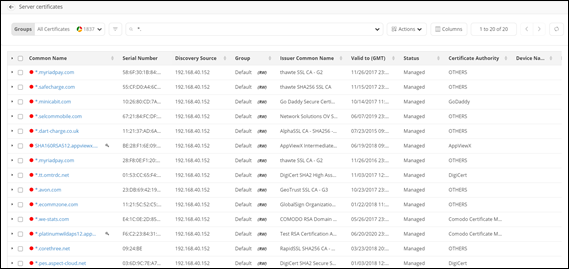
For example, search for certificates by typing *. in the search field to get a
list of all server certificates.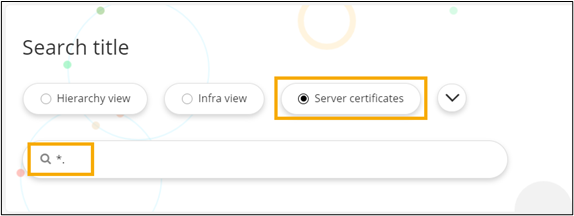
Configuring the Search Widget - Properties
- From the Build component in the left menu, under the Widgets section, drag and drop the Search widget to any blue highlighted space on the page.
-
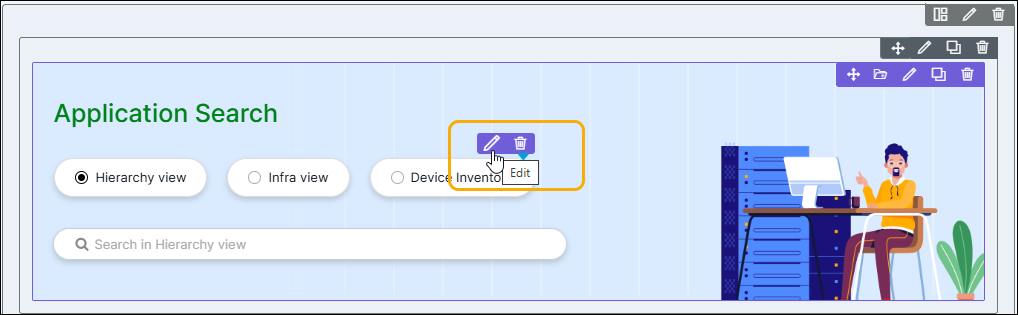
To configure/edit the Search Widget component, hover your mouse
over the widget and click
 (Edit) icon.
 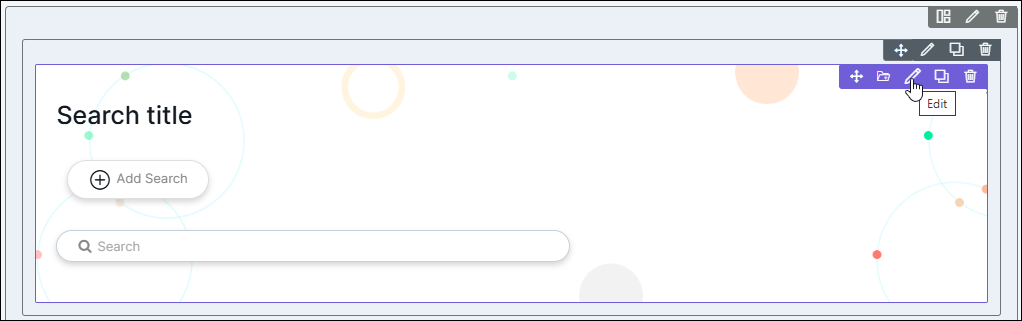 Tip: To configure/edit the Search Widget component, you can also click Add Search in the Search widget.The Search widget window opens with the Properties tab open by default.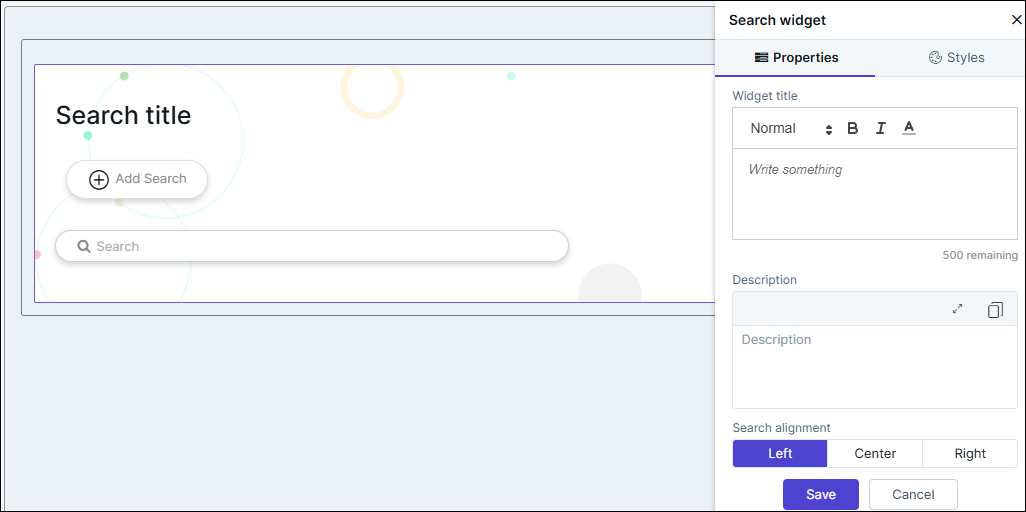
-
In the Search widget window, under Properties, enter or
select the required field information.
The following table describes the various fields in this tab:
Table 1. Field descriptions for Properties Field Description Widget title Provide a suitable title for the Search widget. Note: You have the option to set the font size, color, and thickness in the Widget title editor box.Description Allows you to add a Description for the search widget. Search Alignment Allows users to align the search widget according to their preferred layout and design. Configure Widget Select the search parameters that would appear in the search widget by checking the box. Note: You have the option to edit the search widgets, add descriptions and tooltips by clicking (Edit) icon. For more information, click
here.
(Edit) icon. For more information, click
here.Widget Background Choose a widget background from the available options. To keep a transparent background, enable the toggle button Enable transparent background. - Click Save.
Editing the Search Widget
-
In the Search widget window, under Properties,
click
(Edit) icon next to the widget to be edited.
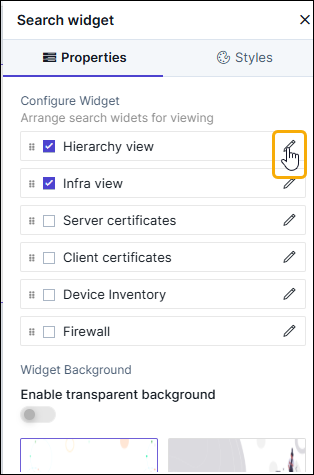
-
Enter all the field information.
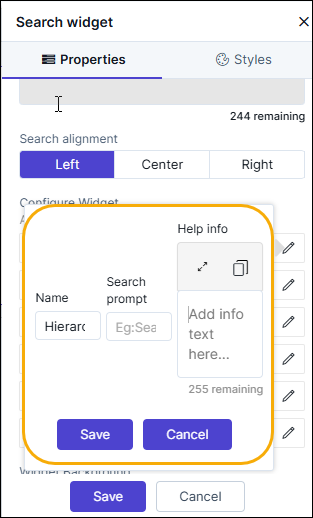
Table 2. Field descriptions for Properties Field Description Name Allows you to change the name of the search widget. Search prompt Allow you to add a search prompt in the search bar when a particular search widget is selected. Help info Allows you to add a help text to the search widget. -
Click Save.
The search prompt and help info is updated in the search widget.Note: You can also edit the search widget, by hovering your mouse over the search widget and clicking
(Edit) icon.
Deleting a single search widget
- Hover your mouse over the search widget to be deleted.
-
Click
 (Delete) icon.
The selected search widget is deleted.
(Delete) icon.
The selected search widget is deleted.
Configuring the Search Widget - Styles
-
For more options to customize the Search Widget, in the
Search Widget window, click Styles.
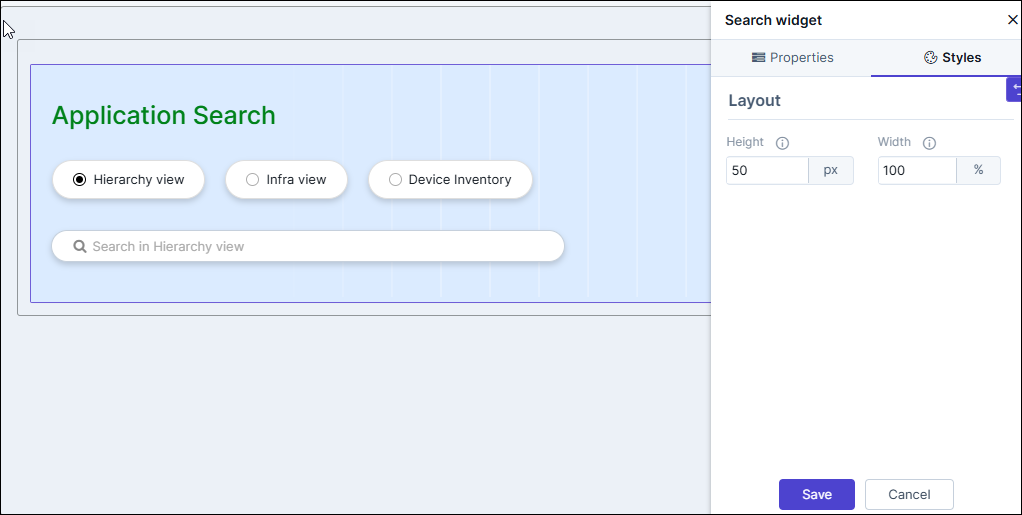
- Under Sizing, you can increase/decrease the height and width of the search widget.
- To save your settings, click Save.
-
To restore the settings under Styles to default, click
 (Restore) icon.
