
HTML
- Create customized HTML page using HTML5 syntax
- Add third party web plugins
- Add own style components and interactive functionalities using CSS and JS
- Use Hooks to design custom HTML pages.
Additional Features
- jQuery and Bootstrap Support: The HTML component supports jQuery and Bootstrap libraries, enabling users to leverage the functionality and styling options provided by these popular frameworks. This integration allows users to enhance the interactivity and responsiveness of their custom components.
- Sample Code: The HTML widget includes a set of sample code snippets showcasing how to use jQuery and Bootstrap features within the component. These samples serve as a reference and starting point for users to explore and experiment with different functionalities.
- Hooks Integration: Users can make use of existing hooks from the Hook Inventory or create new hooks to enhance the functionality of the HTML component. Hooks allow users to encapsulate and reuse code logic, promoting modularity and efficiency in page building.
Configuring HTML Widget - Properties
- From the Build component in the left menu, under the Widgets section, drag and drop the HTML widget to any blue highlighted space on the page.
-
To configure/edit the HTML widget, hover your mouse over the widget and
click
 (Edit) icon.
 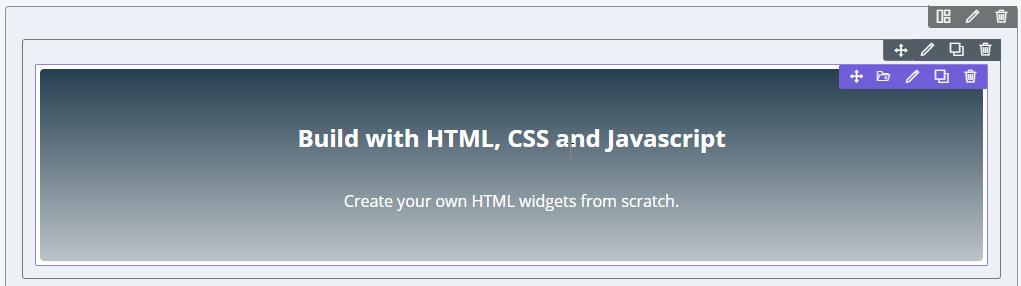 The Html widget pop-up window opens with the Properties tab open by default. You can now create HTML pages using:
Creating Custom HTML Pages using Plugins
- jQuery
- Bootstrap.
To add plugins to your HTML page:
-
In the HTML widget window, under Properties, click Add
plugins.
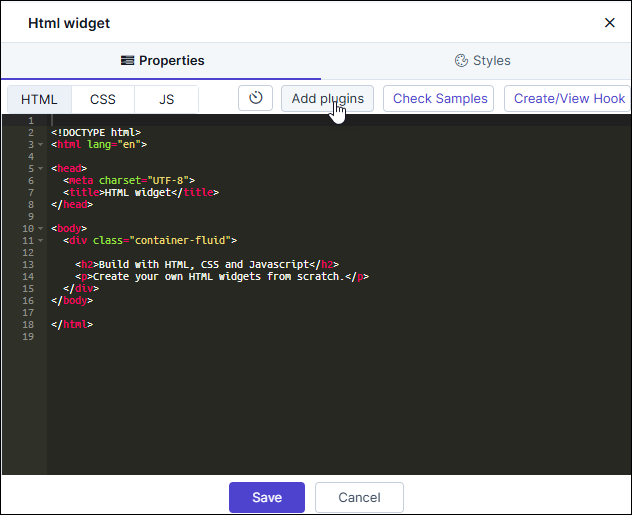
-
Select the library from the available options. For example,
Bootstrap.
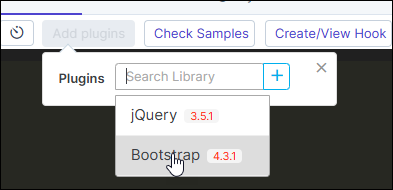
-
To add the selected plugin, click
 (Add) icon.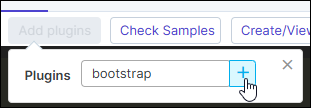
-
To see the available design templates, click Bootstrap.
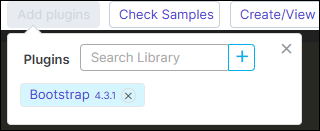 The Bootstrap library opens in a new tab. You can customize any of their available templates for your HTML page.
 - To save your selection, click Save.
Creating Custom HTML Pages using Sample HTML Script
To create a HTML page using sample script:
-
In the HTML widget window, click Check Samples.
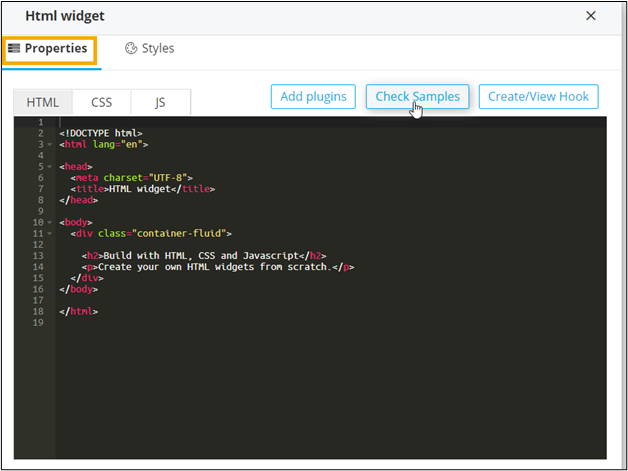 A list of HTML Samples is displayed on the left side of the screen.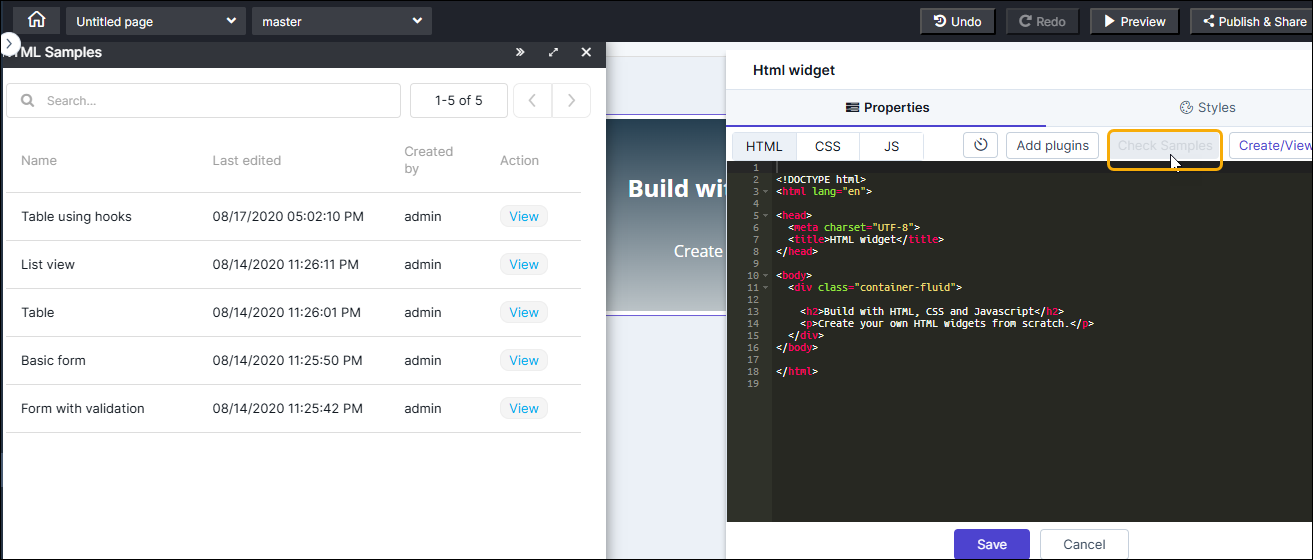
-
To see the details of a sample script, in the HTML Samples window,
click View next to the sample script you wish to view. For example,
Basic form.
The details of the sample script as displayed in the same window.
-
To see a preview of the selected HTML page, click View Output.
The selected HTML page is displayed in the HTML Samples window.
-
To use this script to build the HTML page, click Use Sample.
The selected sample script is displayed in the Html widget window.
- To save your selection, click Save.
Creating custom HTML pages using Hook Inventory
To use Hooks for building an HTML page:
-
In the Html widget window, under Properties, click
Create/View Hook.
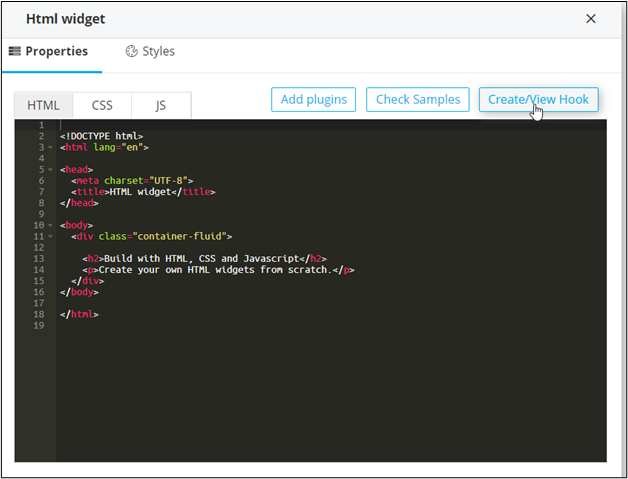 The Hooks Inventory opens in a new tab.Note: Refer to Hooks for more information.
 -
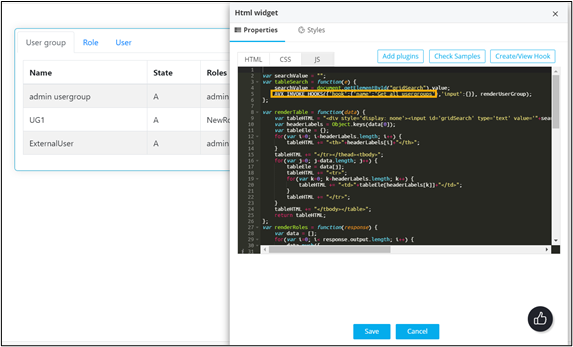
To build your customized HTML page, you can either use a preexisting hook
from the Hook Inventory or create a new hook.
For example, Table using hooks created using Get all usergroups hook.
Configuring HTML Widget - Styles
-
For more options to customize the HTML widget, in the HTML widget
window, click Styles.
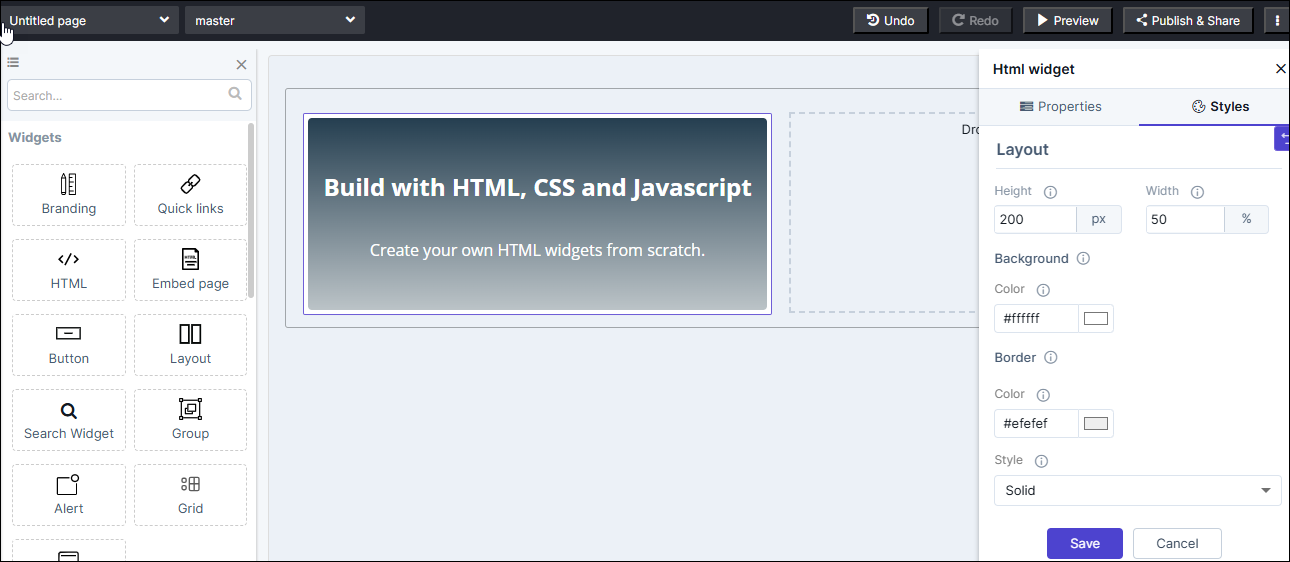
Table 1. Field descriptions for Styles Field Description Height Allows you to increase/decrease the height of the widget. Width Allows you to increase/decrease the width of the widget. Background - Color Allows you to define the Background color for the HTML widget. Border Allows you to define the - Border color - Select the color of the HTML widget’s border.
- Border style - Select the border style for the HTML widget from the options available in the dropdown for example - dashed, dotted, etc.
- Border width - Select the thickness of the HTML widget’s border.
- To save your settings, click Save.
-
To restore the settings under Styles to default, click
 (Restore) icon.
