
Embed page
The Embed Page widget is a tool that allows users to link or display another entire web page within their page. This feature enables users to include relevant external or internal content seamlessly, enriching their page with additional information. You can embed an entire web page inside a single widget in your service catalogs.
For example, embed a Kibana visualization dashboard as show below.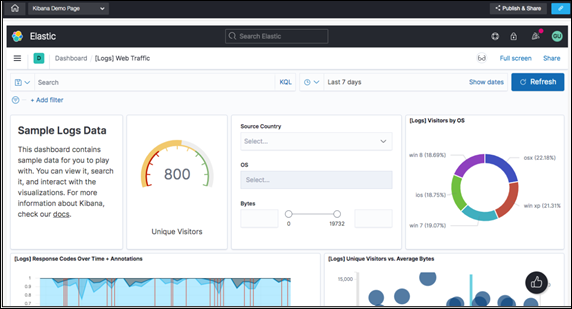
Or, embed a Grafana visualization dashboard below.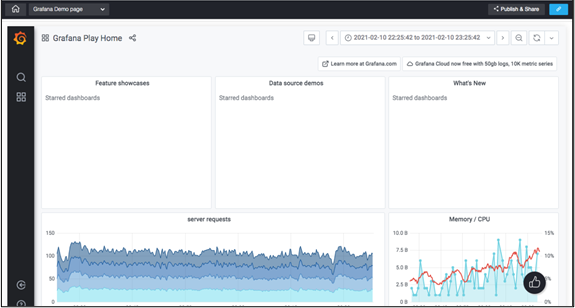
Embedding a page - Properties
To embed a page:
- From the Build component in the left menu, under the Widgets section, drag and drop the Embed page widget to any blue highlighted space on the page.
-
Hover your mouse over the widget and click
 (Edit) icon.
 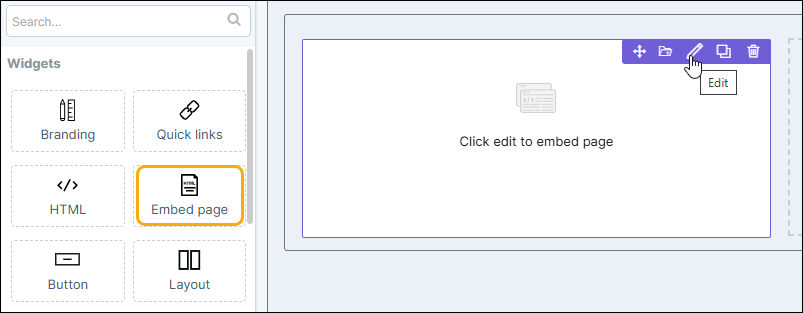 The Embed widget pop-up window opens with the Properties tab open by default.
 -
In the Embed widget window, under Properties, enter or select
the required field information.
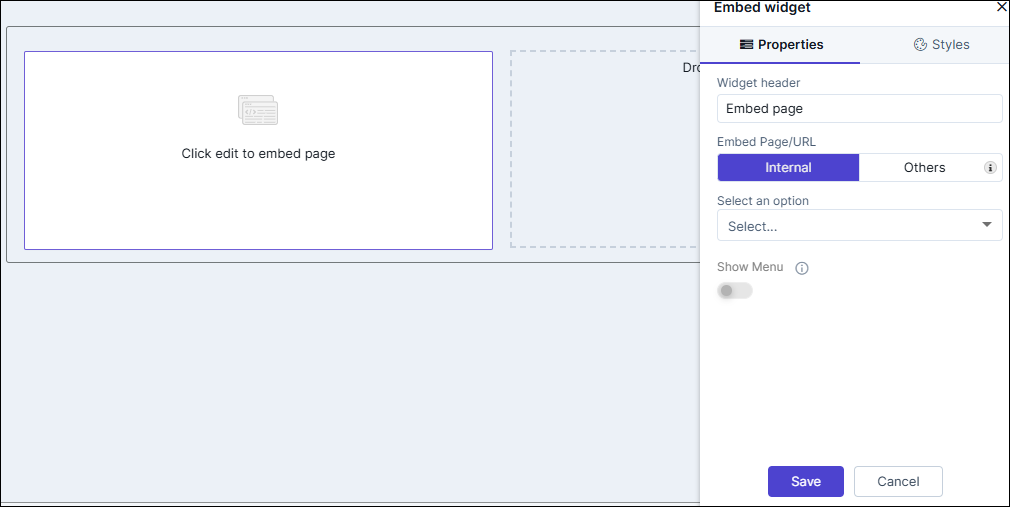
Table 1. Field descriptions for Properties Field Description Widget Header Enter a suitable widget header Embed Page/URL You have two options for embedding a page in the widget: - Internal: Add an internal link from within AppViewX pages.
- External: Users can embed cross origin enabled pages here.
- Click Save.
Embedding an Internal Page
-
In the Embed widget window, under Internal,
select an option from the drop down list. For example, Dashboard -
ADC.
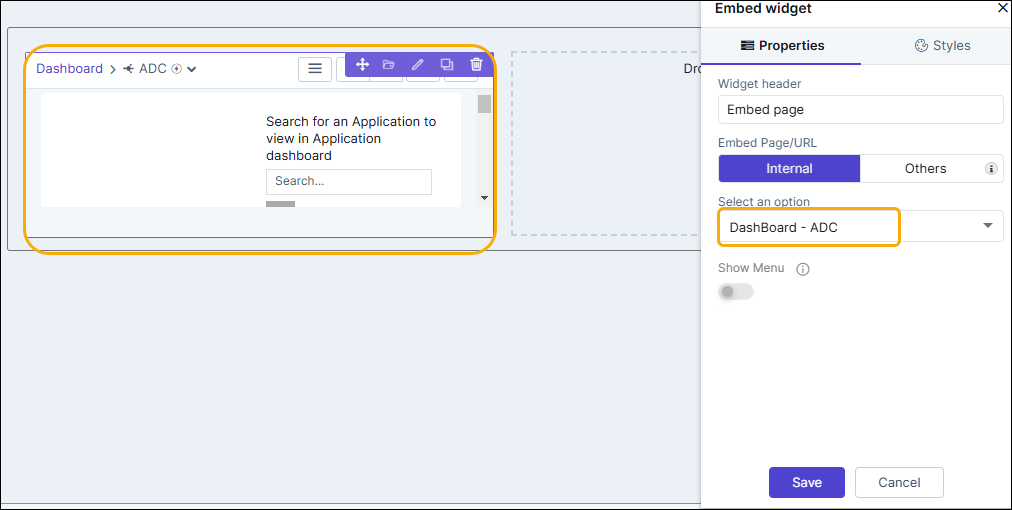
-
To embed this page, click Save.
The selected page is embedded and displayed in your service catalog.
Embedding an External Page
-
In the Embed widget window, under Properties,
click Others.
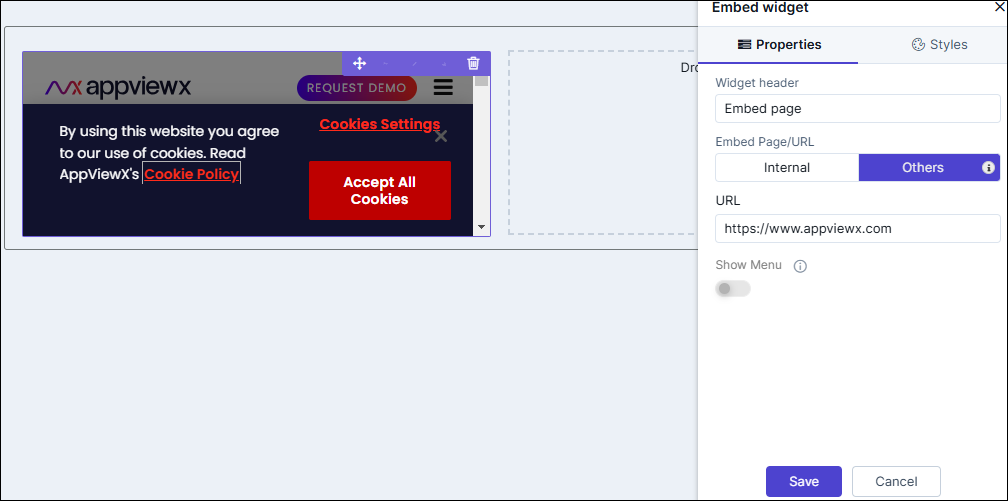
- Enter the URL of the page that is to be embedded.
-
To embed the page, click Save.
The page is embedded in your service catalog.
Embedding a Page - Styles
-
For more options to customize the Embed widget, in the
Embed widget window, click Styles.
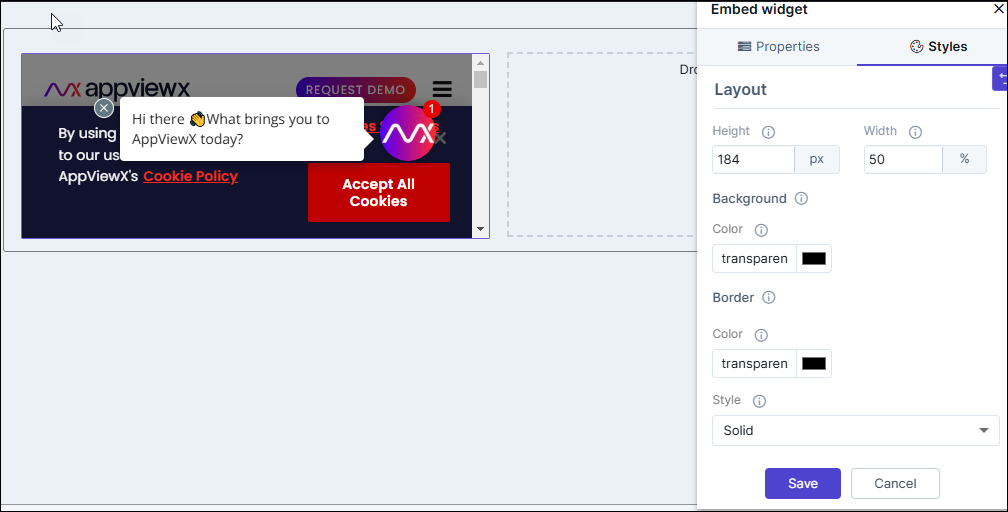
- Under Sizing, you can increase/decrease the size of the widget.
- To save your settings, click Save.
-
To restore the settings under Styles to default, click
 (Restore) icon.
