Using Query Explorer to build Reports
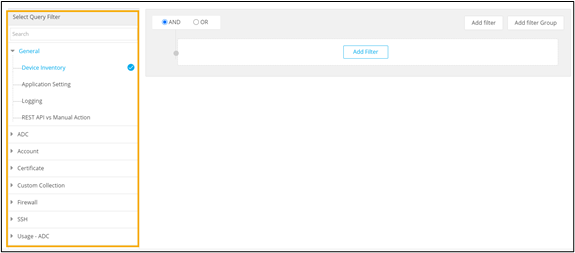
Each query filter has a set of predefined fields associated with it. Query actions will differ according to the data in the query fields. The query builder also comes equipped with an auto-suggestion feature that aids you in selecting appropriate values from the suggested entries.
Query explorer also exhibits improved performance with query optimization by supporting four million to 50 million records. Its performance optimized search inventory enables higher volumes of data to be balanced and reduces load time.
Conditional Operators
The conditional operators are categorized based on field types: String, Integer, Date, and Boolean Variable.
Field Type: String
- Is - This operator is used if the query is for a
particular value.
For example, Status is Managed.
 The report will display data specific to this query and show
the list of devices only with Managed status.
The report will display data specific to this query and show
the list of devices only with Managed status. - Is not - This operator generates results where the condition
is not matched.For example, Vendor is not Citrix.
 The report will display data that matches all criteria
except the one that is selected and show the list of devices of all vendors except
Citrix.
The report will display data that matches all criteria
except the one that is selected and show the list of devices of all vendors except
Citrix. - Is one of - This operator allows multiple values to be
selected and matches all conditions. For example, Category is one of Server, Firewall,
WAF.
 The report will display data where all the three conditions
are matched and show a list of devices that belong to the three selected
categories.
The report will display data where all the three conditions
are matched and show a list of devices that belong to the three selected
categories. - Is not one of - This operator allows multiple values to be
selected and gives results where the conditions are not matched.For example, Category is not one of ADC, Firewall.
 The report will display data that matches all criteria
except the ones that are selected and show a list of all devices except ADC and
Firewall.
The report will display data that matches all criteria
except the ones that are selected and show a list of all devices except ADC and
Firewall. - Exists - A boolean operator is provided for narrowing down
the search parameters so that the result is either True or False.
 The report will display data after confirming if the
selected field is available in the database (True) or not (False).
The report will display data after confirming if the
selected field is available in the database (True) or not (False). - Regex - Regular expression (Regex) is a sequence of
characters defining a search pattern specifying a set of strings for a particular
purpose.For example, Device name regex .*
 The
period (.) means match any character and the asterisk (*) means any number of times.
So .* means match anything and the report will display all the device
names.
The
period (.) means match any character and the asterisk (*) means any number of times.
So .* means match anything and the report will display all the device
names. - Starts with - This operator allows users to enter the first
three letters/numbers of the search criteria.
 The report will display results matching hash algorithms
that start with ‘SHA’.
The report will display results matching hash algorithms
that start with ‘SHA’. - Ends with - This operator allows users to enter the last
three letters/numbers of the search criteria.
 The report will display results matching hash algorithms that end with ‘256’.
 - Contains - This operator allows users to enter some values
for the search criteria and generates results that contain those values.
 The report will display results with hash algorithms that
contain the value ‘256’.
The report will display results with hash algorithms that
contain the value ‘256’. - Does not contain - This operator allows users to enter some
values for the search criteria and generates results that do not contain those
values.
 The report will display results with hash
algorithms that do not contain the value ‘256’.
The report will display results with hash
algorithms that do not contain the value ‘256’.
Field Type: Integer
- Is: This operator is used if the query is for a particular
value. For example, version is 1.
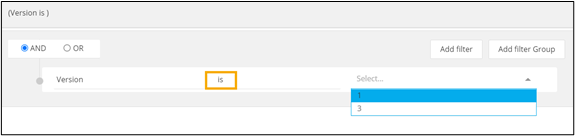 The
report generated will display data specific to this query and show the certificates
with Version equal to 1.
The
report generated will display data specific to this query and show the certificates
with Version equal to 1. - Is not: This operator generates results if the condition is
not matched. For example, version is not 1.
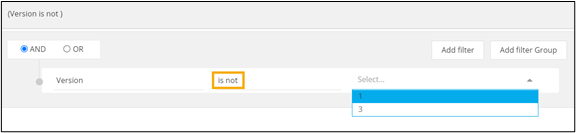 The report generated will display data that matches all criteria except the one that
is selected and show certificates with Version not equal to 1.
The report generated will display data that matches all criteria except the one that
is selected and show certificates with Version not equal to 1. - Exists: A boolean operator is provided for narrowing down the
search parameters so that the result is either True or False.
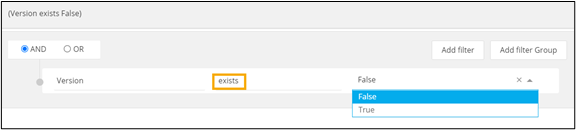 The
report will display data after confirming if the selected field is available in the
database or not. If the field is available, the result is True. If the field is not
available, the result is False.
The
report will display data after confirming if the selected field is available in the
database or not. If the field is available, the result is True. If the field is not
available, the result is False. - Greater than: This operator is used to display records that
match values greater than the selected value. For example, Version greater than 1.
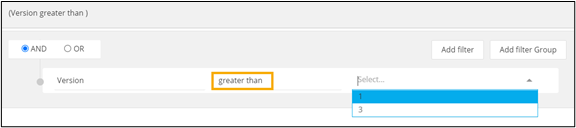 The report generated will display certificates with version
greater than 1.
The report generated will display certificates with version
greater than 1. - Less than: This operator is used to display records that
match values less than the selected value. For example, Version less than 1.
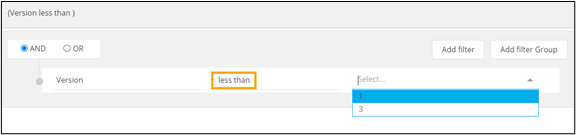 The report generated will display certificates with version
less than 1.
The report generated will display certificates with version
less than 1. - Greater than or is: This operator is used to display records
that match values greater than or equal to the selected value. For example, Version
greater than or is 1.
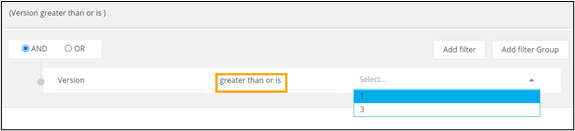 The report generated will display certificates with version
greater than or equal to 1.
The report generated will display certificates with version
greater than or equal to 1. - Less than or is: This operator is used to display records
that match values less than or equal to the selected value. For example, Version less
than or is 1.
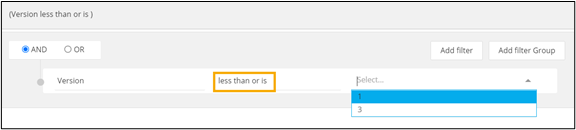 The report generated will display certificates with version
less than or equal to 1.
The report generated will display certificates with version
less than or equal to 1.
Field Type: Date
- Between - This operator allows users to select the
duration for which reports will be generated.
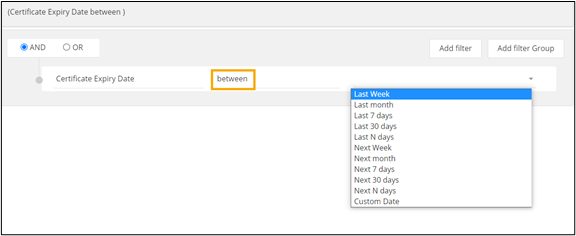 The following table describes the date values supported by the
between operator:
The following table describes the date values supported by the
between operator:Date Type Description Example Last Week Returns records within the previous selected time period, starting with the beginning of that time frame. For example, a filter run on July 27, 2021 will return any records with a date range of July 18 to July 24, 2021. Last Month For example, a filter run on July 27, 2021 will return any records with a date range of 1 June to 30 June 2021. Last 7 days For example, a filter run on July 27, 2021 will return any records with a date range of July 21 to July 27, 2021. Last 30 days For example, a filter run on July 27, 2021 will return any records with a date range of 27 June to 26 July, 2021. Last N days For example, a filter run on July 27, 2021 will return any records with a date range of Nth day to July 27, 2021. Next Week Returns records within the next selected time period, including records with values up to the end of that time frame. For example, a filter run on July 27, 2021 will return any records with a date range of August 1 to August 7, 2021. Next Month For example, a filter run on July 27, 2021 will return any records with a date range of August 1 to August 31, 2021. Next 7 days For example, a filter run on July 27, 2021 will return any records with a date range of July 27 to August 2, 2021. Next 30 days For example, on July 27, 2021 will return any records with a date range of July 27 to August 30, 2021. Next N days For example, a filter run on July 27, 2021 will return any records with a date range of July 27, 2021 to the Nth day. Custom Date Returns records within the defined custom date. - On - This operator allows users to select a specific day for
which the records will be generated.
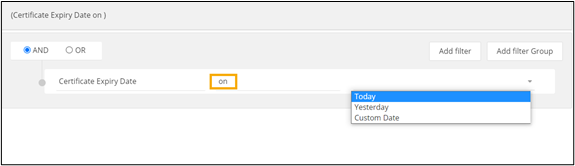 The
following table describes the date values supported by the On
operator:
The
following table describes the date values supported by the On
operator:Date Type Description Example Today Returns records for the selected time period, including records with values up to the end of that time frame. For example, a Certificate Expiry Date filter run on July 27, 2021 will return records for certificates expiring on July 27, 2021. Yesterday For example, a Certificate Expiry Date filter run on July 27, 2021 will return records for certificates expiring on July 26, 2021. Custom Date Returns records within the defined custom date. For example, a Certificate Expiry Date filter run on a custom date, say August 1, will return records for certificates expiring on August 1, 2021. - Not on - This operator allows users to select the time period
for which the records should not be generated.
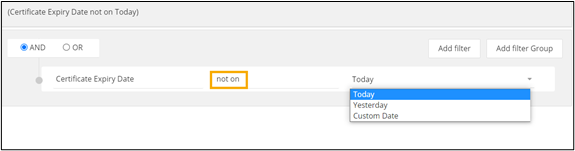 The
following table describes the date values supported by the not
on operator:
The
following table describes the date values supported by the not
on operator:Date Type Description Example Today Returns records for the time period other than the selected time period, including records with values up to the end of that time frame. For example, a Certificate Expiry Date filter run on July 27, 2021 will return records for certificates not expiring on July 27, 2021. Yesterday For example, a Certificate Expiry Date filter run on July 27, 2021 will return records for certificates not expiring on July 26, 2021. Custom Date Returns records for the time period other than the defined custom date. For example, a Certificate Expiry Date filter run on a custom date, say August 1, will return records for certificates not expiring on August 1, 2021. - After - This operator allows users to generate records of
dates after the selected time period.
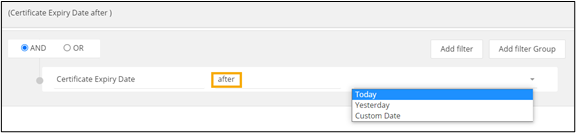 The
following table describes the date values supported by the
after operator:
The
following table describes the date values supported by the
after operator:Date Type Description Example Today Returns records for the selected time period, including records with values up to the end of that time frame. For example, a Certificate Expiry Date filter run on July 27, 2021 will return records for certificates expiring after July 27, 2021. Yesterday For example, a Certificate Expiry Date filter run on July 27, 2021 will return records for certificates expiring after July 26, 2021. Custom Date Returns records within the defined custom date. For example, a Certificate Expiry Date filter run on a custom date, say August 1, will return records for certificates expiring after August 1, 2021. - Before - This operator allows users to generate records
before the selected time period.
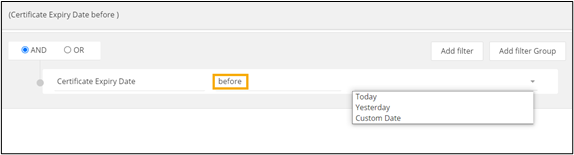 The
following table describes the date values supported by the
before operator:
The
following table describes the date values supported by the
before operator:Date Type Description Example Today Returns records for the selected time period, including records with values up to the end of that time frame. For example, a Certificate Expiry Date filter run on July 27, 2021 will return records for certificates expiring before July 27, 2021. Yesterday For example, a Certificate Expiry Date filter run on July 27, 2021 will return records for certificates expiring before July 26, 2021. Custom Date Returns records within the defined custom date. For example, a Certificate Expiry Date filter run on a custom date, say August 1, will return records for certificates expiring before August 1, 2021. - At or after - This operator allows users to generate records
at or after the selected time period.
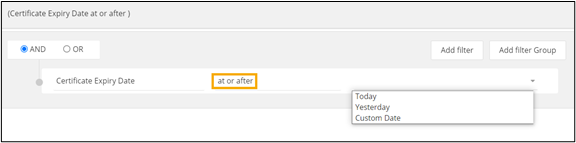 The following table describes the date values supported by
the on operator:
The following table describes the date values supported by
the on operator:Date Type Description Example Today Returns records for the selected time period, including records with values up to the end of that time frame. For example, a Certificate Expiry Date filter run on July 27, 2021 will return records for certificates expiring at or after July 27, 2021. Yesterday For example, a Certificate Expiry Date filter run on July 27, 2021 will return records for certificates expiring at or after July 26, 2021. Custom Date Returns records within the defined custom date. For example, a Certificate Expiry Date filter run on a custom date, say August 1, will return records for certificates expiring at or after August 1, 2021. - At or before - This operator allows users to generate records
at or before the selected time period.
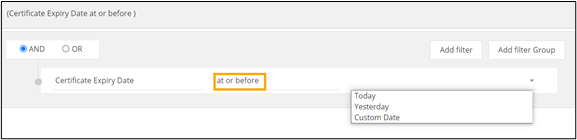 The following table describes the date values supported by
the on operator:
The following table describes the date values supported by
the on operator:Date Type Description Example Today Returns records for the selected time period, including records with values up to the end of that time frame. For example, a Certificate Expiry Date filter run on July 27, 2021 will return records for certificates expiring at or before July 27, 2021. Yesterday For example, a Certificate Expiry Date filter run on July 27, 2021 will return records for certificates expiring at or before July 26, 2021. Custom Date Returns records within the defined custom date. For example, a Certificate Expiry Date filter run on a custom date, say August 1, will return records for certificates expiring at or before August 1, 2021.
Field Type: Boolean Variable
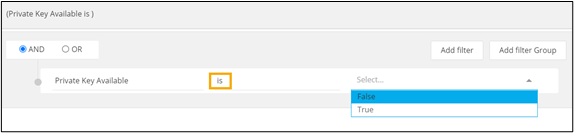
- Is - The report will display data after confirming
if the selected field is available in the database (True) or
not (False).
Create a CERT Expiry Report using Query Explorer
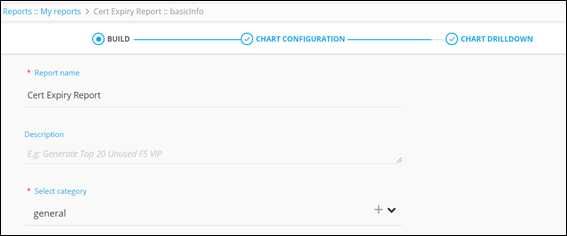
- On the Reports :: My Reports page, click Create new Report.
-
Under the BUILD section, enter or select the basic information
on the report.
-
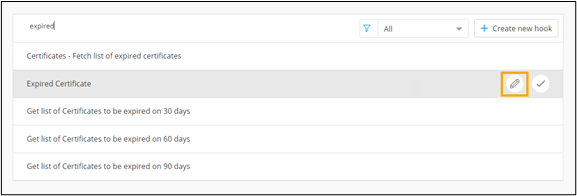
To modify a hook, hover your mouse over a hook from the pre-populated list and click
 .
.
-
In the Hooks Inventory::Modify pop-up window that is
displayed, under Hooks Type, enter or select the required field
information.
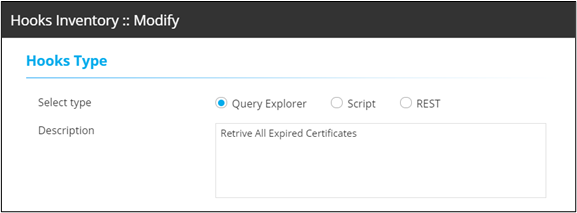 This table describes the field information in this section:
Field Description Select type Select hook type as Query Explorer. Description Enter a description of the hook. -
In the Query Explorer Details section, enter or select the
required field information.
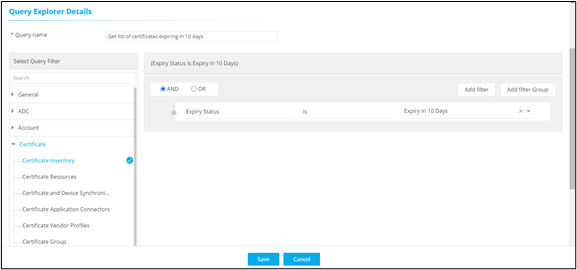 The following table describes the various fields in this section:
Field Description *Query name Enter a valid Query name. For example: Get list of certificates expiring in 10 days.
Select Query Filter Select an appropriate query filter. For example:Certificate Inventory under Certificate, since this report is to get data on certificates.
Add filter Add a filter and select appropriate fields from the predefined values. For example: Expiry status is Expiry in 10 days.
AND/OR Select the appropriate conditional parameters depending on the type of output required in the report. AND: Report will reflect data satisfying all the filter conditions.
OR: Report will reflect data satisfying either of the filter conditions.
* : Mandatory fields Note:- Users can add more filters and apply conditional operators to generate different kinds of data in their reports. For example, add another filter to get data on Compliance Status of the certificates that are expiring in 10 days.
- Set the conditional parameter to AND to generate a report that satisfies both the defined conditions and display certificates that are both compliant and are expiring in 10 days. Setting the conditional parameter to OR will generate a report that reflects data satisfying either of the two defined conditions.
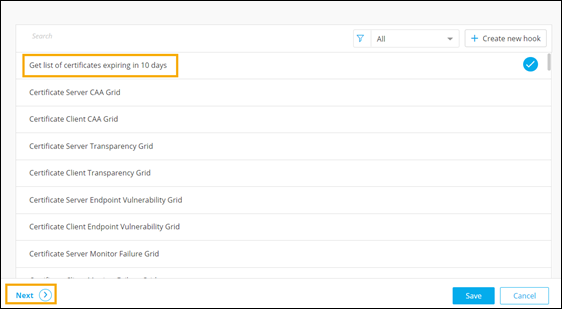
- To create this new hook, click Save.
-
To save the basic information, click Next.
The new hook is displayed in the list of hooks.
- Under the CHART CONFIGURATION section, select the PIE chart.
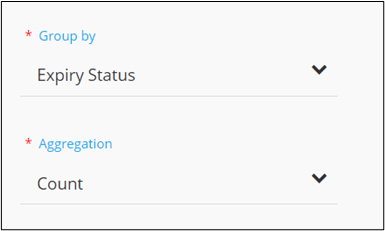
-
Select the appropriate values for the various fields.
-
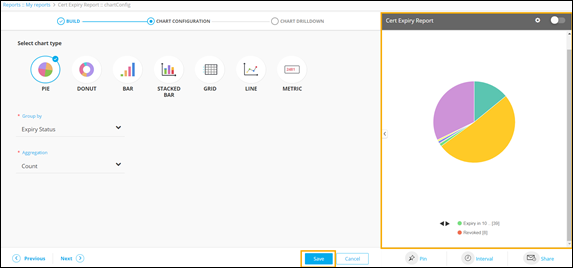
Click Save.
A preview of the pie chart is displayed on the right side of the screen.
- To pin the report to the dashboard, under the chart preview, click Pin.
- From the options displayed, select Existing dashboard.
-
From the list of available dashboards, select the required dashboard and click
Save.
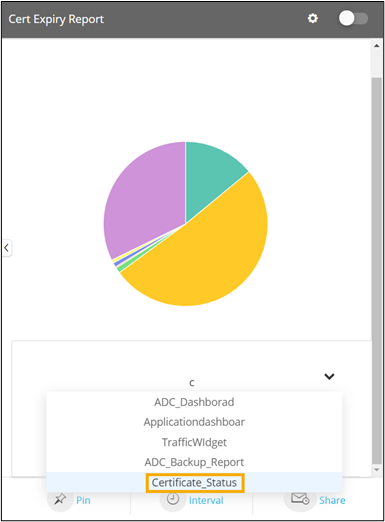
- To pin this report to the new dashboard, click Save.
- To enable the report, turn on the toggle.
-
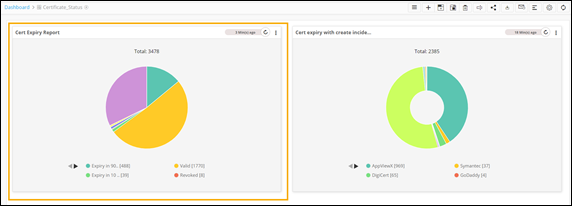
To view this report on the dashboard, search for the dashboard in the dashboard
inventory.
The Cert Expiry Report can be seen on the dashboard.
Create an ADC Usage Report using Query Explorer
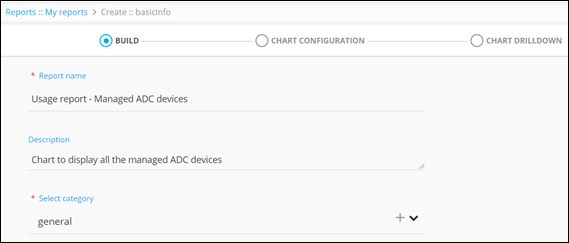
- On the Reports :: My Reports page, click Create new Report.
-
Under the BUILD section, enter or select the basic information
on the report.
-
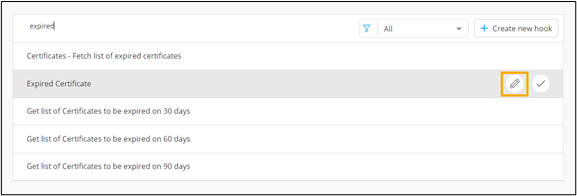
To modify the hook, select a hook from the pre-populated list and click .
-
In the Hooks Inventory::Modify pop-up window that is
displayed, under Hooks Type, enter or select the field
information.
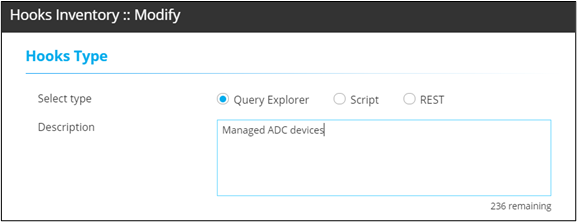 This table describes the field information in this section:
Field Description Select type Select hook type as Query Explorer. Description Enter a description of the hook. -
In the Query Explorer Details section, enter or select the
field information.
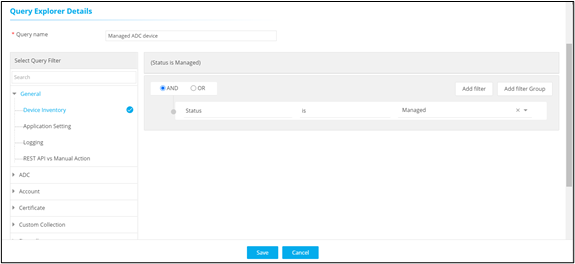 The following table describes the various fields in this section:
Field Description Query name Enter a valid Query name. For example: Managed ADC devices.
Select Query Filter Select an appropriate query filter. For example: Device Inventory under General, since this report is to get data on devices.
Add filter Select appropriate fields from the pre-defined values. For example: Status is Managed.
AND/OR Select the appropriate conditional parameters depending on the type of output required in the report. AND: Report will reflect data satisfying all the filter conditions.
OR: Report will reflect data satisfying either of the filter conditions.
Note:- Users can add more filters and apply conditional operators to generate different kinds of data in their reports. For example, adding another filter to get data on credential type of the ADC devices that are managed.
- Set the conditional parameter to AND to generate a report that satisfies both the conditions and display devices that are both managed and required manual credentials entry. Setting it to OR will generate a report that reflects data satisfying either of these two defined conditions.
-
To create this new hook, click Save.
The new hook can be seen in the list of hooks.
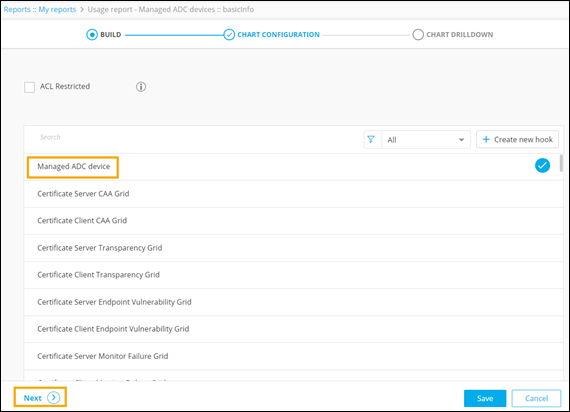
- To save the basic information, click Next.
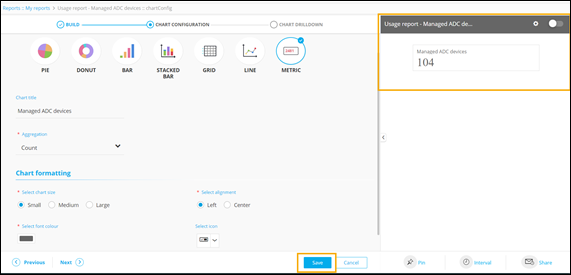
- Under the CHART CONFIGURATION section that is displayed, select the chart type as METRIC.
-
Enter or select the required field information as shown here.
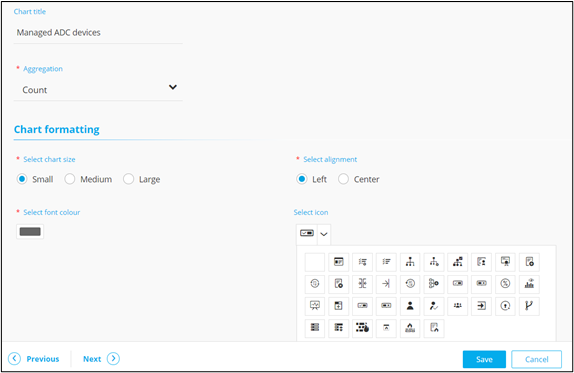
-
Click Save.
A preview of the metric is displayed on the right side of the screen.
Importing Custom Data in Query Explorer
| New Menu | Old Menu |
|---|---|
|
From the main navigation menu, select Collection. The Collection page is displayed. |
|
Note: For more information on how to switch between menus,
click here.
|
|
-
To import a collection, on the Collection page, from the command bar on top
right corner, click
 .
.
-
To select a file to be uploaded to the Collection module, click
Browse.
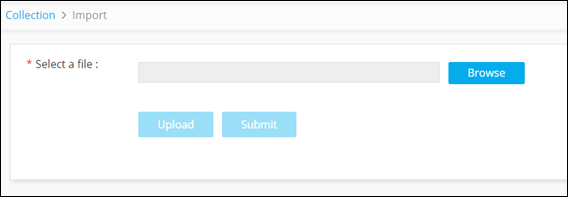
- Select the required file and click Upload.
-
Select the collection and click Submit.
The newly created collection can be seen on the Collection page under Collection Name.

-
To enable the collection to build a custom query, select the collection and from the
command bar click
 .
.
- On the Reports :: My Reports page, click Create new report.
-
Under the BUILD section, click Create new
hook.
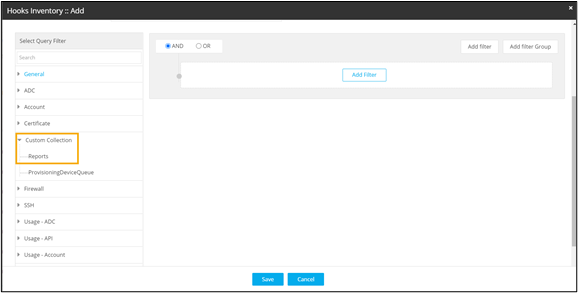
The newly created collection is displayed in the Hooks Inventory::Add pop-up window in the Custom Collection category.