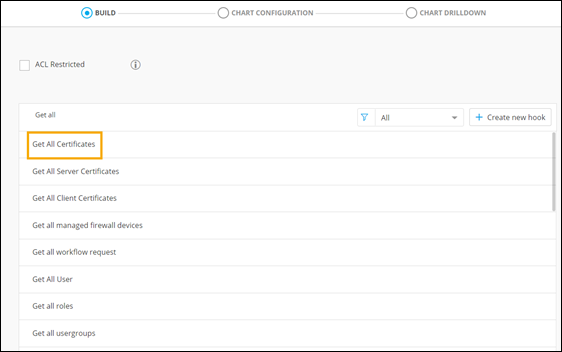
Reusing Hooks
To create and reuse hooks:
-
Go to the Hooks Inventory in the
Automation module.
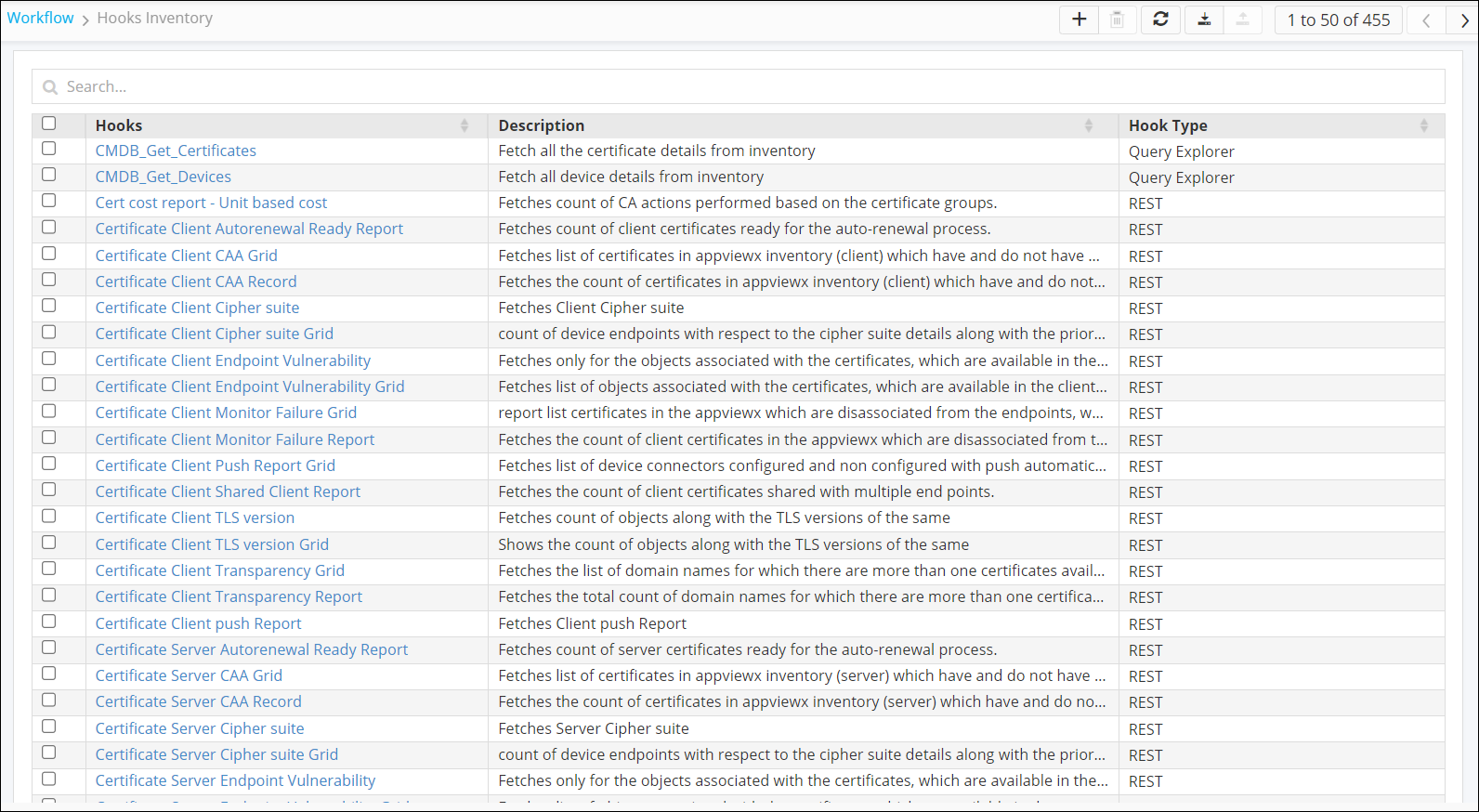 Note: For more information on the Hooks Inventory, refer to the Automation User Guide
 -
To add a new hook, from the command bar at the top right corner of the screen,
click
 .
The Workflow > Hooks Inventory > Add page is displayed.
.
The Workflow > Hooks Inventory > Add page is displayed. -
Under the Hooks Type section, enter or select the
required field information.
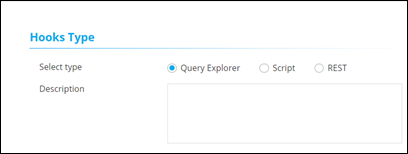 This table describes the field information in this section:
Field Description Select Type Select hook type as Query Explorer. Description Enter a valid description. For example: Retrieve all certificates that have been managed or monitored.
-
Under the Query Explorer Details section, enter or
select the required field information.
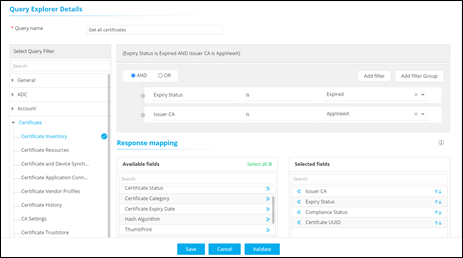 This table describes the various fields in this section:
Field Description Query name Enter a valid query name. For example: Get all certificates.
Select Query Filter Select an appropriate query filter from the collection of hooks. For example: Certificate Inventory under the Certificate section.
Add filter Add a filter(s) and select appropriate fields from the predefined values. For example: Expiry Status is Expired and Issuer CA is AppViewX.
AND/OR Select the appropriate conditional parameters depending on the type of output required in the report. AND: Report will reflect data satisfying all the filter conditions.
OR: Report will reflect data satisfying either of the filter conditions.
Response Mapping Select the fields from the available list to map the integration response. For example: Select Issuer CA, Expiry Status, Certificate Status, Certificate UUID.
Selected fields appear on the right side.
* : Mandatory fields - To add this hook to the Hooks Inventory, click Save.
-
On the Reports :: My Reports page, click
Create new report.
The new hook is added to the list of hooks.