
Creating a New Hook
- On the Reports :: My Reports page, click Create new report.
-
Under the BUILD section, click
Create new hook.
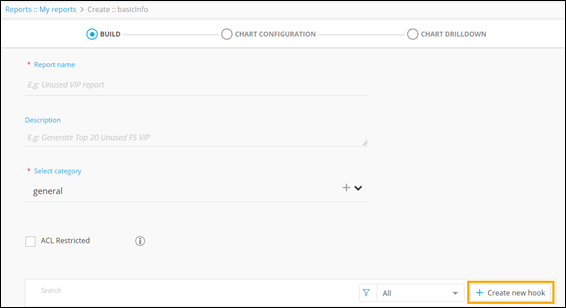 The Hooks Inventory :: Add window pops up. You can add/create a new hook according to your specific requirements.
Creating a Query Explorer Hook
To create a hook based on Query Explorer:
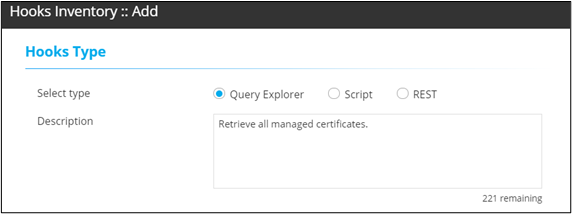
- In the Hooks Inventory :: Add window, under Hooks Type, select the Query Explorer option.
-
Add a description for the selected hook.
-
Under the Query Explorer Detailssection, enter or
select the required field information.
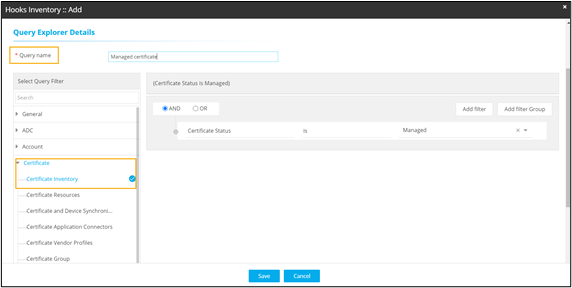 The following table describes the various fields in the Query Explorer Details section:
Field Description *Query name Enter a valid query name. For example: Managed certificates.
Select Query Filter Select an appropriate query filter from the pre-populated list of filters. For example:Certificate Inventory under Certificate section.
Add Filter Add a filter and select appropriate fields from the predefined values. For example: Certificate Status is Managed.
AND/OR Select the appropriate conditional parameters depending on the type of output required in the report. AND: Report will reflect data satisfying all the filter conditions.
OR: Report will reflect data satisfying either of the filter conditions.
* : Mandatory fields - To add this new hook to the Hooks Inventory, click Save.
Creating a Script Hook
To create a hook based on Script:
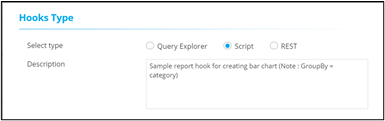
- In the Hooks Inventory :: Add window, under Hooks Type, select the Script option.
-
Add a description for the selected hook.
-
Under the Script Details section, enter a valid
script name and define the script logic .
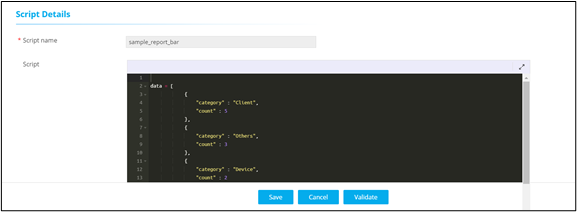
- To add this new hook to the Hooks Inventory, click Save.
Creating a REST API Hook
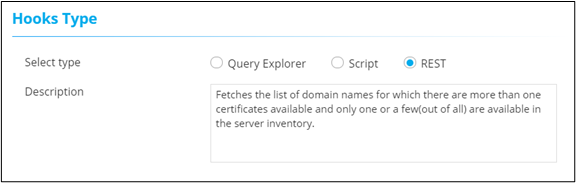
- In the Hooks Inventory :: Add window, under Hooks Type, select the REST option.
-
Enter a description for the selected hook.
-
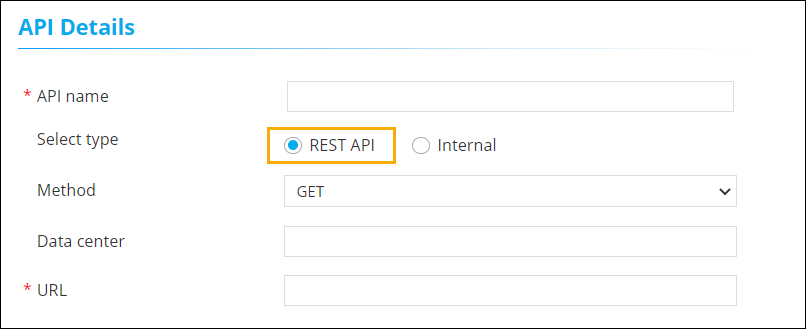
Under API Details, enter or select the field
information.
- Using REST API
- Using Internal API
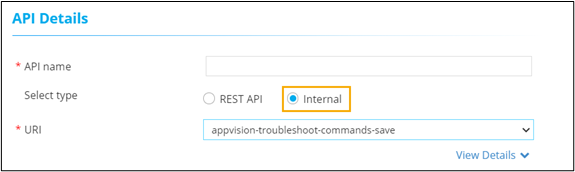
The following table describes field description in this section:Field Description API name Enter a valid name for the API. Select type You can select between REST API and Internal. - REST API: Use this to select external API and enter the URL.
- Internal: Use this to select an internal API and select a URI (Uniform Resources Identifier) from the dropdown menu.
Path params Parameters that are used to identify a specific resource(s). Query params Parameters that are used to filter resources. * : Mandatory fields - Using REST API
-
Under Request Body, enter the payload and response
mapping details.
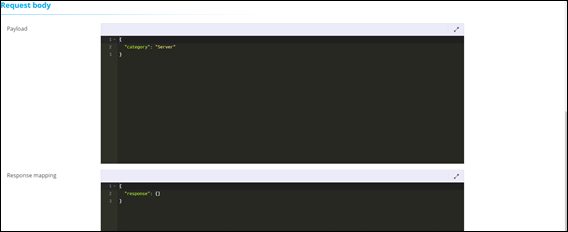 The following table describes field description in this section:
Field Description Payload Payload is the actual data that needs to be passed for the API. Response mapping Mapping an integration response from the backend. - To add this new hook to the Hooks Inventory, click Save.
