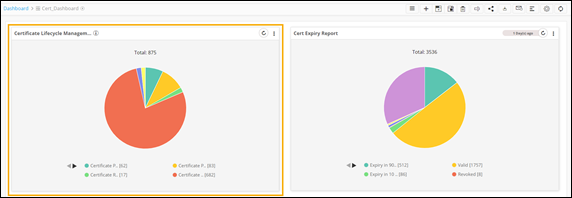
Report Widgets
You can create customized widgets, pin them to a dashboard, and also download report widgets to your device using the Report builder.
Creating a Widget
Creating a User Summary Widget
- On the Reports :: Canvas page, click Create new widget.
-
On the Reports::Canvas > Create page, enter a
Widget name (mandatory field) and
Description (optional field).
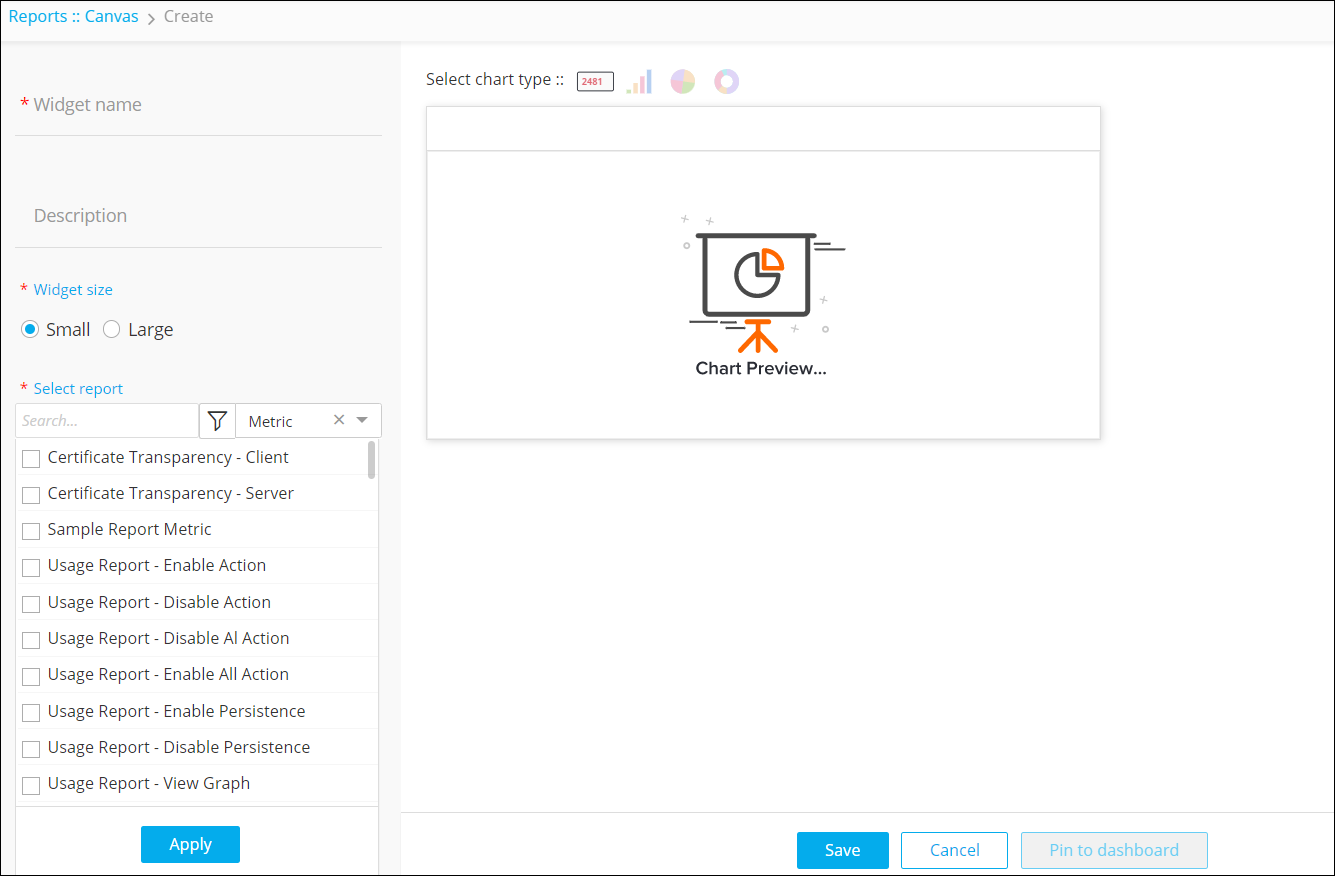
- Select the Widget size as Small or Large.
- Select the report(s) to be displayed on the widget from the list of metric reports available.
-
To see a preview of the widget, click
Apply.
The preview is displayed on the right side of the page.
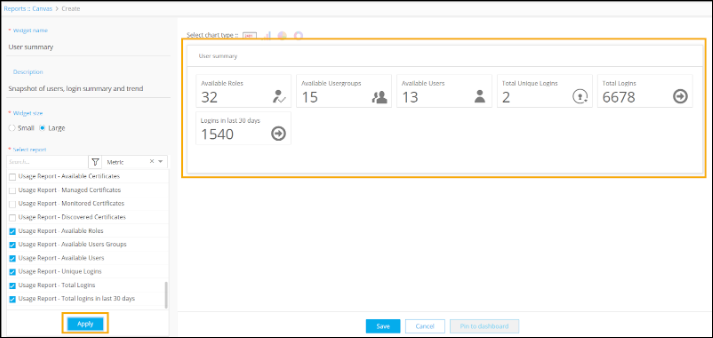
- Click Save.
-
To enable the widget, turn on the Status toggle.
The User Summary widget is displayed on the Reports :: Canvaspage.
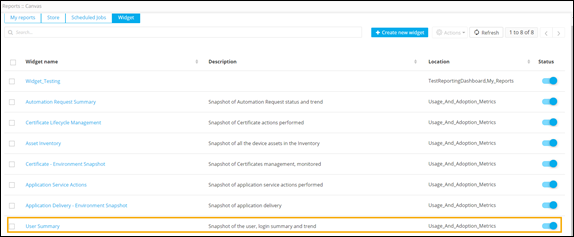 Important: Only enabled widgets are available on the Reports :: Canvas page.
Creating a Certificate Lifecycle Management Widget
- On the Reports :: Canvas page, click Create new widget.
-
On the Reports::Canvas > Create page, enter a
Widget name (mandatory field) and
Description (optional field).
- Select the Widget size as Small or Large.
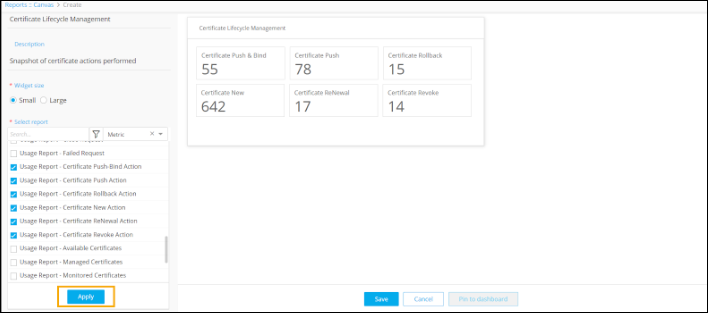
- Select the report(s) to be displayed on the widget from the list of metric reports available.
-
To see a preview of the widget, click
Apply.
The preview is displayed on the right side of the page.
-
To view this widget as a pie chart, from the options available on top
of the widget, click
 .
.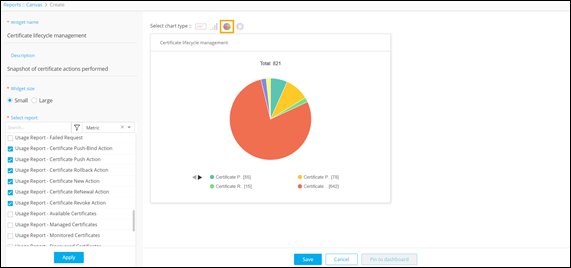 Note: You can choose between four chart types: metric, bar, pie, and donut.
 - To save this widget, click Save.
-
To enable the widget, turn on the Status toggle.
The Certificate Lifecycle Management widget is displayed on the Reports :: Canvas page.
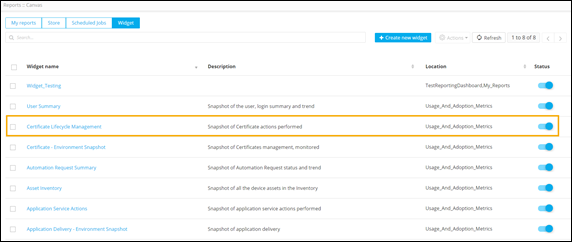 Important: Only enabled widgets are available on the Reports :: Canvas page.
Downloading Report Widgets
To download the widget as PDF:
-
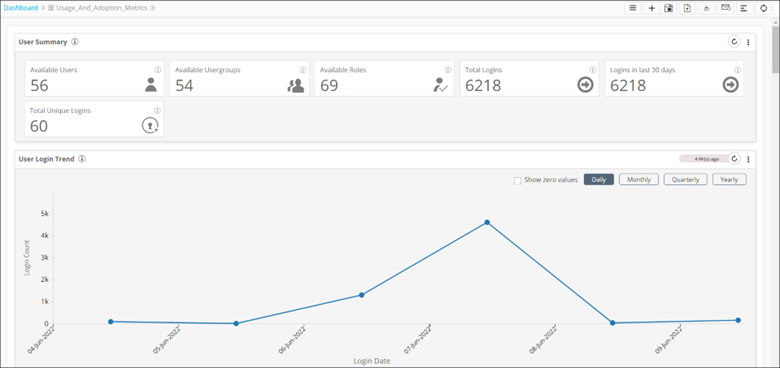
From the Dashboard inventory page, select the
Usage_And_Adoption_Metrics dashboard.
This dashboard displays all the widgets pinned to this dashboard.
-
To download a widget, from the top right corner of the widget, click
 .
.
-
From the options displayed, select Download as
PDF.
 The widget is downloaded to your machine as a PDF file.
Pinning a Widget to a Dashboard
To pin a widget to a dashboard:
- On the Report :: Canvas page, click on the widget to be pinned.
-
Click Pin to dashboard.
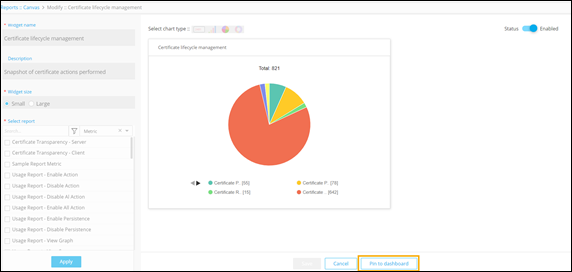
- To pin the widget to an existing dashboard, click Existing dashboard.
-
Select a dashboard from the list of dashboards displayed in the
dropdown.
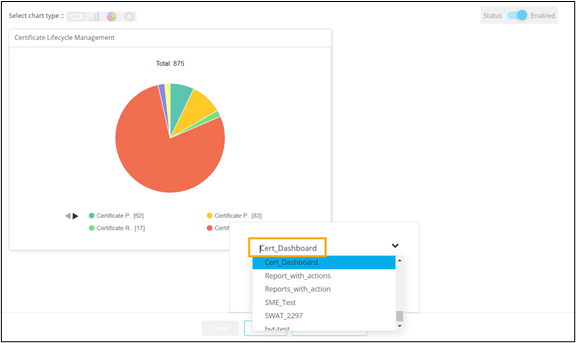
- To pin the widget to the selected dashboard, click Save.
-
On the Dashboard inventory
page, click on the dashboard to which this widget was pinned.
The widget is displayed on the dashboard.