
Accessing the Dashboard Inventory
| New Menu | Old Menu |
|---|---|
|
In the ADC+ or CERT+ module, from the left pane, click Dashboards. The default dashboard is displayed. |
From the main menu, select Dashboards. The default dashboard is displayed. |
| For more information on how to switch between menus, click here. | |
From the top left corner of the screen, click Dashboard.
Tip: You can also click  from the
command bar on the top right to navigate to the Dashboard inventory
page.
from the
command bar on the top right to navigate to the Dashboard inventory
page.
from the
command bar on the top right to navigate to the Dashboard inventory
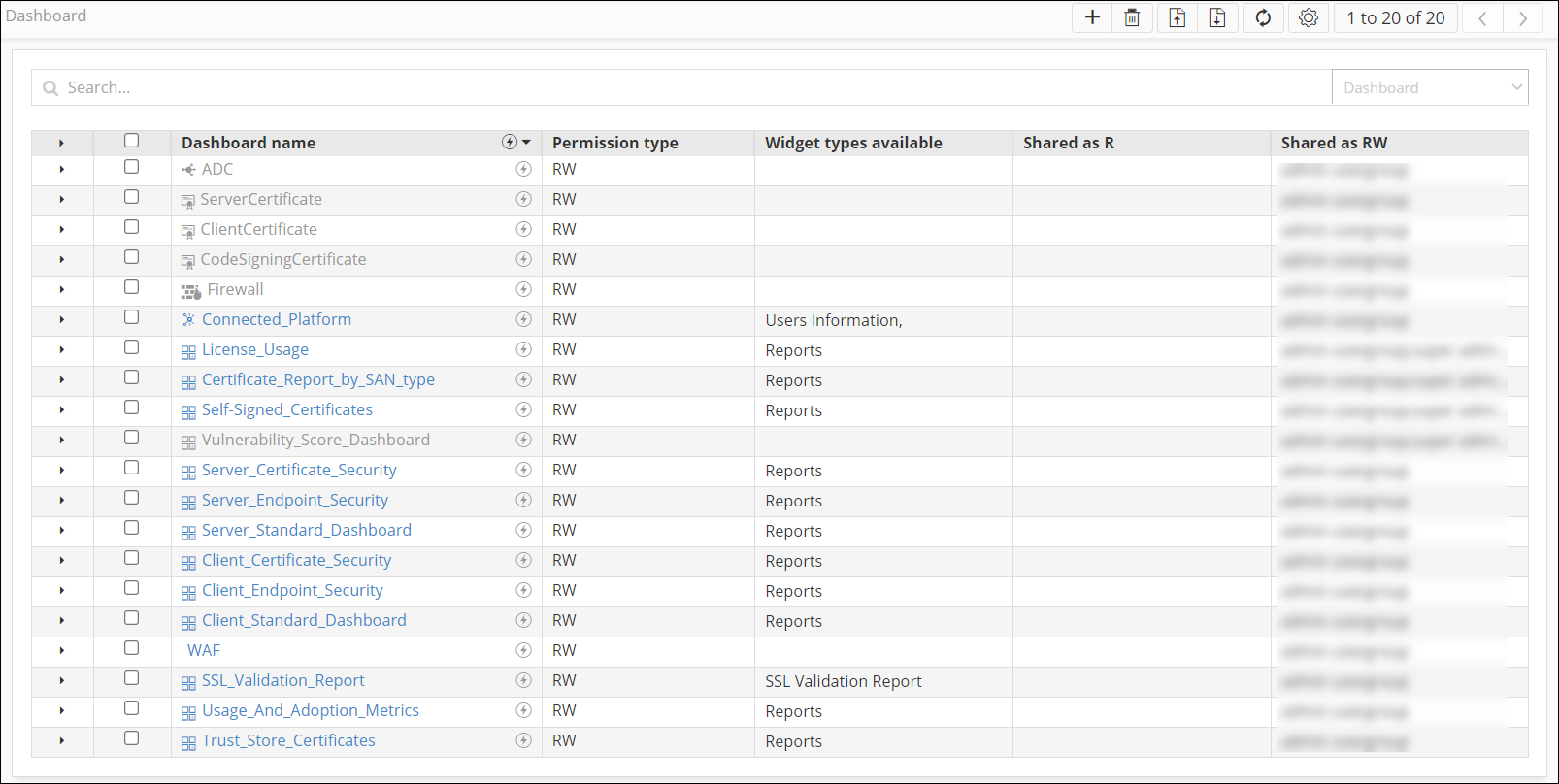
page.The dashboard inventory is displayed.
The
following table describes the various options available on the
Dashboard inventory page:
| Options | Description |
|---|---|
| Search bar | Searches for the given keyword(s) in the field and shows a list of results that match the searched keyword(s). |
 |
Allows you to assign the dashboard as the default dashboard that is displayed when the user logs in. |
 |
Allows users to create a new dashboard. |
 |
Allows users to delete a dashboard from the list. |
 |
Allows users to export a dashboard from the list. |

|
Allows users to import a file to create a dashboard. |
 |
Refreshes the page by clicking on the refresh button. |
 |
Allows users to auto-sort the dashboards alphabetically. |
