
Downloading Reports
Downloading a Report in the PDF Format
-
From the Dashboard inventory
page, select the dashboard on which the report that you want to download has
been pinned.
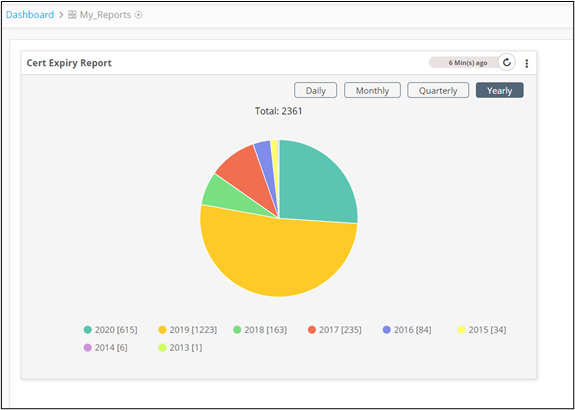
The pinned report can be seen on the dashboard.
-
To download the report to your device as a PDF file, from the top
right corner of the report, click
 .
.
-
From the Options dropdown menu, select
Download as PDF.
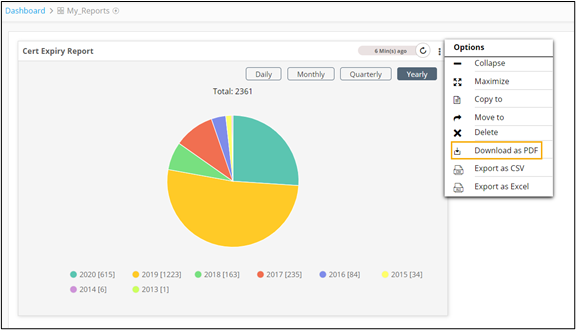 The report will be downloaded to your machine as a PDF file.Note: In the case of Grid reports, the PDF download only supports up to 1000 rows.
Downloading a Report in the CSV Format
-
From the Dashboard inventory
page, select the dashboard on which the report that you want to download has
been pinned.
The pinned report can be seen on the dashboard.
-
To download the report to your device as a PDF file, from the top
right corner of the report, click .
-
From the Options dropdown menu, select
Export as CSV.
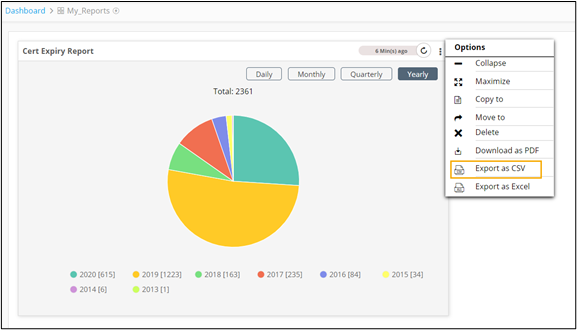 The report will be downloaded to your machine as a .csv file.Note: In the case of Grid reports, the .csv file only supports up to 1,00,000 rows.
Downloading a Report as an Excel sheet
-
From the Dashboard inventory
page, select the dashboard on which the report that you want to download has
been pinned.
The pinned report can be seen on the dashboard.
-
To download the report to your device as a PDF file, from the top
right corner of the report, click .
-
From the Options dropdown menu, select
Export as Excel.
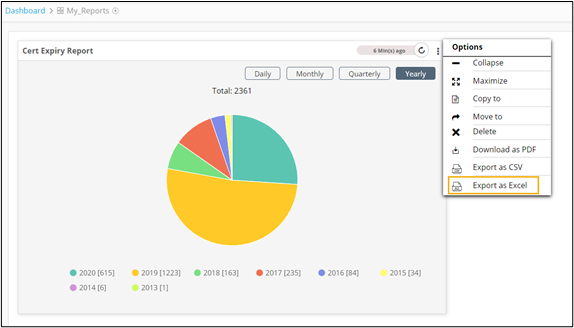 The report will be downloaded to your machine as a .xls file.Note: In the case of Grid reports, the .xls file only supports up to 1,00,000 rows.
Downloading Drilldown Reports
- Excel
- CSV.
- Go to the Dashboard inventory page.
- Select a report that has a drilldown report and open it.
-
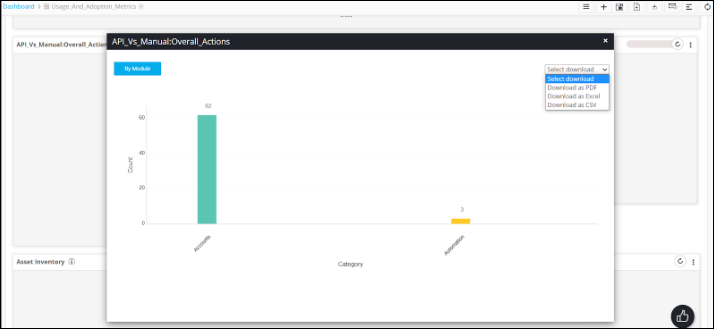
In the drilldown report window, expand the Select download dropdown
menu.
-
Select the download format from the options available.
The report is downloaded to your machine in the format selected.
