
Configuring Role Based Access Control
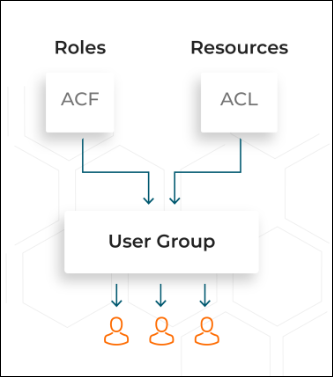
RBAC lets employees have access rights only to the AppViewX functions and network resources they need to do their jobs and prevents them from accessing information that doesn't pertain to them.
To get
an overview of the actions that can be permitted or restricted in the Reports
module:
| New Menu | Old Menu |
|---|---|
In the Platform module, from the left pane, under IDENTITY, select Role. The Role page is displayed, with all the roles listed with their Name, Description, and Status. |
From the main menu, select Account > Role. The Role page is displayed, with all the roles listed with their Name, Description, and Status. |
| For more information on how to switch between menus, click here. | |
- On the Role page, select any role from the list of roles, for example admin.
-
To see the list of permissions that can be defined for this role, under the
Authorized Functions tab, click
 to expand Platform and then expand Data Studio. A selected
checkbox indicates that the corresponding action has been authorized in the
Reports module.
to expand Platform and then expand Data Studio. A selected
checkbox indicates that the corresponding action has been authorized in the
Reports module.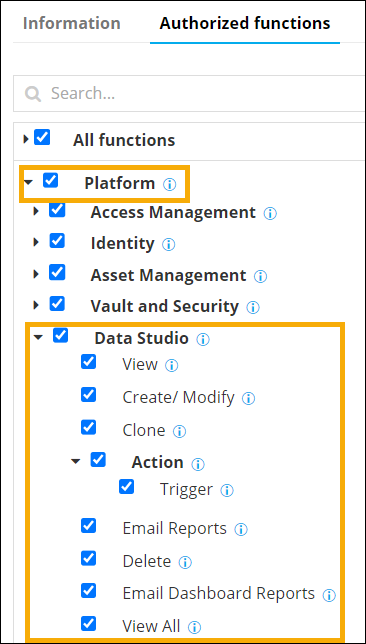 The following table describes the various actions that can be authorized or restricted in the Reports module:
Action Description View Provision to allow or restrict a user to view detailed information on the reports created by the logged in user. Create/Modify Provision to allow or restrict a user to create or modify a report. Clone Provision to allow or restrict a user to clone existing report(s). Action > Trigger Provision to allow or restrict a user to execute reports across AppViewX. Email Reports Provision to allow or restrict user access to email reports in My Reports, Store, Widget in PDF format and manage scheduling. Delete Provision to allow or restrict a user to delete existing report(s). Email Dashboard Reports Provision to allow or restrict a user to email entire dashboards in a PDF format. View All Provision to allow or restrict a user to view detailed information on existing reports created for all users. Note: If you are using the old menu, under the Authorized Functions tab, expand Studio > Reports. - Once the required permissions have been assigned, click Save.
