
Sharing your Reports
Emailing Reports as PDF
-
Under the BUILD section, from the bottom right corner of
the screen, click Share.
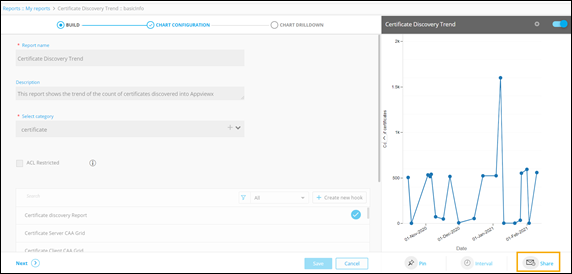 A pop-up window to Schedule reports is displayed.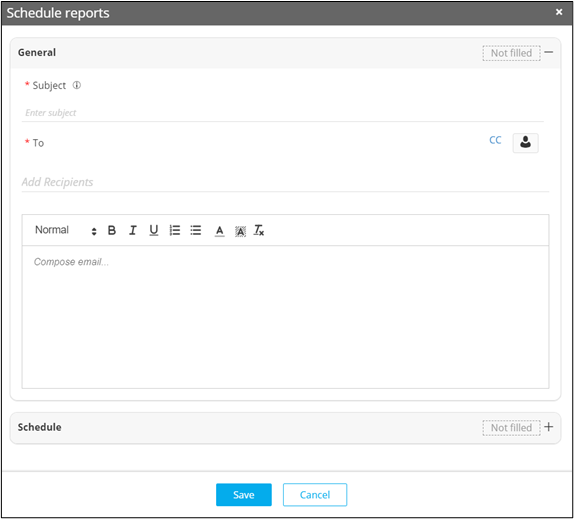
-
In the Schedule reports window, under the General section,
enter or select the required field information.
The following table describes all the fields in the General section:
Field Description *Subject Enter a subject for the email which will also be populated under Scheduled Jobs on the Reports :: Schedule page. *To Enter the names of the recipients of the email. Two options are available here:
- Add single/multiple email addresses.
- Add user groups(s).
Email body/text Compose the email. * : Mandatory fields
Scheduling Reports
-
Under the BUILD section, from the bottom right corner of
the screen, click Share.
A pop-up window to Schedule reports is displayed.
-
In the Schedule reports window, under the Schedule
section, enter or select the required field information.
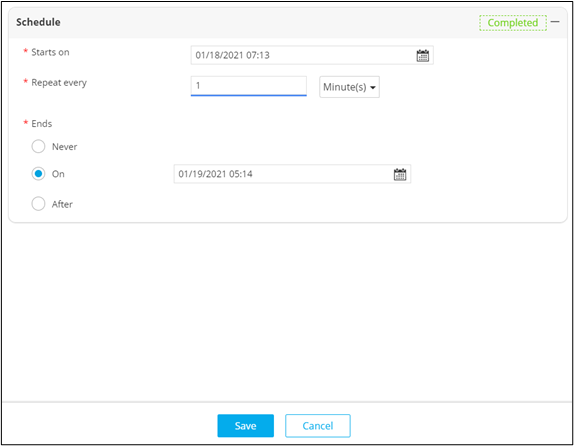 The following table describes the fields in the Schedule section:
Field Description *Starts on Select the date on which report is to be scheduled. *Repeat every Select the numeric value and the frequency of recurrence as minutes, hours, days, weeks, months, or years. *Ends Select when the report should stop recurring. The options available are: - Never
- On a specific date.
- After a set number of occurrences.
* : Mandatory fields -
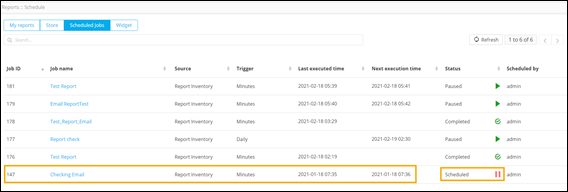
Click Save.
The scheduled report will be displayed on the Reports :: Schedule page.
-
To disable/pause the scheduled job, click
 (Pause) icon.
-
To resume the scheduled job, click
 (Resume) icon.
