
Gigamon
Prerequisite
- Enable API access on GigaVUE-FM to facilitate integration.
- Configure role-based access control (RBAC) to allow users to manage certificates securely.
- Ensure proper network connectivity between GigaVUE-FM and AppViewX/CC for seamless communication.
- Verify that all necessary communication ports are open and accessible.
- For Inbound and Outbound Inline-SSL deployments, configure the keychain password before installing certificates and private keys into the keystore.
Onboarding Gigamon
-
Go to
 (Menu) > CERT+ >
ADMINISTRATION > Device
Management.
By default, the ADC tab opens.
(Menu) > CERT+ >
ADMINISTRATION > Device
Management.
By default, the ADC tab opens. - Click the Server tab.
-
Click the
 (Add) icon.
- Select the Gigamon logo from the Vendors list.
-
In the Server details section, select/enter the
details as follows
Table 1. Server Details - Field Description Table Fields Description *Server Type The value is set to GigaVueFM. *Server name Enter the name of the designated Gigamon server. *IP address/FQDN Enter the IP address or the fully qualified domain name (FQDN) of the GigaVue Appliance that is to be onboarded. HTTPS Port Enter the HTTPS port number used for secure communication. Data center Choose the desired data center. Onboarding Group Select the onboarding group to assign the device. Note: Devices without an assigned group are automatically mapped to the Default group during migration, onboarding, and when edited without existing group mappings.Proxy Required Enable this field if GigaVue communication needs to occur via a Proxy. The proxy details configured in general settings will be used for communication. Cert Sync Choose from the any of the following: - Managed - AppViewX performs the config fetch operations and the certificates are discovered and managed in the inventory. CLM actions (push & bind, rollback, and so on.) can be performed on them.
- Monitored - AppViewX performs the config fetch operations and the certificates are downloaded in the inventory in the read-only state. CLM actions cannot be performed on them.
- Ignored - AppViewX only performs the config fetch operations for the devices. There is no certificate discovery performed.
*: Mandatory fields -
In the Credentials section, select/enter the details
as follows:
Table 2. Credentials - Field Description Table Fields Description *Credential Type Select the credential type from the dropdown. - Manual entry (default)
- Credential List - Appviewx
- All other external Vault.
Note:- If Credential list - Appviewx is selected, the *Credentials list dropdown field is displayed. Select any of the preconfigured credential values.
- All other vault settings (BeyondTrust, Cyberark, Hashicorp Vault, Thycotic, and so on.) configured in the Credentials will be displayed in the dropdown.
*Username Enter the designated username for authentication. Note: Field displayed for manual entry only*Password Enter the secure password. Note: Field displayed for manual entry only*: Mandatory fields -
Click Save.
Note: Multiple devices can be configured for the same vendor.The device is onboarded successfully.
Discovery
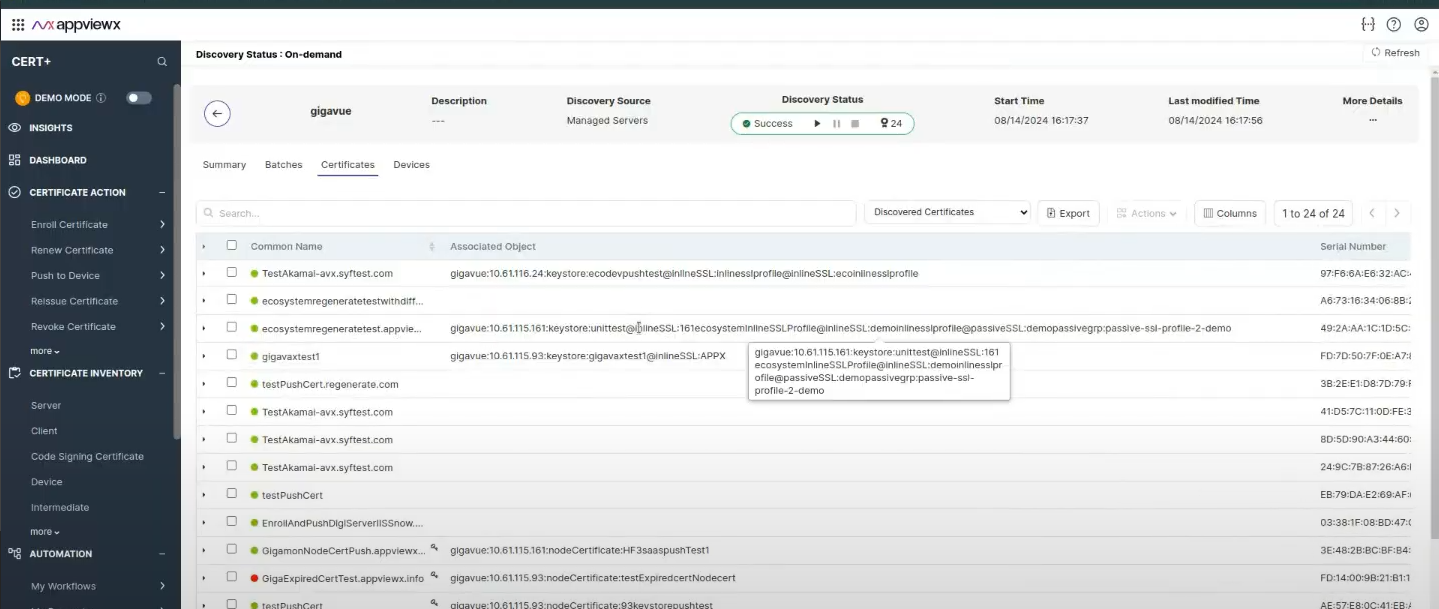
- AppViewX automatically detects all clusters and nodes within the Gigamon appliance, enabling comprehensive discovery, push, and bind operations across all nodes.
- For each identified node, AppViewX discovers both the node certificate and
any certificates in the keystore, offering detailed visibility into their
associations with inline and passive profiles.Note: Discovery cannot retrieve the private key from GigaVUE-FM.
Profile Naming Convention
- Naming convention for profile
Profile Format Default Connector: This profile is used for all cluster nodes and is designed to push the certificate to the specified cluster's keystore. deviceName:clusterId:keystore Passive: Used to push the certificate to the keystore and bind it to a specific Passive SSL profile. deviceName:clusterId:passiveSSL:groupName:sslProfileName:certAliasName Inline: Used to push the certificate to the keystore and bind it to a specific Inline SSL profile. deviceName:clusterId:inlineSSL:sslProfileName:certAliasName 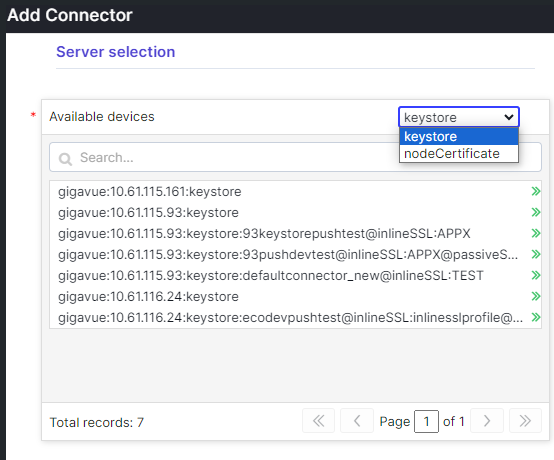
Push Support
- AppViewX enables certificate deployment to the following two
destinations:
- Node Certificate
- Keystore.
- CERT Type: <.pem> format is supported
- Bit length: Upto 4096
- HASH Type: SHA516
- The Overwrite option is enabled on the App Connector screen to manage push
operations for the profile connector.
-
By default, the overwrite option is dissabled.
- If Overwrite is enabled, the existing certificate will be deleted and replaced with the new one during the push operation.
- After renewal or regeneration, it is recommended to use a different alias name. This approach avoids deleting the old certificate; instead, its association is removed, and the newly pushed certificate is assigned to the profile.
Note:- The keystore certificate is shared by both inline SSL and passive SSL.
- During the push operation, the certificate is pushed into the keystore.
- Within a cluster, the alias name or certificate name must be unique.
- The same certificate cannot be imported to a GigaVUE-FM node using a different alias name.
- Certificate and alias names are unique within a cluster.
- The same certificate with the same name can be pushed to a different cluster.
- To push a certificate into GigaVUE, the private key is mandatory.
- The same certificate can be mapped to multiple profiles.
-
Bind Support
- AppViewX allows the binding of certificates to the following profile
types:
- Inline Profile
- Passive Profile.
Note:- Depending on the selected profile (default or device profile), the certificate is bound to that profile.
- Both inline and passive profiles share the same keystore. For example, a certificate pushed to the keystore becomes available to both passive and inline SSL profiles.
- AppViewX supports SSL operations only for existing profiles in the Gigamon environment.
- Profile creation must be performed outside of AppViewX.
- During device onboarding, AppViewX automatically discovers all available nodes in the Gigamon environment.
- Backup functionality is not supported; as a result, rollback operations cannot be performed.
- Private key export is not supported due to security restrictions.
Validating the Device
-
Go to ADMINISTRATION > Device
Management.
By default, the ADC tab opens.
-
Click the Server tab.
The Server Inventory page is displayed.
-
Check that the device name appears in the inventory (Name column) with the
specified CertSync status (Status Column).
The status column will have the value Managed/Monitored/Ignored based on the CertSync status if the connection is successful or displays Failed/Unresolved in case of failure.
-
From the Status column, click the Managed/Monitored.
Device Status Log pop-up is displayed.
- Expand each value in the pop-up to know the Device communication, Device Version, Instance Information, and Certificate Discovery From Device.
Limitations
The following limitations apply:
- Private Key Retrieval: Discovery cannot fetch the private key from Gigavue-FM.
- Certificate Deployment: Pushing a certificate to Gigavue requires the private key to be available.
- Discovered Certificates: Discovered certificates cannot be pushed to Gigavue unless they are regenerated or renewed within AppViewX.
- Backup and Rollback: These features are not supported, as the system cannot back up the private key.
- Endpoint Enrollment: Enrollment at the endpoint is not supported because Gigamon has confirmed that the API is not fully functional.
What's Next
- If you want to discover certificates from the onboarded device, see Managed Devices Scan.
- If you want to enroll a new server certificate, see Enrolling a Server Certificate.
