
Importing a Server
-
Go to
 (Menu) > CERT+ >
ADMINISTRATION > Device Management.
By default, the ADC tab opens.
(Menu) > CERT+ >
ADMINISTRATION > Device Management.
By default, the ADC tab opens. - Click the Server tab.
-
Click the checkbox beside the device name.
Note: If the desired server device is not listed on the screen, run a search.
-
Click the
 (Import) icon in the command bar.
You will be redirected to the import server page.
(Import) icon in the command bar.
You will be redirected to the import server page. -
Download the sample <.csv> or <.xlsx> file.
- The XLSX option enables you to download a vendor-specific file with ease:
- Click the XLSX file icon.
- From the Vendors field, select the desired vendor from the dropdown list.
- Click Download to get the file.
- The XLSX option enables you to download a vendor-specific file with ease:
- Update the details.
- Click the Browse and Upload button.
- Upload the files.
Sever details provided in the sheet will be added to the server inventory.
License Enforcement
AppViewX has enabled a feature to set a limit for the licensed certificates. If the number of certs exceeds this limit then the additional certs added into the inventory will be moved into the Monitored status.
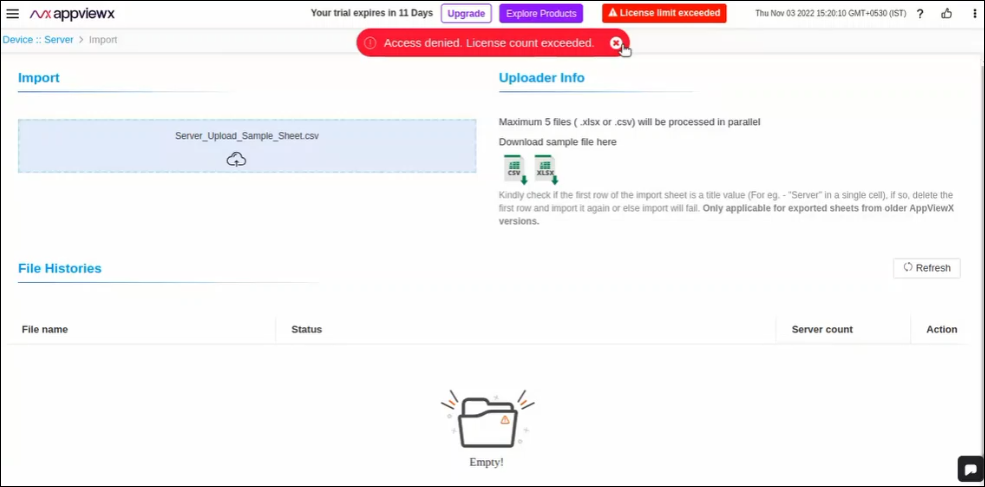
- A red indicator labelled License Limit Exceed is displayed on the title bar of the page, if the limit has exceeded.
- A pop-up message Access denied. License count exceeded is displayed on the click of the Save button while adding a new server device.
