
Adding Device Credentials
-
Go to
 (Menu) > CERT+ >
ADMINISTRATION > Device
Management.
By default, the ADC tab opens.
(Menu) > CERT+ >
ADMINISTRATION > Device
Management.
By default, the ADC tab opens. - Click the Server tab.
-
Click the
 (Credentials) icon in the command
bar.
The Credentials page is displayed. If credentials have been set up, a list of credential names with details will be displayed in a table as shown below.
(Credentials) icon in the command
bar.
The Credentials page is displayed. If credentials have been set up, a list of credential names with details will be displayed in a table as shown below.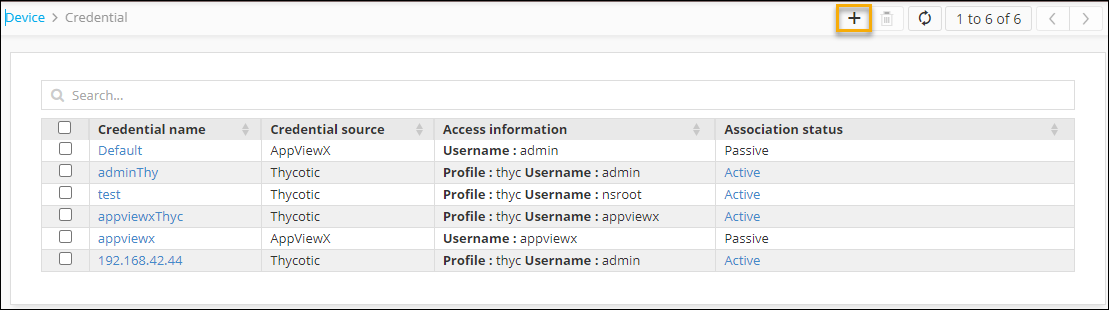
-
To add a new credential, click the plus or
 (Add) icon in the command bar of the Credentials
page.
The Add Credential page is displayed with default credentials fields for AppViewX.Note: For details of fields in AppViewX and other vaults refer to the sections below.
(Add) icon in the command bar of the Credentials
page.
The Add Credential page is displayed with default credentials fields for AppViewX.Note: For details of fields in AppViewX and other vaults refer to the sections below.
AppViewX
To configure credential details for the AppViewX enter the fields described in the table below.
| Fields | Description |
|---|---|
| *Credential name | Name for the credential for the users to identify it. |
| *User name | User name used for device onboarding. |
| Credential type | Select the type of authentication from one of the
following:
|
| *Password | Password configured at the time of device onboarding. Note: This field is displayed only when the
Credential type is selected as
Password. |
| Secondary password | Additional password enabled by vendors for specific
operations. Note: This field is
displayed only when the Credential type is selected
as Password. |
| *Identity key | Credentials (private key in the .pem or .txt
format) for enabling device communication via SSH. Note: This field is displayed only when the
Credential type is selected as Identity
key. |
| Passphrase | Key to protect the private key files. Note: This field is displayed only when the
Credential type is selected as Identity
key. |
| All * marked fields are mandatory. | |
Cyberark
| Fields | Description |
|---|---|
| *Credential name | Name for the credential for the users to identify it. |
| Type | To retrieve a credential from the CyberArk vault, select one
of the following options:
|
| *User name | User name that has been added in CyberArk. Note: This field is displayed when the
Device type is selected. |
| *App ID | App ID that has been authorized to provide access to CyberArk
and retrieve credentials. Note: This field
is displayed when the Device type is
selected. |
| User type | From the dropdown list menu, select one of the following:
Note: *Server IP Address field
is displayed when the User type is selected
External. |
| *Server IP Address | Server IP Address has to be entered if the user has created
external active directory. Note: This
field is displayed when the User type is selected as
External. |
| *AWS IAM username | User name that has been added in CyberArk. Note: This field is displayed when the
Amazon (AWS/ELB) type is selected. |
| *App ID | Reference ID provided by CyberArk for the corresponding
application. Note: This field is
displayed when the Amazon (AWS/ELB) type is
selected. |
| *AWS access key ID | Access key ID generated from the AWS management console. Note: This field is displayed when the
Amazon (AWS/ELB) type is selected. |
|
Note: The asterisk (*) symbol indicates a
mandatory field.
|
|
To configure credential details for the CyberArk vault, from the top right corner of the page, click CyberArk API Settings.
| Fields | Description |
|---|---|
| *IIS-Server IP/Hostname | Hostname or IP address of the CyberArk application. |
| *Port | Port number on which CyberArk is running. |
| *Client certificate | Upload the Client Certificate needed to authenticate the CyberArk API service. |
| *Passkey | Enter the passkey for Client Certificates uploaded in the .pfx format. |
|
Note: The asterisk (*) symbol indicates a
mandatory field.
|
|
HashiCorp
| Fields | Description |
|---|---|
| *Credential name | Unique name for the credential for the users to identify it. |
| *API Profile | Select the API profile from the dropdown list which is configured in HashiCorp API settings. |
| *Secret Engine | Type path and click enter. It will suggest a list of secrets and the desired secret can be selected. |
|
Note: The asterisk (*) symbol indicates a
mandatory field.
|
|
To set API Credentials: From the top right corner of the page, click HashiCorp API Settings.
| Field | Description |
|---|---|
| *API Profile Name | Enter a unique API profile name. |
| *IP/Hostname | Enter the HashiCorp vault hosted IP address or hostname. |
| *Port | Enter the port in which the HashiCorp vault is running. |
| *Auth Method | From the dropdown list list, select either
Token/AppRole.
|
| Namespace | Enter a namespace. |
|
Note: The asterisk (*) symbol indicates a
mandatory field.
|
|
Thycotic
| Fields | Description |
|---|---|
| *Credential name | Reference name for Thycotic in AppViewX. |
| *API Profile | If you have more than one Thycotic Server added as profiles, select the respective profile while adding credentials. |
| Account Type | Select the account type linked with the secret key. The
available options are:
|
| *Credential Type | Select the type of credential. The available options are:
|
| *User Name | Enter the username of the secret if you selected the account type as Device or User/Service Account. |
| AWS IAM Username | Enter the AWS IAM username if you selected the account type as Amazon (AWS/ELB). |
| Secret Name | Select secret type as Device or Amazon (AWS/ELB) or User/Service Account. |
|
Note: The asterisk (*) symbol indicates a
mandatory field.
|
|
To set API Credentials: From the top right corner of the page, click Thycotic API Settings.
| Fields | Description |
|---|---|
| *API Profile Name | Reference name for the vault in AppViewX. |
| *Hostname/Domain Name | Enter the Hostname of the Thycotic Secret Server if it is hosted in an on-prem environment or the Domain name of the Thycotc Secret Server if it is the cloud version. |
| *Port | Port number of the Thycotic Secret Server. |
| *Type | Select if Thycotic Secret Server is hosted in an On prem or Cloud environment. |
| *Username | Username of Thycotic Secret Server. |
| *Password | Password of Thycotic Secret Server. |
|
Note: The asterisk (*) symbol indicates a
mandatory field.
|
|
BeyondTrust
| Fields | Description |
|---|---|
| *Credential name | Reference name for BeyondTrust in AppViewX. |
| *API Profile | If you have more than one BeyondTrust Server added as profiles, select the respective profile while adding credentials. |
| *Secret Type | Select the secret type as Device. Only secrets associated with any device can be added with this secret type. i.e., Secret should contain the device name. |
| Username | Enter the username of the secret if you selected the Secret Type as Device. When this secret is used in any device, respective device name will be automatically send as one of the argument when AppViewX fetches credential from Vault. |
|
Note: The asterisk (*) symbol indicates a
mandatory field.
|
|
To set API Credentials: From the top right corner of the page, click BeyondTrust API Settings.
| Fields | Description |
|---|---|
| *API Profile Name | Reference name for the vault in AppViewX. |
| *Hostname/Domain Name | Enter the Hostname of the BeyondTrust Secret Server if it is hosted in an on-prem environment or the Domain name of the BeyondTrust Secret Server if it is the cloud version. |
| *Port | Port number of the BeyondTrust Secret Server. |
| *Username | Username of BeyondTrust Secret Server. |
| Password | Password of BeyondTrust Secret Server. |
| *API Key | It is the security key provided for authentication. |
|
Note: The asterisk (*) symbol indicates a
mandatory field.
|
|
Enabling Vault as a Service
Vault as a service refers to the provision of Vault, a popular tool for securely storing and accessing sensitive information. It implies that all the vaults and credentials from the platform can be in all the applicable places. For example, if a new credential type feature is supported in the platform, then those credentials will be available to all the vendors in the Server addition page. You do not have to manually make changes for supporting the same in the respective module. The following credentials are now made available to all vendors on the Server device addition page:
- CyberArk
- Thycotic
- HashiCorp
- BeyondTrust
Vault as a service enables the following capabilities:
- Fetches all available credential store from platform.
- Removes the Static Credential type drop down List maintained from Web.
- Consumes the retrieved vaults from platform at required places.
- Vaults are automatically listed in consumption places (e.g. Server device addition)when added in Platform.
- Sets the access list based on user-selected credential type from the available vaults.
- Supports all the vault services of the imported vendors servers.
