
Creating a User Group
-
Navigate to the User group page in AppViewX.
New Menu Old Menu - From the main menu, select Platform.
- In the Platform module, from the left menu,
under IDENTITY, click User
group.
The User group page is displayed.
From the main menu, select Account > User group. The User group page is displayed.
For more information on how to switch between menus, click here. -
On the User group page, to create a new user group, from the command bar
on the top right, click
 .
.
-
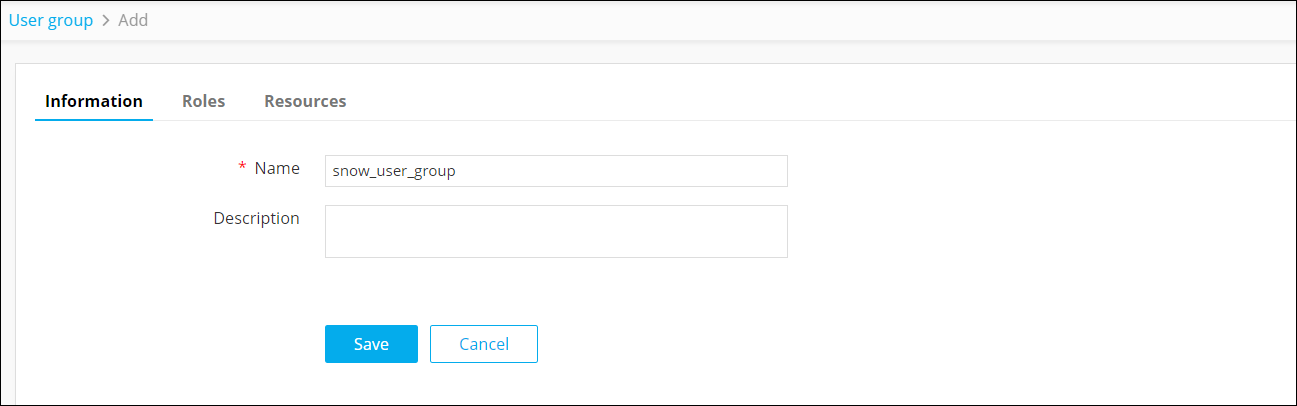
On the Add page, under the Information tab, enter the name of the
user group you want to create. For example: snow_user_group.
-
On the Add page, under the Roles tab, select the CLM
Manager role to map to this user group.
Note: The CLM Manager role is shipped out of the box with AppViewX, with all the necessary permissions required for CLM operations on ServiceNow.
- Click Save.
- On the Add page, under the Resources tab, select the role created for ServiceNow operations here.
- Click Save.
