
Configuring the AppViewX Inventory Sync
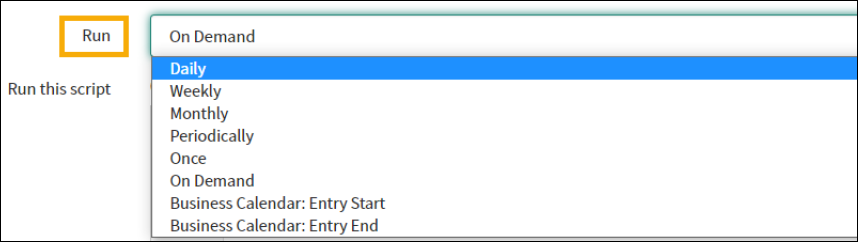
You can configure the inventory sync to trigger on a daily, weekly or monthly basis or even on-demand.
- On the ServiceNow instance, in the Filter navigator, search for the Schedule jobs.
-
From the results, displayed, under System Definition,
click Scheduled Jobs.
The Scheduled Jobs page is displayed.
- On the Scheduled Jobs page, search for the AppViewX Inventory Scheduler and click the options in the results displayed.
-
On the AppViewX Inventory Scheduler page, from the
Run field, select the frequency of the inventory sync
from the options available in the dropdown. For example:
Daily.
- In the Time Zone field, select the time zone from the options available in the dropdown.
-
Select the Time at which you want the inventory sync to
take place and click Update.
The inventory sync will be triggered daily at the scheduled time.
