
Receiving Approvals via Email
-
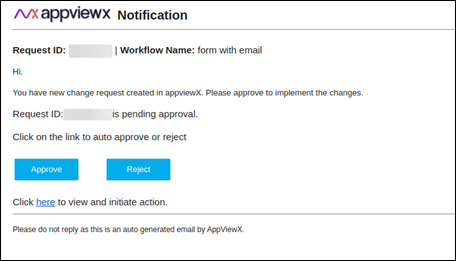
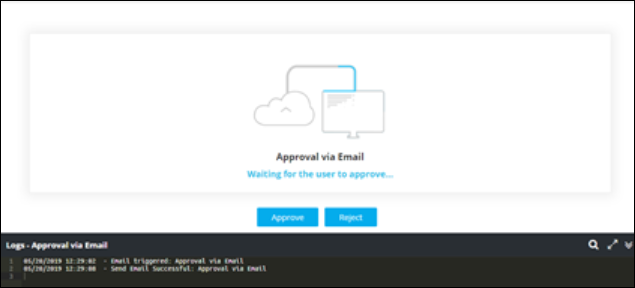
Click on the link embedded in the approval email (Approve/Reject) to
navigate to AppViewX.
-
Click Approve / Reject.
- The following message (HTML text) will be shown in a new tab.
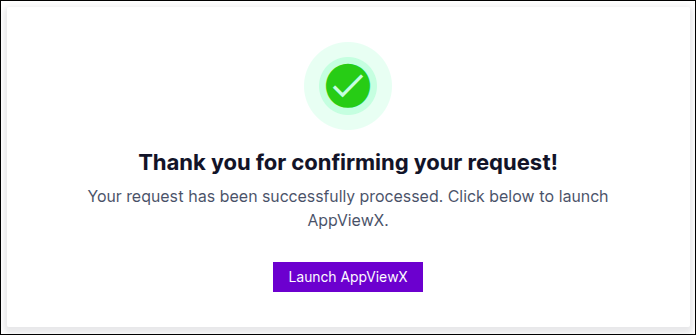
-
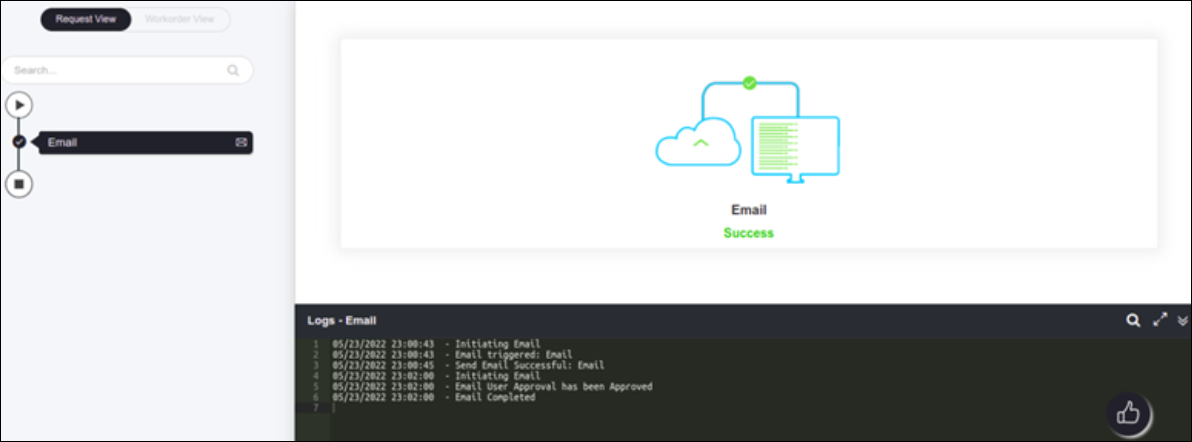
If you click Approve, the task is displayed as Success.
-
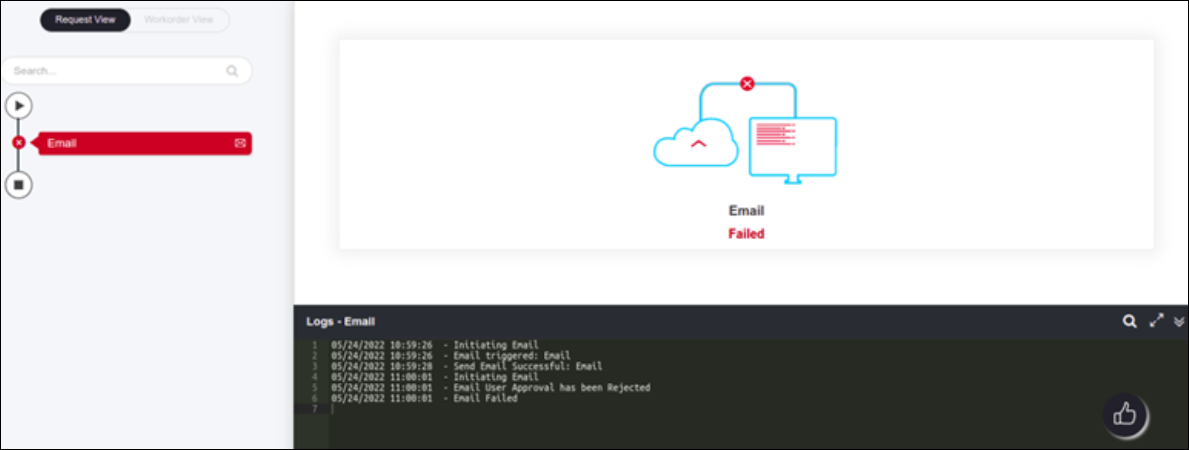
If you click Reject, the task is displayed as failed.
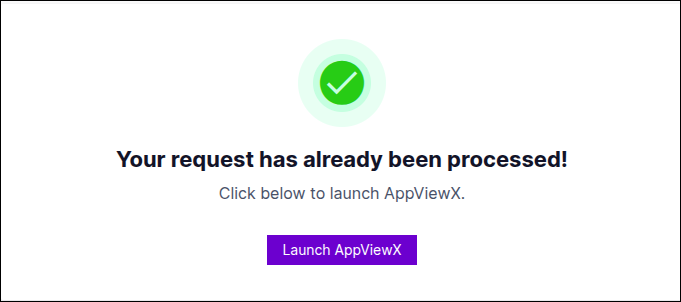
- In the event of clicking the email approval again, the following message
indicating that the email response has been processed will be shown in a
new tab.
- In the event of not processing the approvals via email on time, users
can log into AppViewX, navigate to the pending workflow request and
manually approve or reject the workflow task.
Note: The SMTP settings must be configured prior to triggering any emails. For more information, refer to the Platform User Guide. - The following message (HTML text) will be shown in a new tab.
