
Configuring Email Approvals 
- Configure approvals via email and trigger the workflow based on the email event or action.
- Define manual or automatic email approvals.
- Emails include static and dynamic file attachments (pdf, jpeg, doc, xls).
To enable email approval:
- Design a workflow.
- From the Notificationsection, drag and drop the Email task.
-
In the Email task window, under
Properties, in the General
section, turn on the Enable approval via email toggle.
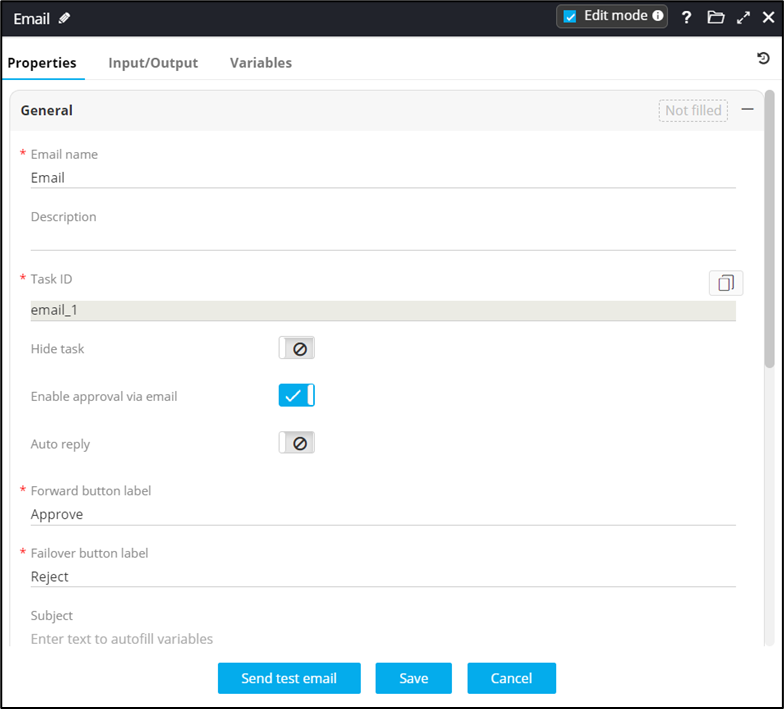 On enabling the toggle, the following fields are displayed:
- Forward button label
- Failover button label.
Note: You can also use Configure Template within your workflow to send email approvals using your customized email template. - Enter values for these two fields.
- Enter custom email content.
- To assign users and user group, in the General section, go to the To field and click on the person/recipients icon.
-
In the Choose Recipients icon select User Type as
User/Role/Group. Based on the selection further click the check boxes
for users/ roles/ user groups to be added.
Note: In case of User Groups, emails are sent based solely on the user’s direct association with the selected user group. If User1 is associated with UserGroup1 and User2 is associated with UserGroup2. Consequently, if UserGroup1 is linked to Role1 and Resource1 and UserGroup2 is linked to Role1 and Resource2. User1 receives the email as they are directly associated with UserGroup1, and User2 does not receive the email since they are not part of UserGroup1.
-
Click Save.
You can use this task within your workflow to send email approvals.
