
Viewing the added WAEP Setting on the Dashboard
To view the newly added WAEP setting on the dashboard:
- Click Go to Inventory to view the added WAEP setting on the dashboard.
- From this page, you can do any of the following actions:
- Click Check to check if the certificate template configuration is
successful. If the certificate template configuration is successful, the
status changes to Valid, else it turns to Invalid. For
incomplete template certificate configuration, the status shows as
Incomplete. To complete the WAEP configuration, click the
 (Edit) icon. You can also expand to view the validation attributes and status of the connection separately for each of the certificate templates as shown: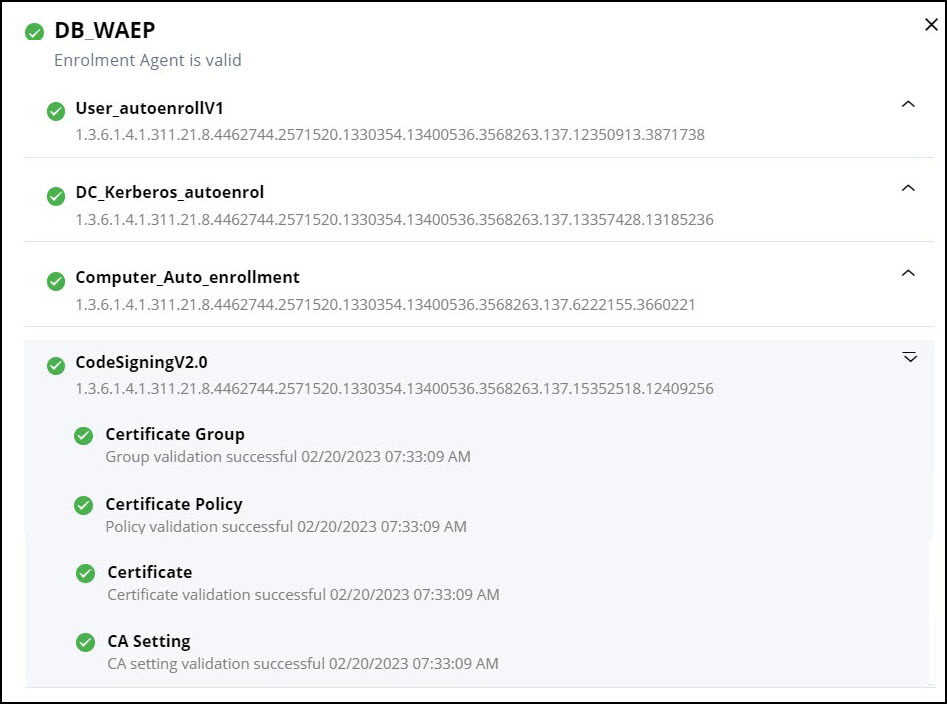
- If the certificate is found in the enrolled Windows client machine, then the enrollment is successful and the Success Requests tab on the dashboard is incremented by 1. If it is unsuccessful, then the count in the Failed Requests tab is incremented by 1.
- If you have enabled the Block Duplicate Certificates on the
Settings page, then based on the value set for the permissible
duplicate certificates in an hour further auto-enrollment requests are
blocked for the day with a log entry, Duplicate Certificate request -
Certificate entry with this Common Name, Certificate Template and SAN
value has already been issued. The user/device is automatically
unblocked after the set time limit has elapsed.
The administrator can manually enable the blocked user/device from the WAEP page by clicking View in the Blocked Users tab, selecting the checkbox against the user name to unblock, and clicking Unblock.
Click the Audit Log to get details on the unblocked user/device. The details include the device/user name, domain, date and time on when it was blocked and unblocked, and who unblocked it. You can also download the audit log in the CSV format.
- Click the (Edit) icon to edit the WAEP
configuration.
- Click the
 (Delete) to delete the WAEP
configuration.
(Delete) to delete the WAEP
configuration.
- Click Check to check if the certificate template configuration is
successful. If the certificate template configuration is successful, the
status changes to Valid, else it turns to Invalid. For
incomplete template certificate configuration, the status shows as
Incomplete. To complete the WAEP configuration, click the
