
Configuring WAEP Templates
Templates can be fetched in two ways: manual and automatic. Fetching templates is
essential for mapping each template to a specific CA configuration setting.
Note: To ensure proper functionality with WAEP, default templates
must be duplicated. Follow these steps to duplicate templates on the CEP/CES machine
from the Section, Adding Templates in CA.
Manual Fetch Configuration
Prerequisites
- Generate CSV file (Applicable only for manual upload of templates)
To generate CSV file:
- Run Windows PowerShell.
- To extract information of the certificate name, certificate
template OID, validity period, and renewal period from the templates
published on the ADCS server, run the command on the ADCS
server:
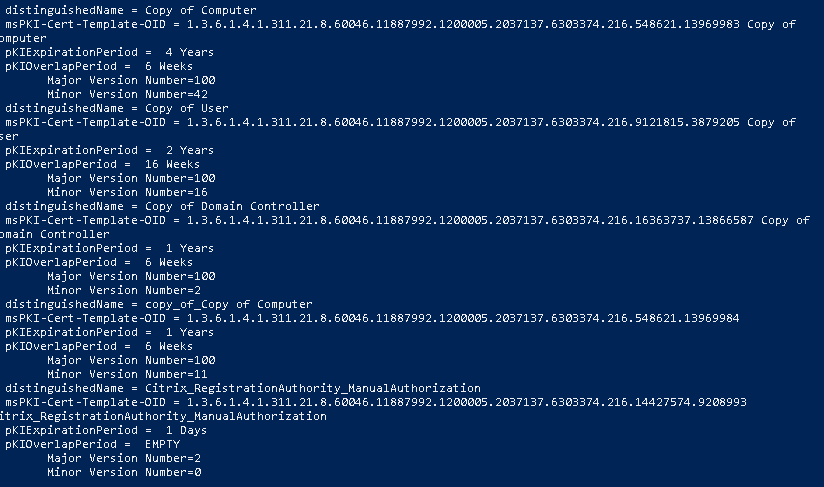
Certutil -adtemplate -v | select-string distinguishedName,msPKI-Cert-Template-OID,pKIExpirationPeriod,pKIOverlapPeriod,'Major Version Number','Minor Version Number' - Copy the distinguished name (Template name), certificate template OID,
validity period, and renewal period with major and minor version for
templates as shown:
- Open a spreadsheet and create column headings:
- templateName: In this column, add entries as Computer_Auto_enrollment template and User_autoenrollment.
- templateOID: In this column, paste the OIDs copied in Step 3 against the respective template.
- validityPeriod: In this column, enter the value as 365, which is the default value of the validity period.
- validityPeriodUnit: In this column, enter the value as days, weeks, months, or years.
- renewalPeriod: In this column, enter the value
as 30, which is the default value of the renewal period.Note: The renewal period must be less than the validity period.
- renewalPeriodUnit: In this column, enter the value as hours, days, weeks, months, or years.
- templateMinorVersion: In this column, please enter the minor version associated with the template.
- templateMajorVersion: In this column, please enter the major version associated with the template.
- Once done, save the file in .xls, or .xlsx, or csv format.
Auto-Fetch Configuration
Templates can also be automatically fetched from the Windows machines using WAEP. To use auto-fetch:
Enable Winrm services in AD and CEP machine
For the Lift & Shift feature to work, enable the WinRM service on the policy server (CEP/CES) and the AD servers configured in WAEP for global fetch configuration and publication of templates.
To configure WinRM service (Applicable only for automatic upload of templates):
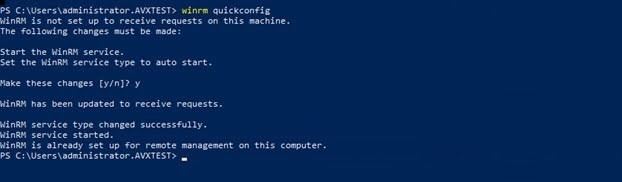
- Run winrm quickconfig on the PowerShell window as an administrator.
- Type y when prompted to start the WinRM service.
The service account, for example: <waep_kerberos>, must be part of the Remote Management Users group.
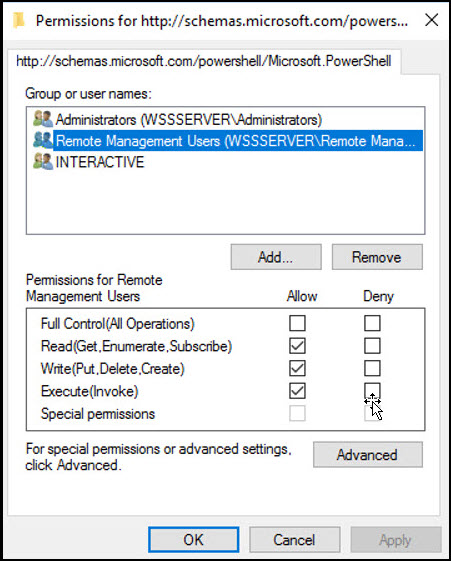
- To validate if the Remote Management Users group has permissions to
execute the scripts, run the below command on the AD server and the policy
server:
Set-PSSessionConfiguration -ShowSecurityDescriptorUI -Name Microsoft.PowerShell - Add the service account to the Remote Management Users group in AD.
- Assign Read,Write, and Execute permissions to the group.
- Enable Credential Security Support Provider (CredSSP) authentication on the
policy server (CEP/CES) and the AD servers by running the following
command:
Enable-WSManCredSSP -Role Server - Once the server role is enabled, ensure the parameters, Kerberos, Negotiate,
CredSSP, are set to true and CbtHardingLevel is set to Relaxed as
shown:

