Direct Requests
The Direct Request page lists the auto-enrollment certificate requests for which the visual workflow will not be displayed for generating the certificates, resulting in a greatly improved performance. This page only displays the status and other details of certificate requests. No actions can be performed on this page.
Note: While creating an auto-enrollment request (for EST, ACME, SCEP,
MS INTUNE), in the Advanced Setting section , select the radio button in High
Speed Transaction field to “Yes” to display the requests in the Direct Requests
page.
Accessing the Direct Request Page
- Go to
 (Menu) > CERT+ >
ADMINISTRATION > Direct Requests
.
(Menu) > CERT+ >
ADMINISTRATION > Direct Requests
.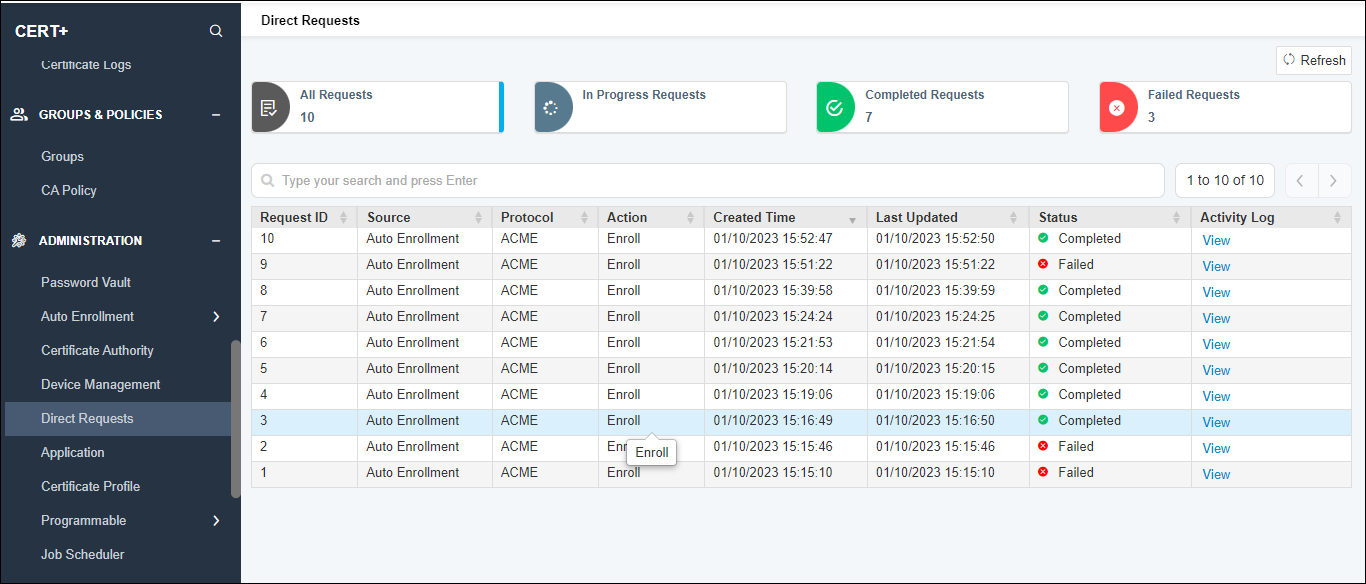
- The Direct requests page displays the following:
- Echelons - All requests, In Progress Requests, Completed Requests, and Failed Requests. all echelons have the count of requests and are clickable. Clicking each echelon will display only those specific status requests.
- Refresh button
- Search field - users can enter values w.r.t. Request ID, Time Created, Request Status, CLM Action to search/filter for specific requests.
- Grid with the following columns -
- Request ID - displays ID of the current request
- Source - displays the source type, usually Auto Enrollment
- Protocol - displays the type of protocol (EST, ACME, SCEP, MS INTUNE)
- Action - displays the latest CLM action on the request
- Common Name- displays the common name of the certificate
- Serial Number- displays the serial number of the certificat
- Created Time - displays the time the request was created
- Last Updated - displays the time the request was last updated
- Status - displays the status of the certificate request
- Activity Log - displays the “View” link, when clicked displays the detailed logs at each status for the certificate request cycle.
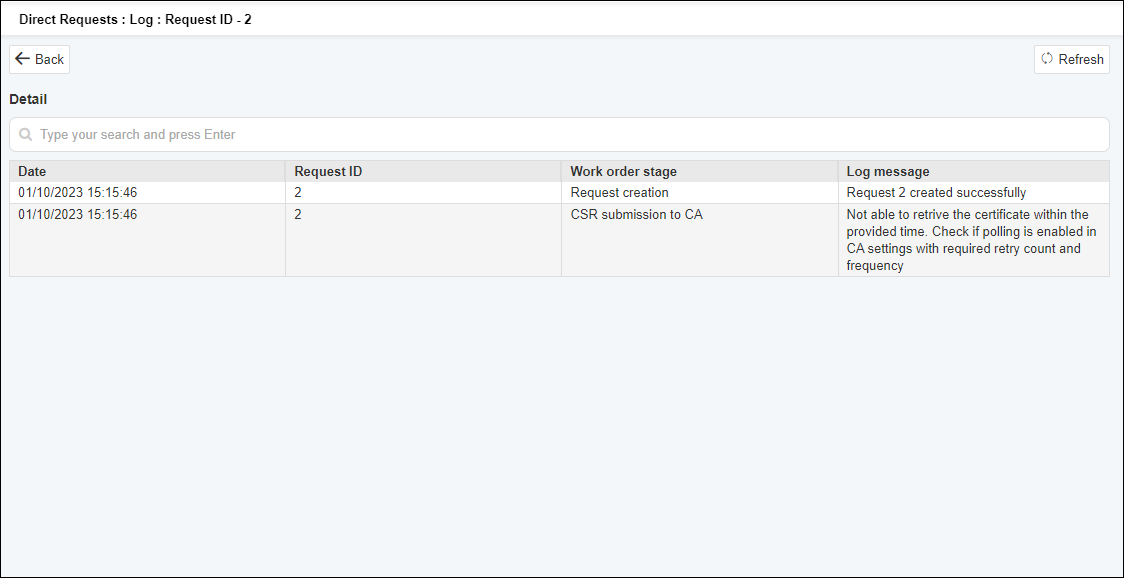
An example of a failed request log is displayed below.