
System Requirements and Service Account Configuration
-
A valid Service Account with the below permissions
- Enterprise Admin
- Domain Admin
- Remote Management Users
- Administrator
- Domain User
-
Service account name
Ensure that the service account’s full name is the same as the login name as shown:
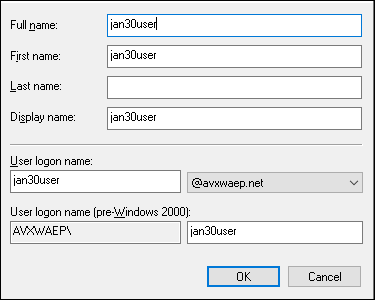
-
CC Service Setup
- Install ACME-HTTPS and SCEP-HTTP services on the CC.
- Configure WAEP in the AppViewX GUI specific to CC.
-
Domain Machine Requirements
- SaaS Setup
- Outbound Calls
- Port 30020 for unidirectional communication from domain machines to CC.
- Port 30022 for CRL verification.
- Inbound Calls
- Port 5985 for auto-fetch requests from CC to the CEP machine.
- Outbound Calls
- Onprem Setup
- Outbound Calls
- Port 31443 for unidirectional communication from domain machines to CC.
- Port 30022 for CRL verification.
Note: Auto fetch/lift and shift functionalities are only supported in the SaaS model. - Outbound Calls
- SaaS Setup
-
Domain and Connectivity
- CEP must be in the same domain as the AD, with connectivity to the AD server.
- Ensure a valid DNS record for the CC/AppViewX node exists in domain machines.
-
Certificate and Trust Configuration
- Bind a valid certificate to the CC/AppViewX Node, ensuring it is trusted by the Windows domain machines.
- Download the issuer PKIaaS CA certificates (intermediate and
root) and enable trust on the Windows domain machines as shown:
- Log onto the AD machine using your service account.
- Move the root and intermediate certificates that need to be trusted to the appropriate location.
- Open the command prompt with administrator privileges.
- To publish the Issuing CA certificate,
run:
certutil -dspublish -f <PathToCertFile.cer> SubCA - To publish the Root CA certificate,
run:
certutil -dspublish -f <PathToCertFile.cer> RootCA - Run the following command to force a policy update and push the
certificates to the domain
machines:
gpupdate /force
