
Certificate Enrollment Validation using AppViewX PKI
-
Login to the Client Machine
Open MMC and add Computer and User Snap-ins.
-
Request a New Certificate
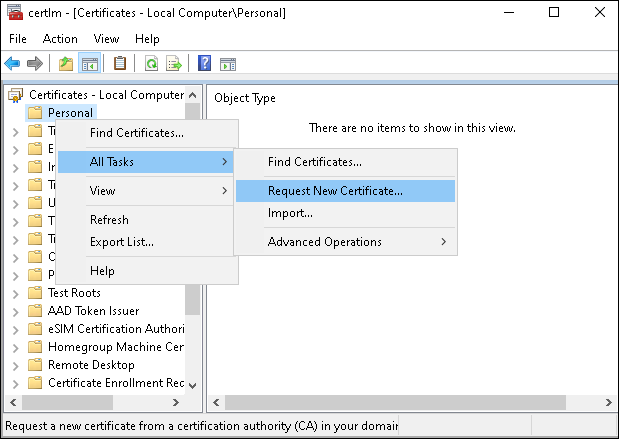
Navigate to the Personal Store, right-click, and select Request New Certificate as shown below:
Select the configured CEP Server and choose the template set up in the AppViewX GUI for enrollment.
-
Verify CES URL Update
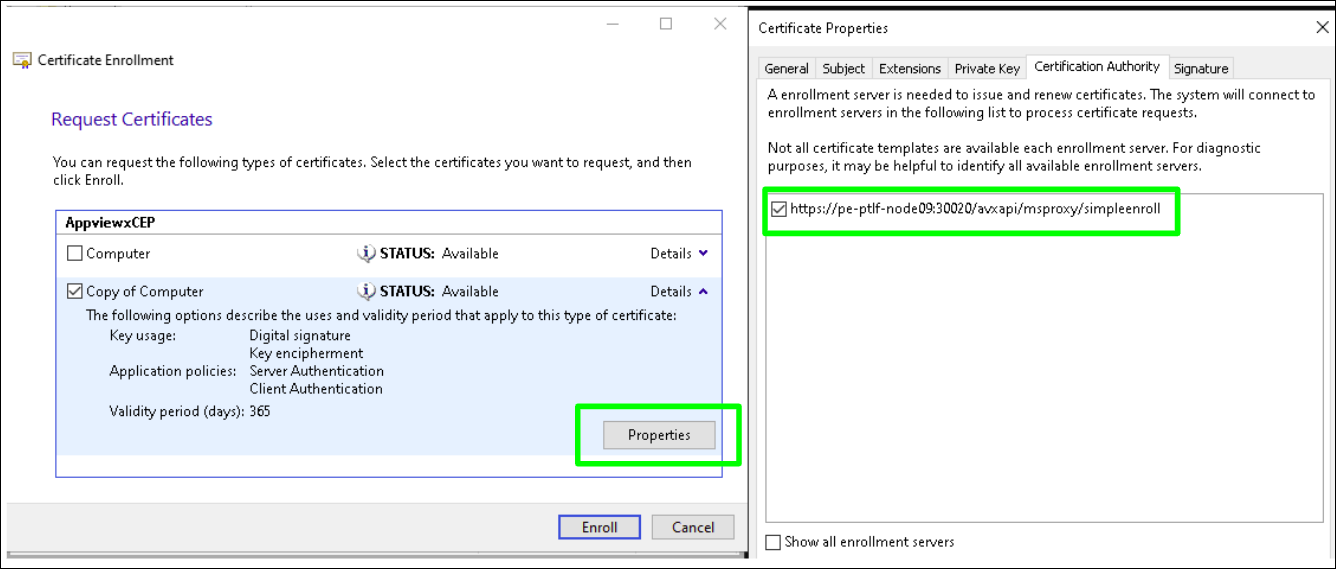
Open the template properties and check if the CC URL is listed under the Certificate Authority tab as shown below:
-
Complete Enrollment
- Click Enroll to proceed.
The issued certificate will appear in both the AppViewX Inventory and the Windows Certificate Store.
