
Deleting Tenants On-Demand
To delete a tenants/trial customers on-demand:
-
Go to
 (Menu) > MSP
Portal > Management >
Tenants.
The Tenant Management inventory is displayed.
(Menu) > MSP
Portal > Management >
Tenants.
The Tenant Management inventory is displayed. -
From the Tenant Management Inventory,select the checkboxfor the required
tenant, and from the enabled Action dropdown, select Delete
Tenant.
The Delete Tenant pop-up window is displayed.
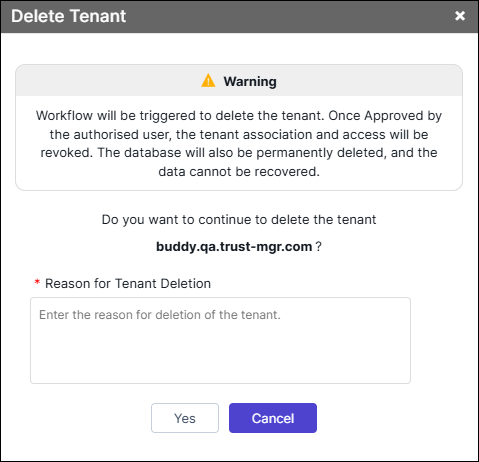
- Enter the Reason for Tenant Deletion.
-
Click Yes.
The offboarding workflow will be triggered and an email is sent to the L1 approver, with a link to approve/reject the request.
-
In the email, click on the link that directs to the request page for L1
approver. Verify the tenant details to be deleted and click
Approve.
An email is sent to the L2 approver, with a link to approve/reject the request.
-
In the email, click on the link that directs to the request page for L2
approver. Verify the tenant details to be deleted and click
Approve.
The Offboarding process continues with the following steps.
- All tenant mappings and kafka topics are removed
- The DNS records are deleted.
- The tenant database is deleted.
- An offboarding email is sent to the user who has initiated the request.
- The status of the tenant in the inventory is displayed as Deleted.
Note: After a tenant is deleted from the system, the MongoDB backup for the deleted tenant remains stored in AWS S3 for 30 days. After this period, the backup is permanently deleted.
