
Managing Tenants in the MSP Portal
Tenant management in the MSP Portal includes the provision to create, delete, and move tenants across clusters, extend the free trial of a tenant as well as move tenants from a free trial to a licensed account, and so on.
Accessing the Tenant Management Inventory
- Go to
 (Menu) > MSP
Portal > Management >
Tenants.
(Menu) > MSP
Portal > Management >
Tenants.The Tenant Management inventory is displayed.
Understanding the Tenant Management Inventory
| Field | Description |
|---|---|
| Filter | Allows you to apply filters to the tenant inventory
to search for specific tenant records. The available filters are:
|
| Add Tenant | Allows you to onboard a tenant manually |
| Action | Dropdown for the possible actions that can be taken on the tenant. The possible actions are: |
| Columns | Button to customize the cluster inventory columns to
be displayed. On clicking the Columns button, a Columns pop-up is
displayed as shown below. By default, all the columns will be
selected. Choose the required columns to be displayed and save the
changes. There are options to Select all and Reset to
previous column selection. 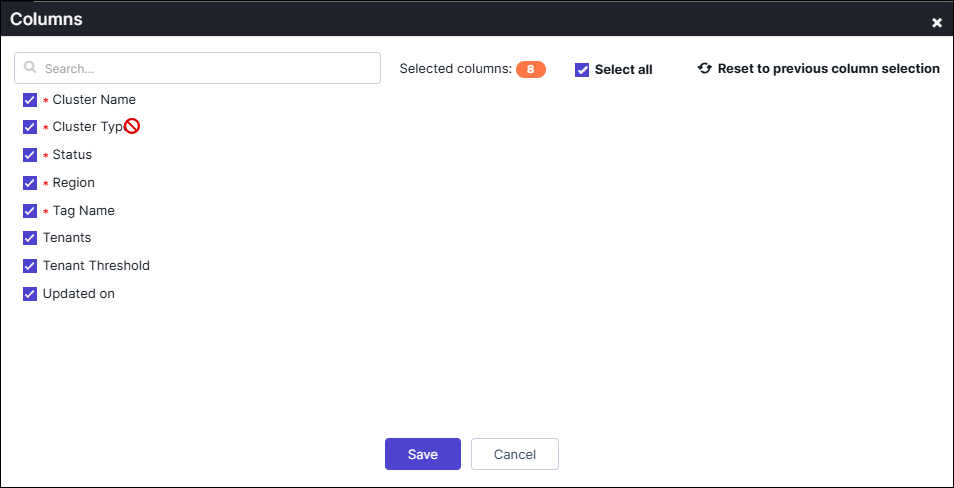 Note: Column
selection is user-specific and remains saved across logout and
subsequent login sessions. |
| Tenant Domain | Displays the domain used by the tenant to
access the product. Clicking on the domain name (for Active tenants) will display a Tenant Details pop-up with all the processed as inputs values in the view only mode. |
| Company Name | Displays the name of the tenant company |
| Displays the tenant’s registered email ID | |
| Products and Plans | Displays the AppViewX product name(s) that
the tenant has a trial/licensed version of and the AppViewX plan
that the user has subscribed to. The plan name gives the details of
the product configuration/capability made available to the tenant. On hovering over the value in the column, this field displays the product and plan details. The plan name gives the details of the product configuration/capability made available to the tenant. It also displays the status of the tenant if they have opted for the trial plan |
| Status | Displays the status of the tenant as:
|
| Request Info | Displays the information of the workflow request
processed for tenant related actions such as onboarding, License
upgrade and so on. Note: To view the request,
click the request ID. A stage-wise view of the workflow request
is displayed. |
| Request Status | Displays the status of the tenant addition request |
 (
( (
( (
( (
( (
( (
( (
(