
Viewing Clusters in the MSP Portal
Accessing the Cluster Management Inventory
Go to  (Menu) > MSP
Portal > Management >
Clusters.
(Menu) > MSP
Portal > Management >
Clusters.
(Menu) > MSP
Portal > Management >
Clusters.
The Cluster Management inventory is displayed.
Understanding the Cluster Management Inventory
| Field | Description |
|---|---|
| Filter | Lets you filter the cluster inventory entries
for the following parameters:
|
| Columns | Button to customize the cluster inventory
columns to be displayed. On clicking the Columns button, a
Columns pop-up is displayed as shown below. By default, all the
columns will be selected. Choose the required columns to be
displayed and save the changes. There are options to Select
all and Reset to previous column selection.
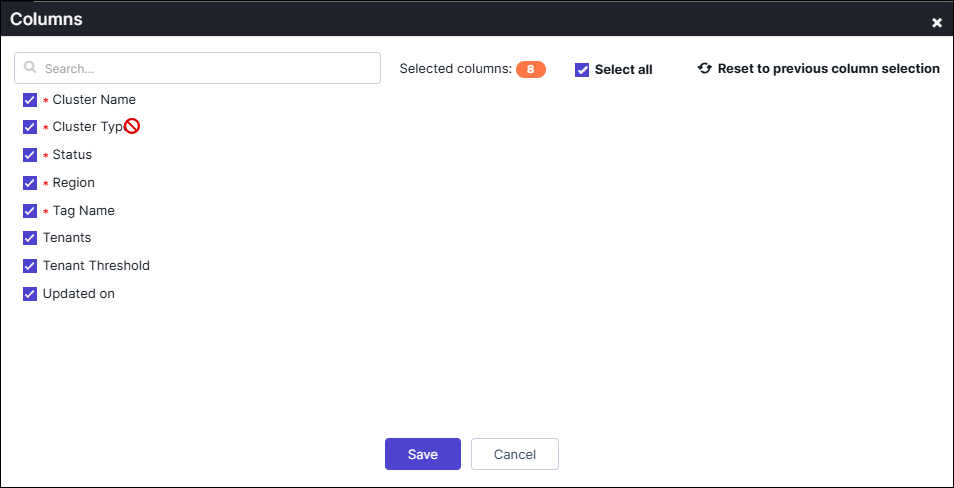 Note: Column selection is user-specific and
remains saved across logout and subsequent login
sessions. |
| Cluster Name | Displays the name of the cluster |
| Cluster Type | Displays the type of the cluster. The valid
types are:
|
| Status | Displays if the cluster is active. |
| Region | Displays the region in which the cluster is created. |
| Tag Name | Displays the name of the associated tag. |
| Tenants | Displays the number of tenants associated with the respective cluster. |
| Updated on | Displays the date of the last cluster update. |
| Action | Displays the possible actions that can be taken on the cluster. (Currently MSPs don't have the option to modify the cluster metadata). |
