
Create F5 LTM Monitors - Multiple Devices
This workflow creates a Single Monitor of Type (HTTP, HTTPS, GatewayICMP) with the same configuration on multiple devices.
To run this workflow:- Go to Menu > ADC+ > AUTOMATION > Workflow Catalog > View/Run
- Click the F5 BIG-IP LTM category on the View/Run Workflows page.
-
On the popup window, hover the mouse over the Create F5 LTM
Monitors - Multiple Devices workflow.
The Run and Schedule buttons are displayed.
-
Click
 .
The Request > Create F5 LTM Monitors - Multiple Devices :: FormBuilder page is displayed.
.
The Request > Create F5 LTM Monitors - Multiple Devices :: FormBuilder page is displayed. -
Enter/select the Device Details.
Table 1. Device Details Section - Field and Description Table Field Description *Datacenter Displays the list of datacenters of the devices, which are created in the Device Inventory. Select the datacenter of a device from the drop-down option for which this request is to be created. For the devices which are created without a datacenter in the Device Inventory, select the datacenter as None. *Device Name Displays the list of devices associated with the selected datacenter. If the datacenter is selected as None, the devices that are created without datacenter details are listed. Select the desired devices from the drop-down option. -
Enter/select the Monitor Details.
Table 2. Monitor Details Section- Field and Description Table Field Description *Monitor Type Select the monitor type from the drop-down option. *Name Enter the name of the monitor. Description Enter the description for the monitor. Interval The frequency at which the system issues the monitor check when either the resource is down or the status of the resource is unknown. Enter the value for the interval in seconds. Timeout The number of seconds the target has in which to respond to the monitor request. Enter the timeout value in seconds. Send String The text string that the monitor sends to the target object. You must include \r\n at the end of a non-empty Send String. The default setting is GET /\r\n, which retrieves a default HTML file for a website. To retrieve a specific page from a website, specify a fully qualified path name Receive String The regular expression representing the text string that the monitor looks for in the returned resource. The most common receive expressions contain a text string that is included in an HTML file on your site. The text string can be regular text, HTML tags, or image names, and the associated operation is not case-sensitive. Reverse Instructs the system to mark the target resource down when the test is successful. This setting is useful. For example, if the content on your website's home page is dynamic and changes frequently, you may want to set up a reverse ECV service check that looks for the string errors. A match for this string meant that the webserver was down. To use this option, you must specify values for Send String and Receive String.
- disabled - Specifies that the monitor does not operate in reverse mode.
- enabled - Specifies that the monitor operates in reverse mode.
Receive Disable String This setting works like a Receive String, except that the system marks the node or pool member disabled when its response matches Receive Disable String but not Receive String. To use this setting, you must specify both Receive Disable String and Receive String. Username Enter the user name, if the monitored target requires authentication. Password Enter the password, if the monitored target requires authentication. Transparent The transparent mode of the monitor. A monitor in transparent mode directs traffic through the associated pool members or nodes (usually a router or firewall) to the aliased destination (that is, it probes the Alias Address-Alias Service Port combination specified in the monitor). If the monitor cannot successfully reach the aliased destination, the pool member or node through which the monitor traffic was sent is marked down.
- disabled - Specifies that the monitor does not operate in transparent mode.
- enabled - Specifies that the monitor operates in transparent mode.
Alias Address Enter an alias IP address for the monitor to check on behalf of the pools or pool members with which the monitor is associated. Alias Service Port Enter an alias port or service for the monitor to check, on behalf of the pools or pool members with which the monitor is associated. -
Click Submit.
The Confirmation dialog box is displayed.
-
To save this form so you can edit it later, click Save Draft and then click
OK.
The form will be saved as Open request under Request > My Request.
OR
To submit the form, click OK.
The validation starts automatically and reaches the Review stage.Note:- If there is any failure at this stage, start a new request by providing the correct data.
- Alternatively, select the failed request and clone it. Update the correct input data in the form input, and submit the workflow again.
-
Review the input data under the implementation, rollback, and
postvalidation tabs.
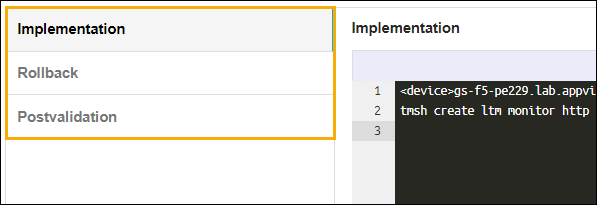
-
(Optional) If you need to change any data at this stage, right click and select the
required option.
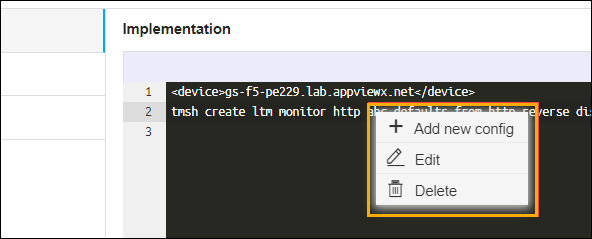
-
After the review, click Submit.
The Confirmation dialog box is displayed.Note: Click Cancel to stop running the workflow creation.
-
Click Ok to continue the workflow creation.
It takes a while to complete the request.
The workflow is created and the email is triggered to the configured email IDs.
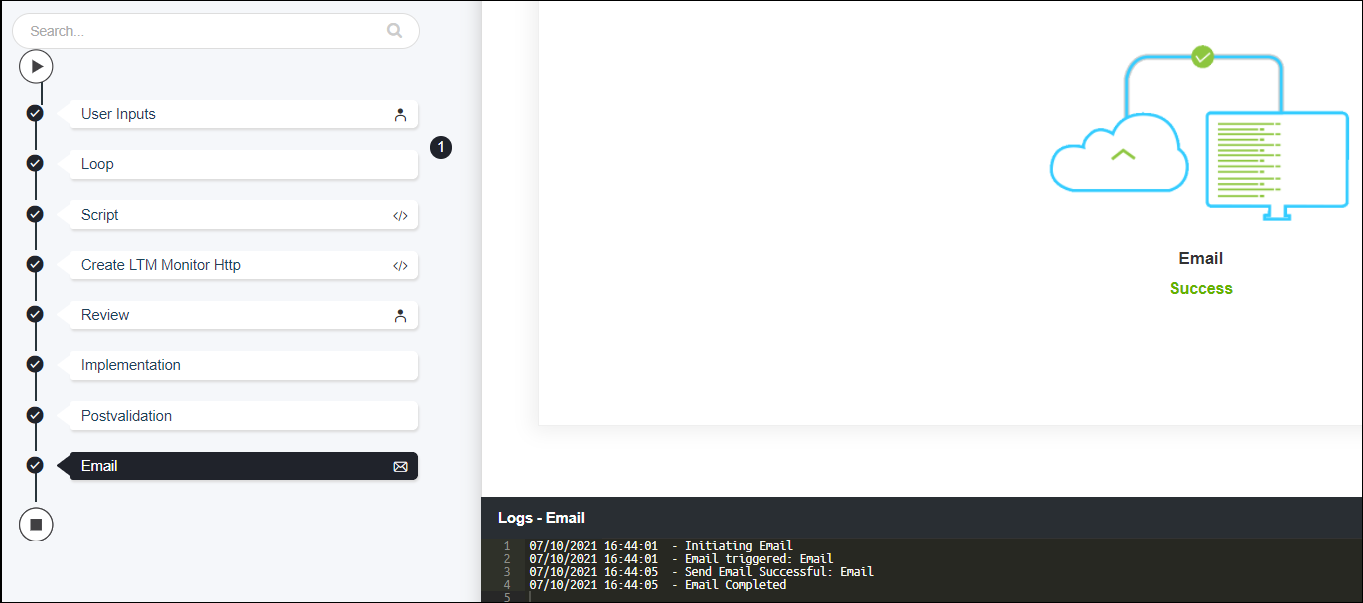 Note: The stages of the request are shown in the left side of the screen. To view a particular stage of the request, click the respective stage.
