
Adding an Integration
This topic explains the common fields and workflow that apply to all non-coding
(form-based) integrations. Platform-specific credential requirements are documented in Non-Coding Agents.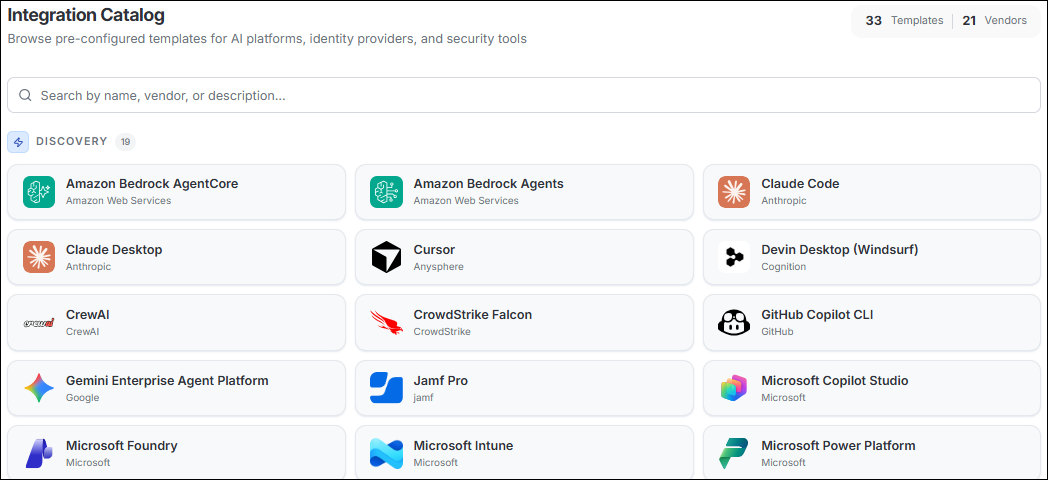
Tip: If your platform is not listed in the catalog, check Integrations
> Add Integration. New platforms are added with every Agent Identity Security
release.
-
Confirm the prerequisites before you begin.
- An account with sufficient permissions to create API credentials or a service account (usually an admin or owner role).
- The credential type the platform requires: API key, OAuth client, IAM role, or service account file.
- Confirmed network connectivity from Agent Identity Security to the platform's API endpoints.
- Open Integrations > Add Integration and select the target platform from the catalog.
-
Fill in the common fields.
Field Description Guidance *Instance Name Unique display name for this connection Use Environment + Platform (for example, "Production Salesforce Agentforce"). Avoid generic names if you will have multiple instances of the same platform. Description Free-text purpose note Recommended. Note the owning team and environment. Instance URL The API endpoint Agent Identity Security calls Format varies by platform; do not include a trailing slash. Credentials API key, Client ID and Secret, IAM role, or service account Encrypted at rest. For credentials shown only once (AWS, Azure, CrowdStrike), copy them immediately into your secrets vault. -
Select Test Configuration before saving.
This validates your credentials against the live platform API.
- A green checkmark means the integration will work.
- An error at this stage is always preferable to a silently failing integration after creation.
- Select Create Instance.
-
Verify discovery.
- Stay on the Integrations page and select Refresh every 30 seconds.
- When the status badge changes from Configured to Active, the initial sync has completed successfully.
- Go to Registry > Agents and filter by the new integration's platform to confirm agents have been discovered.
Note: If no agents appear and the status shows Active, the platform is connected but contains no agents matching the discovery criteria. Verify with the platform administrator.
Related topics:
