
Managing Integrations
Once Agent Discovery, IDP, HITL, and MCP integrations are connected, they need light, ongoing care. This topic covers what happens after setup: checking status, editing credentials, forcing a sync, and retiring an integration you no longer need.
After creating integrations, you can view, edit,
manually sync, and delete them from the Integrations page. Use the three-dot menu in the
Actions column to access all management options.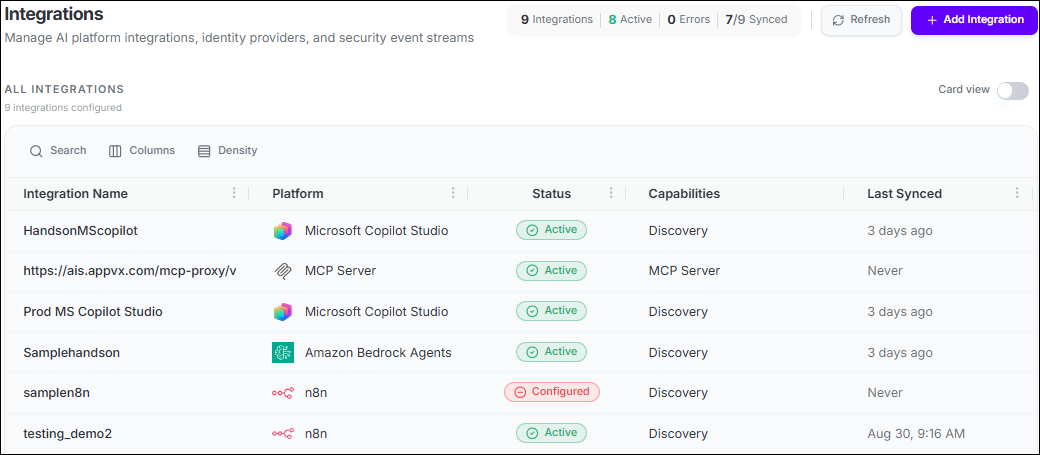
-
Read the integration inventory grid on the Integrations page.
Every configured integration, across Agent Discovery, IDP, HITL, and MCP, appears as a row in this grid.
Column What it shows Integration Name The name you gave the instance when you created it. Select the row to open the detail preview panel. Platform The vendor template the instance was created from, for example Salesforce Agentforce or Slack Human-in-the-Loop, shown with the platform logo. Status Connection state: Active, Configured, Inactive, Pending, or Error. Capabilities One or more capability tags: Discovery, Human-in-the-Loop, Identity Provider, or MCP Server. Tool Arguments Extra tool-level arguments, if configured. Shows a dash (-) when none are set. Last Synced Date and time of the most recent successful sync. Shows Never if no sync has completed, or a dash (-) for HITL and MCP Server integrations, which don't sync data. Actions A menu with Edit and Delete options for the integration instance. -
Review the integration status.
Status Meaning What to do Active Connected and syncing successfully No action needed. Monitor the Last Synced time to confirm regular sync cycles. Configured Integration created, initial sync in progress Wait for the sync to complete. Refresh the page to see status updates. Error Integration failed to connect or sync Select the integration row to see the error details. Common causes: expired credentials, network connectivity, permission changes on the source platform. Inactive Integration exists but has been deactivated Reactivate from the three-dot menu when ready to resume monitoring. -
Use the dashboard summary badges to filter the list.
The top of the Integrations page shows four real-time badges: Integrations (total configured), Active (connected and working), Errors (integrations with problems), and Synced (integrations that have completed at least one sync, shown as n/total). Select any badge to filter the list to that status group.
-
Choose an action from the three-dot Actions menu on the integration row.
Action Effect Notes View Inspect integration details and sync history Read-only. Shows all configured fields and the last sync status. Edit Update credentials, rename the integration, or change the description Use this to rotate credentials before they expire. Editing does not interrupt active monitoring. Sync Now Trigger an immediate synchronization on demand Useful after a platform configuration change you want reflected in Agent Identity Security immediately. Deactivate Temporarily pause monitoring without deleting configuration Use during maintenance windows or when the source platform is offline. Delete Permanently remove the integration and all its sync data See the warning below. This action cannot be undone. -
Integration synchronization runs as background jobs in Agent Identity Security. To
review the status of an integration sync, including successful or failed executions and
error details, go to Settings → Job System → Job History.
To manage integration synchronization settings, such as the sync schedule or interval, go to Settings → Job System.
Important: Deleting an integration removes all its configuration and sync data
permanently. Any access policies that reference agents discovered by that integration will
also be affected. Any Human-in-the-Loop approval channels associated with the integration
will stop working. Use Deactivate instead of Delete if you may need to
restore the integration later.
Related topics:
