
Using Magic Variables (On-prem deployment)
You can create magic variables for both the Client Id and the Client Secret.
To configure the magic variables:
- Navigate to the Workflow page in AppViewX.
-
On the Workflow page, from the navigation pane on the left, click
Magic variables.
The Magic variables pop-up window is displayed with a list of Magic variables displayed on the left.
-
To configure a new Magic variable, in the Magic variable window,
click
 .
.
-
Enter the required field information to create the magic variable.
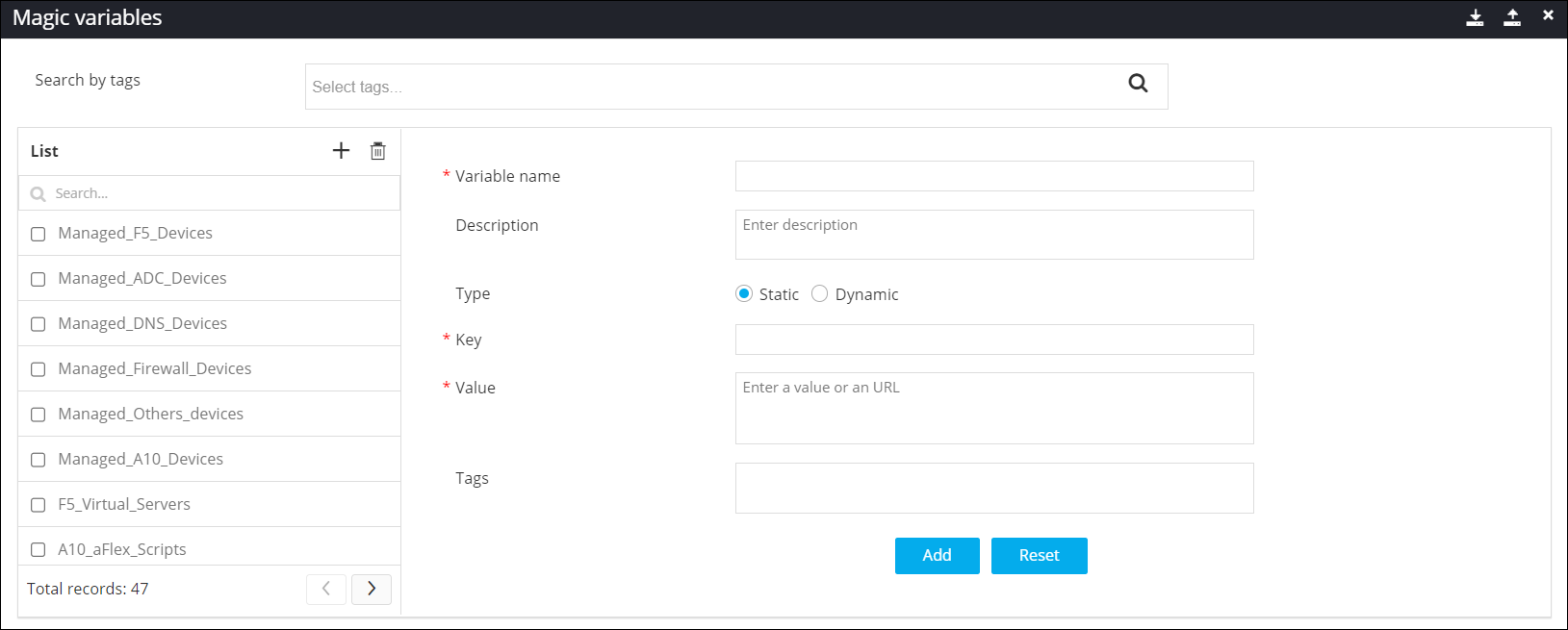 The following table describes the field information requested here:
Table 1. Magic Variable - Field and Description Table Field Description *Variable name Enter the name for the magic variable. For example: snow_client_id for the Client ID and snow_client_secret for the Client Secret. Description Enter a description for the magic variable. Type Select the type of the magic variable as Static. *Key Enter the key. Note: The value entered here must match the Variable name.*Value Enter the Value for the magic variable. For example: Enter the Client ID or the Client Secret magic variables respectively. Note: For more information on generating the Client ID or the Client Secret in the ServiceNow Application Registry, click here.Tags Enter any tags that you want to associate with the magic variable. *: Mandatory fields - Click Add.
