
Customizing the Logo
To add a custom logo:
-
On the Settings :: Theme page, under the Logo tab, enter the
Login section details:
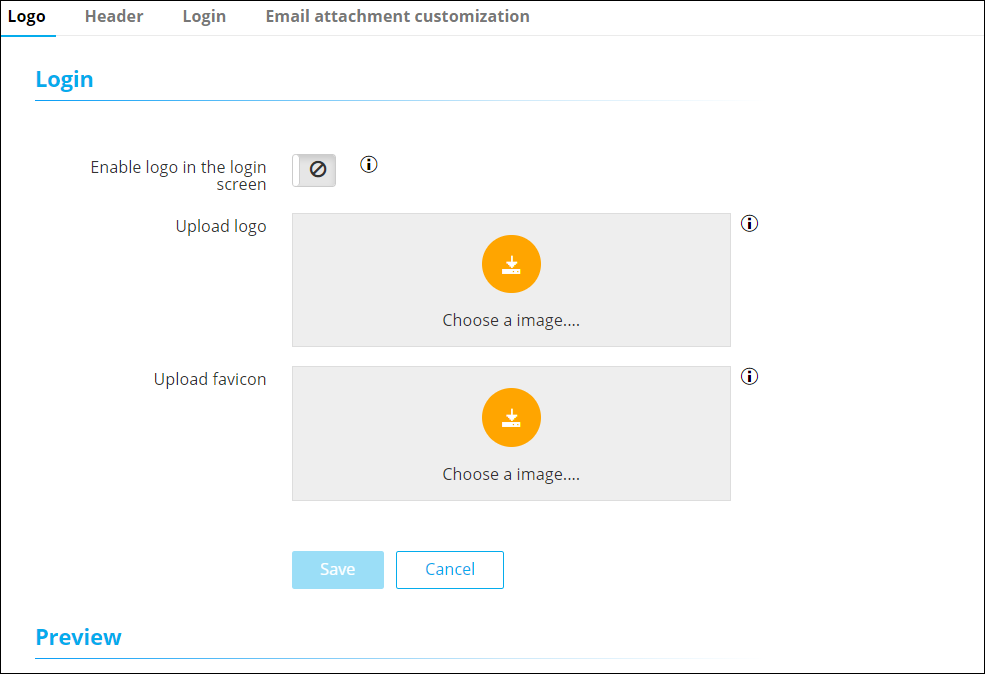
Table 1. Field descriptions for Login section Field Description Enable logo in the login screen To display your organization’s logo on the AppViewX screen, turn on this toggle. Note: If this toggle key is disabled, AppViewX’s default theme settings are applied.Upload logo This field is enabled only when the Enable logo in the toggle screen toggle is turned on. To choose a logo image:
- Click
 (Upload) icon.
 - From Windows Explorer, navigate to the
location of the logo image, select the image, and
click Open.Note:
- Image formats allowed for upload: .png and .svg
- Maximum image resolution allowed: 865 X 185 (width X height)
- Image size: < 5 MB
- Recommended image dimensions: 175 X 37 (width X height)
- In the Confirmation Message dialog box, click Yes.
Upload favicon This field is enabled only when the Enable logo in the toggle screen toggle is turned on. To choose a favicon image:
- Click
(Upload) icon.
- From Windows Explorer, navigate to the
location of the logo image, select the image, and
click Open.Note:
- Image formats allowed for upload: .png
- Maximum image resolution allowed: 64 X 64 (width X height)
- Image size: < 5MB
- In the Confirmation Message dialog box, click Yes.
- Click
- In the Preview section, view a preview of the login screen after your custom logo and favicon have been uploaded.
- To apply the changes, click Save.
