
Managing the Login Policy
Accessing the Login Policy
| New Menu | Old Menu |
|---|---|
| In the Platform module, from the navigation pane on
the left, under SYSTEM ADMINISTRATION, select Login
Policy. The Settings :: Login configuration page is displayed. |
|
| For more information on how to switch between menus, click here. | |
Restricting the Number of User Sessions
-
On the Settings :: Login configuration page, in the
Session section, the Restrict each
user to a single session toggle is enabled by default. To
disable the single session, turn off the toggle.
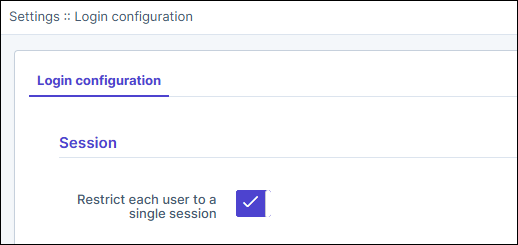
- Click Save.
-
In the Confirmation pop-up, click OK.
The Login setting is modified and will be applied from next login for internal users.
Restricting the Number of Login Attempts
-
On the Settings :: Login configuration page, in the Login
attempts section, enter the following field information:
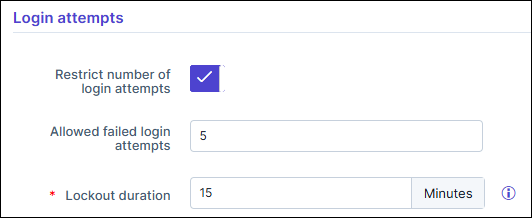
Table 1. Field descriptions for Login attempts Field Description Restrict number of login attempts Turn on this toggle to restrict the number of login attempts by a user. Allowed failed login attempts Enter any number between 0 and 99 to set the number of login attempts permitted. By default, this value is set to 5. If the user enters incorrect details more than 5 times, he/she will get locked out.
*Lockout duration (Minutes) Enter a value for the duration for which the account will be locked after the specified number of failed attempts. If the value entered is 0, then the account will remain locked until the administrator unlocks it manually. * : Mandatory fields - Click Save.
Managing User Inactivity
-
On the Settings :: Login configuration page, in the User
inactivity section, turn on the Restrict user inactivity
period toggle.
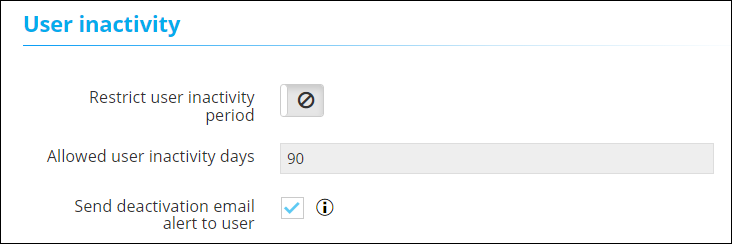
- To set the number of days for which a user can remain inactive, in the Allowed user inactivity days text field, enter the required value (between 0 and 99).
-
To send the user an email when they are deactivated, select the Send
deactivation email alert to user check box.
An email alert is sent to the user for three consecutive days before deactivation.
- Click Save.
Managing Password Policy
-
On the Settings :: Login configuration page, within the Password
Policy section, adjust the Minimum password length from a
minimum of 12 characters to a maximum of 128 characters.
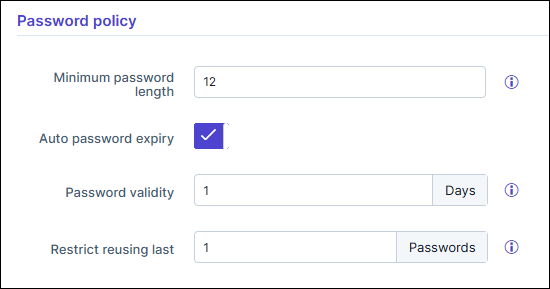 Note: Users must reset their passwords for the new password length to take effect. The system applies the minimum password length requirement only to internal users.
 - Enable or Disable the Auto password expiry toggle for automatic expiration of user passwords for enhanced security.
-
Define the Password validity duration in days, with
a maximum limit of 1098 days.
Note: The system sends email notifications to users seven days before their password expires and enforces a password change once the password has expired.
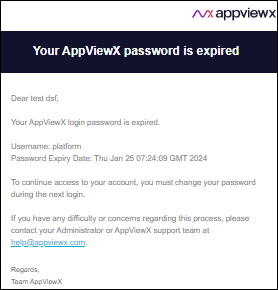
- Define the number to Restrict reusing last passwords. This prevents users from reusing the last set number of passwords when changing it. The default value is 1 (i.e. users cannot use the last 5 passwords). Configure the value from 1 to 5.
-
Click Save.
The login configuration changes are saved.
