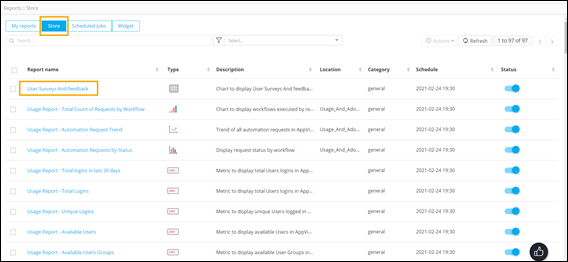
User Survey
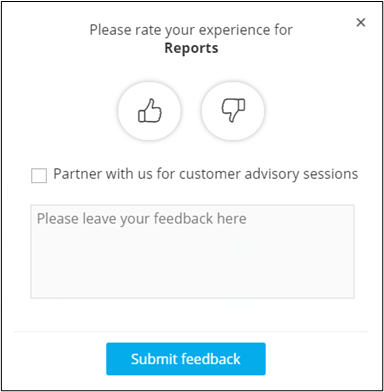
AppViewX hosts a user feedback feature on its report building platform, where users can rate their experience with the report builder and also submit a descriptive comment on the tool. This feedback can then be used to create reports to track customer experience.
Enabling/Disabling the Feedback Option
| New Menu | Old Menu |
|---|---|
|
|
| For more information on how to switch between menus, click here. | |
-
To enable feedback, on the Settings :: Reports page, turn on the
toggle.
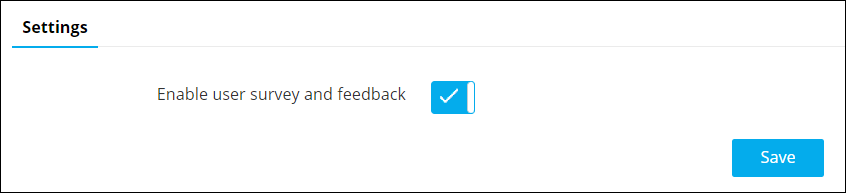
- To disable feedback, turn off the toggle.
- Click Save.
Submitting a Feedback
- Log into AppViewX.
-
From the top right corner of the screen, click
 (Profile) icon.
- From the menu displayed, click Feedback.
-
Enter your feedback comments, and then click Submit feedback.
 The User Surveys and feedback report on the Store page gives detailed information on user feedback.