
Customizing the Email
-
On the Settings :: Theme page, click the Email
tab and enter the PDF section details:
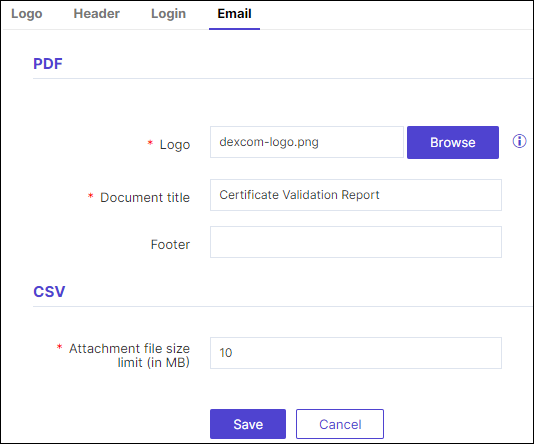
Table 1. Field descriptions for PDF section Field Description *Logo To upload a logo image for the attachment: - Click Browse.
- Navigate to the location of the image, select the image, and click Open.
Note: The image size must be less than 50 KB.*Document title Name to be assigned to the PDF when it is downloaded. Footer Footer content to be added to the PDF. *: Mandatory fields -
In the CSV section, enter the Attachment file size
limit (in MB).
Note: This is a mandatory field.
- To apply the changes configured above, click Save.
- For Email Template section, refer the section below.
Email Template
In the Email Template section, follow these steps to create a new email template:
-
Click + Create new.
The Email Template Config page is displayed.
-
Enter the Email Template Config section
details:
Table 2. Field descriptions for Email Template section Field Description *Name Provide a unique name for the email template. Description Explain or provide information about the email template. Upload logo To choose the logo. - Click Browse.
- From Windows Explorer, navigate to the
location of the logo image, select the image, and
click Open. Note:
- Image formats allowed for upload: .png and .svg
- Maximum image resolution allowed: 865 X 185 (width X height)
- Image size: < 5 MB
- Recommended image dimensions: 175 X 37 (width X height).
Upload banner To choose the banner. - Click Browse.
- From Windows Explorer, navigate to the
location of the logo image, select the image, and
click Open.Note:
- Upload an image in the .png / .svg / .jpeg / .jpg format only
- The maximum resolution of the image should be 700 x 200 (width x height)
- The size of the image must be less than 5 MB
- Recommended image size is 700 x 200 (width x height).
Body Add the body content before or after the "[[BodyContent]]" and do not remove the "[[BodyContent]]" string. The content before and after the body content can remain the same, while the content added within the string is dynamic and can be adjusted based on the requirements.
Signature Add signature content in the email, serving as a verification mark for authenticity. Footer Message Add the Footer Message content to the email. *: Mandatory fields - In the Preview section, view a preview of your customization for the email template.
-
Click Create.
The Email Template will be generated and displayed in the Templates section.
- Edit an email template by hovering over it, click
 (Edit) icon, making the necessary changes, and then click
Update.
(Edit) icon, making the necessary changes, and then click
Update. - Clone an email template by hovering over it, click
 (Clone) icon, making all the necessary changes, and then click
Create.
(Clone) icon, making all the necessary changes, and then click
Create. - Delete an email template by hovering over it, click
 (Delete) icon and then click Delete.
