
Accessing Insights
The INSIGHTS menu provides comprehensive information and analytics regarding the overall certificates summary, operations, risk & crypto, and short-lived certificates delivered through the CERT+ infrastructure. The INSIGHTS menu populates with relevant data, once the certificates have been successfully onboarded and discovered. Each reports within the INSIGHTS menu refreshes every four hours at regular intervals.
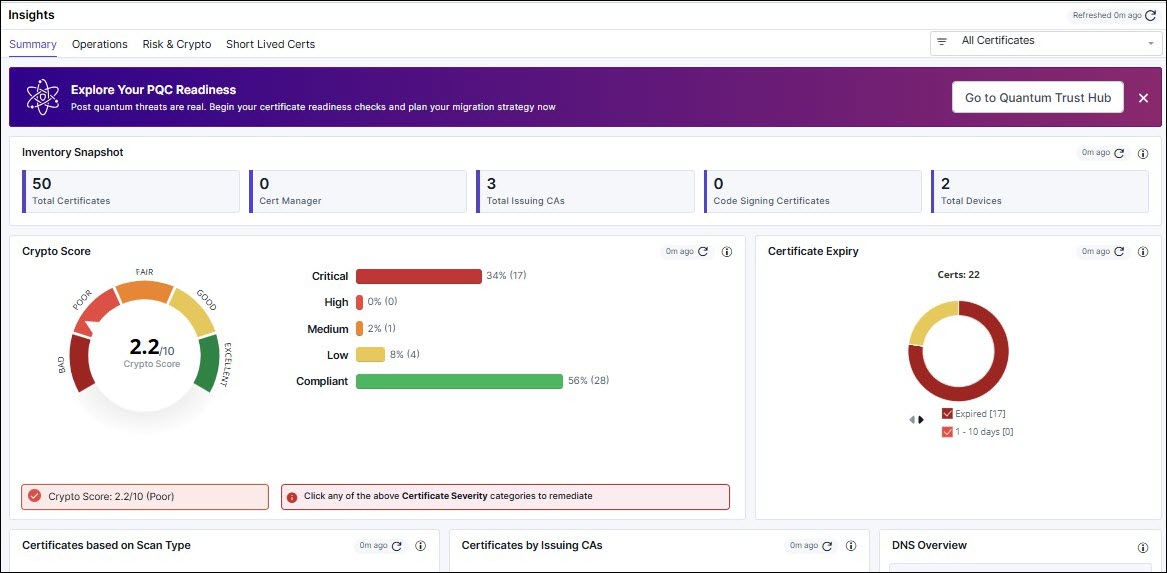
Group Level Filter
The group-level filter is available in the Insights section of the Summary, Operations, and Risk & Crypto pages. It allows you to filter the reports based on the groups.
Discovery In-progress Notification
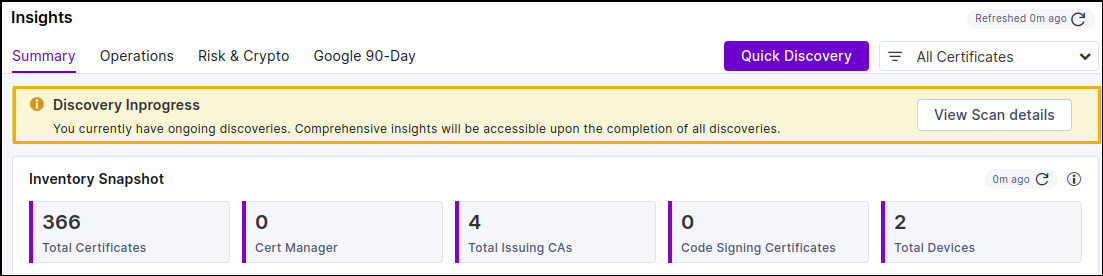
Clicking the View Scan Details button redirects you to the Discovery Status: On-demand page.
CT Logs Scan
When you onboard a new tenant, CT logs will be triggered for the user's domain. The snack-bar will display a Welcome message such as Welcome to Certificate Lifecycle Management for different scenarios including Successful, In-progress, and Success or failure with zero certificates. This will appear in the Insights section of the Summary, Operations, Risk & Crypto pages, and Short Lived Certs.
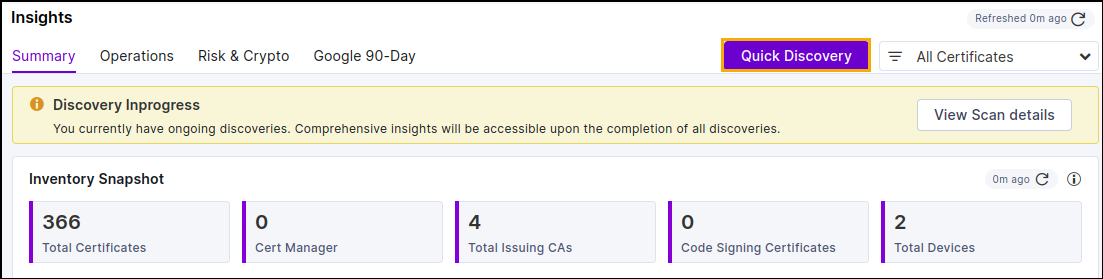
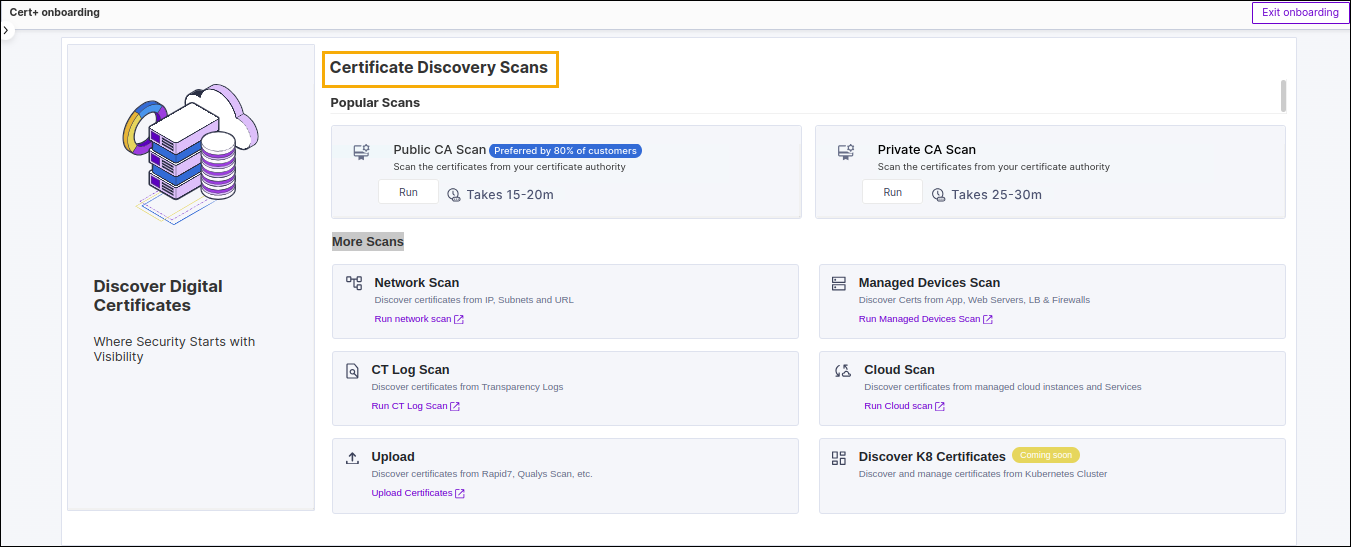
Quick Discovery
- Popular Scans:
- Public CA Scan
- Private CA Scan.
- More Scans:
- Network Scan
- Managed Devices Scan
- CT Log Scan
- Cloud Scan
- Upload Scan
- Discover K8 Certificates.
Download ACME Client
A common download option is available on the Insights page, providing a single, generic ACME client package compatible with all ACME configurations. It can be accessed through the top-level Download ACME Client button, where users select their operating system (Windows or Linux) before downloading. This package is designed for administrators to download once and distribute across their organization.
The targeted download option allows users to download an ACME client pre-configured for a specific ACME setting directly from each configuration row. When selected, the agent is automatically mapped to the chosen ACME setting, the user selects the operating system (Windows or Linux), and a preview window shows the agent configuration details before download. This provides a ready-to-use client that requires minimal additional setup.
For detailed steps, refer to the Downloading ACME Client in the Configuring AppViewX ACME Server section.
