
Managing Certificates Using AppViewX Terraform Provider
What is Terraform?
Terraform is an infrastructure-as-code tool that lets you build, change, and version cloud and on-prem resources safely and efficiently.
HashiCorp Terraform is an infrastructure-as-code tool that allows you to define both cloud and on-prem resources using human-readable configuration files. These files can be versioned, reused, and shared. Terraform enables you to apply a consistent workflow to provision and manage your infrastructure throughout its entire lifecycle. It can handle low-level components such as compute, storage, and networking resources, as well as higher-level components like DNS entries and SaaS features.
How does Terraform work?
Terraform creates and manages resources on cloud platforms and other services through their application programming interfaces (APIs). Providers enable Terraform to work with virtually any platform or service with an accessible API.
HashiCorp and the Terraform community have already written thousands of providers to manage many different types of resources and services. You can find all publicly available providers on the Terraform Registry, AppViewX Terraform is one of the providers.
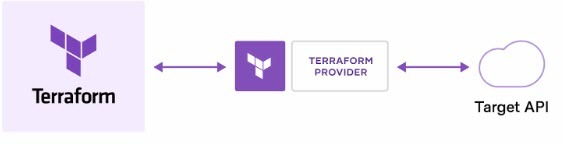
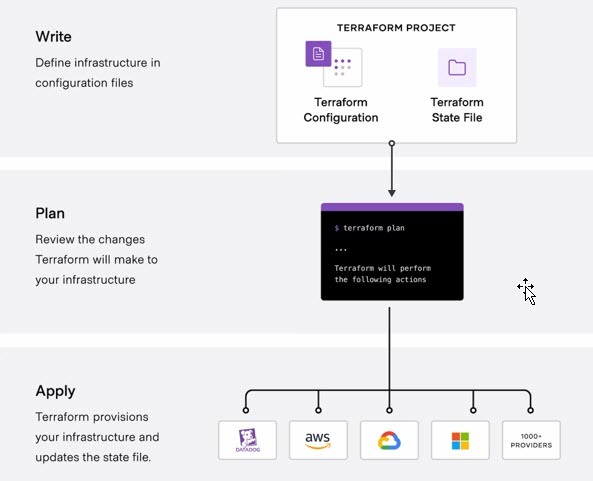
The core Terraform workflow consists of three stages:
- Write: You define resources that span multiple cloud providers and services. For example, you can create a configuration to deploy an application on virtual machines within a Virtual Private Cloud (VPC) network, complete with security groups and a load balancer.
- Plan: Terraform creates an execution plan that outlines the infrastructure it will create, update, or destroy based on the existing infrastructure and your configuration.
- Apply: Once approved, Terraform executes the proposed operations in the
correct sequence, aking resource dependencies into account. For example, if you
update the properties of a VPC and change the number of virtual machines within
it, Terraform will re-create the VPC before scaling the virtual machines.
What AppViewX Terraform Provider does?
- Creates Certificate with the provided CSR Parameters.
- Downloads the certificate in different formats along with the trust store certificates, if needed
- Downloads the private key from AppViewX in password protected manner and in plain .pem format
Where is AppViewX Terraform Provider Hosted?
- The latest version of AppViewX Terraform Provider is 1.0.1 which is hosted in Hashicorp Terraform Registry.
- Opensource git hub repository which will be synced with this Terraform Registry.
Supported Authentication Models
- AppViewX user name and password credentials
- AppViewX service account credentials
Supported APIs and Details
Following are the APIs used internally in AppViewX Terraform Provider to create certificates and download them:
- Log onto AppViewX using your user name and password
- Log onto AppViewX using service account credentials
- Create Certificate with the provided
CSR parameters in the .tf file.
- Create Certificate uses Visual Workflow process, so disabling the approval level in policy will be helpful.
- Download end certificate in formats
such as .pem, .crt, .cer, .der, .p12, .pfx, .jks.
- Download trusted certificates along with .p12, .pfx and .jks formats.
- Download the private key created in AppViewX in the password protected manner or in plain .pem format
- OpenSSL command to get the plain private key from the password
protected
key:
openssl pkey -in <Password protected private key file> -out <Plain Private key file path> -passin pass:<Password of the private key>
How to use AppViewX Terraform Provider?
- Install and configure Terraform on your local machine where you intend to use it.
- Copy the provider from the AppViewX Terraform provider link and add it to your local version.tf file
- Create a .tf configuration file to enroll the certificate.
- Remove the .tfstate
configuration:
rm -rf ./terraform.tfstate - Validate the terraform
configuration:
terraform validate - Review the execution
plan:
terraform plan - Apply the Terraform
configurations:
terraform applyPost this step, the certificate creation process will be triggered.
| # | Field Name | Field Type | Mandatory | Description | Sample |
|---|---|---|---|---|---|
| 1 | appviewx_username | String | No | User name of the AppViewX user to login and perform API calls. | test_user |
| 2 | appviewx_password | String | No | Password of the AppViewX user to login and perform API calls. | password |
| 3 | appviewx_client_id | String | No | Client ID of the AppViewX service account to login and perform API calls. | test_user |
| 4 | appviewx_password | String | No | Client secret of the AppViewX service account to login and perform API calls. | password |
|
Note: Mandatorily provide username and
password, or client ID and client secret.
|
|||||
| 5 | appviewx_environment _is_https | Boolean | Mandatory | Used to frame the AppViewX API URL. | true |
| 6 | appviewx_environment _ip | String | Mandatory | FQDN/IP address of the AppViewX instance for making API calls. | pe-cert-iot-150-192.lab. appviewx.net |
| 7 | appviewx_environment _port | String | Mandatory | Used to frame the AppViewX API URL. | 31443 |
| # | Field Name | Field Type | Mandatory | Description | Possible Values / Examples |
|---|---|---|---|---|---|
| 1 | common_name | String | No | CSR Parameter - Common Name | sample.test.com |
| 2 | dns_names | List of String | No | CSR Parameter - List of DNS names | [“sample.test.com”, "sample12.test.com”] |
| 3 | hash_function | String | No | CSR Parameter - Hash Function | Possible values: SHA256, SHA160, SHA224, SHA512, SHA384 Note: Values might vary based on the
CA. |
| 4 | key_type | String | No | CSR Parameter - Key Type | Possible values: RSA, DSA, EC Note: Values might vary based on the CA. |
| 5 | bit_length | String | No | CSR Parameter - Bit Length | Possible values: 1024, 2048, 3072, 4096, 7680, 8192 Note: Values might vary based on the
CA. |
| 6 | certificate_authority | Boolean | No | Used to frame the AppViewX API URL. | true |
| 7 | ca_setting_name | String | No | FQDN/IP address of the AppViewX instance for making API calls. | pe-cert-iot-150- 192.lab.appviewx.net |
| 8 | certificate_type | String | No | Used to frame the AppViewX API URL. | 31443 |
| 9 | custom_fields | Object | No | AppViewX configured certificate attributes, which will be seen under Certificate Attributes column in certificate inventory, | {"request_by": "terraform"} |
| 10 | vendor_specific _fields | Object | No | Based on the CA, these values will go under Vendor Specific fields during the certificate enrollment of that particular CA. | {"templateName": "WebServer"} |
| 11 | validity_days | Integer | No | Certificate validity in days. | Possible values: 1 to 365 |
| 12 | validity_unit | String | No | Certificate validity type like days, months, or years | Possible values: days,months, years |
| 13 | validity_unit _value | Integer | No | Certificate validity based on the unit. | 12 |
| 14 | certificate_group _name | String | No | Certificate group name under which the certificates will be placed in AppViewX certificate inventory. | test_group1 |
| 15 | is_sync | Boolean | No |
|
true |
| 16 | certificate_download _path | String | No | Path where the certificate content is to be downloaded. | Possible scenarios:
|
|
Note: Following are the possible download
paths applicable to both certificate and private key
downloads:
|
|||||
| 17 | certificate_download _format | String | No | Format in which the certificate will be downloaded. | Possible values: PEM, CRT, DER, CER, P12, PFX, JKS |
| 18 | certificate_download _password | String | Yes for P12, PFX and JKS formats. | Password used to download the certificates if they are in P12 or PFX or JKS formats. | password |
| 19 | certificate_chain _required | Boolean | No | If enabled, then the trust store certificates will be added
to the end certificate during the download. Note: This is applicable only for P12, PFX
and JKS certificate formats. |
true |
| 20 | key_download _path | String | No | Path where the private key content is to be downloaded. | Possible scenarios:
|
| 21 | key_download _password | String | No | Password to use to download the private key. | password |
| 22 | download_password _protected_key | Boolean | No | Private keys can be downloaded from AppViewX only in password
protected manner.
|
false |
| # | Field Name | Field Type | Mandatory | Description | Sample |
|---|---|---|---|---|---|
| 1 | resource_id | String | No | Resource ID obtained in the previous appviewx_create_certificate resource response log will be used to download the certificate post issuance. | 6128381dq231sw1ww |
|
Note: If is_sync=false,
then this resource can be used along with
appviewx_create_certificate
resource as
shown:
|
|||||
| 2 | common_name | String | No | Common name of the certificate to download from AppViewX. | test.sample.com |
| 3 | serial_number | String | No | Serial number of the certificate to download from AppViewX. | 12:QQ:23:12:34:45:45:23 |
|
Note: Mandatorily provide username and
password, or client ID and client secret.
|
|||||
| 4 | certificate_download _path | String | No | Path where the certificate content is downloaded. | Possible scenarios:
|
| 5 | certificate_download _format | String | No | Format in which the certificate will be downloaded Possible values: PEM, CRT, DER, CER, P12, PFX, JKS |
PEM |
| 6 | certificate_download _password | String | Yes for P12, PFX and JKS formats | Password used to download the certificates if they are in P12 or PFX or JKS formats. | password |
| 7 | certificate_chain _required | Boolean | No | If enabled, then the trust store certificates will be added
to the end certificate during the download. Note: This is applicable only for P12, PFX
and JKS certificate formats. |
true |
| 8 | key_download _path | String | No | Path where the private key content will be downloaded. | Possible scenarios:
|
| 9 | key_download _password | String | No | Password used to download the private key. | password |
| 10 | download_password _protected _key | Boolean | Optional |
Private keys can be downloaded from AppViewX only in password protected manner. If this flag is enabled then the private key will be downloaded as an encrypted private key. If disabled then openssl command is used to convert it to a plain private key and save it in the provided path |
false |
Sample Provider and Resources .tf files
terraform {
  required_providers {
    appviewx = {
      source = "AppViewX/appviewx"
      version = "1.0.1"
    }
  }
}
- Create the certificate in sync mode, which allows the certificate to be
created and downloaded in a single
appviewx_create_certificateresource.resource "appviewx_create_certificate" "createcert"{ common_name="sample.test.com" hash_function="SHA256" key_type="RSA" bit_length="2048" certificate_authority="Microsoft Enterprise" ca_setting_name="msca" #certificate_type="SSL Certificate" #dns_names=["test.com","test12.com"] custom_fields={"request_by":"terraform"} vendor_specific_fields={"templateName":"WebServer"} validity_unit=365 validity_unit_value=”years” certificate_group_name="cert_group" is_sync=true certificate_download_path="/home/sample/test/" certificate_download_format="P12" certificate_download_password="test" certificate_chain_required=true key_download_path="/test/testcert123" key_download_password=”password” download_password_protected_key=false } - Create a certificate in ASYNC mode, where certificate creation is triggered
first, followed by a delayed certificate download using the
appviewx_download_certificateresource.resource "appviewx_create_certificate" "createcert"{ common_name="test.sample.com" hash_function="SHA256" key_type="RSA" bit_length="2048" certificate_authority="Microsoft Enterprise" ca_setting_name="msca" #certificate_type="SSL Certificate" #dns_names=["test.com","test123.com"] custom_fields={"request_by":"terraform"} vendor_specific_fields={"templateName":"WebServer"} validity_unit=365 validity_unit_value=”years” certificate_group_name="cert_group" is_sync=false } resource "time_sleep" "wait" { depends_on = [appviewx_create_certificate.createcert] create_duration = "10s" } resource "appviewx_download_certificate" "downloadcert"{ depends_on = [time_sleep.wait] resource_id=appviewx_create_certificate.createcert.resource_id certificate_download_path="/Downloads/testcert123" certificate_download_format="P12" certificate_download_password="test" certificate_chain_required=true key_download_path="/test/testcert123" key_download_password=”password” download_password_protected_key=false } - Create a certificate in ASYNC mode, where certificate creation is triggered,
and the user can later attempt to download the certificate at any time using
the
appviewx_download_certificateresource, either by common name and serial number or by resource ID.resource "appviewx_create_certificate" "createcert"{ common_name="test.domain.com" hash_function="SHA256" key_type="RSA" bit_length="2048" certificate_authority="Microsoft Enterprise" ca_setting_name="msca" #certificate_type="SSL Certificate" #dns_names=["test.com","test123.com"] custom_fields={"request_by":"terraform"} vendor_specific_fields={"templateName":"WebServer"} validity_unit="years" validity_unit_value=2 certificate_group_name="cert_group" is_sync=false } resource "appviewx_download_certificate" "downloadcert"{ resource_id=”564647657564gfdfx3w” common_name=”test.domain.com” serial_number=”21:23:123…” certificate_download_path="testcert" certificate_download_format="P12" certificate_download_password="password" certificate_chain_required=true key_download_path="/test/testcert123" key_download_password=”password” download_password_protected_key=false }
Troubleshooting
- Ensure that the provider version is correct.
- Verify that the fields in the
.tffiles have the exact field names and types. - Review the console logs after running the
terraform applycommand. - Change the logging level using the command:
export TF_LOG=DEBUGorexport TF_LOG=TRACE. - For authentication-related errors: Check the AppViewX user account's role and permissions in the AppViewX GUI to ensure the user has access to create and download certificates.
- For internal server errors: Verify the provided input parameters and check the AppViewX server logs for any failures or issues on the AppViewX side.
Enhancements Implemented
- The group name must be provided in the payload when creating the certificate.
- Ability to enroll certificates from Sectigo CA.
- Option to download the certificate and private key separately.
- Support for using service account credentials alongside username and password.
- Capability to pull updates directly from the AppViewX Terraform registry.
- Enhanced logging in Terraform to display error messages from AppViewX for improved clarity.
- Support for specifying certificate validity in days, months, and years.
Use Cases supported in AppViewX Terraform Registry v1.0.1
- Custom attributes are functional, allowing users to view Terraform-issued
certificates with the field
custom_fields={"fieldname":"value"}. - After creating certificates with Terraform, the CA connector displays all relevant information, such as certificate type, CSR parameters, and template names.
- Ability to issue certificates for MSCA, AppViewX CA, and CCM CA, all of which were tested in an internal lab.
- Ability to create and download certificates in both async and sync modes.
- AbleAbility to download the private key in both plain and password-protected formats.
- When
validity_unit="days"andvalidity_unit_value=1, the validity period is automatically calculated in days, months, and years are all supported for validity calculations.
Future Roadmap Items
- Support renewal before provided number of days.
- Improve logging for better handling of 407 Proxy Authentication Required errors.
- Ability to support multiple versions of AppViewX providers.
Points to Remember
- Users can authenticate using either username/password or client ID/client secret.
- Downloading the private key is optional but access to private key download in AppViewX is required to retrieve the key.
- Fields related to certificate download are mandatory when is_syncis true and within the appviewx_download_certificateresource.
- The
Certificate Passwordfield is only required for formats such as PFX, P12, and JKS. - The
isChainRequiredfield is applicable only for formats such as CRT, CER, CERT, PEM, and DER. - Users on older versions of the provider should update their resource names to appviewx_create_certificate and appviewx_download_certificate. All other fields remain unchanged, allowing seamless usage.
