
Short Lived Certs
Overview
The Short Lived Certificates (SLC) refers to Secure Sockets Layer (SSL) certificates issued by Certificate Authorities (CAs) in accordance with Google's guidelines on certificate validity periods. Certificates exceeding 398 days (approximately one year and one month) are considered insecure by Google. This policy encourages the adoption of shorter-lived SSL certificates, typically lasting 90 days, to enhance security and promote timely certificate renewal.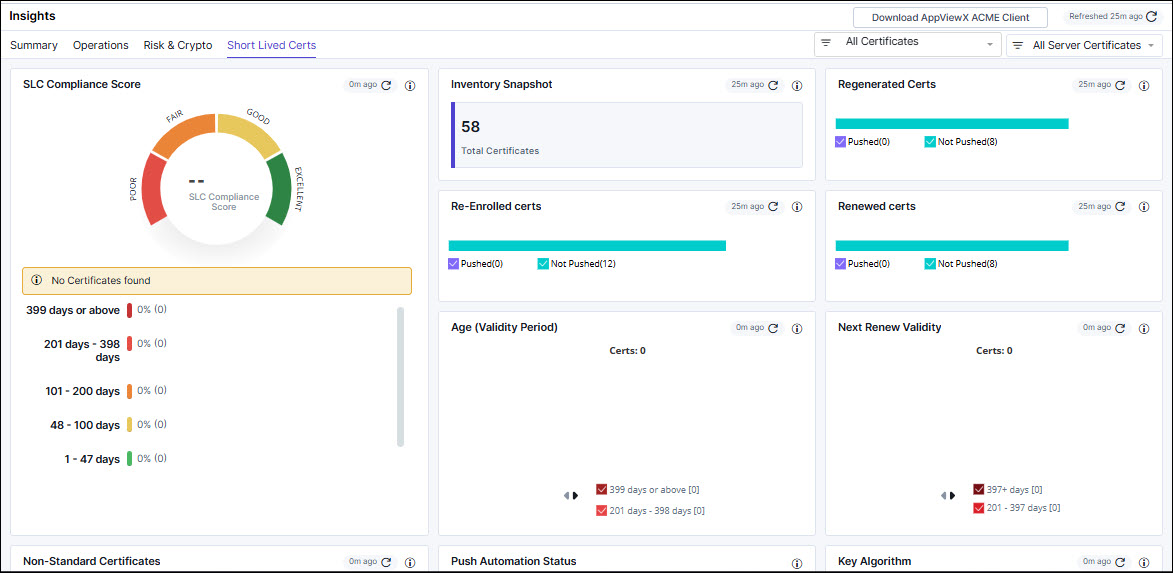
Benefits of the SLC Dashboard
- Achieve Visibility: Clear insight into certificates is crucial for effectively managing renewals and removals. Regular scanning aids in identifying existing certificates and uncovering new ones.
- Monitor Expiry Dates: Automation streamlines tracking and upkeep of certificate renewals by issuing timely alerts to relevant personnel. It also ensures proper provisioning and configuration of certificates, along with accurate binding to endpoints.
- Enforce Encryption Standards: Encryption forms the cornerstone of certificates, making it imperative to determine the appropriate encryption level to uphold infrastructure security. Analyzing certificates for indicators like key size, strength, or signing algorithms helps identify those utilizing insecure or outdated cryptographic standards.
- Establish Governance: While automation aids certificate management, it necessitates a foundational policy for enforcing Public Key Infrastructure (PKI) governance. This governance framework oversees data protection, user identity provisioning, and the security of end-to-end communications.
- Secure Key Management: Private keys serve as the ultimate safeguard for sensitive data, yet storing them in unprotected text files exposes them to exploitation. Utilizing encrypted software vaults or certified Hardware Security Modules (HSMs) offers superior protection, particularly if automated key rotation is enabled to periodically replace them.
Showing Report For
The insights for short lived certificates can be filtered based on two types of filters:- All Certificates (certificate group-based filter)
- Server Certificates (certificate type-based filter)
From the All Certificates dropdown list, select the required certificate group(s) for filtering the data.
Threshold Limits
- For less than 100,000 certificates, live data will be displayed whenever the user navigates to the Insights page.
- For more than 100,000 certificates, a pre-calculated report will be shown with the last generated time indicated at the widget level.
- Users can click the widget level refresh to view the live data.
- All Server Certificates
This selection will display insights for all short-lived server certificates in your certificate ecosystem, irrespective of the issuing CA (public or private).
- Public Server Certificates
This selection will filter the insights for short-lived server certificates in your certificate ecosystem exclusively issued by public CAs.
SLC Compliance Score
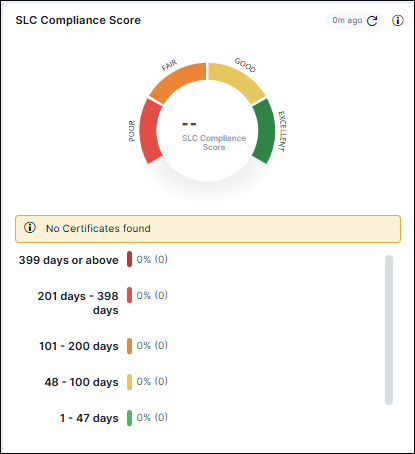
This widget displays your SLC adoption score based on the certificate validity and the filter applied. The SLC adoption score indicates how widely short-lived certificates are being used in your cryptographic environment.
The score ranges from Poor to Excellent and the breakdown shows how many certificates fall under each validity range. This widget is useful for assessing the overall readiness of your certificate ecosystem for Shorter Lifetime Certificates.
| Validity Range | Description |
|---|---|
| 1 - 47 days | Matches 2029 CAB deadline target |
| 48 - 100 days | Good short-lived posture |
| 101 - 200 days | Acceptable but not optimal |
| 201 - 398 days | Longer-lived; risky as future limits drop |
| 399 days or above | Should be remediated |
Inventory Snapshot
This widget displays a summary of all valid server certificates inventoried in your environment, based on the filter selected. Use the data represented on this widget to track certificates impacted by short validity and ensure complete visibility.
Regenerated Certs
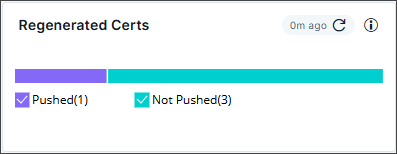
- Select the corresponding checkbox to show/hide the data for the pushed and not pushed certificates.
- Click a horizontal bar to view details of the corresponding certificates.
Re-Enrolled certs
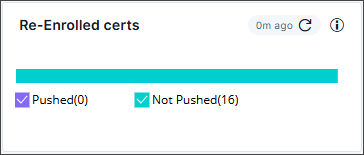
- Select the corresponding checkbox to show/hide the data for the pushed and not pushed certificates.
- Click a horizontal bar to view details of the corresponding certificates.
Renewed certs
- Select the corresponding checkbox to show/hide the data for the pushed and not pushed certificates.
- Click a horizontal bar to view details of the corresponding certificates.
Push Automation Status
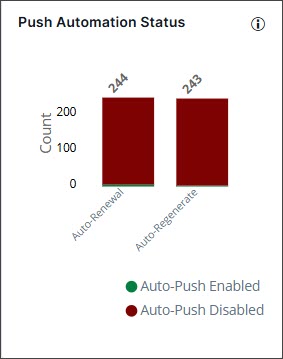
- Select the corresponding legends to show/hide the data.
- Click a bar to view details of the corresponding certificates.
Next Renew Validity
This widget displays certificates grouped by their renewed certificate validity (0–30, 31–90, 91–200, 200–397 days and 397+ days). This data can be used to track renewal distribution and prioritize certificates approaching shorter lifecycles.
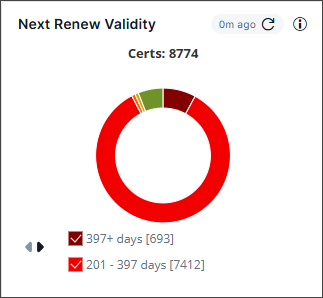
- Select the check-box to view the specific portion, excluding unselected items.
- Click on the pie chart to be redirected to the server certificate inventory.
Age (Validity Period)
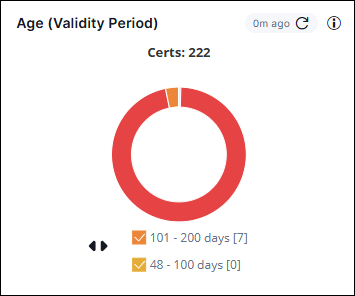 This is an interactive chart in which you can:
- Select/Clear the checkboxes to show/hide the corresponding data.
- Click pie slices to view details of the corresponding certificates.
| Validity Range | Description |
|---|---|
| 1 - 47 days | Matches 2029 CAB deadline target |
| 48 - 100 days | Good short-lived posture |
| 101 - 200 days | Acceptable but not optimal |
| 201 - 398 days | Longer-lived; risky as future limits drop |
| 399 days or above | Should be remediated |
Non-Standard Certificates
This widget displays the count of certificates that fall outside typical enterprise norms, which includes:- Self-Signed certificates
- Wildcard certificates
- Unknown certificates
- Root CA-issued certificates
- Certificates with a SAN Mismatch
- Unassociated certificates
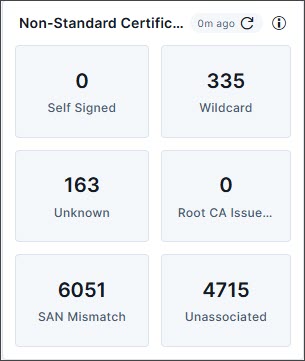
- Click the count card for a specific non-standard certificate category to view the details of the corresponding certificates.
Key Algorithm
This report displays the count of server certificates categorized by key algorithm, helping assess the cryptographic strength of your certificate ecosystem.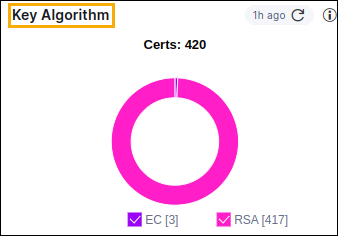 This
is an interactive chart in which you can:
This
is an interactive chart in which you can:- Select/Clear the checkboxes to show/hide the corresponding data.
- Click pie slices to view details of the corresponding certificates.
Key Length
This report displays the count of server certificates categorized by key length to ensure adherence to enterprise key-strength policies.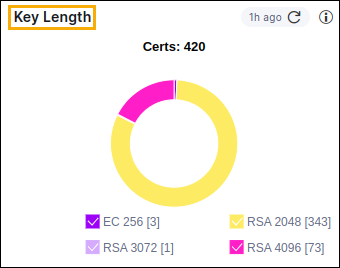 This is an interactive chart in which you can:
- Select/Clear the checkboxes to show/hide the corresponding data.
- Click pie slices to view details of the corresponding certificates.
Score Trend
This chart displays your SLC compliance score for all and public server certificates selected over time (daily/weekly/monthly/quarterly/yearly/custom), using trendlines. This data helps to monitor improvements or declines in your certificate compliance posture.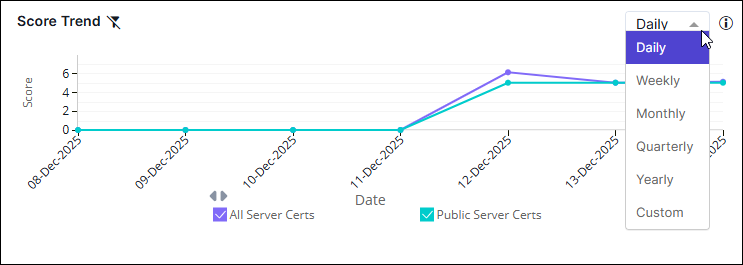
Certificates by Issuing CAs
This chart displays the count of certificates categorized by the issuing certificate authorities. The data on this chart can be used for tracking CA dependency, analyzing consolidation opportunities, and assessing potential vendor risk based on the filter selected.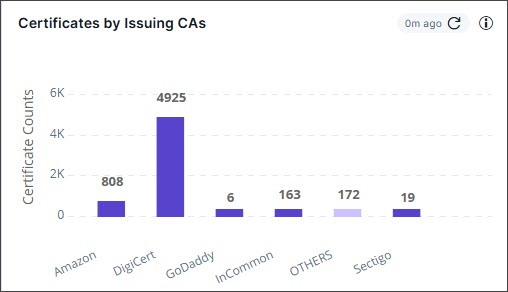 This is an interactive chart in which you can click individual columns to view the
corresponding certificate details.
This is an interactive chart in which you can click individual columns to view the
corresponding certificate details.