
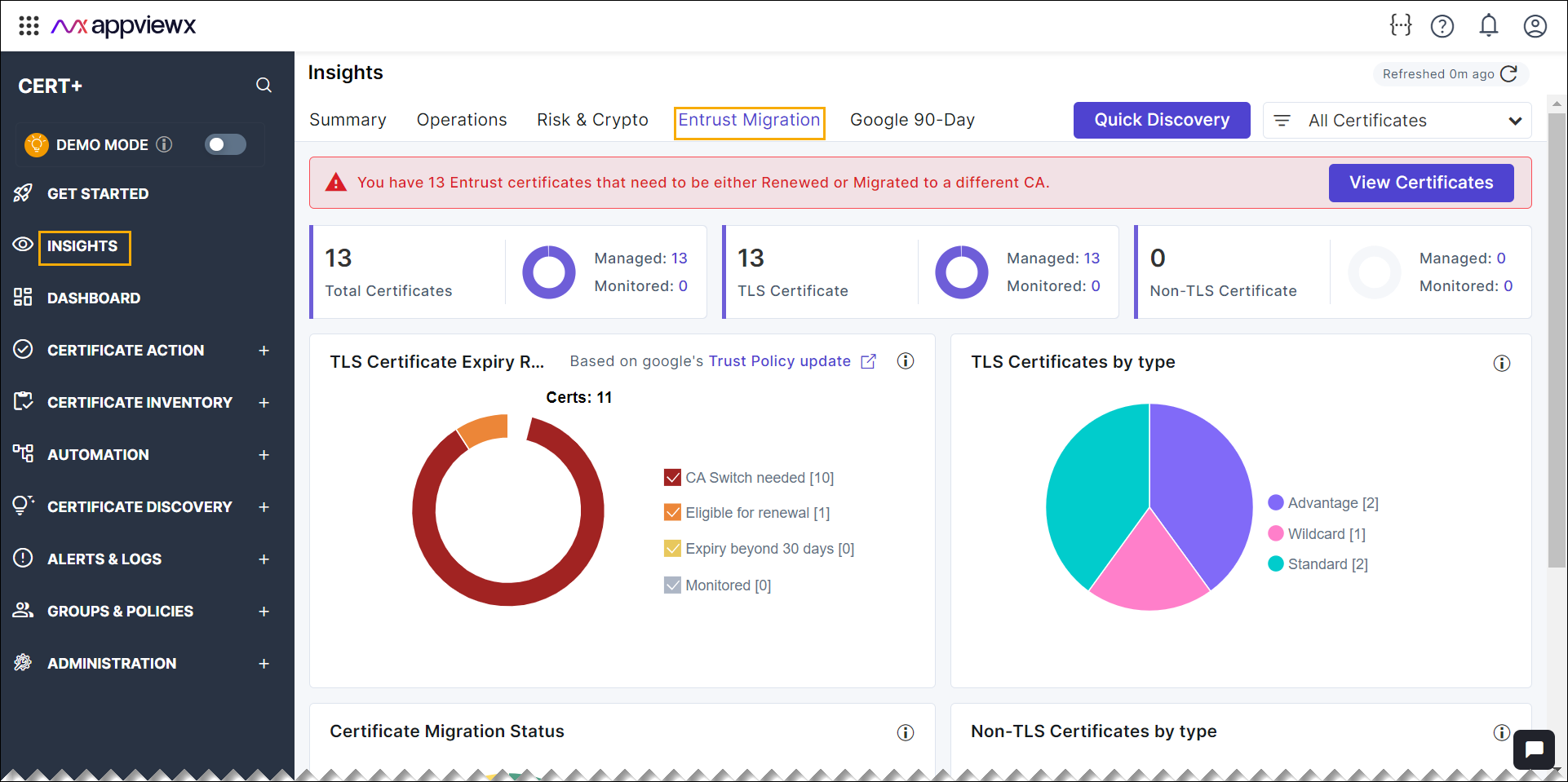
Insights Entrust Migration
- TLS Certificate Expiry Report
- TLS Certificates by Type
- Certificate Migration Status
- Non-TLS Certificates by Type.
Purpose of Entrust Migration Dashboard
Real-Time Data Display:- Total number of Entrust-issued certificates.
- Certificates eligible for renewal or needing migration.
- Successfully migrated certificates and those still pending.
- Active certificates currently in use.
- Users can renew certificates or initiate their migration directly from the dashboard.
- The dashboard features real-time updates, with a refresh button at the top indicating the last refresh time.
- Auto-refresh occurs every 12 hours.
- Comprehensive logging and auditing for tracking all certificate-related activities.
- Only valid certificates are displayed, excluding expired or revoked Entrust certificates.
Alert Message
A red banner at the top alerts you that there are 13 Entrust certificates, which has to be either renewed or migrated to a different Certificate Authority (CA).
Title Bar
- Total Entrust Certificates
- TLS Certificates
- Non-TLS Certificates.
TLS Certificate Expiry Report
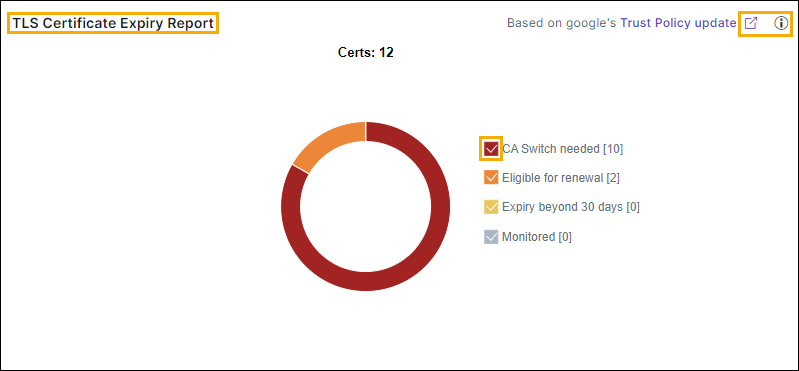
- CA Switch Needed: This includes certificates that need to be switched to a different Certificate Authority from Entrust, as they expire after November 30th, 2024.
- Eligible for Renewal: This includes certificates that are set to expire within the next 30 days, up until November 30th, 2024.
- Not Eligible for Renewal: This includes certificates that expire more
than 30 days from now, until November 30th, 2024.Note: Entrust permits certificate renewals only for those expiring within 30 days.
- Monitored: This includes certificates that are currently in Monitored
status in the inventory. These certificates will need to be moved to Managed
status in order to perform a CA switch or renewal.Note: Google's Entrust Distrust update, any certificate issued up until October 31st, 2024, is considered valid. Since Entrust only allows renewing certificates within 30 days of their expiry, certificates expiring by November 30th, 2024, can be renewed and remain valid. However, any certificate expiring after this date must be switched to a different Certificate Authority.
- Link Icon: Explains the impact of Google's distrust of Entrust-issued certificates and includes a link for more details.
- Select the check-box to view the specific portion, excluding unselected items.
- Click the pie chart to redirect to Certificate Management page.
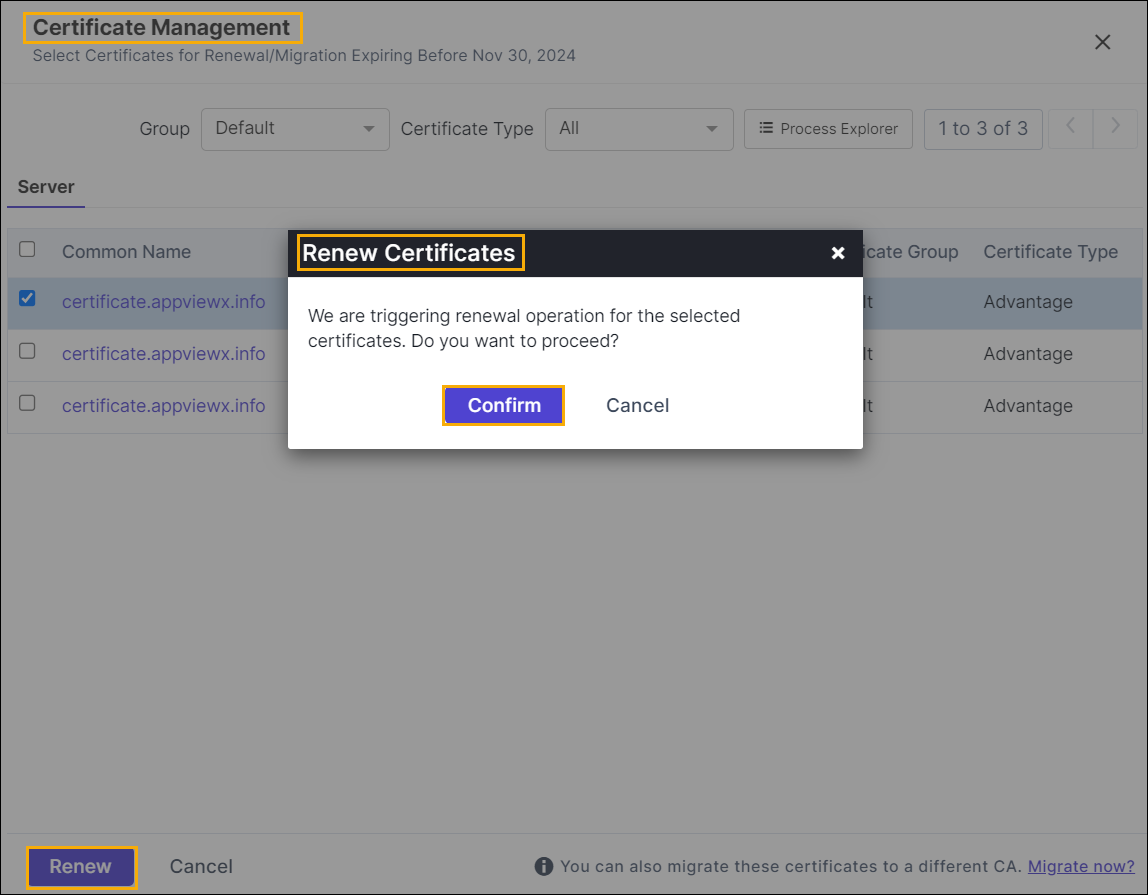
- Group: A dropdown labeled "Group" is set to "Default".
- Certificate Type: Another dropdown labeled "Certificate Type" is set to "All".
- Process Explorer: There is a button labeled "Process Explorer", likely used for detailed analysis or tracking of certificate processing.
- Pagination: The interface indicates that the user is viewing items 1 to 8 out of a total number, with navigation arrows for moving between pages.
-
The main section of the interface displays a table listing certificates with the following columns:
- Common Name: The domain name associated with each certificate
(for example,
poshacme.appviewwx.net). - Expiry Date-Time: The exact date and time when each certificate will expire (for example, 14/02/2025 17:21).
- Discovery Source: The source from which the certificate was
discovered (for example,
MicrosoftServer). - Applications Associated: This column is likely meant to display the applications linked to each certificate, though in the image it appears empty.
- Certificate Group: Indicates the group to which each certificate belongs, set to "Default" in all cases.
- Certificate Type: Also set to "Default" for each entry, this column categorizes certificates by their type.
- Each row has a check box to the left of the common name, allows you to select individual certificates for migration or further actions.
- At the bottom of the interface, there are options to
Renew or Cancel. The
Renew button is prominently displayed, indicating
that the user can initiate the renewal process for the selected certificates if
the Eligible for renewal certificate pie chart
selected.
- Click Renew, the Renew Certificates pop-up window appears with message as "We are triggering renewal operation for the selected certificates. Do you want to proceed?".
- Click the Confirm button, the certificate gets renewed and the message is displayed as "We have successfully initiated the Renewal of 1 certificates" along with the Click to View link.
- To see the renewed certificate in the Renew Certificate page, click the Click to View link that redirects to Insights > Entrust Migration > Renew Certificate view page.
- Click the Cancel button to discard the current changes and exit the form without saving.
- Click the certificate link to redirect to the Server certificate holistic view.
- A note at the bottom of the page indicates that user can also migrate the selected certificates to a different Certificate Authority (CA), with a link provided ("Migrate now?") for further action. Click the Migrate now? button that redirects to CA Switch page. For more details about CA Switch, refer the below steps.
- CA Switch: At the bottom of the interface, there are options to
Switch CA or Cancel. The
Switch CA button is prominently displayed, indicating
that the user can initiate the CA Switch (migration) process for the selected
certificates, if the Eligible for CA Switch needed
certificate pie chart selected.
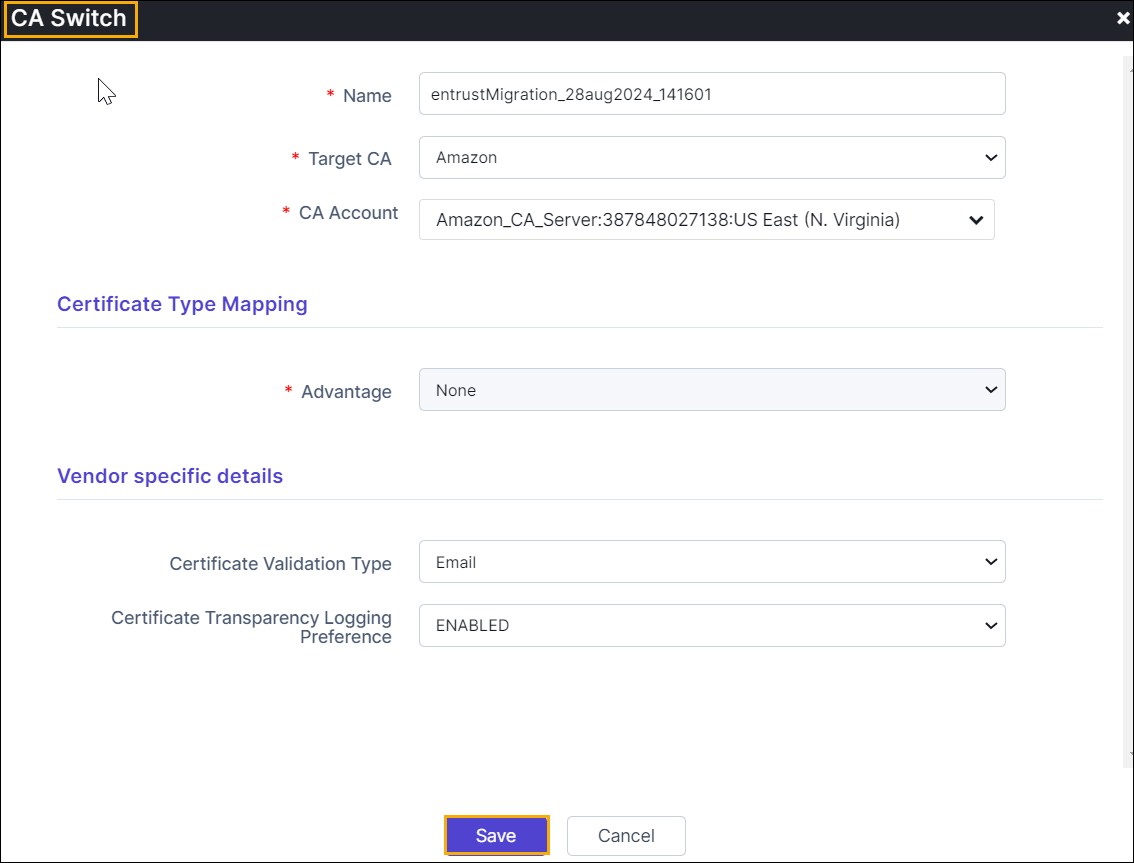
Table 1. Field descriptions for the CA Switch parameters Fields Description *Name Default: Selected certificate name for the CA switch.
The name of the migration task is specified as "entrustMigration_ 28aug2024_130633." This includes the date and time when the migration task was created.
*Target CA Default: Amazon.
The dropdown menu shows that Amazon is selected as the target Certificate Authority to which the certificates will be migrated by default. The available options are:
- Amazon
- Sectigo (Comodo Certificate Manager)
- Digicert
- GlobalSign
- Trustwave
*CA Account This field is a dropdown menu, prompting the user to select an account associated with the chosen CA. Note: This field appears only if the Amazon selected in the target CA dropdown list.*Settings This field is a dropdown menu, prompting the user to select an account associated with the chosen CA. Note: This field appears only if anyone of the Sectigo (Comodo Certificate Manager), Digicert, GlobalSign, or TrustwaveCA selected in the target CA dropdown list.*Division Default: AppViewX Inc.
Select the division from the dropdown list. The available options are:
- AppViewX Inc.
- TestDivision
Note: This field appears only if the Digicert selected in the target CA dropdown list.Certificate Type Mapping *Advantage Under the "Certificate Type Mapping" section, there is a dropdown menu labeled "Advantage," where "None" is selected. This allows users to map specific certificate types from the source CA to equivalent types in the target CA. Vendor Specific Details Note: This field appears only if anyone of the Amazon, Digicert, or GlobalSign CA selected in the target CA dropdown list.Certificate Validation Type Default: Email.
The dropdown menu under this section shows "Email" as the selected validation type. The available options are:
- Email: This indicates that email validation will be used for the certificates during the migration process.
- DNS: his indicates that DNS validation will be used for the certificates during the migration process.
Note: This field appears only if the Amazon, , CA selected in the target CA dropdown list.Certificate Transparency Logging Preference Default: ENABLED.
The preference for Certificate Transparency Logging is set to ENABLED, meaning that the certificates will be logged in publicly accessible Certificate Transparency logs.
Note: This field appears only if the Amazon CA selected in the target CA dropdown list.*Server Type Default: Apache.
Select the type of server from the dropdown list. This field determines the type of server environment in which the certificate will be used.Note: This field appears only if the Digicert CA selected in the target CA dropdown list.*Payment Method Default: Bill To Account Balance.
Select the type of method from the dropdown list. This field specifies how the payment for the service will be handled. "Bill To Account Balance" suggests that the charges will be deducted from a pre-existing account balance, possibly linked to the user's account with the vendor. The available methods are:
- Bill To Account Balance
- Bill To Default Credit Card.
Note: This field appears only if the GlobalSign CA selected in the target CA dropdown list.*Domain Admin Email Default: hostmaster.
Select the type of domain admin email from the dropdown list.Note: This field appears only if the Digicert CA selected in the target CA dropdown list.*: Mandatory fields - Click Save.
The popup message appears as "<certificate name> saved" in the CA Switch Summary page.
- Click the Cancel button to discard the current changes and exit the form without saving.
- Select the checkbox for the certificate that you want to migrate CA, and then click Submit.
TLS Certificates by Type
This chart visually represents the distribution of TLS certificates based on their types. There are three distinct categories of certificates, each represented by a different color. The chart provides a quick visual summary of how many TLS certificates belong to each type such as Standard, Advantage, and Wildcard. Provides a drilldown option for more detailed insights, excluding certificates that have already been migrated or are in progress
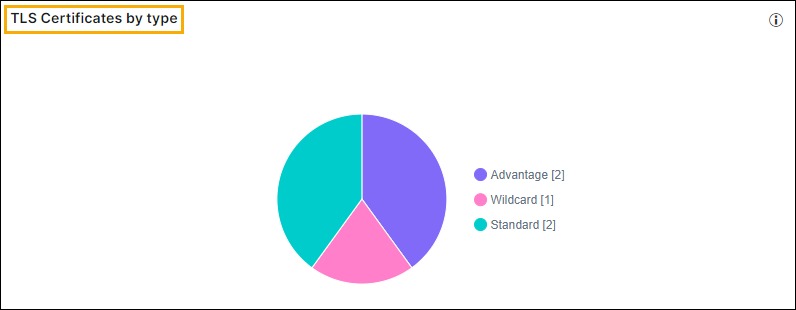
- Select the check-box to view the specific portion, excluding unselected items.
- Click the pie chart to redirect to Certificate Management page.
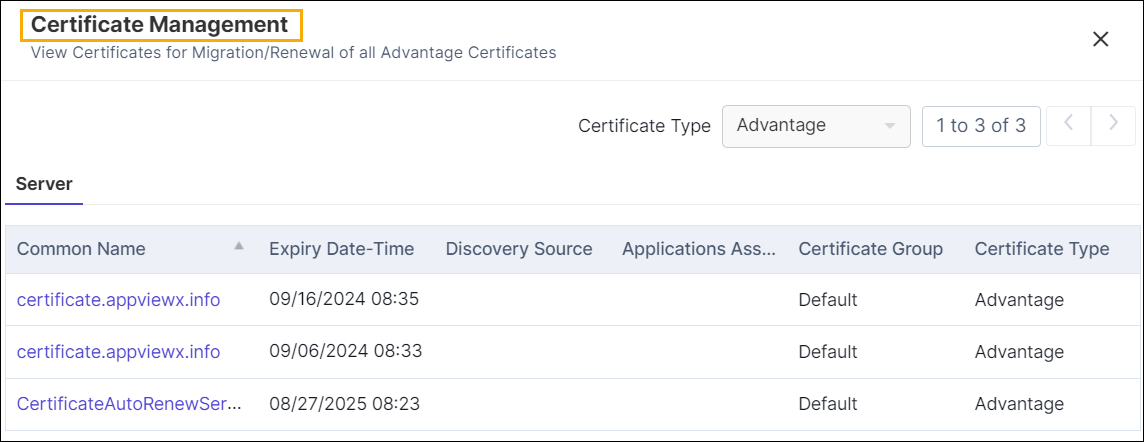
- Certificate Type: Another dropdown labeled "Certificate Type" is set to "Advantage".
- Common Name: The domain name associated with each certificate
(for example,
poshacme.appviewwx.net). - Expiry Date-Time: The exact date and time when each certificate will expire (for example, 14/02/2025 17:21).
- Discovery Source: The source from which the certificate was
discovered (for example,
MicrosoftServer). - Applications Associated: This column is likely meant to display the applications linked to each certificate, though in the image it appears empty.
- Certificate Group: Indicates the group to which each certificate belongs, set to "Default" in all cases.
- Certificate Type: Also set to "Default" for each entry, this column categorizes certificates by their type.
- Click the certificate link to redirect to the Server certificate holistic view.
Certificate Migration Status:
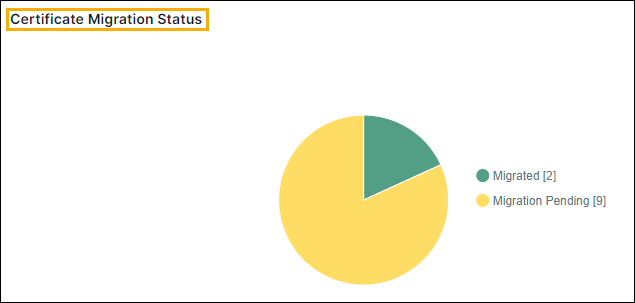
- Select the check-box to view the specific portion, excluding unselected items.
- Click the pie chart to redirect to Certificate Management page.
- Certificate Type: Another dropdown labeled "Certificate Type" is set to "All".
- Common Name: The domain name associated with each certificate
(for example,
poshacme.appviewwx.net). - Expiry Date-Time: The exact date and time when each certificate will expire (for example, 14/02/2025 17:21).
- Discovery Source: The source from which the certificate was
discovered (for example,
MicrosoftServer). - Applications Associated: This column is likely meant to display the applications linked to each certificate, though in the image it appears empty.
- Certificate Group: Indicates the group to which each certificate belongs, set to "Default" in all cases.
- Certificate Type: Also set to "Default" for each entry, this column categorizes certificates by their type.
- Click the certificate link to redirect to the Server certificate holistic view.
Non-TLS Certificates by Type
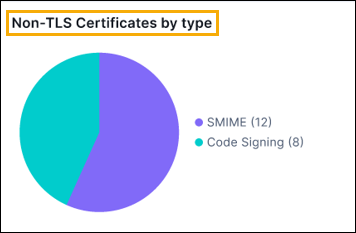
- Select the check-box to view the specific portion, excluding unselected items.
- Click the pie chart to redirect to Certificate Management page.
- Certificate Type: Another dropdown labeled "Certificate Type" is set to "Advantage".
- Common Name: The domain name associated with each certificate
(for example,
poshacme.appviewwx.net). - Expiry Date-Time: The exact date and time when each certificate will expire (for example, 14/02/2025 17:21).
- Discovery Source: The source from which the certificate was
discovered (for example,
MicrosoftServer). - Applications Associated: This column is likely meant to display the applications linked to each certificate, though in the image it appears empty.
- Certificate Group: Indicates the group to which each certificate belongs, set to "Default" in all cases.
- Certificate Type: Also set to "Default" for each entry, this column categorizes certificates by their type.
- Click the certificate link to redirect to the Server certificate holistic view.
Bulk Update CSR
- Go to Insights > Entrust Migration > CA Switch Summary.
- Select the checkbox for the certificates that you want to update the CSR parameters.
- Click the Bulk Update CSR button.
The Update Connector Details page is displayed to update the CSR parameters.
Field descriptions for the CA Switch parameters.Table 2. Fields Description Attachments Name Enter the alternate name for the field to be uploaded. Comments Enter the additional information if required. Upload File Click the Upload button to attach the file. Certificate Attributes Expiry Alert Default: True
The Expiry Alert feature notifies users in advance of upcoming certificate expiration dates. This feature helps ensure that certificates are renewed or replaced before they expire, preventing potential service disruptions or security vulnerabilities.
AzureSSOAlertRecipients The AzureSSOAlertRecipients feature refers to a setting or configuration within an Azure environment where specific individuals or groups are designated to receive alerts related to Azure Single Sign-On (SSO) activities. Vendor specific details Certificate Validation Type Default: Email.
The dropdown menu under this section shows "Email" as the selected validation type. The available options are:
- Email: This indicates that email validation will be used for the certificates during the migration process.
- DNS: his indicates that DNS validation will be used for the certificates during the migration process.
Note: This field appears only if the Amazon, , CA selected in the target CA dropdown list.Certificate Transparency Logging Preference Default: ENABLED.
Select the preference from the dropdown list. The preference for Certificate Transparency Logging is set to ENABLED, meaning that the certificates will be logged in publicly accessible Certificate Transparency logs. Available options are:- ENABLED
- DISABLED.
