
Insights Operations
The Insights Summary report presents a concise overview of the Operations Snapshot, Certs
based on Scan, Crypto Score Trend, Managed Status, Auto
Renewals, Auto Push
Configured, CLM Action Trend, Auto Enrollment Trend, and
Next Renew
Validity managed within AppViewX. Click on any widget to access
detailed information specific to that particular operations on the respective widgets
popup. Within the popup window, you can view all the entries, export the content in the
desired format if needed, and redirect to inventory. The widgets within the Insights
Operation page are: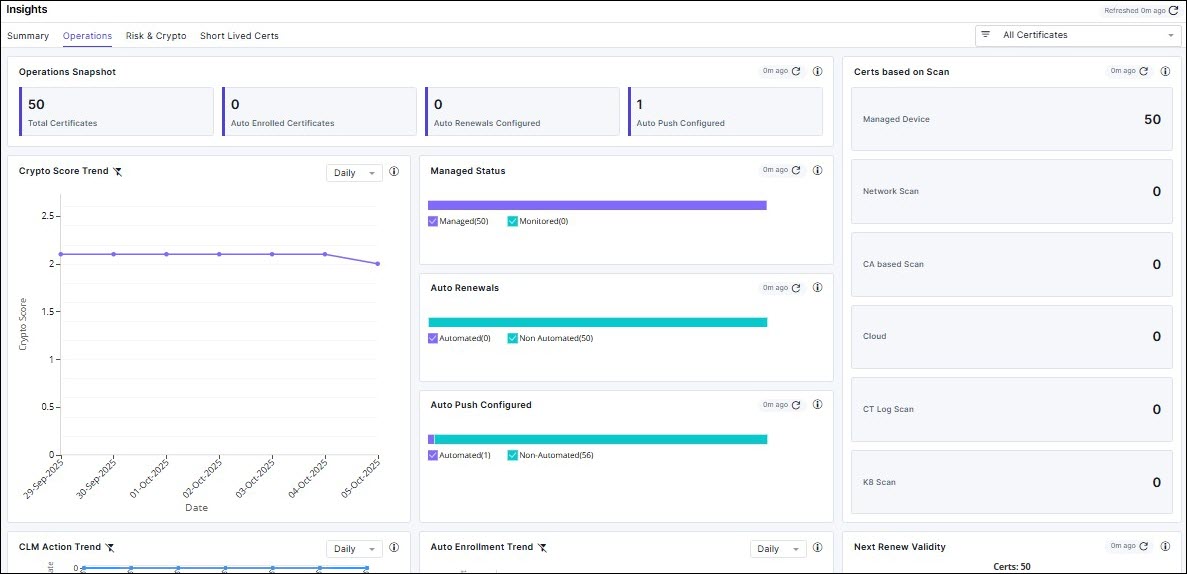
- Operations Snapshot
- Certs based on Scan
- Crypto Score Trend
- Managed Status
- Auto Renewals
- Auto Push Configured
- CLM Action Trend
- Auto Enrollment Trend
- Next Renew Validity
- Push Validation Report
Operations Snapshot
The Operations Snapshot widget displays the count of certificates, Auto Enrolled
Certificates, Auto Renewals Configured, and Auto Push Configured within AppViewX.
The metrics within Operations Snapshot widget are:
- Total Certificates: Displays the count of certificates such as Server, Client, and Code signing certificates.
- Auto Enrolled Certificates: Displays the count of certificates that are enrolled using Auto Enrollment Protocol.
- Auto Renewals Configured: Displays the count of certificates currently configured for auto-renewal.
- Auto Push Configured: Displays the count of certificates with auto-push enabled, helping you quickly identify which are automatically deployed to endpoints after enrollment or renewal—reducing manual effort.
Certs based on Scan
This widget displays the count of certificates based on scan such as Managed device,
Network Scan, CA based scan, Cloud, CT Log scan, and K8 Scan.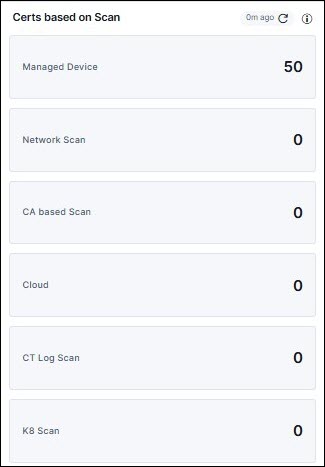
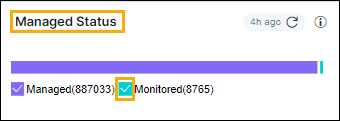
Managed Status
This widget shows the total count of certificates in both the managing and monitoring statuses. You have the following options:
- Select the check box to view the specific portion, excluding unselected items.
- Click the bar chart to redirect to intermediate page.
- Click the View Inventory button to redirect to the Server/Client/Code signing certificate inventory.
Auto Renewals
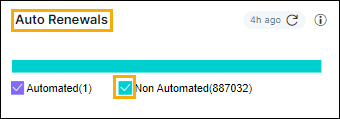
This widget shows the total count of certificates in both automated and non-automated. You have the following options:
- Select the check box to view the specific portion, excluding unselected items.
- Click the bar chart to redirect to intermediate page.
- Click the View Inventory button to redirect to the Server/Client/Code signing certificate inventory.
Auto Push Configured
This widget shows the total count of certificates with auto-push enabled and disabled. You have the following options:
- Select the check box to view the specific portion, excluding unselected items.
- Click the bar chart to redirect to intermediate page.
- Click the View Inventory button to redirect to the Server/Client/Code signing certificate inventory.
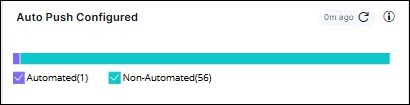
The Certificate Auto Push Report Job in Job Scheduler runs at 7:00am everyday and generates the report. By default, this is disabled. You can click Trigger Now to run it.
Crypto Score Trend
This score indicates the security and condition of cryptographic components within a
system, including certificates, encryption protocols, or cryptographic algorithms.
You have the option to choose the trend chart format in various ways, including
Daily, Weekly, Monthly, Quarterly, and Custom.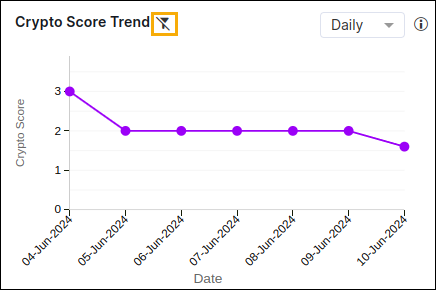
CLM Action Trend
This CLM action trend chart displays the count of renewed, enrolled, revoked, and
regenerated certificates. You have the option to choose the trend chart format in
various ways, including Daily, Weekly, Monthly, Quarterly, and Custom. You have the
following more options: 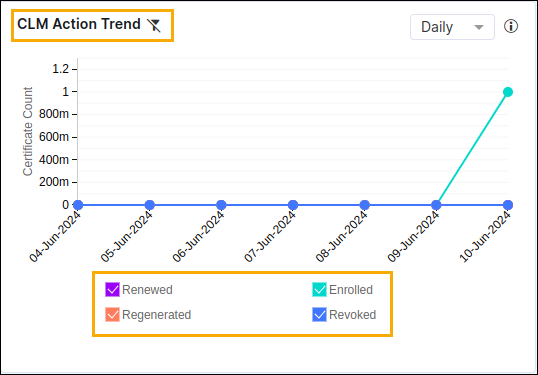
- Select the check box to view the specific portion, excluding unselected items.
Auto Enrollment Trend
This trend displays the frequency or volume of certificates being automatically
enrolled within a system. You have the option to choose the trend chart format in
various ways, including Daily, Weekly, Monthly, Quarterly, and Custom. You have the
following more options: 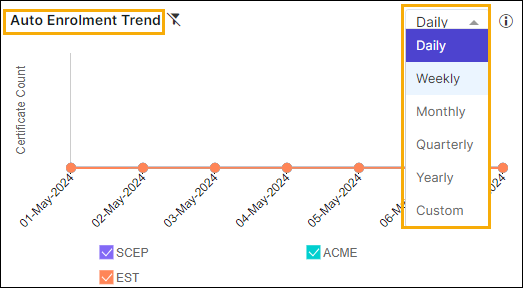
- Select the check box to view the specific portion, excluding unselected items.
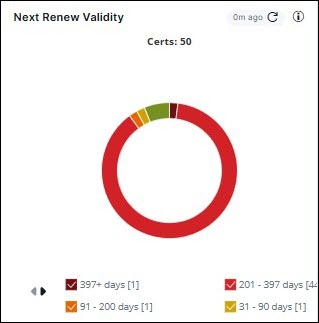
Next Renew Validity
This pie chart displays certificates grouped by their renewed certificate validity
(0–30 days, 31–90 days, 91–200 days, 200–397 days, and 397+ days. Use this to track
renewal distribution and prioritize certificates approaching shorter lifecycles.
- Select the check box to view the specific portion, excluding unselected items.
Threshold Limits
- For fewer than 100,000 certificates, live data will be displayed whenever the user navigates to the Insights page.
- For more than 100,000 certificates, a pre-calculated report will be shown with the last generated time indicated at the widget level.
- Users can click the widget level refresh to view the live data.
Trend Filter
It indicates that the group level filter is not applicable to this chart. The group
level filter does not apply to the trend's filter and retains the same data for all
users.
Push Validation Report
The push validation donut chart shows: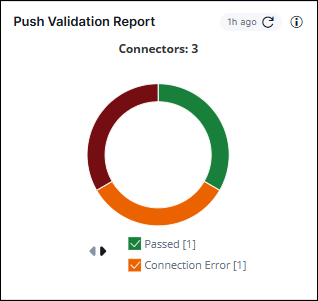 The push status values are displayed as interactive legends on the widget. Click a
status value to show/hide the corresponding data on the chart.
The push status values are displayed as interactive legends on the widget. Click a
status value to show/hide the corresponding data on the chart.
- Total number of connectors for which data has been plotted on the chart
- a breakdown of successful and failed push operations for quick visibility
into push health, using the following status values:
- Passed (Post-push validation successful)
- Connection Error (Unable to connect to endpoint for the post-push validation)
- Failed (Connected to endpoint but post-push validation failed due to mismatch in certificate)
The widget slices are also interactive. Click a slice to view the corresponding
certificate inventory data. 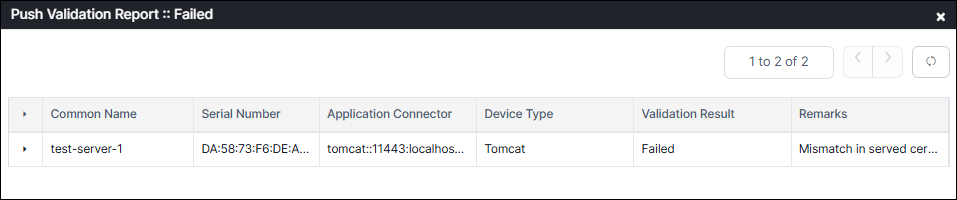 The certificate inventory shows the following data for
each certificate mapped to the push status value:
The certificate inventory shows the following data for
each certificate mapped to the push status value:
- Common name (common name associated with the certificate)
- Serial number (unique serial number assigned to the certificate by the issuing CA)
- Application connector (application or connector to which the certificate is pushed)
- Device type (type of server or platform where the certificate is deployed)
- Validation result (Post-push validation status)
- Remarks (Additional details related to the post-push validation)
