
Configuring AppViewX ACME Server
Prerequisites
- Make sure that the following pods are running in the cluster by using the
command:
kubectl get pods -A | grep
                acme
SaaS
- Navigate to the installation directory of the cloud connector software.
- Run
cd deps/tools - Run
./k3s kubectl get svc -A | grep httpsNote: It should have avx-mid-server-gateway-https under namespace cc.
Enabling ACME Services
- Log onto the AppViewX installer node.
- Go to
</installation_folder/appviewx_kubernetes/scripts>folder. - Add the
avx-vendor-cert-acme-agentinENABLED_PLUGINSin theappviewx.conffile. - Specify the datacenter (DC) where the gateway must be deployed.
avx_vendor_cert_acme_agent=<dc name>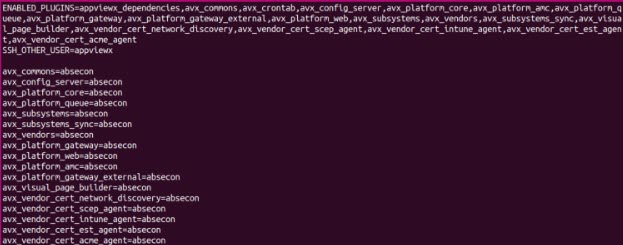
- Run the
<plugins_install.sh> - Verify if ACME is enabled by running
kubectl get pods -A | grep acme
For SaaS
- Log onto the cloud connector installed node.
- Go to cc_installed_path/deps/properties.
- Open appviewx.properties and set the following fields as
true:
- AUTO_ENROLL_ENABLED=true
- ENABLE_MTLS_PROFILE=true
- ENABLE_HTTP_PROFILE=true
- ENABLE_HTTPS_PROFILE=true
- Scale down the avx-mid-server-platform pod.
- Restart the avx-mid-server-starter pod.Note: Ensure that avx-mid-server-gateway-https is present under namespace cc.
Configuring ACME Server
General Settings
- Log on to the AppViewX application with valid credentials.
-
Click
 (Menu)
> CERT+ > Administration > Auto Enrollment > ACME.
The Auto Enrollment : ACME page is displayed with +Add button, Download ACME Client dropdown, Blocked Requests button, and icons for Refresh and Learn More
(Menu)
> CERT+ > Administration > Auto Enrollment > ACME.
The Auto Enrollment : ACME page is displayed with +Add button, Download ACME Client dropdown, Blocked Requests button, and icons for Refresh and Learn More - Click the + Add button.
-
In the End Point Details section, enter/select the following fields:
Table 1. Field description for End Point Details section Field Description Endpoint Details *Name A unique name (alphanumeric string) to identify the agent setting. Name should not start with special characters. Acceptable characters: A-Z, a-z, 0-9, '.', '_', '-'
*IP/FQDN The dropdown list field contains a list of FQDN's from the stored data. Users can choose from the available values. The hostname format is <tenant>-aep.<domainname>. For Onprem the list is populated with the On-Prem node details. Select any one of the values.
For SaaS the list is populated with the hostname of the Cloud Connector and AEP Gateway details.- Using On-premises CC
- Without load balancer:It is the hostname of the cloud connector where the auto-enrollment gateway is running.
- With load balancer: Manually enter the hostname of the cloud connector.
- Using Direct Gateway: In the SaaS setup, to use the direct AEP gateway without installing the cloud connector, the FQDN/IP address will be the tenant URL with "-aep" before the domain name.
*Port The port number is auto-populated based on the selected IP/FQDN value. If the IP/FQDN value is entered manually, then enter the appropriate port number.- HTTPS URL (always)
- Onprem - 31443
- SAAS - 30020
*Challenge Type Select any of the following: - HTTP (By default, this is selected.)
- DNS
*HTTP Challenge Port Specify the port number used for HTTP challenge validation. By default, it is 80. Specify a different port (1 to 65535), if required. Audit logs are available for this under Alerts & Logs > Certificate Logs. This field is displayed if Challenge Type = HTTP
*Challenge Validation Type Note: Only win-acme and Certbot enrollments and re-enrollments use these fields.This field is displayed when Challenge Type = DNS. Select any of the following:- Automated DNS Validation: Select this option to update the DNS TXT record. Access is required to update the record in the DNS server as part of this process.
- Automated DNS Validation (via AppViewX): Select this option for
AppViewX to update the TXT record on the DNS server. AppViewX will
require credentials for the DNS server.Attention: On clicking DNS Challenge, make sure to onboard your DNS server in the Integration Hub to update the challenge token and to allow addition/modification/deletion of the TXT record.
- Enterprise secure challenge: Select this option for validation to happen based on the record of the domain.
Note: The options DNS Challenge and Enterprise Secure Challenge are supported only in AppViewX provided ACME clients. For all the open source clients always use the Default option*Validation Method This field is displayed when Challenge Validation Type = Enterprise secure challenge. Select any of the following: - Secure: This method performs strict validation of the client’s IP address against the existing A record of the domain.
- Any: The client’s IP must be part of one of the available A records for the domain.
- Ignore: Select this option for domains that have been pre-validated.
Validate HTTP Challenge via Proxy This field is displayed when Challenge Type = HTTP. If enabled, the communication with the ACME client to fetch the HTTP challenge token is via the proxy details provided in the General Settings.
*Vendor This filed is displayed if Challenge Type = DNS and Challenge Validation Type = Automated DNS Validation (via AppViewX). Select the DNS provider that suports automatic challenge verification. This is required only if "Automatic" is selected for challenge verify. The selected vedor must be pre-integrated and supported by the system
The value in the Settings field corresponds to the value in the Vendor field on the Platform > Integration Hub > Vendor configuration page
Note: Make sure to onboard your DNS Server in the Integration Hub to update challenge token.*Settings This filed is displayed if Challenge Type = DNS, Challenge Validation Type = Automated DNS Validation (via AppViewX) and a supported Vendor value is selected. The value in the Settings field corresponds to the value in the Name field on the Platform > ASSET MANAGEMENT > Integration Hub > Vendor configuration page
*: mandatory fields Load Balancer Configuration
It is recommended to set the listening port as 30020, which is the same as AppViewX.
Health check URL for load balancer:
- HTTP method: GET
- Healthcheck API: https://<hostname>:30020/
- Hostname: Hostname of cloud connector enabled with the MTLS gateway.
- Expected response code: 404. As the load balancer is accessing the URL without any parameters, it will receive a 404 response.
Table 2. Field description of Add New Vendor page on Integration Hub page Field Description *Category This field is pre-populated on selecting Select Category as IOT. *Vendor This field is pre-populated on selecting Infoblox. *Name Enter a name. Version Provide a version, if required. Description Provide a description, if required. Upload Image Upload vendor image. Tags Provide tags. Data center Select a data center from the dropdown list. Credentials Type Select between REST or SSH. By default, REST is selected. Auth Type Select a value from the dropdown list. By default, Basic Auth is selected. *URL Enter the URL and validate it by clicking Validate URL. *Credential Type By default, Manual entry is selected. Keep the selection as is. *Username Enter the assigned username. (This field is displayed for Manual entry only.) *Password Enter the password. Configurations Enable config By default, this toggle button is disabled. Enable it to add another vendor configurations/attributes in JSON format. Attributes can be referred to as variables in workflow automation. *: mandatory fields Note: Use the port number that appears when you enable ACME services. - Using On-premises CC
-
In the CA Accounts section,
If the setting is configured as
(Menu) > CERT+ > Administration >
General Settings> Workflow Settings > Certificate Actions -
ACME(AEP) = Policy Engine, enter/select the following fields:Table 3. Field description in CA Accounts section if Workflow setting = Policy Engine Field Description *Certificate Group Select a specific group under which certificate needs to be enrolled. *CA Template Select the required CA Template. The dropdown only lists the respective CA Template(s) mapped to the selected Certificate Group group from Policy Engine.
*Allowed Domain Names This dropdown list field will be auto-populated based on the selected CA and its configured DCV. - If DCV is applicable for the CA then the values selection is enforced accordingly
- If DCV is not applicable then the field permits text inputs, allowing multiple domain values.
*: mandatory fields ORIf the setting is configured as (Menu) > CERT+ > Administration >
General Settings> Workflow Settings > Certificate Actions -
ACME(AEP) = Workflow, enter/select the following fields: Table 4. Field description in CA Accounts section if Workflow setting = Workflow Field Description *Certificate Group Select a specific group under which certificate needs to be enrolled. *Select CA Select the required CA from the available options. The certificate will be enrolled under the selected CA. The CAs associated with the Default certificate group are: - AppViewX
- AppViewX PKIaaS
- AppViewX PKIaaS Native
- Amazon Private CA
- DigiCert
- DigiCert One
- EJBCA
- Entrust
- Entrust MPKI
- GlobalSign SSL
- GlobalSign Atlas
- GlobalSign MSSL
- HydrantID
- IDnomic
- LetsEncrypt
- Microsoft Enterprise
- Microsoft Standalone
- Nexus
- OpenTrust
- Sectigo (Comodo Certificate Manager)
- SwissSign
Note: The Vendor Specific Details and Custom Attributes section are displayed for some of the CAs as follows:- DigiCert
- Ejbca
- Entrust
- Entrust MPKI
- GlobalSign MSSL
- MS Enterprise
- Nexus
*: mandatory fields Note: Use the port number that appears when you enable ACME services.When AppViewX is selected as CA. The fields for AppViewX CA are as follows:Table 5. Details for AppViewX CA - Field Description Table Fields Description *CA Account Select a specific CA Account from the selected CA which is to be used for certificate creation operations. *Certificate Profile Type 3 or more letters of the certificate keywords after which a list of server certificates issued from the above selected CA account will be displayed, one certificate can be selected for further communications with the ACME client machine. *CA Connector Name Name of the CA connector after the certificate is being enrolled. *Certificate Validity Validity of the certificate to be enrolled. *: mandatory fields When AppViewX PKIaaS Native is selected as CA. The fields for AppViewX PKIaaS Native are as follows:Table 6. Details for AppViewX PKIaaS Native - Field Description Table Fields Description *CA Account Select a specific CA Account from the selected CA which is to be used for certificate creation operations. Template Name Select a template name from the dropdown list. *Issuer Name Select an issuer name to issue the certificate. *CA Connector Name Name of the CA connector after the certificate is being enrolled. *Certificate Validity Validity of the certificate to be enrolled. Note: For some CAs, the validity available in their respective CA portal is considered despite the specified certificate validity.*: mandatory fields When Amazon Private CA is selected as CA. The fields for Amazon Private CA are as follows:Table 7. Details for Amazon Private CA - Field Description Table Fields Description *CA Account Select a specific CA Account from the selected CA which is to be used for certificate creation operations. *Region Select a valid region associated with the CA account. The dropdown is populated with the first available value. Select an appropriate value as required.
*Issuer Select a valid issuer associated with the CA account. The dropdown is populated with the first available value. Select an appropriate value as required.
*Signature Algorithm Select a valid issuer associated with the CA account. The dropdown is populated with the first available value from the group's associated policy. Select an appropriate value as required.
*CA Connector Name Name of the CA connector after the certificate is being enrolled. *Certificate Validity Validity of the certificate to be enrolled. *: mandatory fields When AppViewX PKIaaS is selected as CA. The fields for AppViewX PKIaaS CA are as follows:Table 8. Details for AppViewX PKIaaS CA - Field Description Table Fields Description *CA Account Select a specific CA Account from the selected CA which is to be used for certificate creation operations. *Certificate Profile Type 3 or more letters of the certificate keywords after which a list of server certificates issued from the above selected CA account will be displayed, one certificate can be selected for further communications with the ACME client machine. *Issuer Location Select the issuer location associated with the CA account. *Issuer Name Select a valid issuer associated with the CA account. *CA Connector Name Name of the CA connector after the certificate is being enrolled. *Certificate Validity Validity of the certificate to be enrolled. *: mandatory fields When DigiCert is selected as CA. The fields for DigiCert CA are as follows:Table 9. Details for DigiCert CA - Field Description Table Fields Description *CA Account Select a specific CA Account from the selected CA which is to be used for certificate creation operations. *Division Select a division associated with the CA account. The dropdown is populated with the first available value. Select an appropriate value as required.
*Certificate Type Select a valid certificate type associated with the CA account. The dropdown is populated with the first available value. Select an appropriate value as required.
*CA Connector Name Name of the CA connector after the certificate is being enrolled. *Order Validity Validity of the certificate to be enrolled. *: mandatory fields If the Select CA =DigiCert, then a separate section Vendor Specific Details is displayed after the CA Accounts section with two fields described below.
Table 10. Vendor Specific Details for DigiCert CA - Field Description Table Fields Description *Server Type Select a server type. The dropdown is populated with the first available value. Select an appropriate value as required.
*Payment Method Select a payment method. The possible options are: - Bill To Account Balance - Pay with the account balance. Returns an error if this option is disabled for the account or if the account has an insufficient fund.
- Bill To Default Credit Card - Pay with the account's default credit card. Returns an error if no default credit card is configured for the account
*: mandatory fields When DigiCert One is selected as CA. The fields for DigiCert CA are as follows:Table 11. Details for DigiCert One CA - Field Description Table Fields Description *CA Account Name A unique name to identify the CA setting. Note: No special characters other than ‘.’, ‘-’,’_’ are allowed. Names should not start with special characters.*Purpose/Usage Certificate Type for which CLM actions will be enabled. For example, Server or Client. Proxy Required Enable this field if the CA communication needs to happen via proxy. The proxy details configured in general settings will be used for communication. Data Center (AppViewX's CA agent) Select the data center for CA communication, with the CC node being the recommended option. The selected node will handle the communication through the chosen CC node. CA Configuration *Base URL This URL will contain the hostname of the DigiCert CA instance and used for constructing the API requests. *Authentication method By default, API Token is selected. *API Token Enter the API token to authorize the communication between AppViewX and DigiCert One. Allow Seat ID during enrollment Enabling this field displays a Seat ID field in the Auto enrollment settings that you can use instead of the CA settings. *Seat ID Unique value assigned to identify an entity in the DigiCert One account.You can provide multiple ID separated by a comma. They can be used for enrollment, renewal, and regeneration. Use DigiCert One to switch certificates from DigiCert MPKI Enable this field to automatically switch your DigiCert MPKI certificates to DigiCert One with auto-enrollment/auto-regenerate. *: mandatory fields When EJBCA is selected as CA. The fields for EJBCA CA are as follows:Table 12. Details for EJBCA CA - Field Description Table Fields Description *CA Account Select a specific CA Account from the selected CA which is to be used for certificate creation operations. *CA Connector Name Name of the CA connector after the certificate is being enrolled. *: mandatory fields If the selected CA is EJBCA, a separate section Vendor specific details is displayed after the CA Accounts section. The fields for Vendor specific details are as follows:Table 13. Vendor Specific Details for EJBCA CA - Field Description Table Fields Description *End Entity Profile Name Select a profile of an end entity. End entity user name Enter the user name for the end entity. *Issuer Common Name Select a common name of an issuer. *Certificate Profile Name Select a profile name of certificate. *: mandatory fields When Entrust is selected as CA. The fields for Entrust CA are as follows:Table 14. Details for Entrust CA - Field Description Table Fields Description *CA Account Select a specific CA Account from the selected CA which is to be used for certificate creation operations. *Certificate Type Select a valid certificate type associated with the CA account. - If the Certificate Category radio button is selected to Server, the dropdown list is populated with the first available value. Select an appropriate value as required.
- If the Certificate Category radio button is selected to Client, the dropdown list is populated with ‘None’ as the default value.
*CA Connector Name Name of the CA connector after the certificate is enrolled. *Certificate Validity Validity of the certificate to be enrolled (in days/months/years). *: mandatory fields If the selected CA is Entrust, a separate section displaying Vendor specific details and Custom Attributes is displayed after the CA Accounts section.Note: Based on the Entrust ECS account configuration Custom Attributes section may also be displayed.Table 15. Vendor Specific Details for Entrust CA - Field Description Table Fields Description Additional Emails Enter the valid email address in the field. Requester Name Enter the requester name. Requester Email Enter a valid email ID. Requester Phone Enter the 10-digit phone number. *: mandatory fields When Entrust MPKI is selected as CA. The fields for Entrust MPKI CA are as follows:Table 16. Details for Entrust MPKI CA - Field Description Table Fields Description *CA Account Select a specific CA Account from the selected CA which is to be used for certificate creation operations. *CA Connector Name Name of the CA connector after the certificate is enrolled. *: mandatory fields If the selected CA is Entrust MPKI, a separate section Vendor Specific Details is displayed after the CA Accounts section. The fields for Vendor specific details are as follows:Table 17. Vendor Specific Details for Entrust MPKI CA - Field Description Table Fields Description *CA Name Select a CA name from the dropdown list. *Certificate Profile Select a certificate profile from the dropdown list. *: mandatory fields When GlobalSign (GlobalSign SSL) is selected as CA. The fields for GlobalSign (GlobalSign SSL) CA are as follows:Table 18. Details for GlobalSign SSL CA - Field Description Table Fields Description *CA Account A unique name to identify the CA setting. No special characters other than ‘.’, ‘-’,’_’ are allowed. The name should not start with special characters. *Certificate Type Certificate Type for which CLM actions will be enabled. Select a value from the dropdown list. *CA Connector Name Name of the CA connector after the certificate is enrolled. *Certificate Validity Validity of the certificate to be enrolled (in days/months/years). *: mandatory fields If the selected CA is GlobalSign (GlobalSign SSL), a separate section Vendor Specific Details is displayed after the CA Accounts section. The fields for Vendor specific details are as follows:Table 19. Vendor Specific Details for GlobalSign (GlobalSign SSL) CA - Field Description Table Fields Description *Domain Admin CA Name Select a CA name from the dropdown list. *: mandatory fields The following field is displayed in the Point of Contact section as per the selected CA if the Select CA =GlobalSign, and the Certificate type = Organization SSL. The CA mandates the point of contact information (First Name) for traceability. All auto-enrollment requests via this endpoint are registered with the point of contact information entered here.When GlobalSignMSSL is selected as CA. The fields for GlobalSign MSSL CA are as follows:The following field is displayed in the Vendor Specific Details section as per the selected CA:Table 20. Details for GlobalSign MSSL CA - Field Description Table Fields Description CA Account Select a specific CA Account from the selected CA which is to be used for certificate creation operations. Product Type Select the specific Certificate Type. The values are fetched from the CA Settings configuration.
CA Connector Name Name of the CA connector after the certificate is enrolled. Certificate Validity Validity of the certificate to be enrolled (in days/months/years). *: mandatory fields The following field is displayed in the Point of Contact section as per the selected CA. The CA mandates the point of contact information for traceability. All auto-enrollment requests via this endpoint will be registered with the point of contact information entered here.Table 21. Vendor Specific Details for GlobalSign MSSL CA - Field Description Table Fields Description *Profile Select the Profile based on the configurations made in the Certificate Authority setting. *: mandatory fields Table 22. Point of Contact Details for GlobalSign MSSL CA - Field Description Table Fields Description *First Name Enter the first name. *Email Address Enter the valid email address. *Phone Number Enter the valid phone number. *: mandatory fields When GlobalSignAtlas is selected as CA. The fields for GlobalSign MSSL CA are as follows:Table 23. Details for GlobalSignAtlas CA - Field Description Table Fields Description *API Credential Friendly name select the user-defined label in AppViewX that identifies and maps the API credentials used for authenticating with the GlobalSign Atlas CA. *Certificate Profile Select a certificate profile from the dropdown list. *CA Connector Name Name of the CA connector after the certificate is enrolled. *Certificate Validity Validity of the certificate to be enrolled (in days/months/years). *: mandatory fields Note: The Generic Fields section will be displayed for this CA, with fields such as organization, organizational_unit, country, state, locality etc, as configured in the Certificate Authority settings.When Google is selected as CA. The fields for Google CA are as follows:Table 24. Details for Google CA - Field Description Table Fields Description *CA Account Select a specific CA Account from the selected CA which is to be used for certificate creation operations. *Certificate Profile Select the certificate profile type. *Issuer Location Select an issuer location that is associated with the CA account. *Pool Name Select a pool name to issue the certificate. Template Name Select a template name from the dropdown list. *CA Connector Name Name of the CA connector after the certificate is being enrolled. *Certificate Validity Validity of the certificate to be enrolled. *: mandatory fields When HydrantID is selected as CA. The fields for HydrantID CA are as follows:Table 25. Details for HydrantID CA - Field Description Table Fields Description *CA Account Select a specific CA Account from the selected CA which is to be used for certificate creation operations. *HydrantID Policy Select the policy associated with the CA Account to be used for certificate operations. *CA Connector Name Name of the CA connector after the certificate is being enrolled. *Certificate Validity Validity of the certificate to be enrolled. *: mandatory fields When IDnomic is selected as CA. The fields for IDnomic CA are as follows:Table 26. Details for IDnomic CA - Field Description Table Fields Description *CA Account Select a specific CA Account from the selected CA which is to be used for certificate creation operations. *Certificate Profile Select the certificate Profile from the dropdown list. *CA Connector Name Name of the CA connector after the certificate is enrolled. *Certificate Validity Validity of the certificate to be enrolled (in days/months/years). *: mandatory fields When LetsEncrypt is selected as CA. The fields for Let's Encrypt CA are as follows:Table 27. Details for LetsEncrypt CA - Field Description Table Fields Description *CA Account Select a specific CA Account from the selected CA which is to be used for certificate creation operations. *CA Connector Name Name of the CA connector after the certificate is enrolled. *: mandatory fields When Microsoft Enterprise is selected as CA. The fields for Microsoft Enterprise CA are as follows:Table 28. Details for Microsoft Enterprise CA - Field Description Table Fields Description *CA Account Select a specific CA Account from the selected CA which is to be used for certificate creation operations. *CA Connector Name Name of the CA connector after the certificate is enrolled. *: mandatory fields If the selected CA is Microsoft Enterprise, a separate section Vendor specific details is displayed with a Template Name dropdown after the CA Accounts section.
When Microsoft Standalone is selected as CA. The fields for Microsoft Standalone CA are as follows:Table 29. Details for Microsoft Standalone CA - Field Description Table Fields Description *CA Account Select a specific CA Account from the selected CA which is to be used for certificate creation operations. *CA Connector Name Name of the CA connector after the certificate is enrolled. *: mandatory fields When Nexus is selected as CA. The fields for Nexus CA are as follows:The following field is displayed in the Vendor Specific Details section as per the selected CA:Table 30. Details for Nexus CA - Field Description Table Fields Description *CA Account Select a specific CA Account from the selected CA which is to be used for certificate creation operations. *CA Connector Name Name of the CA connector after the certificate is enrolled. *Certificate Validity Validity of the certificate to be enrolled (in days/months/years). *: mandatory fields Table 31. Vendor Specific Details - Field Description Table Fields Description *Procedure Select the procedure based on the configurations made in the Certificate Authority Setting. When OpenTrust is selected as CA. The fields for OpenTrust CA are as follows:
Table 32. Details for OpenTrust CA - Field Description Table Fields Description *CA Account name A unique name to identify the CA setting. Note: No special characters other than ‘.’, ‘-’,’_’ are allowed. Names should not start with special characters.*Certificate Management Profile Select the certificate issuance policy defined in OpenTrust CA. Zone The AppViewX configuration wrapper that maps to a CA + profile, and is used by end-users or automation to request certificates consistently. *CA Connector Name Name of the CA connector after the certificate is enrolled. *: mandatory fields When Sectigo (Comodo Certificate Manager) is selected as CA. The fields for Sectigo (Comodo Certificate Manager) CA are as follows:Table 33. Details for Sectigo (Comodo Certificate Manager) CA - Field Description Table Fields Description *CA Account A unique name to identify the CA setting. Note: No special characters other than ‘.’, ‘-’,’_’ are allowed. Names should not start with special characters.
*Certificate Type Select a value from the dropdown list. *CA Connector Name Name of the CA connector after the certificate is being enrolled. *Certificate Validity Validity of the certificate to be enrolled (in days/months/years). *: mandatory fields When SwissSign is selected as CA. The fields for SwissSign CA are as follows:Table 34. Details for SwissSign CA - Field Description Table Fields Description *CA Account Select a specific CA Account from the selected CA to be used for certificate creation operations. *Client Name Select the specific client. *Product Select the specific product. *CA Connector Name Name of the CA connector after the certificate is being enrolled. *Certificate Validity Validity of the certificate to be enrolled. *: mandatory fields -
Configure the Advanced Settings details as follows:
The following table provides the field description for Advanced Settings:
Table 35. Advanced Settings - Field Description Table Fields Description *Fetch Certificate Parameters Select Yes or No. Setting the radio button to Yes enables the system to automatically fetch certificate parameters from a Suggestive Policy and append them to the client CSRs.
*Restrict Revocation This option restricts the revocation of certificates through this endpoint. - If it is set to No, then the certificates are revoked through the ACME endpoint.
- If this is set to Yes certificates cannot be revoked through the ACME end point.
*Restrict Wild Card Certificate This option restricts the issuance of wildcard certificates through this endpoint. The default value is set to “No”. - If it is set to No, then wildcard certificates are issued through the endpoint. There are no restrictions to certificate enrollment through the ACME endpoint.
- If this is set to Yes then wildcard certificates are issued through the ACME endpoint. Choosing this option will not allow Common Name or DNS starting with *.
*High Speed Transactions Based on the selection of this field, the endpoint will be configured with or without High Performance transaction times. ACME protocol’s Revocation actions are not supported in High Performance mode. Request information pertaining to High-Performance can be viewed on the Direct Requests page. *Return Existing Certificate If this option is enabled (Yes) then for request with AppViewX should check and return the existing valid certificate for the same CSR & public key from inventory if available otherwise it should proceed with enrollment and return the certificate. - If it is set to Yes, the Certificate Threshold field is displayed.
- If it is set to No, then the AppViewX will do the default behavior of enrolling a new certificate for each request.
*Certificate Threshold This field is enabled only if Return Existing Certificate = Yes. Enter the number of days in this field. This value is used to Initiate a new certificate request if the certificate is nearing the expiry date i.e., if existing certificate validity is less than the entered value.
Block Duplicate Certificates By default, this option is disabled. Enable this option to prevent users from requesting duplicate certificates for the same common name from the same device within a defined timeframe. Note:- If IP forwarding is not enabled (for example, in a loadbalanced environment), all requests may appear to originate from the same IP address. This could potentially cause unexpected behavior when block duplicate requests are enabled.
- You can manually unblock the duplicate certificates by clicking Unblock Requests on the ACME Auto Enrollment page.
*Max duplicate certificate requests This field is enabled only if Block Duplicate Certificates is enabled. You can limit duplicate certificates within a set timeframe. By default, up to 3 duplicates are allowed per hour, with a maximum of 100 duplicates in 240 hours.
*Block Duration: This field is enabled only if Block Duplicate Certificates is enabled. By default, this is set to 24h. Value can range between 1 and 240h. For example, if 3 duplicate certificates are blocked for 1 hour at 11:40:03, and 3 matching requests (same CN, SAN, device endpoint, and ACME agent) arrive within that hour, those requests will remain blocked for 24 hours—until 12:40:03 the next day—after which they will be automatically unblocked. During this period, any attempt to enroll certificates with the same common name from the same device will result in an error.
*: Mandatory fields - Click Save.
EAB Settings
| Fields | Description |
|---|---|
| *External Account Binding | The Certificate Authority operating the ACME server needs to provide
the ACME client with a MAC Key and a Key Identifier using mechanisms outside
of ACME (either through Email/SMS/ downloading or copying from the local
login account). The key identifier must be an ASCII String. The MAC key will
be provided in base64 URL encoded form to maximize the compatibility between
non-ACME provision systems and ACME clients.
|
| EAB Generation Logic | This field has two options: Generate Static and Generate Dynamic.
|
| EAB Algorithm | This dropdown list contains a list of preset algorithms that generate
the MAC Value and the key identifier that are used for enrollment. The
values are
|
| Generate Static | |
| MAC Value | The MAC value as generated by the EAB Algorithm |
| Key Identifier | The Key identifier value as generated by the EAB Algorithm. |
| Generate Dynamic | |
| *Configuration Type | Select the type of configuration as below:
|
| *User Group List | This field is enabled when the Configuration Type = User Group Select a single or multiple user groups from the dropdown for bulk generation and secure delivery of EAB credentials. |
| *Upload CSV File | This field is enabled when the Configuration Type = User Group = CSV Upload a CSV file containing multiple non-AppViewX user email addresses for bulk generation and secure delivery of EAB credentials.Note:
|
| *Manual Email Entry | This field is enabled when the Configuration Type = User Group = Manual Manually input one or more non-AppViewX user email addresses in the Dynamic EAB configuration UI to generate and send EAB credentials after submission. |
| *: Mandatory fields | |
| Table Options | Description |
|---|---|
| User Name | Column to display the user name / user group. A checkbox is available next to the user name to perform actions described below. |
| Mail Address | Column to display the mail address where the EAB details were sent. |
| EAB Status | Displays the status as follows
|
| Last Updated Time | Column to display the date and time when the configuration was last updated. |
| Search | Type the user name/group, mail address, status etc to find or display desired values in the table. |
| Actions | The Actions dropdown field has the values below. Select the checkbox
next to the user name and then click Actions.
|
Downloading ACME Client
The targeted download option allows users to download an ACME client pre-configured for a specific ACME setting directly from each configuration row. When selected, the agent is automatically mapped to the chosen ACME setting, the user selects the operating system (Windows or Linux), and a preview window shows the agent configuration details before download. This provides a ready-to-use client that requires minimal additional setup.
Download Generic ACME Client
-
Click (Menu)
> CERT+ > Administration > Auto Enrollment > ACME.
The Auto Enrollment : ACME page is displayed with +Add button, Download ACME Client dropdown, Blocked Requests button, and icons for Refresh and Learn More
-
Click the Download ACME Client dropdown.
The dropdown displays two values:
- Download for Windows
- Download for Linux
-
Click Download for Windows to download the agent for windows devices.
A compressed (zipped) folder titled appviewx-acme-client-windows-X.Y.Z.zip is downloaded to the the default Downloads folder. It contains the following files/folders:
- scripts - folder that contains batch files within subfolders for IIS, Apache, Nginx, and Tomcat.
- config file- Refer the section config.json in Configuring AppViewX ACME Client.
- appviewx-acme-client executable file.
- Readme text file that contains all the sample commands with appropriate place holders for the agent configurations.
-
Click Download for Linux to download the agent for windows devices.
A compressed (zipped) folder titled appviewx-acme-client-linux-X.Y.Z.zip is downloaded to the the default Downloads folder. It contains the following files/folders:
- scripts - folder that contains batch files within subfolders for Apache, Nginx, and Tomcat.
- config file - Refer the section config.json in Configuring AppViewX ACME Client.
- appviewx-acme-client executable file.
- Readme text file that contains all the sample commands with appropriate place holders for the agent configurations and the CLM actions.
Download Agent Specific ACME Client
-
Click (Menu)
> CERT+ > Administration > Auto Enrollment > ACME.
The Auto Enrollment : ACME page is displayed with list of ACME agents in the inventory.
-
For any of the created ACME agents in the inventory, from the Actions column
and click
 (Download).
The Download ACME Client pop-up is displayed on the right with Select Agent dropdown field, Select OS radio button, and Agent Details.
(Download).
The Download ACME Client pop-up is displayed on the right with Select Agent dropdown field, Select OS radio button, and Agent Details. - In the Select Agent dropdown in the pop-up, choose the desired Agent name.
- In Select OS radio button, select Windows or Linux, depending on the device.
-
Click Download.
A compressed (zipped) folder titled appviewx-acme-client-windows-X.Y.Z.zip or appviewx-acme-client-linux-X.Y.Z.zip is downloaded to the the default Downloads folder. It contains the following files/folders:
- scripts - folder that contains batch files within subfolders for IIS (only for Windows), Apache, Nginx, and Tomcat.
- config file- Refer the section config.json in Configuring AppViewX ACME Client.
- appviewx-acme-client executable file.
- Readme text file that contains all the sample commands with appropriate
place holders for the agent configurations and the CLM actions.Note: The CLM Action commands include the integrated agent configuration values.
Verifying and Performing Actions on ACME Agent Configuration
To validate the AppViewX configuration:
- Configure the ACME endpoint in AppViewX GUI.
-
Ensure that the agent configuration must be in valid status.

-
If the configuration is completed and the agent status is valid, refresh the ACME URL
from the web browser. The expected response should be:
{ "newAuthz": "https://<ip>:<port>/avxapi/test-acme/acme/new-authz", "keyChange": "https://<ip>:<port>/avxapi/test-acme/acme/key-change", "revokeCert": "https://<ip>:<port>/avxapi/test-acme/acme/revoke-cert", "meta": { "externalAccountRequired": false }, "newNonce": "https://<ip>:<port>/avxapi/test-acme/acme/new-nonce", "newAccount": "https://<ip>:<port>/avxapi/test-acme/acme/new-account", "newOrder": "https://<ip>:<port>/avxapi/test-acme/acme/new-order" } -
From the Status column, click
 button to view the connection
status logs.
The Connection Status Logs pop up is displayed with the summary and Connection Failed/ Passed status at the bottom.
button to view the connection
status logs.
The Connection Status Logs pop up is displayed with the summary and Connection Failed/ Passed status at the bottom. -
From the Actions column, click
 (Clone) to create a copy of the
existing ACME agent.
The Confirmation pop-up is displayed.
(Clone) to create a copy of the
existing ACME agent.
The Confirmation pop-up is displayed.- On the conformation pop-up, in the field Do you want to clone <agent name> agent as?, enter a unique name for the agent. Accepted characters are A-Z, z-z, 0-9, '. (dot)', '_ (underscore)', '- (hyphen)'.
- Click Yes.
If the cloing is successful, a pop-up message is displayed indicating successful cloning, however the EAB are not cloned.
-
From the Actions column, click
 (Delete) to delete an
existing ACME agent.
(Delete) to delete an
existing ACME agent.
-
From the Actions column, click (Download) to download the
ACME agent for Windows and Linux. Refer to the Downloading
Agent Specific AppViewX ACME Client section for more details.
Binding Custom Certificate to Gateway in Cloud Connector
By default, AppViewX provides a default certificate in the gateway. For ACME, you must bind a valid certificate (Certificate with CC hostname) with the gateway.
To bind a TLS certificate to gateway :
- The certificate’s common name must be the hostname of the CC.
- Download the certificate with .crt format and the key file.
To update the certificate:
- Copy the certificate and the key file to <cc_installation_folder>/deps/properties/ directory.
-
Go to the cc_installation_folder and run:
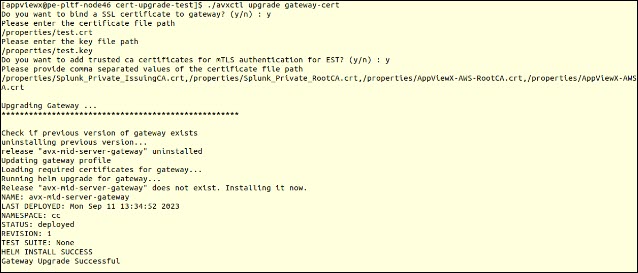
./avxctl upgrade gateway-cert -
You will be prompted with the question, Do you want to bind a SSL certificate to
gateway? (y/n):
-
You will now be prompted with, Do you want to add trusted CA certificates for mTLS
authentication for EST? (y/n):
Enter n (This step is applicable only for EST protocol).
-
Wait for the script to complete and the gateway will be upgraded.
 Note: When there is a load balancer on top of the cloud connector, then a valid certificate must be bound to the load balancer using the load balancer's hostname.
Best Practices
- Certificate Group and CA Policy Setup:
- Create a dedicated certificate group and CA policy specifically for auto-enrollment in AppViewX.
- While configuring the policy, ensure only the required key bit-length is selected (minimum: 2048-bit).
- Enable SSL Verification: Always bind a valid SSL certificate on the AppViewX Gateway or Cloud Connector (CC) and enable SSL verification for secure communication.
- Restrict Domain Issuance: Use the Allowed Domain Names field to limit certificate issuance to specific domains and prevent unintended wildcard certificate issuance by disabling it in the agent setting configuration where necessary.
- Ensure High Availability: Deploy a load balancer in front of Cloud Connectors to establish a high-availability setup.
- Use External Account Binding (EAB): Implement EAB as an added layer of authentication for enhanced security.
