
Configuring AppViewX Certbot Client
What is Certbot?
It handles the entire certificate lifecycle, including certificate generation, renewal, and installation. Certbot automates the process of obtaining certificates from Let's Encrypt, a free and open certificate authority, which is the default option but can be configured to work with other CAs as well. Certbot is a powerful and user-friendly tool that simplifies the deployment and management of SSL/TLS certificates, promoting the widespread adoption of secure HTTPS communication on the web.
The inherent challenges of using native Certbot include the issuance of certificates without common names, the absence of support for custom attributes, the need for manual installation of Certbot dependencies and virtual environments, and the lack of a user-friendly terminal experience.
Our solution addresses these limitations comprehensively by providing certificates with common names. It supports custom attributes, automates dependency installation and virtual environment setup required for Certbot to run, and offers a user-friendly terminal. These enhancements improve functionality and user experience significantly.
Advantages of AppViewX Certbot
- Single-click installation and interactive digital certificate CLM operations.
- Support for working with Let’s Encrypt CA through AppViewX (where AppViewX acts like an ACME Proxy to Let’s Encrypt CA).
- Custom attribute and certificate attribute support in Certbot command for enrollment and renewal.
- Addition of CA Certificate in native trust store for the ACME client to work with any CA issued SSL Server certificate.
Getting Started
Prerequisites
- The AppViewX server/cloud connector must be bound with a valid certificate. See Section, Binding Custom Certificate to Gateway in Cloud Connector.
- Ensure you have root user permissions.
- A proper DNS entry for the Linux server where Certbot is installed.
- Certificate attributes must be configured to capture custom attributes in the AppViewX GUI (if required).
- A valid ACME endpoint must be configured on the AppViewX GUI.
- To enable client connections, it is essential to have ports 31443 open for on-premises deployment and port 30020 (in cloud connector) open for SaaS deployment in AppViewX.
- If the domain validation is done using HTTP challenge, it is essential to have port 80 accessible on your Linux machine to allow AppViewX to establish a connection.
- If the domain validation is done using DNS challenge, then the DNS server must be up and running and the DNS credentials must be configured in the Certbot client.
- Internet connectivity is required to successfully install the Certbot client.
System Requirements
- Environment Details: Linux
- Operating System:
- Ubuntu 20.4
- CentOS 7
- Red Hat 8.6
- Debian 10
- Devuan 3
- OpenSUSE Tumbleweed
- Python 3.8 (Ubuntu 20.4, CentOS 7, Red Hat 8.6)
- Python 3 (Debian 10, Devuan 3, OpenSUSE Tumbleweed)
- OpenSSL
- Virtual environment (venv) and required dependencies for Certbot
- jq package is a prerequisite (must) to access Interactive digital certificate CLM operations.
- REQUESTS_CA_BUNDLE environment variable (custom CA bundle path in the root user's .bashrc file) which is required to enable SSL verification. The root certificates trusted by Certbot can be overridden by setting the REQUESTS_CA_BUNDLE environment variable.
If any of the above packages are not installed or configured in your system, AppViewX will do it for you without any human intervention.
Installing Certbot
Certbot comes in two versions: open-source and the one provided by AppViewX. When using the open-source Certbot via AppViewX, the Common Name field will not be filled, and features specific to AppViewX such as custom/cert attributes, customizable EAB algorithms, and CSR options, will be unavailable.
If you are using the open-source Certbot, proceed directly to the certificate enrollment section. Keep in mind that a virtual environment may not be required for enrollment, depending on the version of the open-source Certbot installed.
- Download the Certbot client from the AppViewX release portal.
- Open your terminal and go to the directory where you downloaded the Certbot zip file.
- Unzip the file and open the unzipped folder.
-
To proceed with further installation steps, you must have root privileges.
Log on as sudo user using the command:
sudo -i
Installing Certbot via Automated Installation Files
-
Log on as root user using:
sudo -i -
To install dependencies and set up the virtual environment, run:
./install.shYou may also pass additional parameters with the install.sh as in the command:./install.sh --caBundlePath /home/appviewx/caCertificate.crt --installPythonVersion3 Y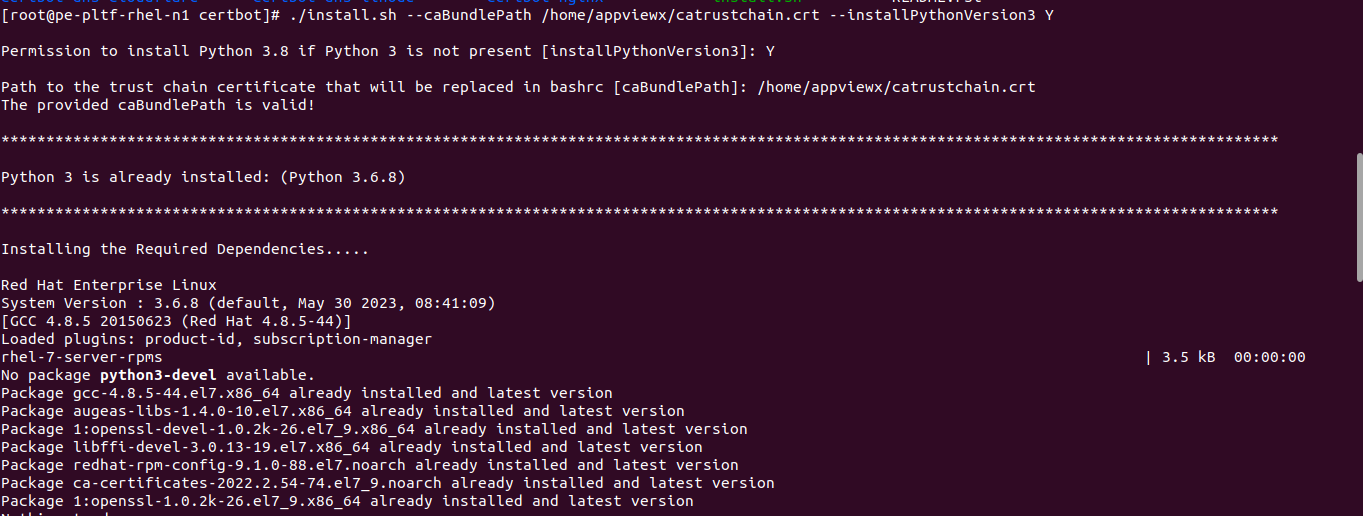
Table 1. Parameter Description Parameters Type/ Values Mandatory Description --caBundlePath Path of the caBundle certificate No To strictly enforce SSL verification during the enrollment or renewal of certificates through Certbot, you must provide a custom CA BUNDLE path, indicating the path to your designated trust store file location with the caBundlePath parameter. The provided path is used to set the REQUESTS_CA_BUNDLE environment variable in the user’s .bashrc file. Alternatively, if you opt to bypass SSL verification during certificate enrollment or renewal via Certbot. Do not provide the caBundlePath. In this scenario, the installation process will proceed without having to provide a CA BUNDLE path.
However, you will still have the option to activate SSL verification by manually configuring a custom bundle path at a later time. See Section, Prerequisites.
--installPythonVersion3 Y (or) N No (default value : ‘N’) The install.sh script examines the Python version present on the client system. If the detected version is below 3, the installation script attempts to install Python 3.8 only if the installPythonVersion3 parameter is configured to Y. If the installPythonVersion3 parameter is set to N, the installation process is terminated if Python 3 or a higher version is not found on the client system.
During the installation process:- The install.sh script verifies the presence of the necessary Python version compatible with the operating system.
- In the event that the required version is absent and the installPythonVersion3 parameter is passed as Y, the script proceeds to install python 3.8.
- The script installs the mandatory Certbot dependencies and establishes the essential virtual environment.
Once the installation is complete, you will see the following details: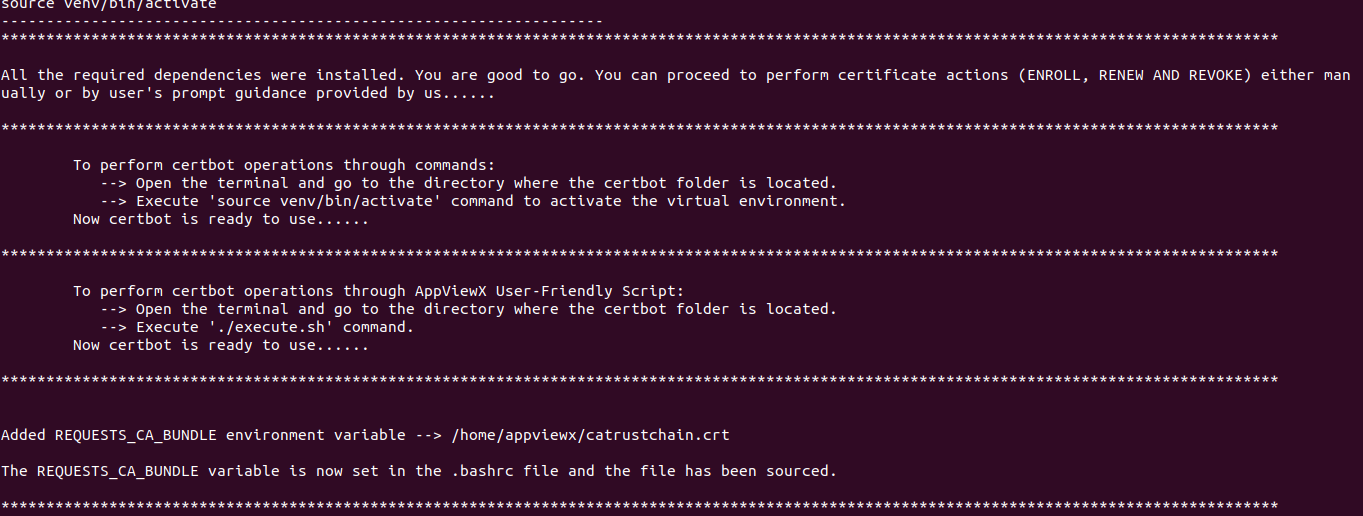
Installing Certbot via Commands
-
Switch to root user using the
sudo -icommand. -
Install all the required dependencies using:
-OR-apt install python3-dev gcc libaugeas0 libssl-dev libffi-dev ca-certificates opensslyum install python3-devel gcc augeas-libs openssl-devel libffi-devel redhat-rpm-config ca-certificates openssl -
Open the Certbot folder using:
cd certbot_client/certbot -
Setup the virtual environment running:
python3 tools/venv.pyA virtual environment is activated within the Certbot folder. You can enroll a certificate, re-enroll, or revoke using the commands mentioned in the Section, Enrolling Certificate.
Adding Custom CA Certificates to Trust Store
If SSL verification is not required, skip the following steps and proceed with enrollment using --no-verify-ssl.
If SSL verification is required, bind the AppViewX server/CC in both on-prem and SaaS environments with a valid server certificate. Ensure that the issuing CA of the server certificate is trusted by the client machine to successfully complete the SSL verification by following these steps:
-
To obtain the certificate chain:
- If the server certificate is created in AppViewX, download the chain certificates from the AppViewX inventory; else, download the certificate chain files (.pem or .crt) for the Certificate Authority (CA). This chain must include the root certificate as well as any intermediate certificates of the server.
- If there are individual certificates for root CA and intermediate
CAs, combine these certificate filesinto a single file. This can be
done either through a text editor or by using the
command:
cat intermediateca.crt rootca.crt > acmetrustchain.crtHere, the intermediate ca.crt and rootca.crt are sample root certificate files, so change them accordingly. acmetrustchain.crt is the final concatenated trust chain certificate.
-
To address situations where Certbot does not trust the SSL certificate
employed by the ACME server, add the issuer CA certificates to the
appropriate Linux trust store:
- Determine the appropriate trust store on your Linux system. Common locations for trust stores are /etc/ ssl/certs/ca-certificates.crt and /etc/ssl/certs/ca-bundle.crt.
- Log on as sudo user:
sudo -i - Go to the directory where the acmetrustchain.crt file is located.
- Copy the contents of the certificate chain files and append them to
the end of the trust store file using the command: cat
acmetrustchain.crt >>
/etc/ssl/certs/ca-certificates.crt
Note to change the trust store part accordingly.
Accessing Certbot
- Certbot command line
- AppViewX Certbot user-friendly script
Method 1: Using Certbot Command Line
Activating Developer Environment
source venv/bin/activate
Enrolling Certificate
- Using HTTP challenge in Standalone ModeHTTP-01 challenge:This is the most common challenge type. The ACME server issues a token to the ACME client, and the ACME client puts a file on the web server at http://<YOUR_DOMAIN>/.well-known/acme-challenge/<TOKEN>. Once the token is published on the web server (Linux server), AppViewX sends an HTTP request to fetch the token from the client machine.Note: The common name must resolve to the IP address of the client machine, and port 80 on the client machine must be accessible to AppViewX.
- A sample Certbot certificate enrollment command using HTTP
challenge is as shown:
certbot -vv certonly --standalone --preferred-challenges http -d <domain_name> --logs-dir /etc/avx-certbot/
--config-dir /etc/avx-certbot/ --work-dir /etc/avx-certbot/ -m <mail_id> --agree-tos --no-verify-ssl --server <ACME server endpoint URL fetched from AppViewX GUI>
- A sample Certbot certificate enrollment command using HTTP
challenge is as shown:
- Using HTTP challenge when Apache server is running on Port
80
If the Apache server is already running on port 80 but is not available, Certbot's Apache plugin allows it to be used for challenge validation. To enable this functionality, a new folder must be created in the /etc directory. This directory will serve as the configuration, working, and log directory when using the --apache plugin option. For example, by creating a folder named avx-certbot within /etc and specifying it as a custom directory, this setup can be achieved..
A sample command is as shown:certbot certonly --apache -d <domain_name> --preferred-challenges http -m <Email> --agree-tos --no-verify-ssl --server <ACME_URL> --config-dir /etc/avx-certbot/ --logs-dir /etc/avx-certbot/ --work-dir /etc/avx-certbot/ - Using DNS challenge
DNS-01 challenge: This challenge requires you to demonstrate control over the DNS for the domain name by inserting a specific value into a TXT record within that domain. Subsequently, AppViewX conducts a DNS query to verify the presence of the token in the domain's DNS records.
Refer to the following link to configure and use Certbot with different type of DNS servers: https://eff-certbot.readthedocs.io/- Default Challenge Validation (using default
plugins)
This challenge requires demonstrating control over the DNS for a domain by adding a specific value to a TXT record within that domain. AppViewX then performs a DNS query to verify the presence of the token in the domain's DNS records.
A sample command to do the challenge validation using the AWS route 53 server is as shown:You must configure the credentials in Certbot to access the DNS servers. Refer to the following link to configure and use Certbot with different type of DNS servers: https://eff-certbot.readthedocs.io/en/stable/certbot -vv certonly --preferred-challenges dns --dns-route53 -d <domain_name> --logs-dir /etc/avx-certbot/--config-dir /etc/avx-certbot/ --work-dir/etc/avx-certbot/ -m <mail_id> --agree-tos --no-verify-ssl --server<ACME server endpoint URL fetched from AppViewX GUI> - DNS Challenge Validation (using AppViewX DNS plugin
with Infoblox DNS Server)
This challenge requires demonstrating how AppViewX manages DNS for the domain by adding a specific value to a TXT record within it. AppViewX then performs a DNS query to verify the token's presence in the domain's DNS records. With the support of Platform Integration Hub, AppViewX will handle all tasks related to creating, searching for, and deleting TXT records in the DNS server.
A sample command to do the AppViewX DNS Challenge Validation option is as shown:certbot certonly --dns-appviewx --dns-vendor infoblox --dns-server <Infoblox server name configured in appviewx> -d <Domain name> --logs-dir <logs dir> --config-dir <config dir> --work-dir <work dir> -m <mail id> --agree-tos --no-verify-ssl --eab-kid <key identifier> --eab-hmac-key <HMAC value> --server <acme url> - Enterprise Secure Challenge Validation
This challenge involves demonstrating how AppViewX manages DNS for a domain by querying the DNS A record to verify the presence of the client's IP address. This verification does not require DNS server credentials, as it only entails accessing the DNS A record for the specified domain.
A sample command to do the AppViewX Enterprise Secure Challenge Validation option is as shown:certbot certonly --dns-appviewx -d <Domain name> --logs-dir <logs_dir> --config-dir <config_dir> --work-dir <work_dir> --agree-tos --no-verify-ssl --eab-kid <key identifier> --eab-hmac-key <HMAC value> --server <acme_server_url>Note: DNS Challenge Validation and Enterprise Secure Challenge Validation are only supported through the command-line interface (CLI) and not through the interactive script (execute.sh).Re-enrolling Certbot using DNS-Based Challenge Validation
- Default Challenge
Validation
certbot renew --no-verify-ssl --no-random-sleep-on-renew --eab-kid <key identifier> --eab-hmac-key <HMAC value> --config-dir <config dir for which renew
should be triggered> --force-renewal
To automate renewal for Certbot through cron job, run:(crontab -l ; echo "MM HH * * * /usr/bin/env bash -c 'source <certbot_folder/venv/bin/activate> && certbot renew --no-verify-ssl --no-random-sleep-on-renew --config-dir <config_dir>'") | crontab - - DNS Challenge
Validation
certbot renew --dns-appviewx --dns-vendor infoblox --dns-server <Infoblox server name configured in appviewx> --no-verify-ssl --no-random-sleep-on-renew
--config-dir <config dir for which renew should be triggered> --eab-kid <key identifier> --eab-hmac-key <HMAC value> --force-renewal
To automate renewal for Certbot through cron job, run:(crontab -l ; echo "MM HH * * * /usr/bin/env bash -c 'source <certbot_folder/venv/bin/activate> && certbot renew --dns-appviewx --dns-vendor infoblox --dns-server <Infoblox server name configured in appviewx> --no-verify-ssl --no-random-sleep-on-renew --config-dir <config dir for which renew should be triggered> --eab-kid <key identifier> --eab-hmac-key <HMAC value> --force-renewal'") | crontab - - Enterprise Secure Challenge
Validation
certbot renew --dns-appviewx --no-verify-ssl --no-random-sleep-on-renew --config-dir <config dir for which renew should be triggered> --eab-kid <key
identifier> --eab-hmac-key <HMAC value> --force-renewal
To automate renewal for Certbot through cron job, run:(crontab -l ; echo "MM HH * * * /usr/bin/env bash -c 'source <certbot_folder/venv/bin/activate> && certbot renew --dns-appviewx --no-verify-ssl --no-random-sleep-on-renew --config-dir <config dir for which renew should be triggered> --eab-kid <key identifier> --eab-hmac-key <HMAC value> --force-renewal'") | crontab -
- Default Challenge Validation (using default
plugins)
- Using Polling during Enrollment
Polling can be activated when manual approval is configured for certificate generation. In this scenario, the client conducts polling for the certificate within a specified time frame, as determined by the configured parameters. If the certificate is approved before the polling duration expires, it is retrieved. To enable polling in the Certbot client, you may pass the parameters as mentioned:
Parameters Type Mandatory Description --retry-after Integer No The waiting period in seconds, after which the next call in the polling is triggered. [Default value : 10]
--retry-frequency Integer No The number of times for which the certificate is polled from the client side. [Default value : 20]
A sample command with retry-after as 5 and retry-frequency as 10 is as shown:
certbot -vv certonly --standalone --preferred-challenges http -d <domain_name> --logs-dir /etc/avx-certbot/ --config-dir /etc/avx-certbot/ --work-dir /etc/avx-certbot/ -m <mail_id> --agree-tos --no-verify-ssl --server <ACME server endpoint URL fetched from AppViewX GUI> --retry-after 5 --retry-frequency 10In this case, the certificate is polled 10 times with a 5-second interval for each polling attempt. Therefore, the polling process takes a total of 10 x 5 = 50 seconds to complete.
Note: To enable polling during the renewal process, it is important to include these parameters along with the renewal commands. - Providing Custom and Certificate Attributes during
Enrollment
Certbot can be run with custom attributes allowing additional command line arguments. These arguments can include multiple name-value pairs, which are then included in the Finalize Order call along with the CSR. The values for these fields are provided as a JSON name/value pair, which can then be retrieved and mapped to the custom attributes in our application. This mapping enables including the custom attribute information in the certificate request for reporting.
A sample Certbot certificate enrollment command with custom attributes is as shown:certbot -vv certonly --standalone --preferred-challenges http -d <domain_name> --logs-dir /etc/avx-certbot/ --config-dir /etc/avx-certbot/ --work-dir /etc/avx-certbot/ -m <mail_id> --agree-tos --no-verify-ssl --server <ACME server endpoint URL fetched from AppViewX GUI> --attributes "cust_id:123,name:appviewx" --attribute-type customThis section covers the attributes and attribute-type parameters.
- The --attributes field allows users to provide
multiple attributes as a string with comma and colon
separated values in the Certbot command.
Format:
name:AppViewX,city:Coimbatore
The attributes field must adhere to the following guidelines:
- The string must not be empty and must contain at least one name-value pair.
- Multiple name-value pairs can be provided within the string separated by a comma.
- Space is only allowed in the value field of the name-value pairs.
- The attributes, after processing, will be sent as part of the payload in the finalize order call along with the CSR.
- The --attributes field must be accompanied with the
--attribute-type field that takes in one of the
following inputs:
- cert
- custom
- both
- When attribute-type is passed as cert
the attributes from the (--attributes) field are
taken as certificate attributes. An example of
certificate attribute is:
--attributes "id:1098,environment:development,Director:director_id" --attribute-type certThe following image depicts how certificate attributes are defined in Certbot command:
- When attribute-type is passed as
custom the attributes from the
(--attributes) field are taken as custom attributes.
An example of certificate attribute is as follows:
--attributes "cust_id:123,name:appviewx" --attribute-type customThe image shows how certificate attributes are defined in the Certbot command:
- When attribute-type is passed as
both, a JSON mapping is expected by the
AppViewX Certbot. A new JSON file named
attributesMapping.json needs
to be created inside the Certbot folder. A sample
JSON file is as shown:
{ "senior_director" : "Sr Director", "intermediate_director" : "Intermediate Director" }- The key [in the key:value pair from attributesMapping.json] refers to the certificate attribute key provided in the command, while the value corresponds to the custom attribute key where the value of the certificate attribute must be passed.
- The attributes passed as input are sent as certificate attributes. For attributes present in the attributesMapping.json, the mapped value is being used as attribute name and sent as custom attribute.
An example of custom attribute is as follows:
The image shows how certificate attributes are defined in Certbot command:--attributes "cust_id:123,name:appviewx,senior_director:srDirector_id_1,intermediate_director:IntDirector_2" --attribute-type both Note:
Note:- The attributes are applicable only to Method 1: Using Certbot Command Line.
- If the attributes and attribute-type field are not specified in the Certbot command, normal flow of Certbot will work fine without any exceptions.
- The --attributes field allows users to provide
multiple attributes as a string with comma and colon
separated values in the Certbot command.
Format:
name:AppViewX,city:Coimbatore
- Using EAB Credentials during EnrollmentA sample Certbot certificate enrollment command with external account binding enabled in the ACME server:
certbot -vv certonly --standalone --preferred-challenges http -d <domain_name> --logs-dir /etc/avx-certbot/
--config-dir /etc/avx-certbot/ --work-dir /etc/avx-certbot/ -m <mail_id> --agree-tos --no-verify-ssl --server <ACME server endpoint URL fetched from AppViewX GUI> --eab-kid <Key identifier> --eab-hmac-key <MAC value>
Note: This command is applicable only when the EAB algorithm is HS256. For other algorithms, use the cert_config.json file and adjust the configuration accordingly. - Certbot - CSR and EAB Configuration
Providing CSR Parameters and EAB Fields
The file named cert_config_template.json located in the Certbot directory is designed to facilitate the configuration of CSR and External Account Binding (EAB) fields. Renaming this file to cert_config.json and subsequently populating the required fields will ensure that these configurations are applied.
CSR fields that can be provided:- Subject fields:
- Organization
- Organization unit
- Country
- State
- Locality
- Hashing algorithm
- RSA Key-Size
- key type
- elliptic curve details
- EAB HMAC
- EAB KID
- EAB Algorithm
Note:- EAB details can be provided via Certbot command parameters or a cert_config.json file. The Certbot command only supports HS256. Other EAB algorithms require the cert_config.json file.
- The cert_config.json file contains key-value pairs for all subject fields. If any of these fields are not required, the corresponding key-value pair can be deleted from thecert_config.json.
A sample JSON is as follows:{ "csr_params": { "organization" : "AVX", "organization_unit" : "AVX_IOT", "country" : "IN", "state" : "TN", "locality" : "CBE", "hashing_algorithm":"SHA512", "rsa_key_size": "4096", "key_type":"rsa", "elliptic_curve":"" }, "eab": { "kid":"", "mac":"", "alg":"" }Json keys Expected Input Comments csr_params:organization
csr_params:organization_unit
csr_params:country
csr_params:state
csr_params:Locality
String Choose the appropriate subject fields for the CSR. csr_params:hashing_algorithm <Hashing_Algorithm> Choose the appropriate hashing algorithm [SHA256,SHA384 & SHA512] csr_params:rsa_key_size <RSA_keysize> (String) Default value : “2048” The size of the private key to use for the certificate. For RSA keys, specify a number between 2048-4096 (divisible by 128)
[Provide this field only when key_type is set to “rsa” ]
csr_params:key_type Possible values : [“rsa”, “ecdsa”] (String) Default value : “rsa” Provide the key type which can be used for private key generation.
csr_params:elliptic_curve Possible values : [“secp256r1” , “secp384r1”, “secp521r1”] (String) Default value : “secp256r1” The type of elliptic curve can be specified here.
[Provide this field only when key_type is set to “ecdsa” ]
eab:kid <value_of_EAB_KID> Key Identifier for External Account Binding (Optional). eab:hmac <value_of_EAB_HMAC_KEY> HMAC key for External Account Binding (Optional). eab:alg HS256/HS384/HS512 Default value : “HS256” Signature Algorithm for External Account Binding.
Note: When a certificate is initially created with key_type set to rsa and needs to be changed or renewed to ecdsa, you must use the --key-type ecdsa option along with --cert-name on the command line during the certificate creation or renewal process.Example:
certbot renew --key-type ecdsa --cert-name example.com --force-renewal - Subject fields:
Enrolling Certificates with DNS Validation using Azure Plugin
Set up Azure Credentials
- Create the azure.ini file in any path that Certbot can access, for example, you can use /opt/.secrets/azure.ini as config file for Azure credentials.
- Add the following template config in
/opt/.secrets/azure.ini:
- dns_azure_sp_client_id = xxx-xxx-xxx-xx
- dns_azure_sp_client_secret = xxx-xxx-xxx-xx
- dns_azure_tenant_id = xxxx-xxx-xxx-xx
- dns_azure_environment = "AzurePublicCloud"
- dns_azure_zone1 = <zoneName>:/subscriptions/<subscription_id>/resourceGroups/<resouce_group_name>
Note: Multiple DNS zones can be added in the following variable format, dns_azure_zone(X), where X denotes incremental integers.
Enrolling Certificates with DNS Challenge Validation using Bluecat Micetro Plugin
- Create a Bluecat credential file with the following values, in
the below format, for example - bluecat_creds.txt):
dns_bluecat_micetro_hostname="<bluecat_hostname>"dns_bluecat_micetro_username="<username>"dns_bluecat_micetro_password="<password>"
- To issue certificate, run the following command: (sample command
below)
certbot certonly -d <FQDN> --preferred-challenges dns --authenticator dns-bluecat-micetro --dns-bluecat-micetro-credentials <bluecat_credentials_file_path> --server <ACME_SERVER> --no-verify-ssl
Enrolling Certificates for Public DNS Zone
certbot certonly --authenticator dns-azure --preferred-challenges dns  \
--dns-azure-config /opt/.secrets/azure.ini \
--logs-dir <logs_dir> \
--config-dir <config_dir> \
--work-dir <work_dir> \
-d <FQDN_NAME_FOR_CERTIFICATE> \
-m <email_id> --agree-tos \
--server <ACME_SERVER_URL> \
--eab-kid <EAB_KEY> \
--eab-hmac-key <EAB_HMAC_KEY>
Enrolling Certificates for Private DNS Zone
certbot certonly --authenticator dns-azure --preferred-challenges dns \
--dns-azure-config /opt/.secrets/azure.ini \
--logs-dir <logs_dir> \
--config-dir <config_dir> \
--work-dir <work_dir> \
-d <FQDN_NAME_FOR_CERTIFICATE> \
-m <email_id> --agree-tos \
--server <ACME_SERVER_URL> \
--eab-kid <EAB_KEY> \
--eab-hmac-key <EAB_HMAC_KEY
Method 2: Using AppViewX Certbot User-Friendly Script
Activating Virtual Environment
With the AppViewX Certbot user-friendly script, you can run commands to perform enroll, renew, and revoke certificate actions by activating the virtual environment as described in this section.
-
Go to the Certbot folder and open the terminal from that
path.
cd /path/to/file/AppViewX_ACME_Certbot_Client -
Run:
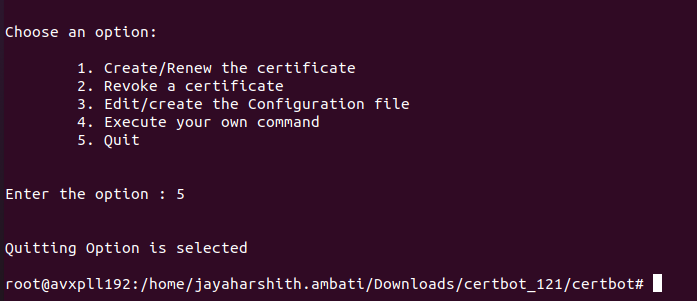
./execute.shNote: You must log on as a root user(sudo -i) before running theexecute.shfile.Once Certbot is ready to use, it displays the following options:- Create/Renew a certificate
- Revoke a certificate
- Edit/create the Configuration file
- Execute your own command
- Quit
-
When using the user prompt for the first time, you are
automatically redirected to option 3 even if you select option 1 or
2. This is to fill all the parameters that are required for the
command to be run as shown in the next sections.
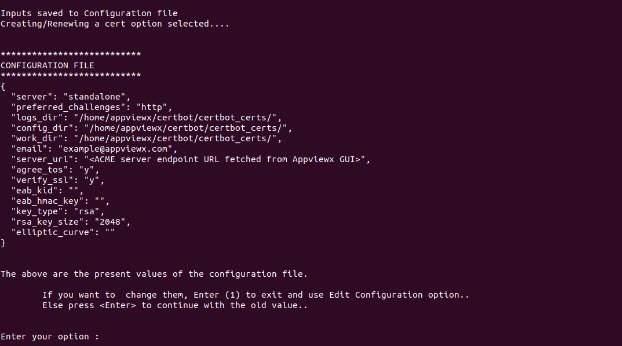
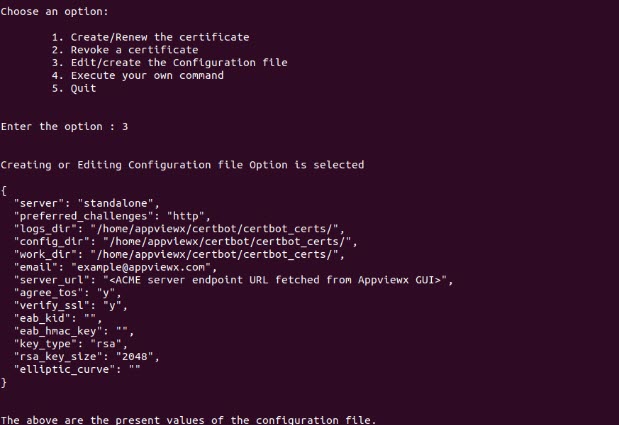
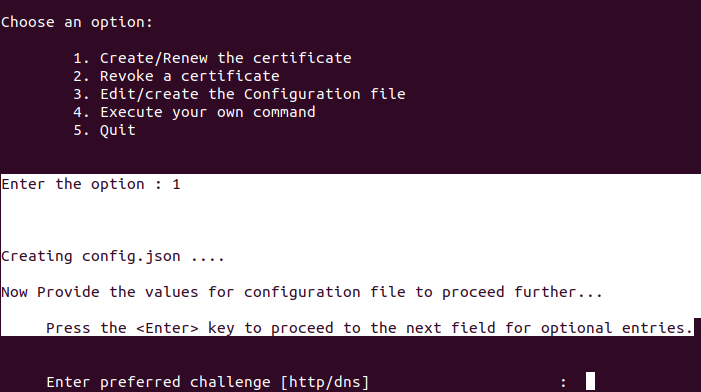 All the parameters are stored in a JSON config file (/<filepath>/AppViewX_ACME_Certbot_Client/certbot/config.json) created by AppViewX. A sample of the configuration being updated is as shown: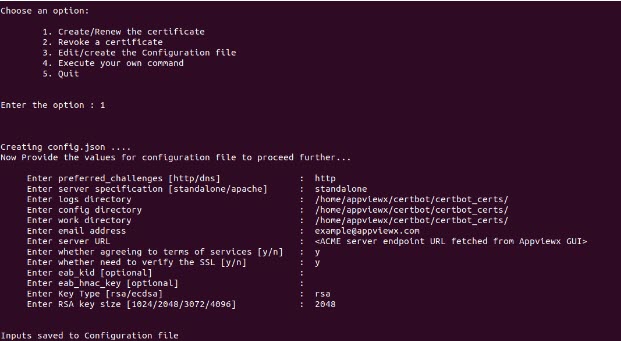
Enrolling or Renewing Certificate using Interactive Script
-
To create/renew a certificate enter 1.
A JSON configuration file is displayed that has the fields with previously saved values.
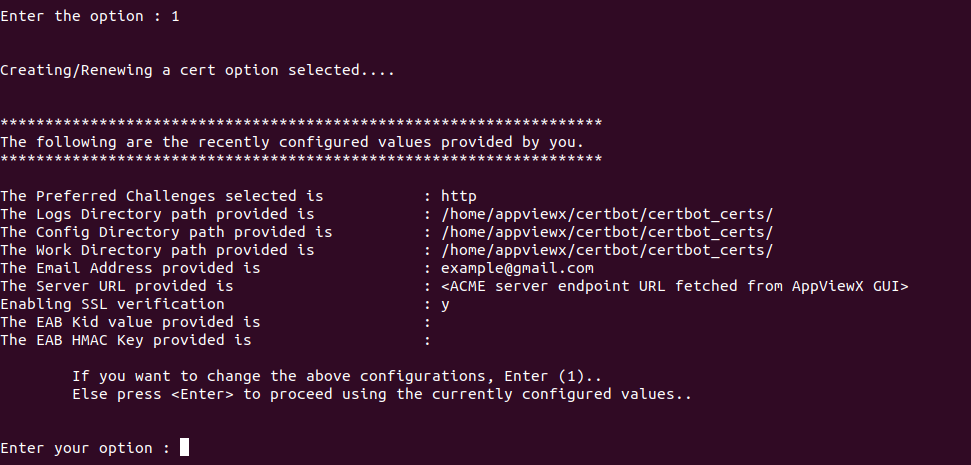
- To proceed with the displayed values (already existing values in the JSON configuration file), press the Enter key.
-
Enter the domain name for which the certificate needs to be
enrolled.
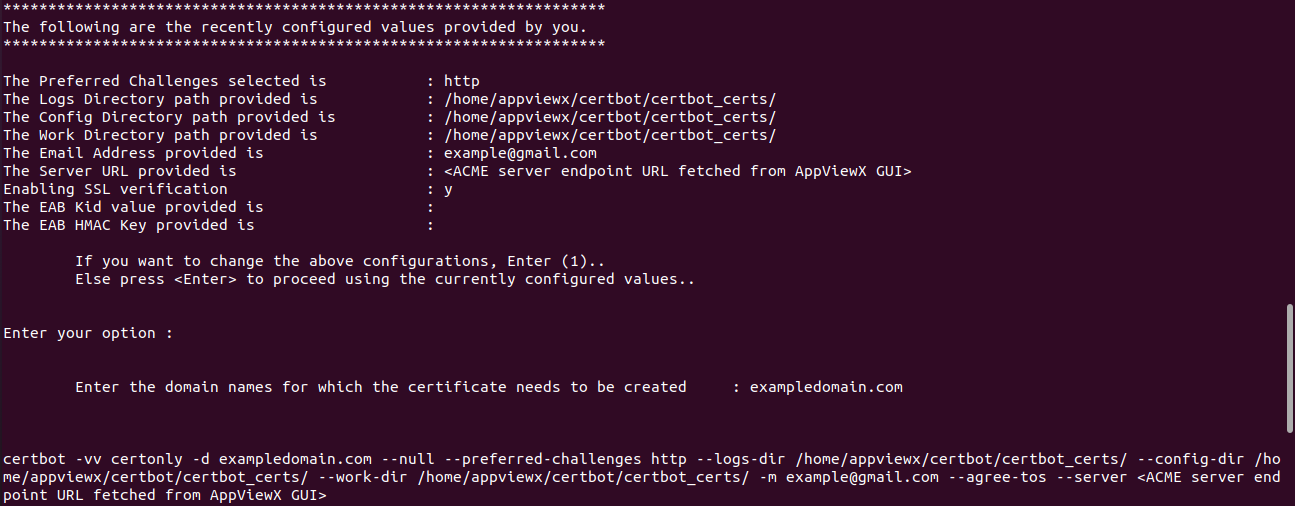 The process continues and the certificate from the specified path is created.
Revoking Certificate
- Cert
Path
certbot revoke --cert-path <Path-to-fullchain.pem> --config-dir <Certbot-config-directory> --work-dir <Certbot-work-directory> -m <mail-id> --no-verify-ssl --agree-tos --server <ACME server endpoint URL fetched from AppViewX GUI> - Cert
Name
certbot revoke --cert-name <domain_name> --config-dir <Certbot-config-directory> --work-dir <Certbot-work-directory> -m <mail-id> --no-verify-ssl --agree-tos --server <ACME server endpoint URL fetched from AppViewX GUI>
-
To revoke a certificate, enter 2.
A JSON configuration file is displayed that has the fields with previously saved values.
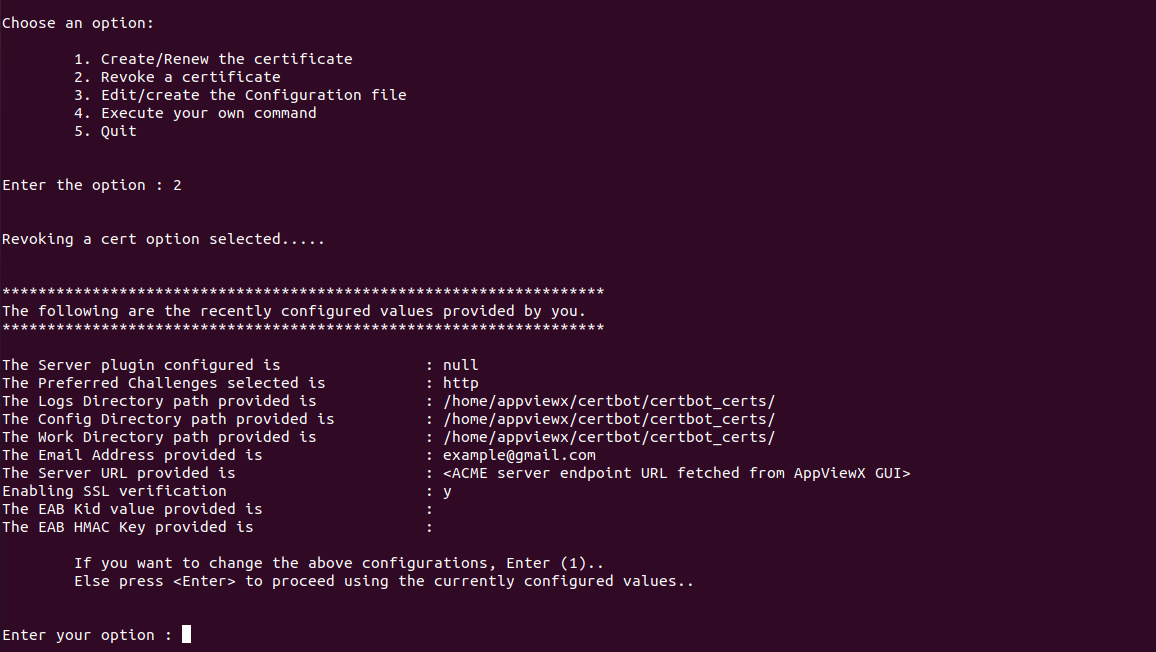
- To proceed with the displayed values (already existing values in the JSON configuration file), press the Enter key.
-
Enter the certificate path for which the certificate needs
to be revoked.
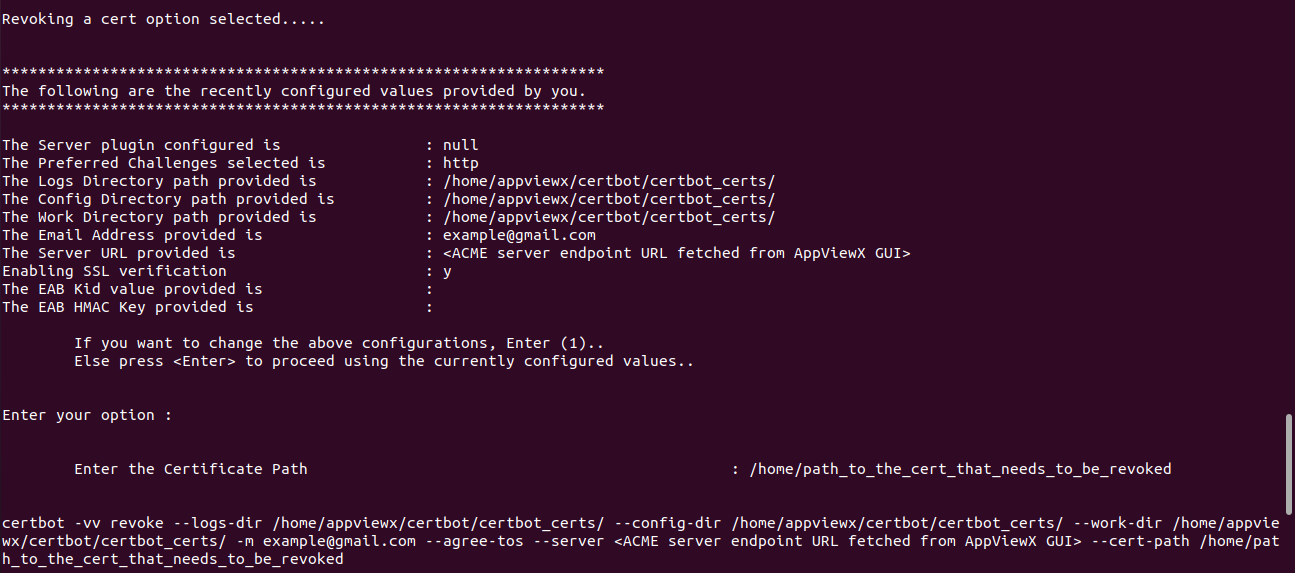 The process continues and the certificate from the specified path is revoked.
Creating or Editing Configuration File
-
To edit the displayed values (already existing values in the JSON
configuration file), enter 1 to exit and then
enter 3 to edit the configuration file.
-
As an example, change the
preferred_challenges value to
DNS. Enter the DNS
value.
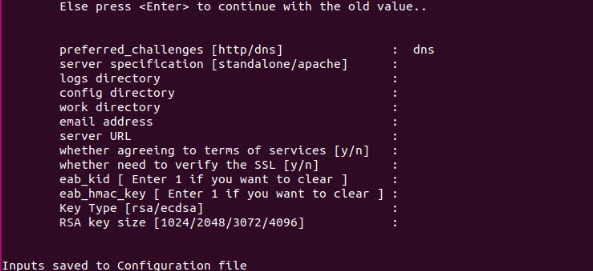
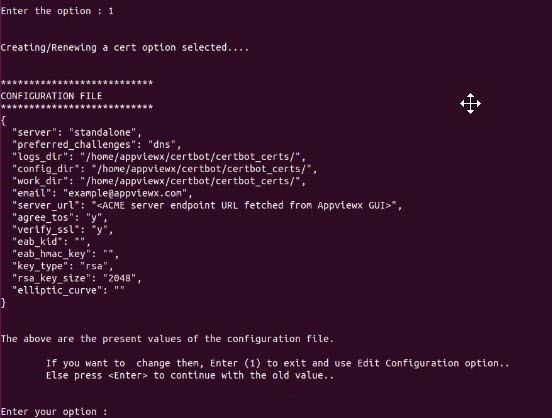 Note: If you want to proceed with the displayed values (already existing values in the JSON configuration file), press the Enter key.
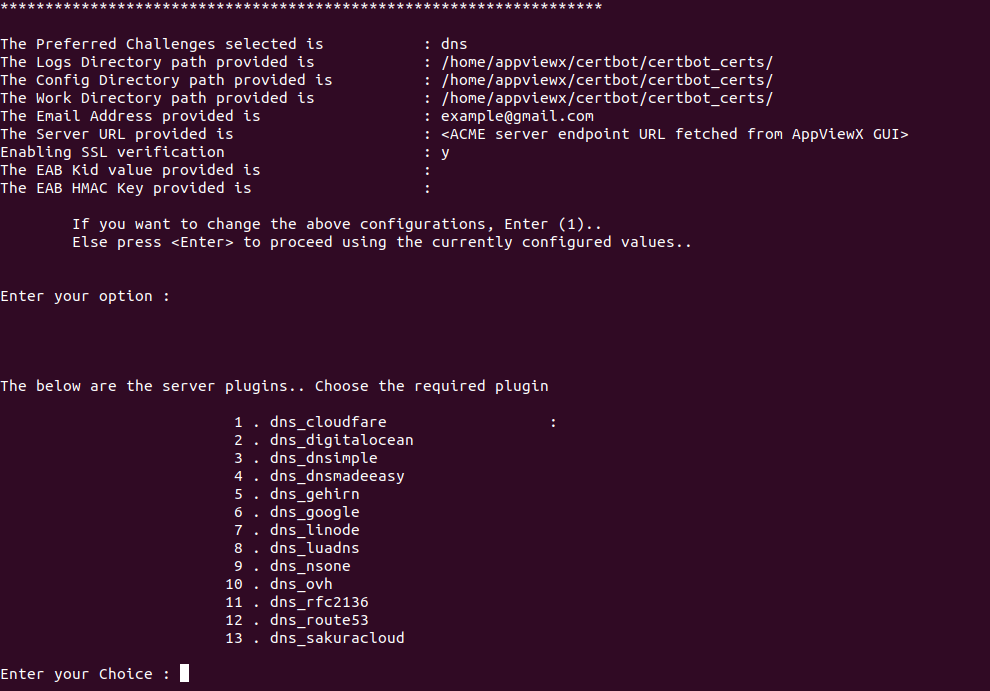
 -
Select and enter the DNS server among all
the list DNS servers supported by Certbot.
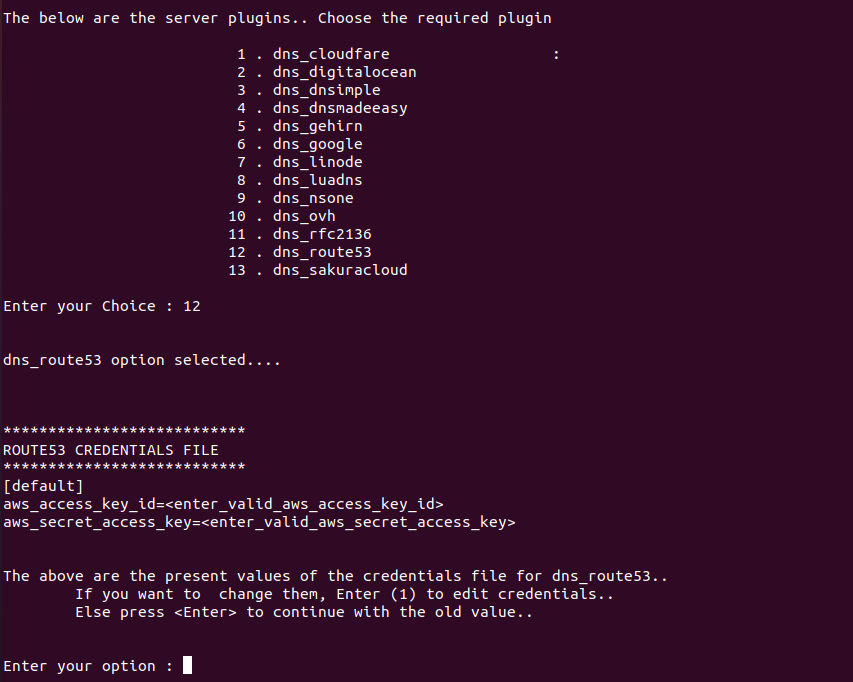
-
Enter the credentials of the DNS server such that the command is
run accordingly.
- This process involves creating a secrets folder (in
/path/to/file/AppViewX_ACME_Certbot_Client/certbot)
that stores all the credential files with token/credentials)
of all the DNS servers supported. The token/credentials are
provided by the users.
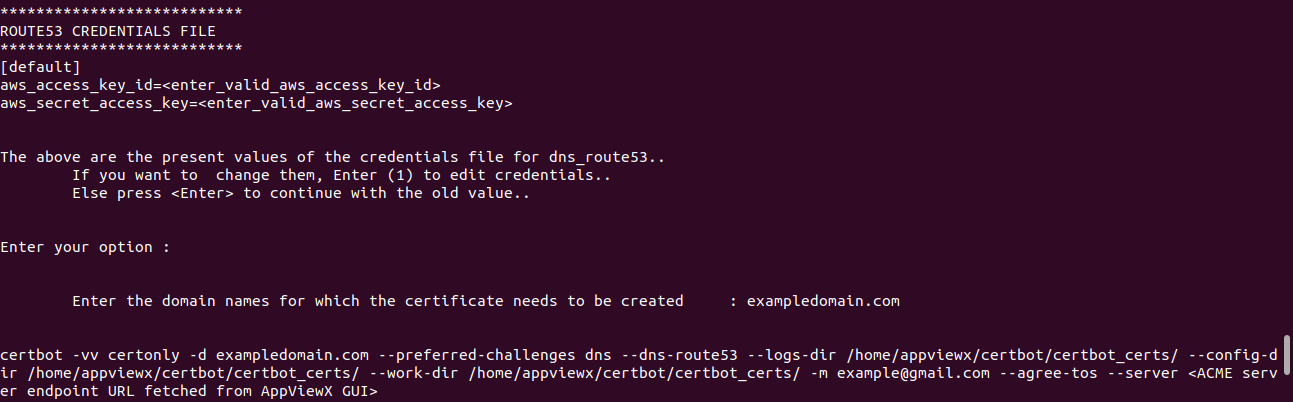
- Once the credentials file is created, you can continue with the existing credentials file values or modify them to proceed with the new values by using the prompted guidance on the screen.
- Only for DNS route 53, the Certbot application stores the required credentials/tokens in the /root/.aws/credentials path. Initially it checks for the .aws folder in /root/.aws path; if not found, it creates a .aws folder and a credentials file inside it.
- If the .aws folder and credentials file is found in the root directory, the values are updated per the inputs provided. You can proceed with the existing values or with new values by editing the credentials file.
- For all the remaining DNS servers, inputs (tokens/keys) for the credentials file are taken from the user. Once the credentials file is created, you can continue with existing credentials file values or modify and proceed with the new values by using the prompted guidance on the screen.
- This process involves creating a secrets folder (in
/path/to/file/AppViewX_ACME_Certbot_Client/certbot)
that stores all the credential files with token/credentials)
of all the DNS servers supported. The token/credentials are
provided by the users.
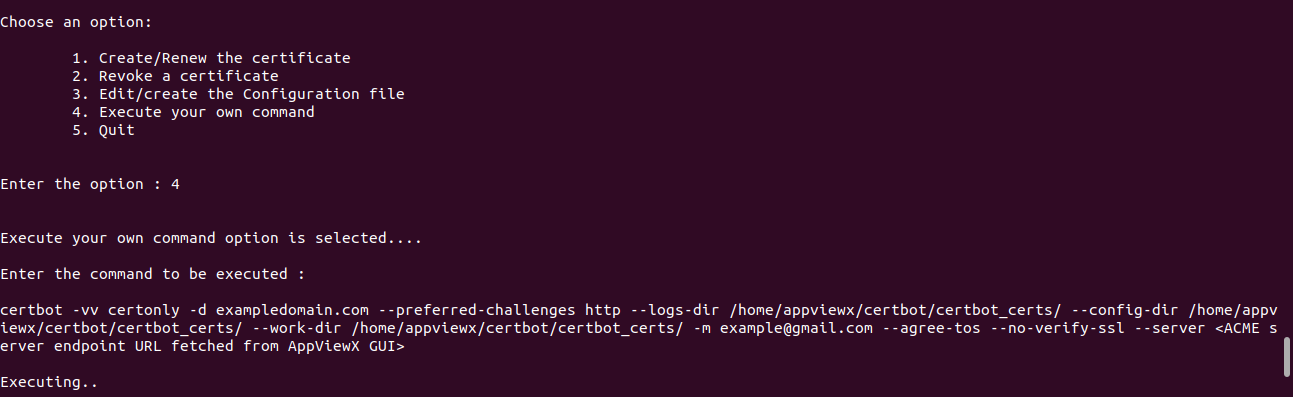
-
To run your own commands manually, select/enter option
4.
-
After the selected option's functionality is done, all the five
options are displayed each time in the same virtual environment
until the quit option 5 is selected.
Points to Remember
- Preferred challenges must either be given as http or dns only.
-
Agree to terms of services and verify ssl fields must
either be given as y (yes) or n (no).
If the verify ssl field is enabled (when the verify ssl field is given as y), see Section, Adding Custom CA Certificates to Trust Store.
- Provide valid email address and domain names.
-
The eab_kid and eab_hmac_key fields.
- These are optional fields, so you can proceed by pressing the Enter key without providing the values.
- The values can be cleared from the JSON configuration file by selecting 1 at the time of editing the configuration file.
- During the configuration process, you can also specify the key type (RSA/ECDSA) and key size. Depending on the key type provided, input for RSA key size or elliptic curve details will be requested.
- You can enter new values when option 3 (Edit/Create the Configuration file) is selected. Select fields can be edited/updated. For all retaining old values, press the Enter key.
-
The domain name field:
- Provide a single domain name to acquire a certificate for a particular domain.
- Provide comma separated multiple domain names to acquire a certificate for all the given domains.
- Wildcard certificates can be acquired by providing input for a particular domain.
-
The jq package.
- Having the jq package installed on your system is a prerequisite (must) to proceed with the user prompt guidance provided by the script. Ignore this step if it is not compatible with your environment.
- After running the execute.sh script, the system checks if the jq package is installed on your system.
- If it is not installed on your system and you want to access the user prompt guidance, click 1 to proceed with the installation.
- You may also click 2 to exit and run your own command manually in the same virtual environment created by execute.sh script.
Best Practices
- For auto-enrollment, create a separate certificate group and CA policy in AppViewX.
- Enable auto-renewal in the AppViewX policy.
- During policy creation, select only the required bit-length (minimum 2048-bit).
- It is recommended to use EAB settings to ensure that only the intended clients are able to generate certificates.
Troubleshooting
Accessing the ACME Logs
- Access the terminal window.
- Go to <Installed_Path>/logs directory
and find the name format with <avxgw-HTTPS-<yyyy-mm-
dd>.log>, for example,
<avxgw-HTTPS-2021-03-17.log>.
- If the file size exceeds 100MB, it will be rolled over and the latest logs will be available in the latest file named with an incrementing counter starting from 1 such as avxgw-HTTPS-<yyyy-mm- dd>.<incrementing_counter>.log, for example, <avxgw-HTTPS- 2021-03-17.1.log>.
- ACME plugin logs:
</home/appviewx/appviewx/logs/avx-vendor-cert-acme-agent-<pod_name>.log>
Client-side Errors
General Errors
| Sr. No. | Error Message | Description | Troubleshooting |
|---|---|---|---|
| 1 | Challenge failed for domain testav.appviewx.com Notifying user: Certbot failed to authenticate some domains (authenticator: standalone). Some challenges have failed. |
HTTP challenge validation failed. | Make a DNS entry. |
| 2 | Unable to locate credentials To use certbot-dns-route53, configure credentials as described at https://boto3.readthedocs.io/en/latest/guide/configuration.html#best-practices-for-configuring-credentials and add the necessary permissions for Route53 access. |
DNS challenge validation failed. Invalid credentials were utilized for DNS challenge validation. |
Ensure the credentials in the credentials file are valid. |
| 3 | An error occurred (InvalidClientTokenId) when calling
the ListHostedZones operation: The security token
included in the request is invalid. To use certbot-dns-route53, configure credentials as described at https://boto3.readthedocs.io/en/latest/guide/configuration.html#best-practices-for-configuring-credentials and add the necessary permissions for Route53 access. |
DNS challenge validation failed. The required credentials file for DNS challenge validation is missing. |
Ensure the credentials file with the required credentials is present and valid. |
| 4 | {"appStatusCode":"AVX_GW_009","message":"Resource not
found, reason - Invalid apiid"} An unexpected error occurred: acme.messages.Error: about:blank |
The provided endpoint url is improperly configured. | Ensure that the endpoint URL is valid. |
| 5 | An unexpected error occurred:
requests.exceptions.ConnectionError: HTTPSConnectionPool(host='<hostname/ipaddress>', port=31443): Max retries exceeded with url: /avxapi/acmeTest/acme/directory (Caused by NewConnectionError('<urllib3.connection.HTTPSConnection object at 0x7f3ddc7d7970>: Failed to establish a new connection: [Errno -2] Name or service not known')) |
The user interface has an incorrect configuration for the endpoint. | Verify that the user interface is correctly set up with the appropriate endpoint configuration. |
| 6 | An unexpected error occurred:
requests.exceptions.InvalidURL: Failed to parse: https://<hostname/ipaddress>:314423/avxapi/acmeTest/ acme/directory |
The provided endpoint URL contains an invalid port
number. (or) Network configuration regulations, firewall rules that prevent access to the required port. |
Ensure that the port specified in the endpoint URL is valid. |
| 7 | An unexpected error occurred: ValueError: Requesting <hostname/ipaddress>.appviewx.net/avxapi: Connection refused |
The user interface has an incorrect configuration for the endpoint port. | Verify that the port is properly configured within the user interface. |
| 8 | Client with the currently selected authenticator does not support any combination of challenges that will satisfy the CA. You may need to use an authenticator plugin that can do challenges over DNS. | The challenge type set on the server side is HTTP, but the request sent from the client was configured using the DNS challenge. | The request made from the client must be configured to use HTTP challenge. |
| 9 | Client with the currently selected authenticator does not support any combination of challenges that will satisfy the CA. | The challenge type set on the server side is DNS, but the request sent from the client was configured using the HTTP challenge. | The request made from the client must be configured to use DNS challenge. |
| 10 | Notifying user: Certbot failed to authenticate some domains (authenticator: standalone). Some challenges have failed. | Obtaining wildcard certificates through HTTP challenge validation. | Obtain wildcard certificates exclusively through the DNS challenge validation. |
| 11 | Certificate did not match expected hostname:
<hostname/ipaddress> Certificate: {'subject':
((('commonName', 'comman_name'),),), … An unexpected error occurred: requests.exceptions.SSLError: HTTPSConnectionPool(host='<hostname/ipaddress>', port=31443): Max retries exceeded with url: /avxapi/acmeTest/acme/directory (Caused by SSLError(SSLCertVerificationError("hostname '<hostname/ipaddress>' doesn't match 'serverside_configured_<hostname/ipaddress>'"))) |
Setting up the ACME endpoint with an IP address to facilitate SSL verification. | Configure the ACME end point with FQDN (Fully Qualified Domain Name) instead of IP address for SSL verification. |
| 12 | Another instance of Certbot is already running | Attempting to launch Certbot while another instance is already active, or when the Certbot process is forcefully terminated. | Terminate the Certbot process that ended abruptly, or
terminate the currently active Certbot process. Use the command: pkill -9 certbot |
| 13 | The following error was encountered: [Errno 13] Permission denied: '/home/jayaharshith.ambati/certbotagent.log' Either run as root, or set --config-dir, --work-dir, and --logs-dir to writeable paths. |
In cases where administrative privileges are not granted. | Ensure administrative privileges (sudo access) is provided to run Certbot. |
| 14 | Too many flags setting configurators/installers/authenticators 'standalone' -> 'dns-route53' | Utilizing both the standalone plugin and the DNS plugin (DNS Route 53). | At any given time, we have the option to select only one plugin, which means we can choose either --standalone or --dns-route-53, but not both simultaneously. |
| 15 | IndexError: list index out of range | When there is a lack of input for at least one custom attribute. | Using custom attributes requires at least one input to be provided. |
| 16 | key, value = attr.split(':') ValueError: not enough values to unpack (expected 2, got 1) |
When custom attributes are not provided in the format of key-value pairs. | Custom attributes need to be provided in the form of key-value pairs. |
| 17 | An unexpected error occurred: The "externalAccountBinding.protected" field is invalid.:: kid is invalid | When the --eab-kid value is altered or provided incorrectly, an error occurs. | Please ensure that the provided --eab-kid value matches the configuration set in the AppViewX UI. |
| 18 | {"detail":"The \"externalAccountBinding.signature\"
field is invalid.","type":"urn:ietf:params:acme:error:
invalidExternalAccountBindingParameters(signature)"} An unexpected error occurred: The "externalAccountBinding.signature" field is invalid. |
When the --eab-hmac-key value is altered or provided incorrectly, an error occurs. | Ensure that the provided --eab-hmac-key value matches the configuration set in the AppViewX UI. |
| 19 | An e-mail address or --register-unsafely-without-email must be provided. | Email address is not provided in the command. | Ensure that a valid email address is provided in the command. |
| 20 | An unexpected error occurred:
requests.exceptions.SSLError: HTTPSConnectionPool(host='<hostname/ipaddress>', port=31443): Max retries exceeded with url: /avxapi/acmeTest/acme/directory (Caused by SSLError(SSLCertVerificationError(1, '[SSL: CERTIFICATE_VERIFY_FAILED] certificate verify failed: unable to get local issuer certificate (_ssl.c:1131)'))) |
SSL Verification failed. | To activate SSL verification, it is essential to confirm that the server trust chain certificates exist within the machine's trust store. To achieve this, you can refer to the instructions outlined in the Section, Setting the Custom CA Certificate Path Manually. |
| 21 | Could not bind TCP port 80 because it is already in use by another process on this system (such as a web server). Please stop the program in question and then try again. | Port 80 is not accessible. | Stop any process running on port 80 as the Linux machine should be accessible from AppViewX CC (port 80) for HTTP-01 challenge. |
| 22 | Self DNS Challenge token validation/IP Validation option is selected but EAB details/Allowed domains are not configured for the agent settings. | When AppViewX DNS Challenge or Enterprise Secure Challenge Validations is selected but Allowed Domains or EAB details are not provided from the ACME client, you get this error. |
|
| 23 | DNS Challenge validation failed. IP Options are not selected for agent settings. Allowed options are STRICT, ANY, NONE. | If Enterprise Secure Challenge type other than Secure, Any, Ignore is selected in the ACME Settings. | Select any one of the following under Enterprise Secure Challenge options: Secure, Any, Ignore. |
| 24 | DNS Challenge validation failed. ACME DNS challenge verification via DNS A record failed. For STRICT Option IP didn't Match. | If the Secure option is selected under Enterprise Secure Challenge type and the ACME client’s IP address does not match with the available DNS A record for the particular domain. | Make sure that the DNS A record of the requesting domain contains the same IP address as the ACME client's IP address. |
| 25 | The requested account is not available. | Whenever the EAB configurations are switched between Static and Dynamic, or when the EAB algorithm is changed, the ACME account will be cleared from the ACME server. As a result, the user may encounter this error. | Clear the accounts folder located under the config directory. This will remove the accounts from the client side as well, causing Certbot to treat it as a new account and create it accordingly. |
| 26 | DNS Challenge validation failed. ACME DNS challenge verification via DNS A record failed. For STRICT Option there are more IP address entries in DNS A Record. | If the Secure option is selected under Enterprise Secure Challenge type and the DNS A record for the requesting domain is fetched with more than one IP address. | Make sure that the DNS A record of the requesting domain contains only one IP address, which is the same as the ACME client's IP address. |
| 27 | DNS Challenge validation failed. No DNS A records are found to validate ANY type. | If the ANY option is selected under Enterprise Secure Challenge type and the DNS A records for the requesting domain are fetched in which none of the IP address matches with the ACME client’s IP address. | Make sure that the DNSA records of the requesting domain contains any one IP address, which is the same as the ACME client’s IP address. |
| 28 | DNS Challenge validation failed. DNS A record for the domain <domain name> is not available. | When AppViewX is not able to obtain the DNS A records for the requesting domain. |
|
| 29 | DNS Challenge validation failed. Error while executing Create/Delete record operation. |
|
|
| 30 | Some challenges have failed.[And acme logs show that403 Forbidden ] | Config, work, and logs directory do not have sufficient permissions. | Provide chmod 755 permission to the logs/config and work directories. |
| 31 | Could not reverse map the HTTPS VirtualHost to the original | The virtual host server names for ports 80 and 443 are different. | Change the port 80 virtual host’s server name to match the domain name or certificate common name. |
Other General Errors
| Sr.No. | Error and Cause | Solution |
|---|---|---|
| 1 | Firewall blockage connectivity error A "firewall blockage connectivity error" when using Certbot typically occurs when the Certbot client is unable to establish a connection to external servers due to network restrictions or firewall rules. This can prevent Certbot from successfully completing the domain ownership verification process required to obtain SSL/TLS certificates. |
Ensure that network restrictions or firewall rules are configured as necessary. |
| 2 | The port to contact with Acme End point is not accessible error | Firewall Rules: If your server is behind a
firewall or network security appliance, ensure that the
necessary ports (typically ports 80 and 443) are allowed
for inbound and outbound connections. ACME challenges
often use these ports to verify domain
ownership. Blocked Ports: Some hosting providers or network environments might block certain ports, including ports 80 and 443, to prevent web services from being accessible. Verify that the necessary ports are open and accessible. |
Errors due to extra arguments
Errors are also encountered if any extra arguments, other than supported arguments are given in the Certbot command. They are as follows:
- Sample command:
 certbot -vv certonly -d sampledomain.info
                                    --preferred-challenges dns --dns-route53 --logs-dir
                                    /home/appviewx/certbot/certbot_certs/ --config-dir
                                    /home/appviewx/certbot/certbot_certs/ --work-dir
                                    /home/appviewx/certbot/certbot_certs/ -m <mail_id>
                                    --agree-tos --no-verify-ssl --server <ACME server endpoint
                                    URL fetched from AppViewX GUI> -
Error: certbot: error: unrecognized arguments
- Sample command:
certbot certbot -vv certonly -d sampledomain.info
                                    --preferred-challenges dns --dns-route53 --logs-dir
                                    /home/appviewx/certbot/certbot_certs/ --config-dir
                                    /home/appviewx/certbot/certbot_certs/ --work-dir
                                    /home/appviewx/certbot/certbot_certs/ -m <mail_id>
                                    --agree-tos --no-verify-ssl --server <ACME server endpoint
                                    URL fetched from AppViewX GUI> cert
Error: certbot: error: unrecognized arguments: cert
- Sample command:
certbot -vv certonly -d sampledomain.info
                                    --preferred-challenges dns --dns-route53 --logs-dir
                                    /home/appviewx/certbot/certbot_certs/ --config-dir
                                    /home/appviewx/certbot/certbot_certs/ --work-dir
                                    /home/appviewx/certbot/certbot_certs/ -m <mail_id>
                                    --agree-tos --no-verify-ssl --server <ACME server endpoint
                                    URL fetched from AppViewX GUI> -cert
Error: certbot: error: Unable to open config file: ert. Error: No such file or directory
- Sample command:
certbot -vv certonly -d sampledomain.info
                                    --preferred-challenges dns --dns-route53 --logs-dir
                                    /home/appviewx/certbot/certbot_certs/ --config-dir
                                    /home/appviewx/certbot/certbot_certs/ --work-dir
                                    /home/appviewx/certbot/certbot_certs/ -m <mail_id>
                                    --agree-tos --no-verify-ssl --server <ACME server endpoint
                                    URL fetched from AppViewX GUI> -test
Error: certbot: error: argument -t/--text: ignored explicit argument 'est'
Glossary
| Keyword | Expected Input | Comments |
|---|---|---|
| -v, --verbose | NA | This flag can be used multiple times to incrementally increase the verbosity of the output, for example, -vvv. (default: 0) |
| (default) run | NA | Obtain and install a certificate in your current web server. |
| certonly | NA | Obtain or renew a certificate, but do not install it. |
| --standalone | NA | Run a standalone web server for authentication. |
| -d (Domain) | <domain1.com> or <domain2.com>, <domain3.com>, <domain4.com> | Comma-separated list of domains to obtain a certificate for. |
| --preferred-challenges | http/dns | A sorted, comma delimited list of the
preferred challenge to use during authorization with the most
preferred challenge listed first. The default value of preferred challenges is an empty list. |
| --config-dir | <path_to_config_directory> | The config directory contains
Certbot's configuration files, including information about the
certificates, domains, renewal settings, and more. It is where
Certbot stores its persistent configuration data. Certbot keeps
track of the certificates it manages, their associated options,
and renewal schedules in this directory. Custom configuration directory path (default: /etc/letsencrypt). |
| --work-dir | <path_to_work_directory> | The work directory is used by Certbot
to store temporary files and data while it performs operations
like certificate issuance and renewal. This directory is where
Certbot creates and stores temporary challenges required for
domain ownership verification during the certificate issuance
process. It is a workspace for Certbot's internal processes.
Custom working directory path (default: /var/lib/letsencrypt). |
| --logs-dir | <path_to_logs_directory> | The logs directory contains log files
that record the activities and events related to Certbot's
operations. These logs can provide valuable information for
troubleshooting issues and understanding the certificate
issuance and renewal process. Logs include details about
challenges, certificate renewals, errors, and more. Custom logs directory path (default: /var/log/letsencrypt). |
| -m | <[email protected]> or <[email protected]>, <[email protected]> |
Email used for registration and recovery contact. Use commas to register multiple emails. Email address for important account notifications. |
| --agree-tos | NA | Agree to the ACME server's Subscriber Agreement. |
| --no-verify-ssl | NA | Disable verification of the ACME server's certificate. |
| --server | <Acme Server Endpoint URL fetched from AppViewX GUI> |
ACME Directory Resource URI. (default: https://acme-v02.api.letsencrypt.org/directory) |
| --eab-kid EAB_KID | <value_of_EAB_KID> | Key Identifier for External Account Binding (Optional). |
| --eab-hmac-key EAB_HMAC_KEY | <value_of_EAB_HMAC_KEY> | HMAC key for External Account Binding (Optional). |
| revoke | NA | Used for revoking a certificate. |
| --cert-path | <path_to_certificate> Example: /home/appviewx/certbot/certbot_certs/live/certbot.appviewx.info/fullchain.pem |
Path to where certificate is saved (with certonly --csr), installed from, or revoked (default: None) |
| --dns-route53 | NA | Obtain certificates using a DNS TXT record (if you are using Route53 for DNS). (default: False). |
| --attributes | Sample input:
"name:AppViewX,city:Coimbatore" The string should not be empty and must contain at least one name-value pair. |
The --attributes field allows users to provide
multiple attributes as a string with comma and colon separated
values in the Certbot command. [It is optional, but --attributes field must be accompanied with the --attribute-type field.] |
| --attribute-type | Any one of the following : cert/custom/both | Takes in one of the following inputs
cert/custom/both. [It is optional, but must be included when --attributes is passed.] |
| --retry-after | Integer | The waiting period in seconds, after which the
next call in the polling is triggered. [Default value : 10] |
| --retry-frequency | Integer | The number of times for which the certificate is
polled from the client side. [Default value : 20] |
