
Updating CEP URL in AD
- Login to an AD machine using the service account created.
-
Get the CEP URL from the CEP/CES machine by going to IIS >
ADPolicyProvider_CEP_Kerberos > Application settings > URL.
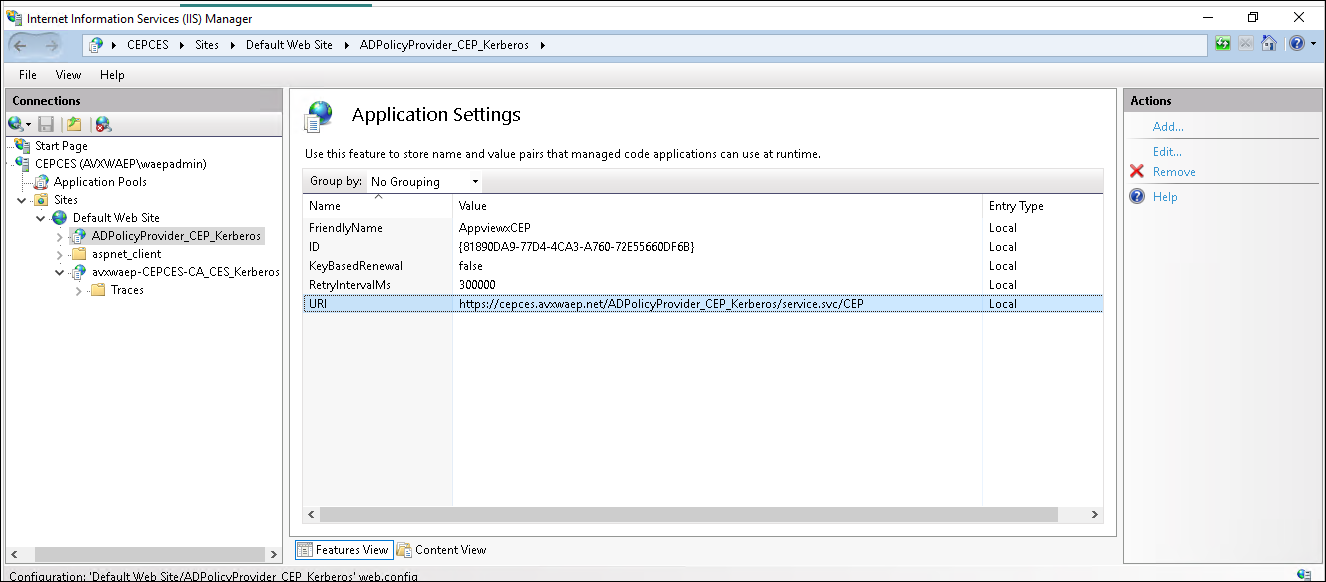
-
To update the Group Policy for Certificate Enrollment:
- Type
gpmc.mscin the Run command to access Group Policy Management on the AD Domain Services server. - Expand your domain forest > Domains > your domain name, and then select Default Domain Policy.
- Right-click Default Domain Policy and select Edit.
- Expand Computer Configuration > Policies > Windows Settings > Security Settings > Public Key Policies.
- Edit Certificate Services Client – Certificate Enrollment Policy.
- Change Configuration Model to Enabled.
- Remove the Active Directory Enrollment Policy from the Certificate Enrollment policy list, and click Add.
- Enter the policy server URI copied from the previous step, click Validate Server, and click Add.
- Select Default, and click Add.
- Expand User Configuration > Policies > Windows Settings > Security Settings > Public Key Policies.
- Edit Certificate Services Client – Certificate Enrollment Policy.
- Change Configuration Model to Enabled.
- Remove the Active Directory Enrollment Policy from the Certificate Enrollment policy list, and click Add.
- Enter the policy server URI copied from the previous step, click Validate Server, and click Add.
- Select Default, and click OK.
- Type
- Open the command prompt as administrator and run the gpupdate /force command to update the group policy.
