Installing Trusted Certificate for GUI/API Access
-
To create a secret external-tls-credential of type tls, execute the
following command:
For example:kubectl --kubeconfig=~/.kube/config create -n istio-system secret tls external-tls-credential --key=/etc/qualys/ssl/appviewx.com.key --cert=/etc/qualys/ssl/ssl-bundle.crtkubectl --kubeconfig=~/.kube/config create -n istio-system secret tls external-tls-credential --key=/etc/qualys/ssl/appviewx.com.key --cert=/etc/qualys/ssl/ssl-bundle.crtwhere:
- ~/.kube/config should be present in each node
- ~/.kube will be present in the home folder of the installing user

-
Replace secret name tls-credential with external-tls-credential in
the
values.yamlfile.Note: Thevalues.yamlfile is available at installerLocation/appviewx_kubernetes/yaml/appviewx_plugins/avx_platform_web/chart/- To replace, execute the following command:
sed -i 's/tls-credential/external-tls-credential/g' <installerLocation>/appviewx_kubernetes/yaml/appviewx_plugins/avx_platform_web/chart/values.yaml
- To replace, execute the following command:
-
Update the Gateway to consume the latest changes:
-
To navigate to the <installerLocation>/appviewx_kubernetes/yaml/appviewx_plugins/avx_platform_web directory, execute the following command:
cd <installerLocation>/appviewx_kubernetes/yaml/appviewx_plugins/avx_platform_web -
To upgrade the avx-platform-web package to reflect changes, execute the following command:
helm upgrade avx-platform-web ./chart

-
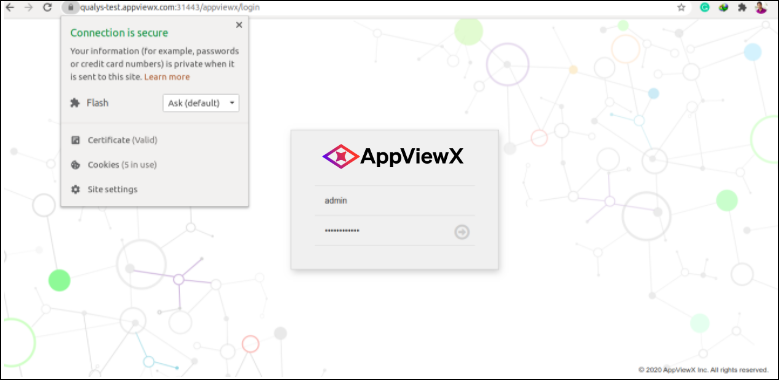
- Verify the application URL to check SSL is enabled.
-
Verify the certificate by launching the Appviewx portal.
The URL is
https://<Service
                    URL>:Port>/appviewx